Free Excel Accounts Payable Template for Tracking Bills and Due Dates
Missed a supplier due date recently? It happens fast when bills live in email threads, a stack of paper, or a dozen different reminders. The Accounts Payable/Bills Tracker is a ready-to-use Excel workbook built for small businesses that need one clear place to see every bill they owe, when it's due, and whether it's been paid.
Instead of a blank spreadsheet you have to design yourself, this template gives you a working Bills Log, a Payment Log, and a live Dashboard already wired together with formulas - so the moment you enter a bill, it's automatically classified as Paid, Unpaid, Due Soon, or Overdue, and the Dashboard totals update instantly.
It's built for solo business owners, bookkeepers, and office managers who want the visibility of a payables system without needing to learn or pay for accounting software.
Key Features
- A Bills log with vendor and category dropdown menus, so entries stay consistent
- Automatic Balance Due calculation (Amount minus Amount Paid) on every bill
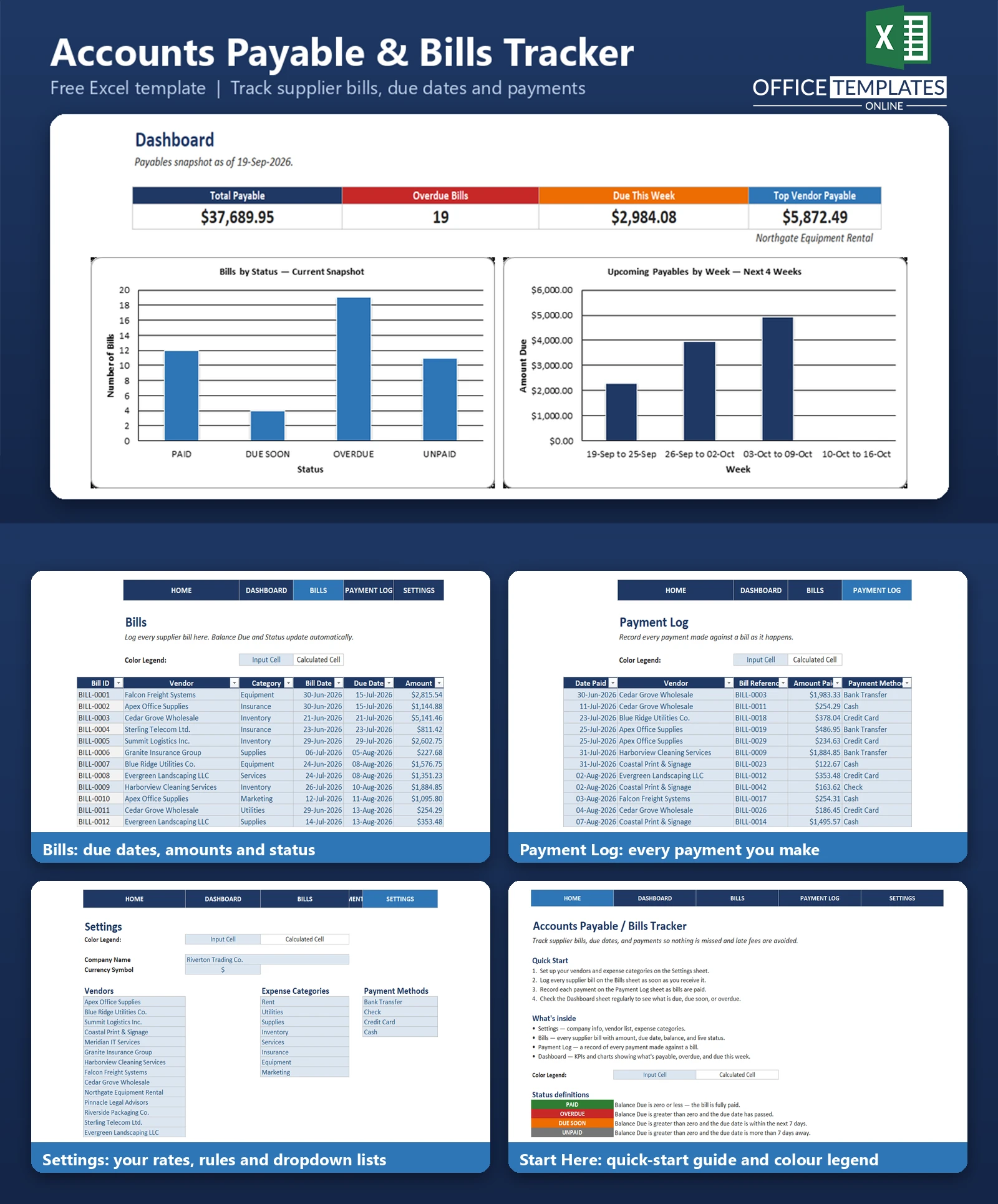
- A live Status column that flags each bill as PAID, DUE SOON, OVERDUE, or UNPAID
- Color-coded conditional formatting so overdue and due-soon bills stand out immediately
- A Payment Log to record every payment made, with a payment-method dropdown
- A Dashboard with KPI cards and charts summarizing your payables at a glance
- A Settings sheet to customize your company name, currency symbol, vendors, and categories
- One-click navigation links between every sheet
- No macros, no add-ins, and no locked sheets - fully editable and expandable
What You Can Track
- Every supplier bill: vendor, category, bill date, due date, and amount
- How much of each bill has been paid, and what balance remains
- Which bills are overdue, and by how many days
- Which bills are due soon (within the next 7 days) before they become overdue
- A full history of payments made, including date, amount, and payment method
- Total payables owed across your business at any point in time
- Which vendor you owe the most money to right now
Dashboard & Reports
The Dashboard sheet pulls everything on the Bills sheet into a single snapshot. Four KPI cards show your Total Payable balance, a count of Overdue Bills, the total amount Due This Week, and your Top Vendor by outstanding payable. Two charts back up the numbers: a Bills by Status bar chart showing how many bills fall into each status category, and an Upcoming Payables by Week bar chart that breaks the next four weeks into simple, easy-to-read blocks so you can see what's coming before it's due.
Who Is This Template For
- Small business owners who pay multiple suppliers and want to avoid late fees
- Bookkeepers and office managers responsible for keeping payables organized
- Freelancers and consultants with recurring vendor or subscription bills
- Anyone currently tracking bills in email, paper folders, or memory who wants one central system
How to Use the Template
- Open the Start Here sheet for a quick overview of how the workbook is organized
- Go to Settings and enter your company name, currency symbol, vendor list, and expense categories
- Log each bill you receive on the Bills sheet, using the Vendor and Category dropdowns
- As you pay bills, record the payment on the Payment Log sheet, then update the bill's Amount Paid
- Open the Dashboard any time for a current view of what you owe and what's coming due
Benefits
- Replaces scattered notes and email reminders with one organized system
- Reduces the chance of missed due dates and avoidable late fees
- Gives an at-a-glance view of total payables without opening every bill individually
- Works entirely offline in Excel, with no subscription or account required
- Fully customizable - vendors, categories, and currency can all be changed to match your business
Excel Requirements
This template contains no macros or VBA - it's a standard .xlsx file built entirely with formulas, Excel Tables, data validation, and conditional formatting. It works in modern desktop Excel (Microsoft 365, Excel 2019, and Excel 2016) as well as Excel Online. No special add-ins or settings are required to open or use it.
FAQ
Do I need Excel to use this template?
Yes, it's designed for Microsoft Excel (desktop or Excel Online). It has not been tested in other spreadsheet applications, though most should open the file since it uses only standard .xlsx features.
Does this template include any macros?
No. Everything is built with standard formulas, Excel Tables, dropdown data validation, and conditional formatting, so it opens safely with macros disabled and works the same on every computer.
How does the template decide if a bill is overdue?
A bill is marked OVERDUE when it still has a balance owing and today's date is after its due date. If a bill's balance reaches zero, it immediately shows PAID regardless of how overdue it was before being paid.
What happens if I only partially pay an overdue bill?
The bill stays marked OVERDUE. The Status formula only switches to PAID once the balance due reaches zero - a partial payment reduces the balance but does not clear the overdue flag.
Can I add more vendors or expense categories than the template starts with?
Yes. Add rows to the vendor or category lists on the Settings sheet, then extend the associated named range in Excel's Name Manager so the new entries appear in the dropdown menus.
Will the Dashboard update automatically as I add bills?
Yes. The Dashboard KPIs and charts are all formula-driven from the Bills sheet, so they recalculate automatically as you add, edit, or pay off bills.
Does this template connect to my bank account or accounting software?
No. It's a manual tracking tool - you enter bills and payments yourself. It does not sync with bank feeds or accounting platforms.
Is this the same as an accounts receivable or invoicing template?
No. This template tracks money your business owes to vendors (accounts payable). A separate template in this collection covers money owed to your business by customers (accounts receivable).

← Previous Article
Free Excel Accounts Receivable Template with Automatic Aging ReportNext Article →
Free Excel Budget vs Actual Dashboard TemplateYou may also like