Free Cover Page Templates for Word (DOCX) - Reports, Projects & Thesis
Free, editable cover page templates for Microsoft Word (DOCX) – built to help your document look professional in minutes. Use these designs for reports, projects, thesis/dissertation, assignments, business plans, proposals, portfolios, and magazines.
Pick a style below, download the DOCX, swap in your title, name, date, and logo, then export to PDF for a clean, print-ready front page. Works in Word and can be edited in Google Docs (formatting may vary slightly).

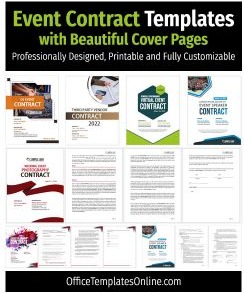
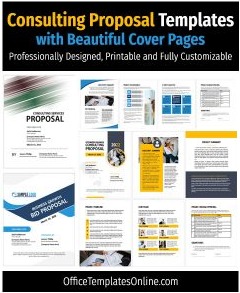
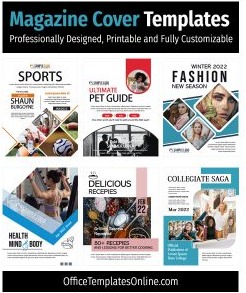
![Cover Page Designs & Formats for Business Plan in MS Word [Free and Editable]](https://officetemplatesonline.com/wp-content/uploads/2021/09/cover-page-templates-for-business-plan-in-ms-word-1-250x300-oto-trim.jpg)
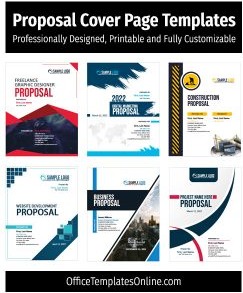
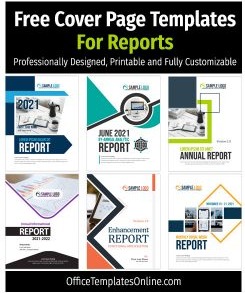

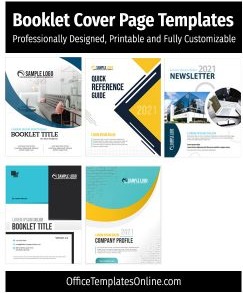
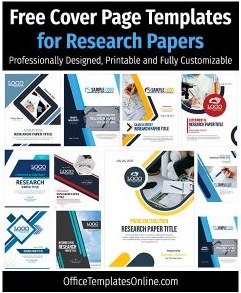
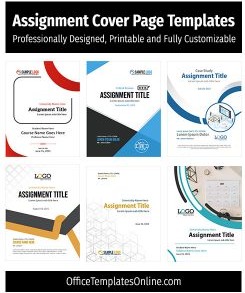
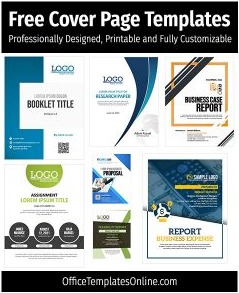
Design & Edit Cover Pages Templates in Browser
Our 45 cover pages designs are all editable online. Open any of them, personalize the details, and download - no account or install required.
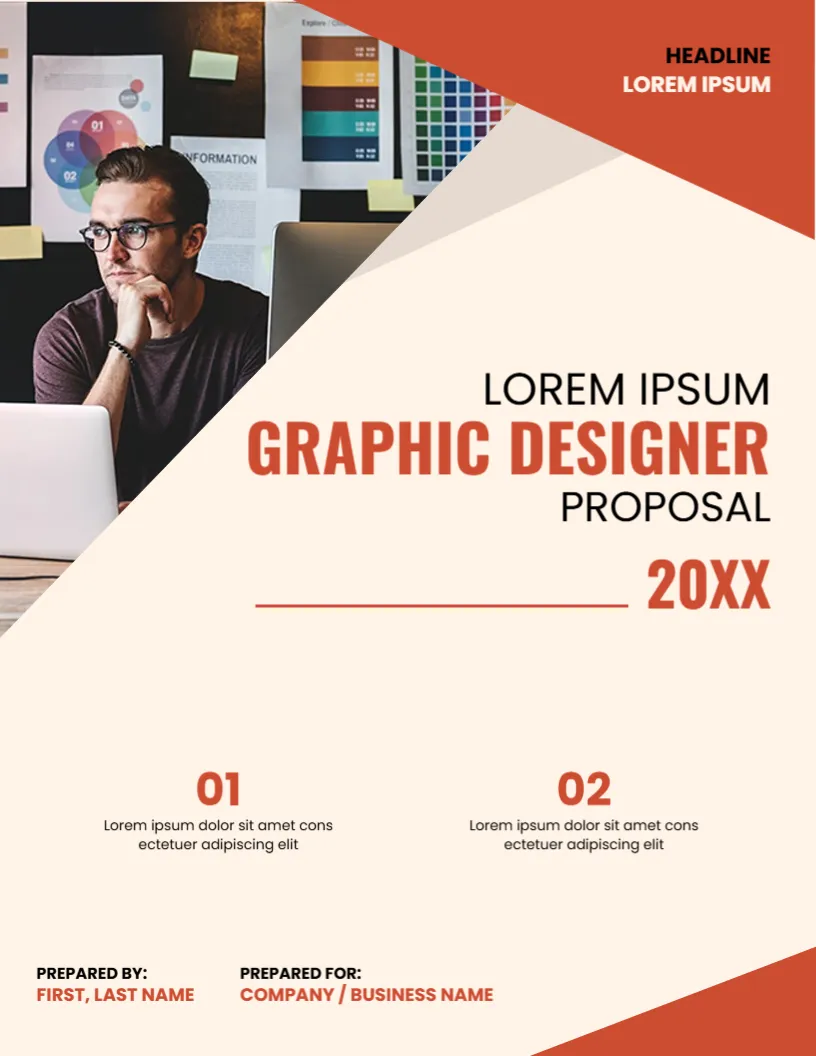
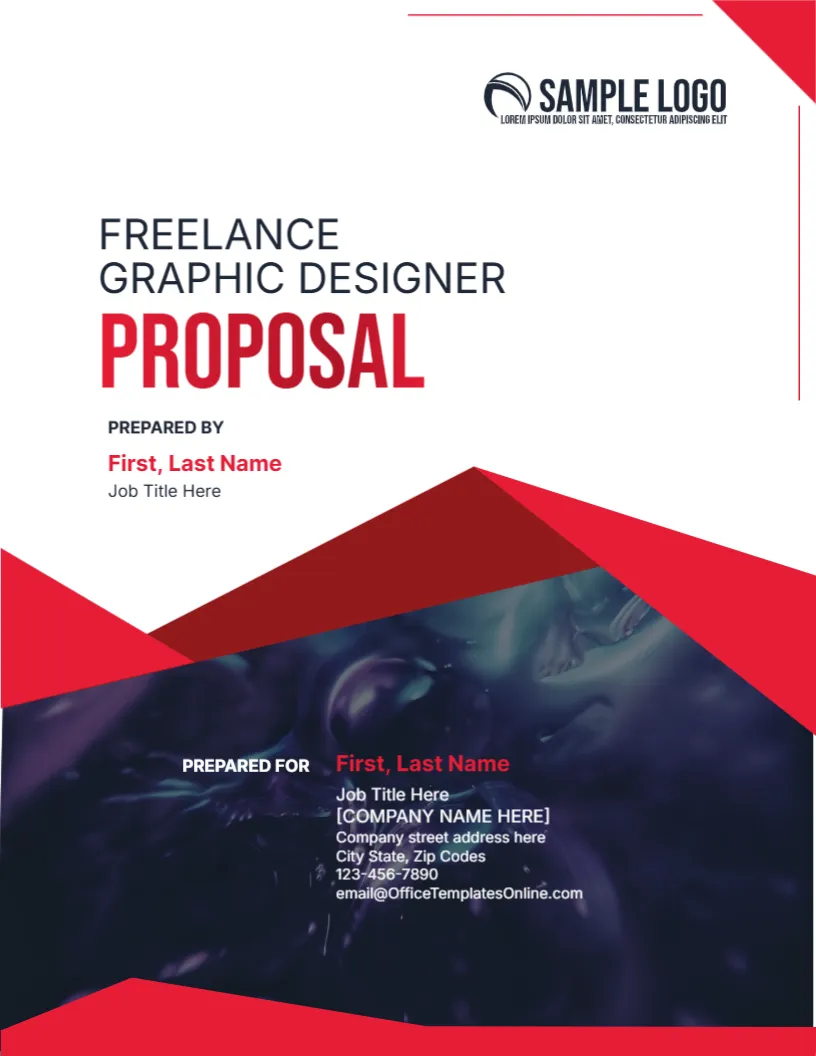




Top Picks










What is a cover page?
A cover page is the first page of a document that communicates the essentials at a glance – title, subtitle, author/organization, date, and (optionally) a logo or image. A good cover page sets expectations and makes the rest of your document feel credible and well-presented.
Why use a Word cover page template?

- Save time: start with a polished layout instead of building one from scratch.
- Look consistent: align fonts, spacing, and branding across reports, proposals, and academic work.
- Export cleanly: templates are designed to print nicely and convert to PDF without layout surprises.
Types of cover pages (pick what matches your goal)
Academic cover pages
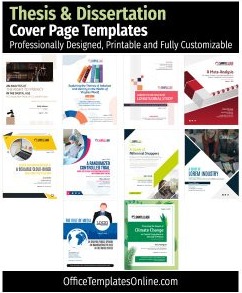
- Thesis & Dissertation cover pages (formal, university-ready layouts)
- Assignment cover pages (clean, simple, easy to fill)
- Research paper cover pages (structured, academic-friendly)
Business cover pages
- Report cover pages (executive, corporate formats)
- Proposal cover pages (client-ready, persuasive look)
- Business plan cover pages (professional, investor-friendly)
Creative & portfolio cover pages
- Portfolio cover pages (personal branding + visuals)
- Magazine cover pages (bold headlines + editorial styles)
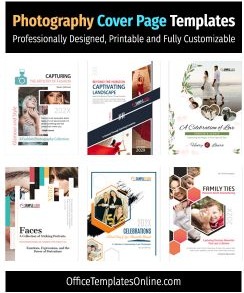
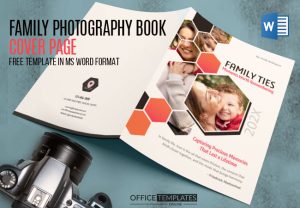
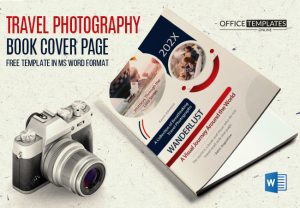
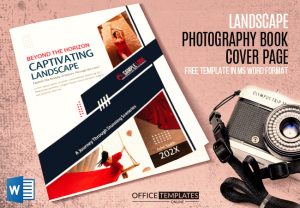
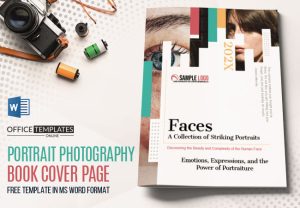
- Photography book cover pages (image-forward layouts)
All-purpose project covers
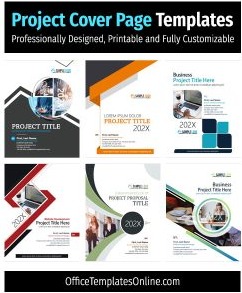
- Project cover pages (flexible formats for any subject)
- Best cover page formats (mix of popular designs)
Ready? Browse the cover page designs below and choose the template that fits your document type.
What’s included in these Word cover page templates
- Editable DOCX layouts with placeholders for title, subtitle, author, department/class, and date
- Print-friendly spacing designed to look good on both screen and paper
- Room for branding (logo, colors, and optional image blocks)
- Common page setups that suit A4 and US Letter margins

How to customize a cover page (fast)
- Open the DOCX in Microsoft Word (or import into Google Docs).
- Replace the placeholders: title, subtitle, name, organization, and date.
- Update fonts/colors from Word’s Design tab and insert your logo if needed.
- Export to PDF to preserve layout and typography before you share or print.
Tips for a standout first page
- Keep the title short (aim for one line) and use a one-line subtitle for context.
- Use 1–2 accent colors and a readable body font – clean beats complicated.
- Prefer high-resolution images (or simple shapes) to avoid pixelation in print.
- Match the inside pages for a consistent look – especially for reports and proposals.
FAQ: Cover page templates for Word
Do these cover pages work on Mac or in Google Docs?
Yes. You can open the DOCX in Word for Mac or import it into Google Docs, customize it, then export to PDF. For the most consistent formatting, Microsoft Word is recommended.
Can I change fonts, colors, and layout?
Yes. All elements are editable in Word – update fonts, theme colors, spacing, and image blocks to match your brand or university format.
What size should I use for printing?
Most templates are designed to work with A4 and US Letter margins. Choose the paper size in Word before exporting to PDF to ensure the layout stays aligned.
Which cover page should I choose for a thesis or dissertation?
Start with a formal academic layout that includes your title, department, university, supervisor (if needed), and submission date. Use the dedicated Thesis & Dissertation cover pages for best results.
Which cover page works best for business reports or proposals?
Pick a clean, brand-forward design with space for your logo and client details. Browse Report cover pages or Proposal cover pages to match the document type.
How do I make my cover page look professional in PDF?
Use consistent fonts, avoid low-res images, and export using Word’s “Save as PDF.” Double-check margins and alignment in the PDF preview before sending.
Related templates: If you want a consistent package, pair your cover with matching categories like Report templates and Proposal templates.
Advertisement
