Free Excel Task and Deadline Tracker Template for Small Teams
Most small teams keep their to-do list in a chat thread, a shared note, or somebody's head. Tasks get an owner only in conversation, deadlines live in calendar reminders, and nobody can say at a glance what is overdue, what is blocked, and who is carrying too much. The result is a missed deadline that everyone saw coming and nobody flagged.
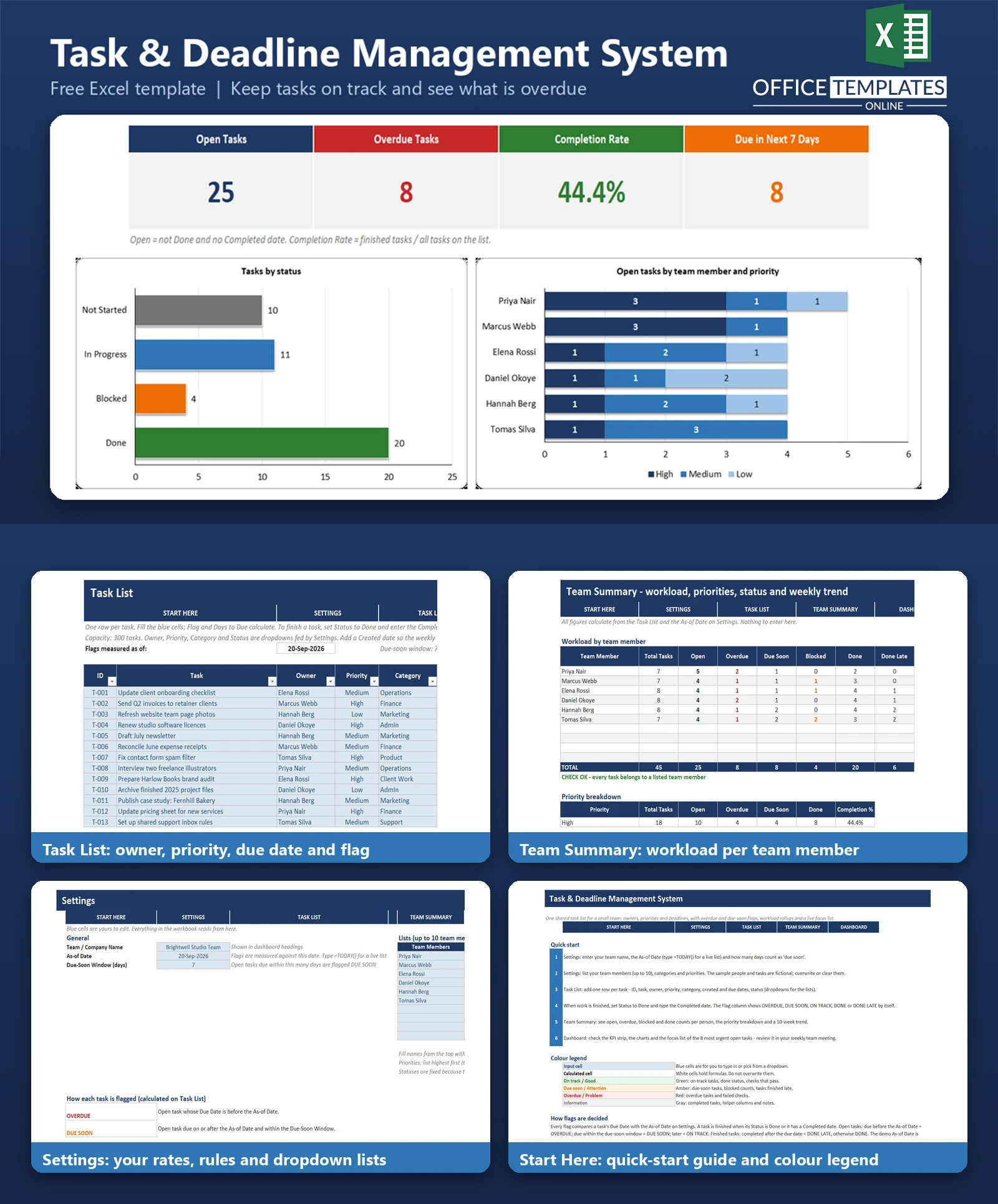
The Task & Deadline Management System is an Excel workbook that gives a small team one shared task list. Each task has an owner, a priority, a category, a due date, and a status. The workbook compares every due date with an As-of Date you control and flags each task as OVERDUE, DUE SOON, ON TRACK, DONE, or DONE LATE automatically.
A dashboard turns the list into open and overdue counts, a completion rate, workload by team member, and a focus list of the eight most urgent tasks. It is built for the day-to-day work of a team of up to ten people, and it does not need a formal project plan. It works with no macros in modern desktop Excel.
Key Features
- Task List with 300 rows: ID, task, owner, priority, category, created, due, and completed dates, status, and notes.
- Automatic flags: OVERDUE, DUE SOON, ON TRACK, DONE, DONE LATE, and NO DUE DATE, measured against an As-of Date you set.
- Days to due column that goes negative when a task is overdue.
- Focus list on the dashboard: the eight most urgent open tasks, earliest due date first, with priority breaking ties.
- Team Summary: open, overdue, due soon, blocked, done, and completion rate for every team member.
- Dropdown lists for owners, categories, priorities, and statuses, all managed on the Settings sheet.
- Three dashboard charts: tasks by status, open tasks by team member stacked by priority, and a 10-week trend of completions against overdue tasks.
- Fictional sample data with 45 tasks and 6 team members so you can see every alert and chart working.
What You Can Track
- Who owns each task (up to 10 team members) and its category (up to 10 categories).
- Priority (High, Medium, Low), created date, due date, and completed date.
- Status: Not Started, In Progress, Blocked, or Done, plus free-text notes such as what a blocked task is waiting for.
- Tasks finished late, so you can see how often deadlines slip.
Dashboard & Reports
The Dashboard shows five headline numbers: Open Tasks, Overdue Tasks, Completion Rate, tasks due in the next few days (7 by default), and High-Priority Open tasks. Beneath them are a bar chart of tasks by status, a stacked bar chart of open tasks per person split by priority, and a line chart that compares tasks completed each week with tasks overdue at the end of that week.
Next to the trend chart, there is a workload table ranked by open tasks and a priority breakdown. The focus list sits across the bottom and is ideal for a weekly team meeting: it shows the ID, task, owner, priority, due date, flag, and days to due for the eight tasks that need attention first. The Team Summary sheet holds the full tables behind every chart.
Who Is This Template For
- Small business owners and managers who run a team of two to ten people.
- Studios, agencies and consultancies with many small tasks that do not belong to a formal project.
- Office and operations teams who need a shared list of recurring and one-off jobs.
- Freelance collectives, clubs and volunteer groups who want a simple deadline tracker without buying software.
How to Use the Template
- Open Settings and enter your team name, the As-of Date, and the due-soon window in days. Type =TODAY() as the As-of Date if you want a live list.
- List your team members, categories, and priorities on Settings.
- Add one row per task on the Task List, choosing owner, priority, category, and status from the dropdowns.
- When work is finished, set the Status to Done and enter the Completed date.
- Read the Flag and Days to Due columns to see what needs attention.
- Open the Dashboard in your weekly meeting and work through the focus list.
Benefits
- One shared place for tasks, owners, and deadlines instead of scattered messages.
- Overdue and due-soon work is highlighted without anyone having to check dates by hand.
- Workload by person is visible, which helps you rebalance before someone is overloaded.
- Blocked tasks are counted and shown, so they get unstuck sooner.
- Works offline in Excel with no subscription, no macros, and no add-ins.
Excel Requirements
The workbook uses standard formulas only and contains no macros, so it opens without security warnings. It is designed for modern desktop Excel on Windows or Mac. Excel Online may display it, but charts and dropdowns are best used in the desktop application.
Frequently Asked Questions
Does the template need macros?
No. Everything is done with ordinary Excel formulas, conditional formatting, and dropdown lists.
How does it decide a task is overdue?
An open task is overdue when its due date is earlier than the As-of Date in Settings. A task is open until its Status is Done or a Completed date is entered.
Can I use today's date automatically?
Yes. The demo As-of Date is fixed at 20-Sep-2026, so the sample dashboard looks the same every time. Type =TODAY() in that cell to make all flags follow the current date.
How many tasks and people can it hold?
The Task List has room for 300 tasks. You can list up to 10 team members and 10 categories.
What is the focus list?
It is a dashboard table of the eight most urgent open tasks, sorted by due date with priority as the tie-breaker. Open tasks with no due date are not ranked.
Can I change the statuses?
The four statuses are fixed because the formulas depend on them. Owners, categories, and priority names can be edited in Settings.
How do I remove the sample data?
Clear the blue input cells on the Task List and replace the sample team members and categories in Settings. The README lists the exact steps.

You may also like