Free Excel Employee Performance Review Tracker: Score Reviews, Track Trends, and Never Miss a Review Date
Performance reviews are easy to put off and hard to compare. Ratings live in different documents, each manager scores a little differently, and nobody remembers when someone was last reviewed. A year later, it is difficult to say whether an employee has improved, and which reviews have quietly slipped.
This Excel template gives small business managers one place to keep every review. You set your own criteria and weights, rate each criterion from 1 to 5, and the workbook calculates a weighted overall score, a rating band, and the change since the employee's previous review.
It also works out when each review is next due, based on a review frequency you choose, and flags every employee as OK, DUE, or OVERDUE. It records qualitative and quantitative review results only; it is not an attendance or timesheet tool. Everything runs on standard formulas, with no macros.
Key Features
- Six editable review criteria with weights and a check that they total 100%.
- 1-5 rating dropdowns, a weighted overall score, and a rating band: Outstanding, Exceeds Expectations, Meets Expectations, or Needs Improvement (thresholds are editable).
- Previous review date, previous score, and change calculated automatically for each employee.
- Review-due flag (OK, DUE, OVERDUE) from the last review date, your review frequency in months, and an As-of Date you control.
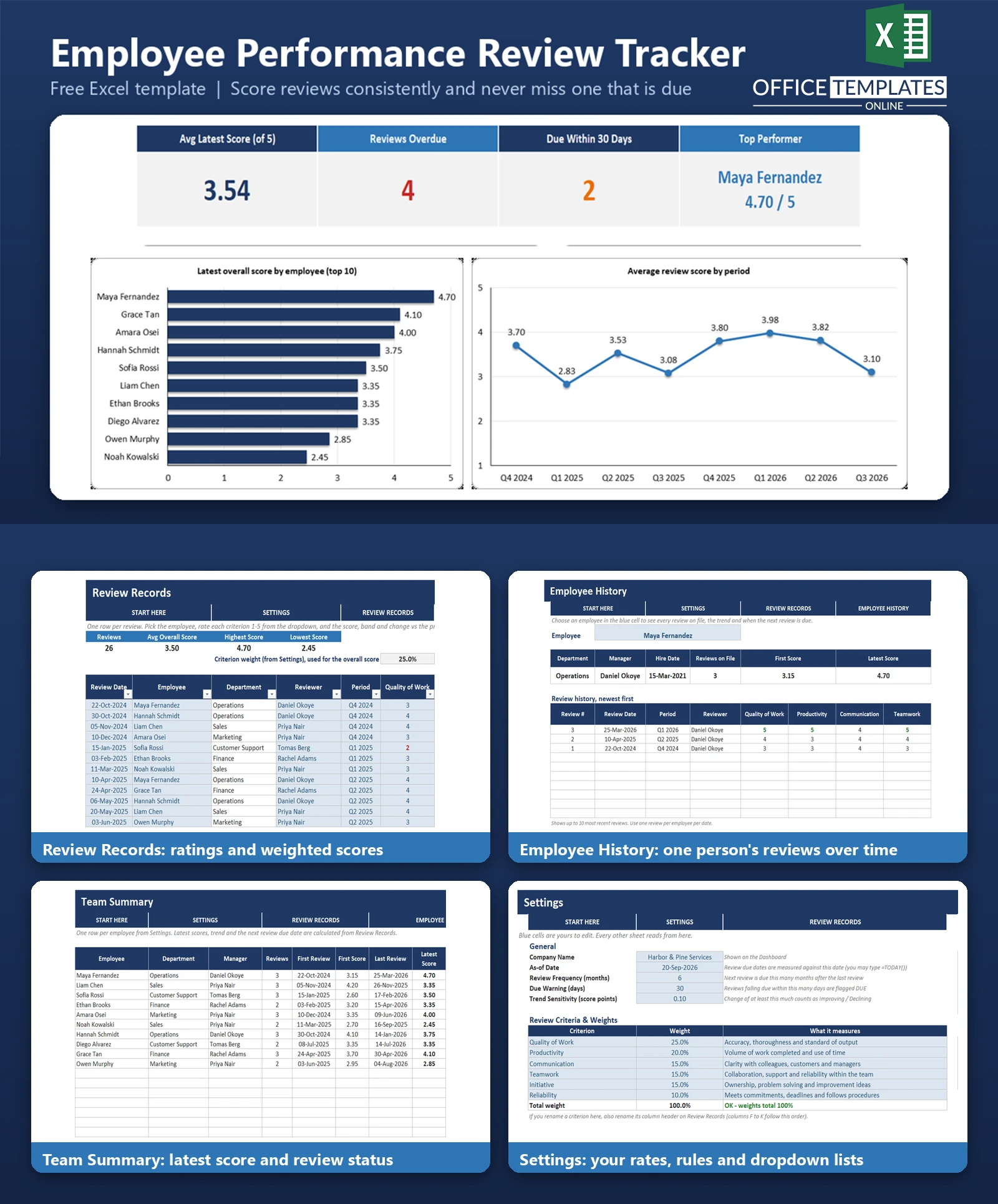
- Employee History page: choose a person to see all their reviews, first vs. latest score, trend, and next review due.
- Team Summary with latest score, rank, changes, and status for up to 30 employees.
- Dashboard with KPIs, three charts, department averages, and a list of reviews to schedule.
What You Can Track
- Review date, employee, reviewer, and review period (for example, Q2 2026).
- A 1-5 rating for each of six criteria, such as Quality of Work, Productivity, Communication, Teamwork, Initiative and Reliability.
- Overall weighted score, rating band, and change vs. the previous review.
- Free-text comments for each review.
- Employee name, department, manager, and hire date. No salary or other sensitive personal data is needed.
Dashboard & Reports
The Dashboard shows five KPIs: Avg Latest Score, Reviews Overdue, Reviews Due within your warning window, Top Performer, and Avg Change vs Previous Review. Below them are a bar chart of the latest score for each employee, a line chart of the average score by review period, and a bar chart of the average rating for each criterion.
A department table shows staff count, average latest score, overdue and due reviews, and a list of reviews to schedule, with the most overdue first. The Team Summary sheet is the full per-employee report, and Employee History adds a score-by-review chart and a first-vs-latest comparison for the person you choose.
Who Is This Template For
- Small business owners and team managers who run periodic reviews.
- Office managers and HR administrators without a dedicated HR system.
- Teams that want consistent, documented reviews they can compare over time.
- Consultants and coaches who help small businesses set up review routines.
How to Use the Template
- Open Settings and enter your company name, the As-of Date, review frequency in months, and the criteria weights.
- Edit departments and review periods, then list your employees with department, manager, and hire date.
- On Review Records, add a row for each review: pick the employee and period, then choose 1-5 for each criterion.
- Check the overall score, rating band, and change vs. previous review that appear automatically.
- Open Employee History to see one person's full record and trend.
- Use Team Summary and the Dashboard to see who is due or overdue. Delete the sample rows when you are ready to use your own data.
Benefits
- Reviews are scored the same way every time.
- A clear record of how each person has progressed since their first review.
- Fewer missed or late reviews thanks to DUE and OVERDUE flags.
- A quick view of team and department performance for planning conversations.
- Works with the tools you already have: no software to install.
Excel Requirements
The workbook contains no macros and works in modern desktop Excel for Windows or Mac (Excel 2007 or later). It uses standard functions such as SUMPRODUCT, COUNTIFS, AVERAGEIFS, INDEX, MATCH, EDATE, and RANK.
Frequently Asked Questions
How is the overall score calculated?
Each rating is multiplied by its criterion weight from Settings, and the total is divided by the sum of the weights. The result is on the same 1-5 scale.
Can I change the criteria and weights?
Yes. Rename the criteria and set your own weights in Settings. A check cell turns red if the weights do not total 100%. Also rename the matching column headers on Review Records.
How does it decide a review is overdue?
It adds your review frequency (in months) to the employee's last review date and compares that with the As-of Date. Past that date is OVERDUE; within your warning days is DUE.
Can I use today's date automatically?
Yes. The As-of Date is a normal input cell. It is set to 20-Sep-2026 for the sample data, or you can type =TODAY().
How many employees can it handle?
The Settings list and Team Summary hold up to 30 employees. Review Records can hold many hundreds of reviews.
Does it store salaries or personal details?
No. It records name, department, manager, hire date, and review results only.
Can I remove the sample data?
Yes. Clear the sample review inputs on Review Records and the sample employees on Settings, keeping the formula columns and headers.

You may also like