Free Excel Purchase Order Template with Order Tracking
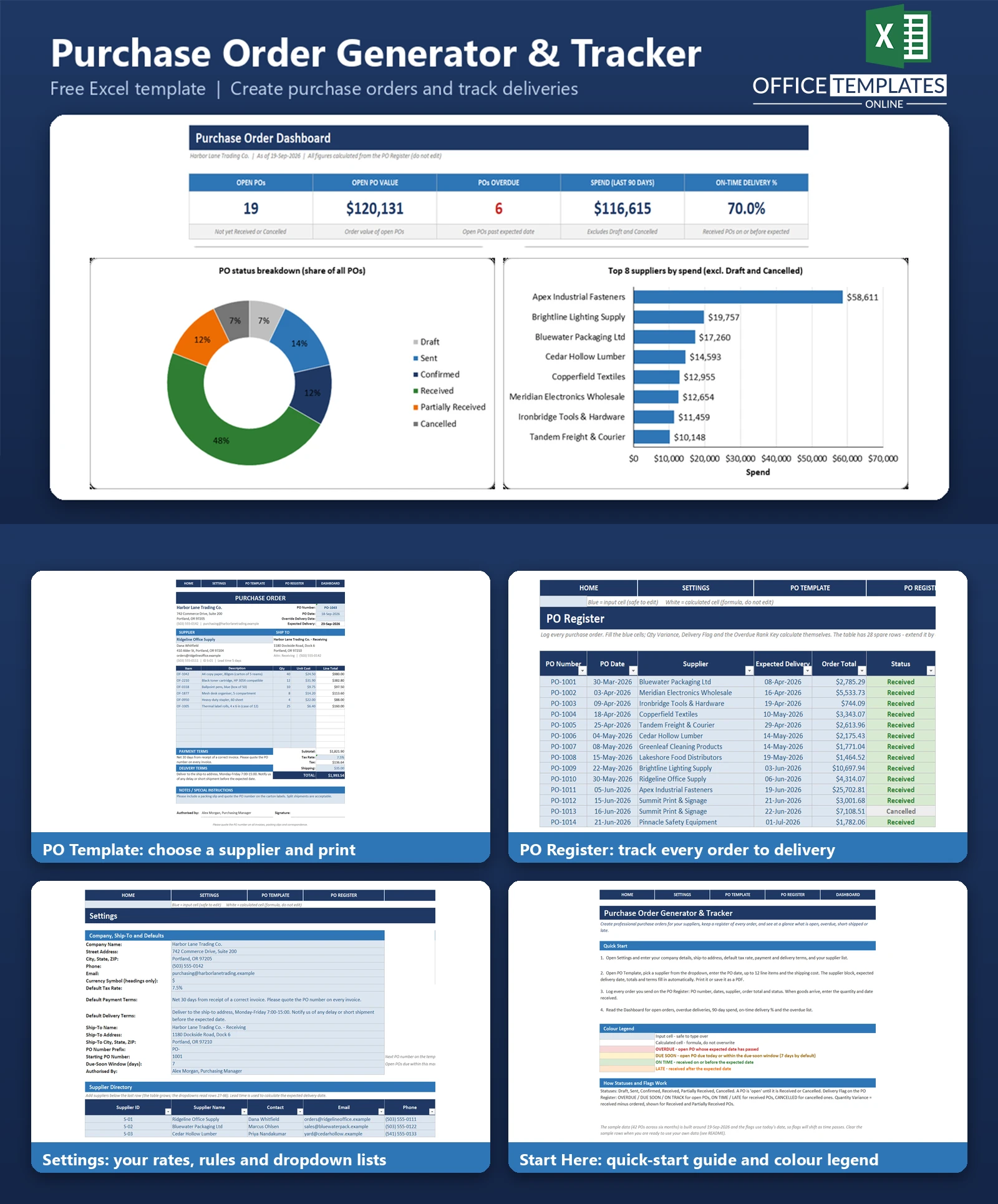
Ordering from suppliers by phone, text, or email is quick, but it leaves no paper trail. When a delivery is late or short, nobody can say exactly what was ordered, when, or at what price. This Purchase Order Generator & Tracker gives small businesses a proper, printable purchase order and a register that tracks every order until the goods arrive.
Pick a supplier from a dropdown, and the supplier block, expected delivery date, totals, and your standard terms fill in automatically. Add up to 12 line items, print the one-page PO or save it as a PDF, then log it on the PO Register with a status from Draft to Received.
The register flags orders that are overdue or due soon, records quantities received against quantities ordered, and feeds a dashboard with open orders, spend, on-time delivery, and an overdue list. There are no macros, so it works in any recent desktop version of Excel.
Key Features
- One-page printable PO template with supplier dropdown that auto-fills contact details, address, and lead time
- Up to 12 line items with automatic line totals, subtotal, tax, shipping, and total
- Expected delivery date calculated from the PO date plus the supplier lead time, with an optional override
- Suggested next PO number, default tax rate, payment and delivery terms taken from Settings
- PO Register with 42 sample orders, status dropdown and quantity variance (received minus ordered)
- Delivery Flag: OVERDUE, DUE SOON, ON TRACK, ON TIME, LATE or CANCELLED with colour coding
- Dashboard with five KPIs, three charts and an overdue delivery list
- Supplier directory of 14 fictional suppliers you can replace, no macros
What You Can Track
- Purchase orders: number, date, supplier, expected delivery date and order total
- Status: Draft, Sent, Confirmed, Received, Partially Received or Cancelled
- Quantity ordered, quantity received, and the variance for short or over shipments
- Received date, compared with the expected date to show on-time or late deliveries
- Suppliers: contact, email, phone, address, and default lead time
Dashboard & Reports
The Dashboard shows five KPI cards: Open POs, Open PO Value, POs Overdue, Spend (last 90 days) and On-Time Delivery %. Below them are three charts and a list of overdue deliveries, oldest first.
- PO status breakdown: a doughnut chart with percentage labels
- Top 8 suppliers by spend: a bar chart
- PO value by month for the last six months: a column chart
- Overdue deliveries: PO number, supplier, expected date, days late, and order total
Who Is This Template For
- Small retailers, restaurants, and workshops that order stock or materials from several suppliers
- Office managers and buyers who need a paper trail for purchases
- Contractors and trades that order materials per job
- Owners who want to see which supplier deliveries are late before they hold up sales
How to Use the Template
- Enter your company details, ship-to address, tax rate, terms, and suppliers in Settings.
- Open PO Template, choose the supplier, enter the PO date, line items, and shipping, then print or save as PDF.
- Log the PO on the PO Register with its total, expected date, and status.
- When goods arrive, update the status and enter the quantity and date received.
- Check the Dashboard for overdue and due-soon orders and supplier spend.
Benefits
- A written record of what was ordered, from whom, and at what price
- Late and short deliveries are visible instead of discovered by accident
- Consistent, professional purchase orders in a couple of minutes
- See open commitments and recent spend at a glance
- No macros and no add-ins to trust
Excel Requirements
The template is a standard .xlsx workbook for modern desktop Excel. It contains no macros, so there is nothing to enable. It uses long-established functions such as SUMIFS, COUNTIFS, INDEX, MATCH, and TEXT, and does not need Microsoft 365 dynamic arrays.
Frequently Asked Questions
How do I create a purchase order with this template?
Open the PO Template sheet, choose a supplier from the dropdown, enter the date, line items, and shipping. Totals, terms, and the expected delivery date are calculated automatically.
How is the expected delivery date worked out?
It is the PO date plus the supplier lead time from Settings. You can type a date in the override cell to replace it.
What does OVERDUE mean?
A PO that is not Received or Cancelled and whose expected delivery date is before today. DUE SOON means an open PO due today or within the due-soon window, 7 days by default, which you can change in Settings.
How are short shipments shown?
Enter the quantity received. Qty Variance shows received minus ordered for Received and Partially Received POs, negative in red when short.
How is On-Time Delivery % calculated?
The number of Received POs delivered on or before the expected date, divided by all Received POs.
Does the PO number increase automatically?
The template suggests the next number from your prefix, starting number, and the count of POs on the register. You can overwrite it.
Can I clear the sample data?
Yes. Clear the blue input cells on the PO Register, replace the suppliers in Settings, and edit the template lines. The README lists the steps.
Are macros required?
No. The workbook contains no macros or add-ins.


