Green and Navy Ribbons Around an Eleven-Subject Table
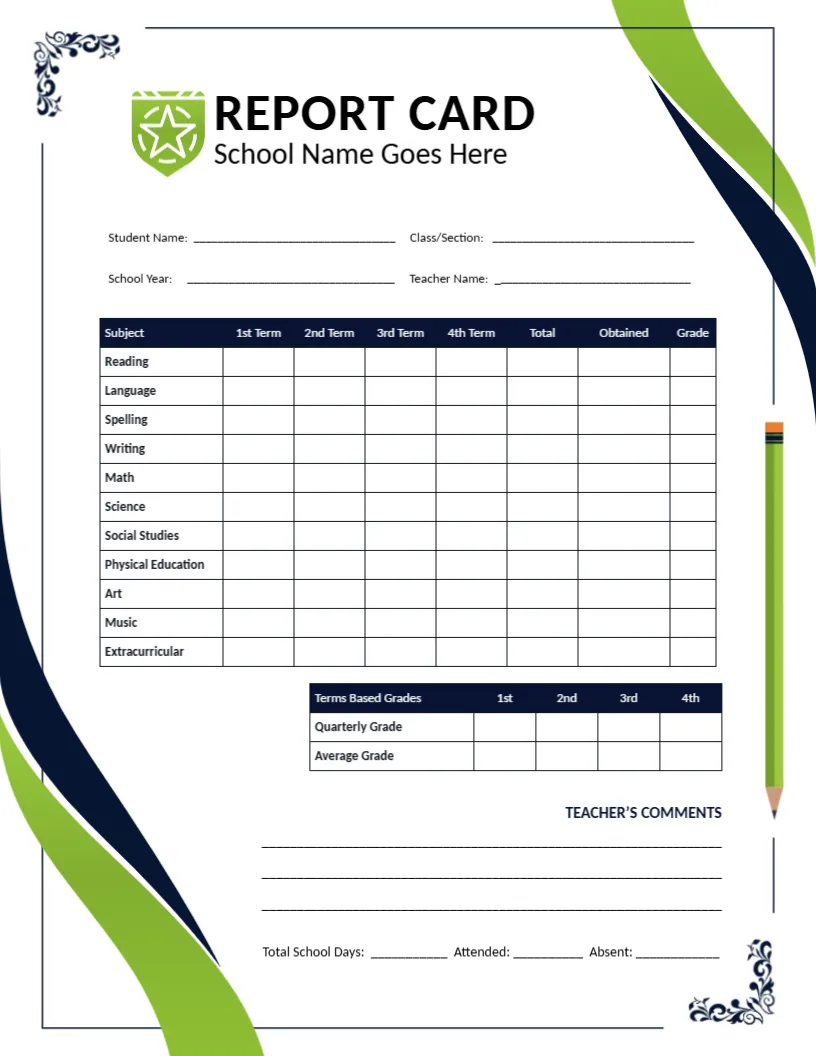
Green and navy ribbons sweep down both sides of this page, with a shield logo and REPORT CARD in large black capitals at the top. Four fill-in lines hold student details. An eleven-subject table with 1st to 4th Term columns sits in the middle, with a Terms-Based Grades box, a tall green pencil, and comment lines below.
A Letter Page Framed by Ribbons
The page is 8.5 x 11 inches. The ribbons sit in the margins, so the table and text keep a generous white area in the middle and stay easy to read, even on a printer with a narrow print area.
Marks, Terms and the Grades Box
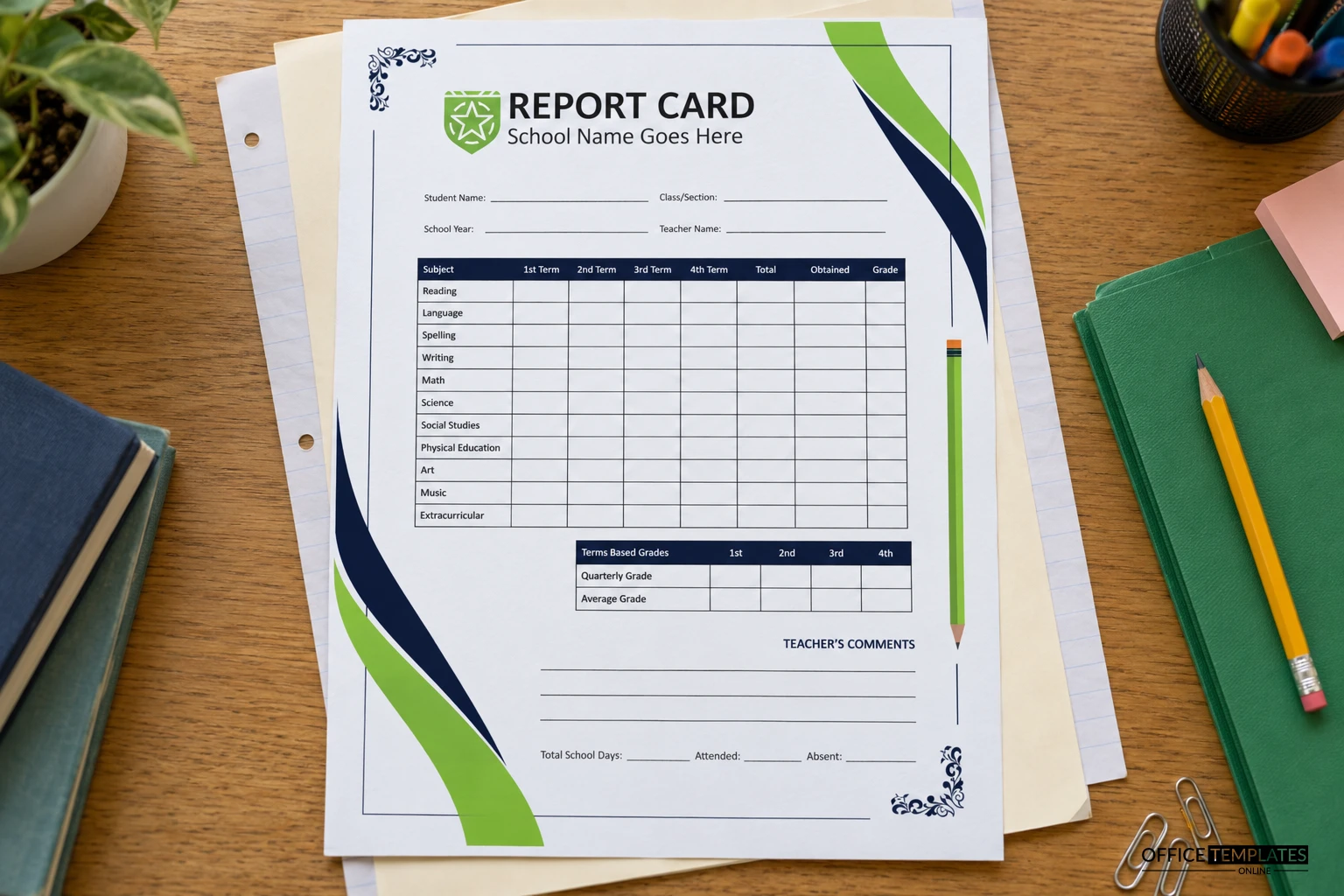
The table has the same eleven subjects as other cards in this style, with four term columns, a Total, Obtained, and Grade. A smaller box under it adds Quarterly Grade and Average Grade across four terms. Replace the shield with your own crest and type your school name.
Preparing the Ribbon Card
- Swap the shield logo.
- Type the school name.
- Fill in the student details.
- Enter term marks.
- Print in colour.
A Look That Feels Modern and Sporty
Green and navy give the page a fresh, slightly sporty tone, which suits schools with those house colours. The ribbons add movement without making the layout hard to read.
Averaging Four Terms
The Terms Based Grades box lets you enter a quarterly grade and an average grade for each term. Fill it after the main table, so the two sections agree when a parent checks them.
Total and Obtained Columns
Total shows the marks available, and Obtained shows what the pupil earned. Together they let a parent calculate a percentage, which is helpful in schools that report in percentages rather than letters.
A Pencil That Fills Empty Space
The tall green pencil sits to the right of the terms box and fills the gap beside the comments. It is a simple graphic, so delete it in the editor if you need extra room for writing.
Comment Lines at the Foot
Teacher Comments has three ruled lines, followed by Total School Days, Attended, and Absent. Use the lines for one strength and one target, then fill the attendance counts from the register.
Printing the Ribbons Evenly
Ribbons run close to the page edge, so check that your printer does not clip them. If it does, scale the page to 95 percent in the print dialog, and the whole design shrinks slightly but stays whole.
Archiving the Finished Cards
Save each card as a PDF named by student and year. A class folder of PDFs is easy to search when a parent asks about a past term, and it removes the need to store paper copies.
Step-by-Step Editing of the Student Report Card Green Ribbon Border Design
- On the student report card green ribbon border design, click the main headline and type your own words, keeping a similar length.
- Retype every name, date, and contact line on the student report card green ribbon border design, checking each against a trusted source.
- Search the student report card green ribbon border design for the words Lorem and Company so that no placeholder remains.
- Click any logo or photo on the student report card green ribbon border design, choose Replace Image, and resize the new picture to fit.
- Zoom the student report card green ribbon border design to full size and read each line aloud before you save it.
- Keep a clean master of the student report card green ribbon border design without private details, so later versions start tidy.
Another option is the cloud border version. A related layout is the high school card with a ruler. Also worth a look: slate student card. Find more designs next to the student report card green ribbon border design in report card templates.