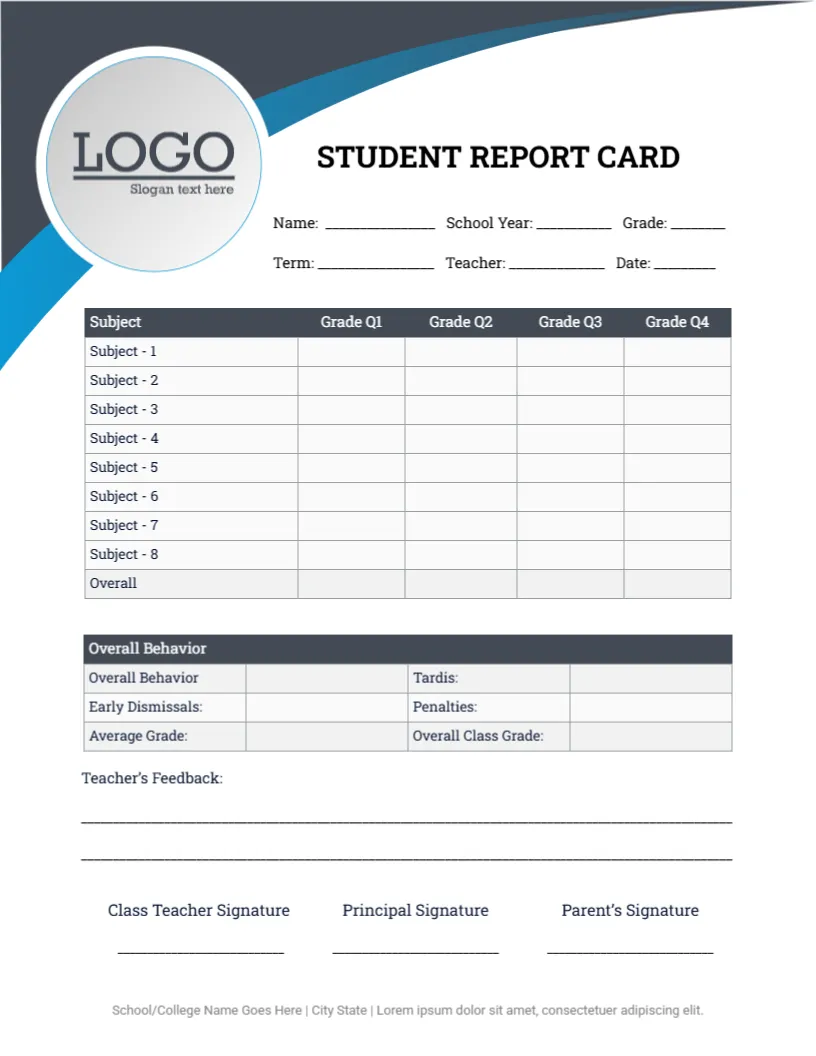
A Four Quarter Grade Table on a Slate and Blue Swoosh
A slate grey band sweeps across the top left of this letter-size page, with a blue curve beneath it and a large round logo placeholder sitting on both. STUDENT REPORT CARD is set in bold capitals beside the logo, with Name, School Year, Grade, Term, Teacher, and Date lines underneath. A grade table and a behavior box follow.
A Standard Letter Page
The page is 8.5 x 11 inches, so it prints on ordinary letter paper with no trimming. One side carries everything a parent needs, which keeps copying costs low when a whole class needs a card at the end of a term.
Logo, Subjects and School Footer
Replace the LOGO circle with your school crest and rename Subject 1 to Subject 8 with real course names. The grey footer line still contains Lorem ipsum text, so type your school name, city, and phone there. Change Tardis to Tardies in the behavior box.
Preparing the Student Card
- Swap the logo circle.
- Rename the eight subjects.
- Fix the Tardis label.
- Type the school footer.
- Print one copy per student.
Schools That Report by Quarter
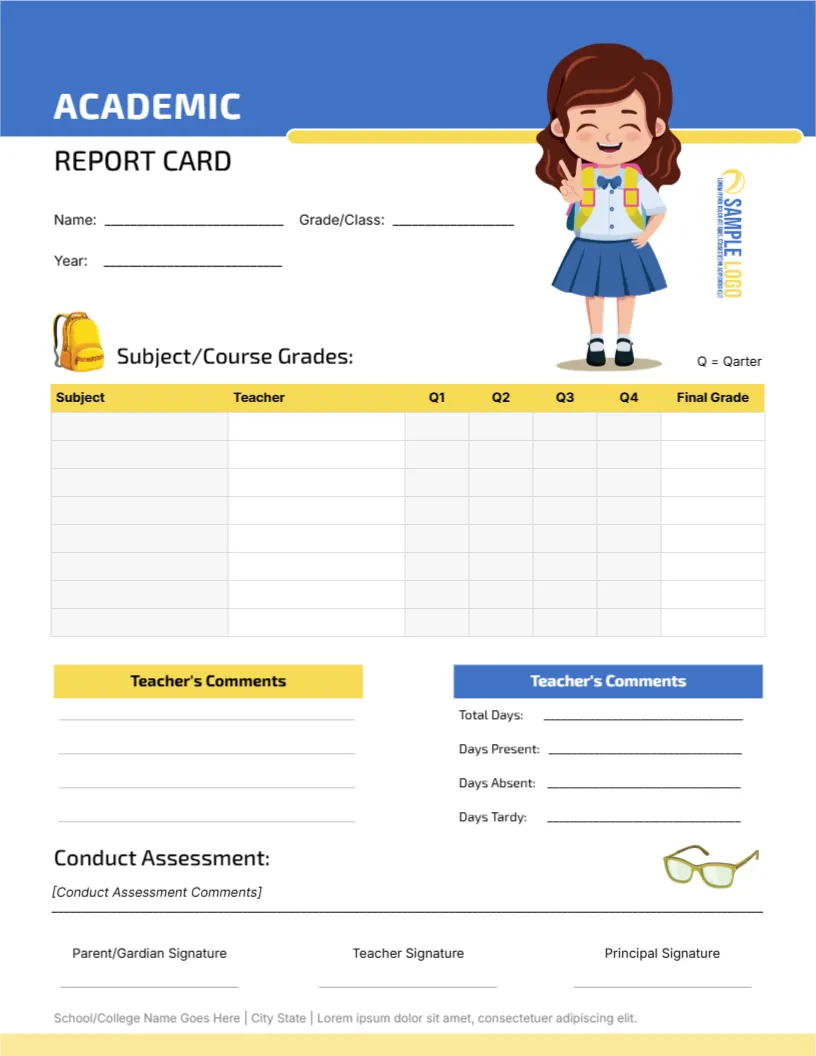
The columns run from Grade Q1 to Grade Q4, so the card suits schools that issue grades four times a year. You can fill one column at each reporting point and keep the same sheet through the whole school year, which saves paper.
Eight Subjects and an Overall Row
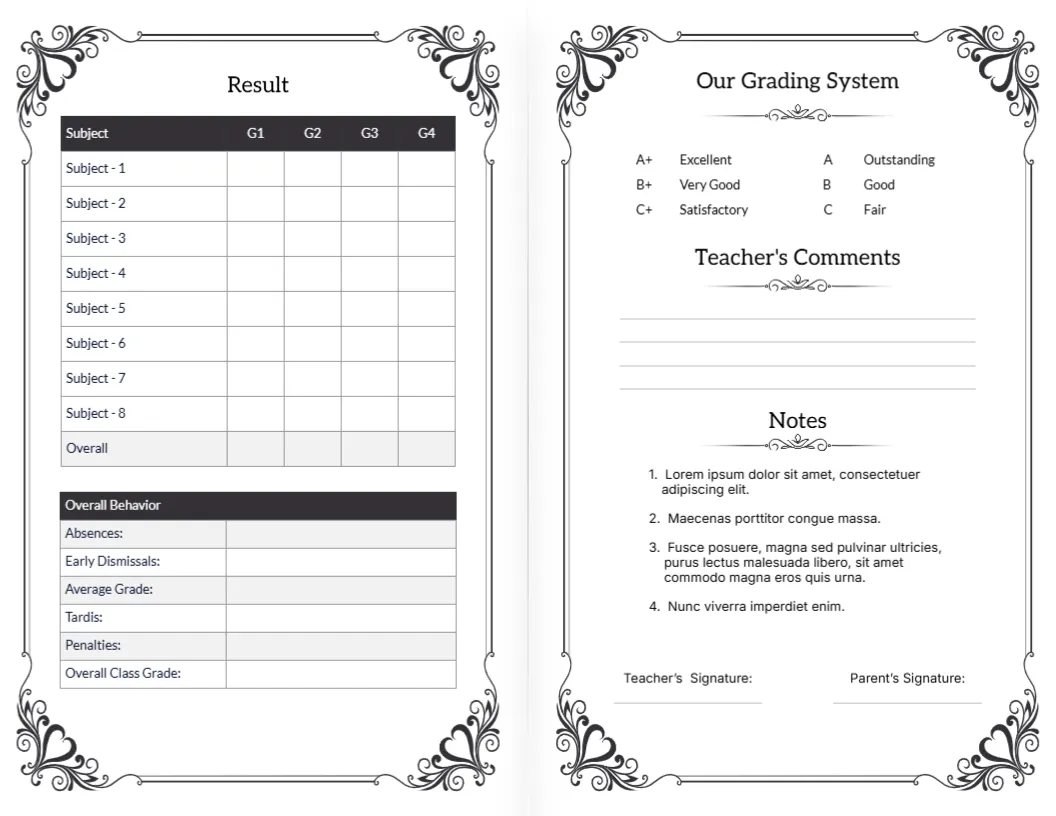
The table has eight subject rows plus an Overall row in a slightly darker grey. Primary teachers can use fewer rows for core subjects, while middle grades can fill all eight. Delete unused rows in the editor so the page looks tidy.
The Behavior Box Below the Grades
Under the grades sits a dark-headed box with Overall Behavior, Early Dismissals, Average Grade, Tardies, Penalties, and Overall Class Grade. These cells give parents a quick picture of conduct and attendance beyond marks, so keep entries short and factual.
Two Lines for Teacher Feedback
Teacher Feedback offers two ruled lines, enough for a short, specific comment. A good note names one strength and one next step. If your comments run longer, use the editor to add a third line before you print the sheet.
Three Signatures at the Foot
Class Teacher, Principal and Parent signatures sit in a row at the bottom. Many schools ask parents to sign and return the card, which proves it reached home. Add a return-by date near the line if your school uses one.
Colour Printing and Grey Printing
The slate and blue artwork looks smart in colour, yet the table stays readable in grey scale. If toner is limited, print the sheets in black and white, and the grid lines still hold their shape, though the blue curve will turn grey.
Printing and Handing Out the Card
Print on 24-pound or heavier paper so the card survives the trip home in a school bag. Keep a digital copy of each filled card in the student file, named by student and term.
Step-by-Step Editing of the Student Report Card Grade Q1 Q4 Table Design
- On the student report card grade Q1 Q4 table design, click the main headline and type your own words, keeping a similar length.
- Retype every name, date, and contact line on the student report card grade Q1 Q4 table design, checking each against a trusted source.
- Search the student report card grade Q1 Q4 table design for the words Lorem and Company so that no placeholder remains.
- Click any logo or photo on the student report card grade Q1- Q4 table design, choose Replace Image, and resize the new picture to fit.
- Zoom the student report card grade Q1- Q4 table design to full size and read each line aloud before you save it.
- Keep a clean master of the student report card grade Q1- Q4 table design without private details, so later versions start tidy.
A related layout is the dark panel high school version. Also worth a look: maroon academic layout. Next to try is the plain quarterly sheet. Looking beyond the student report card grade Q1- Q4 table design? See all report card templates.