A Blue Gradient With a Cloud Edge and Eleven Subjects
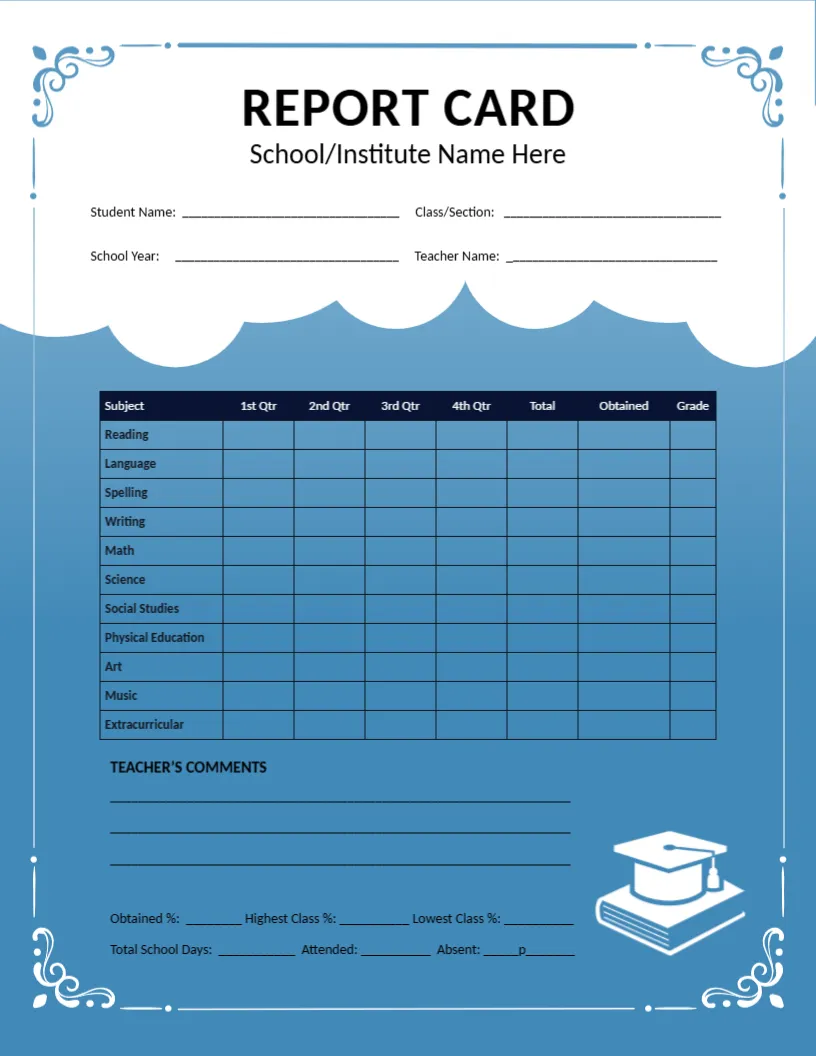
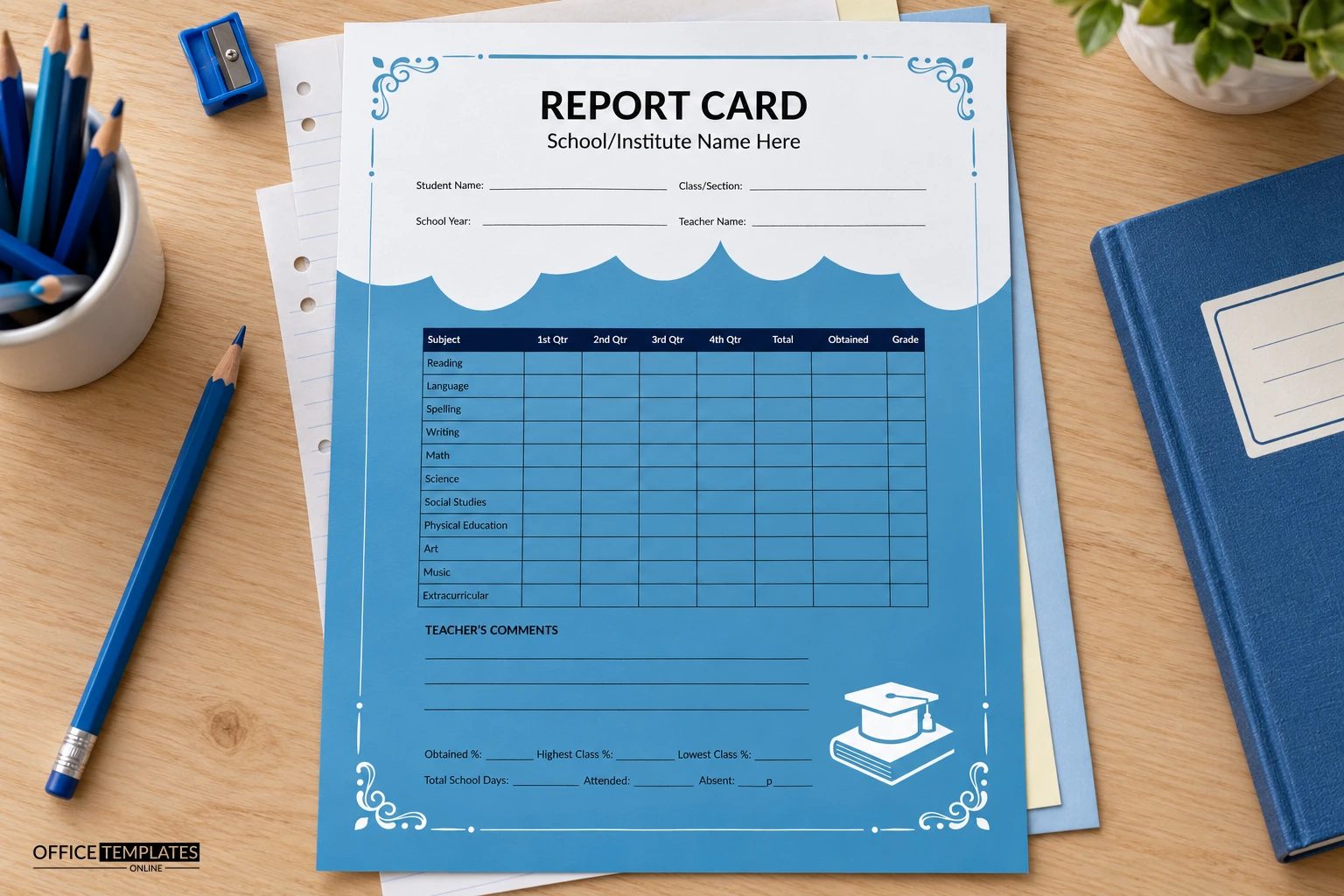
A thin blue border with swirling corner flourishes frames this page. REPORT CARD is set in big black type, with School or Institute Name Here beneath it, above four fill-in lines. A white cloud edge leads into a blue gradient holding a dark-headed table of eleven subjects, a Teacher Comments area, and a book with a graduation cap.
A Letter Page With a Full Subject List
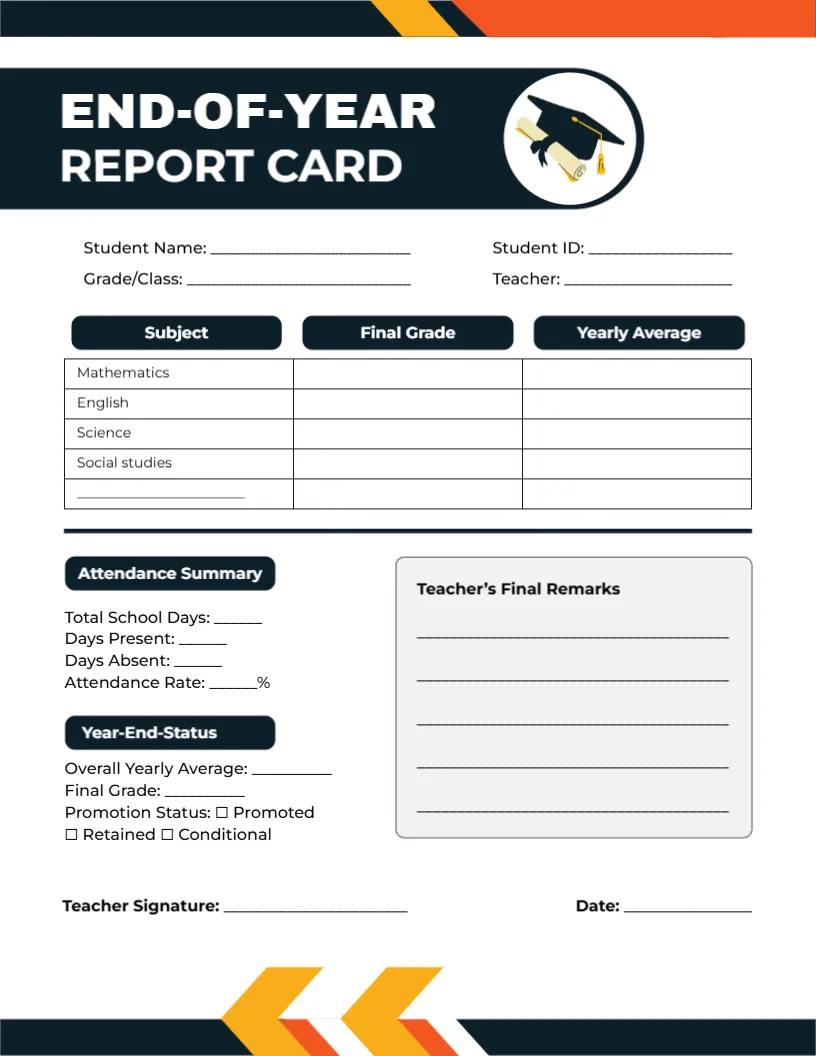
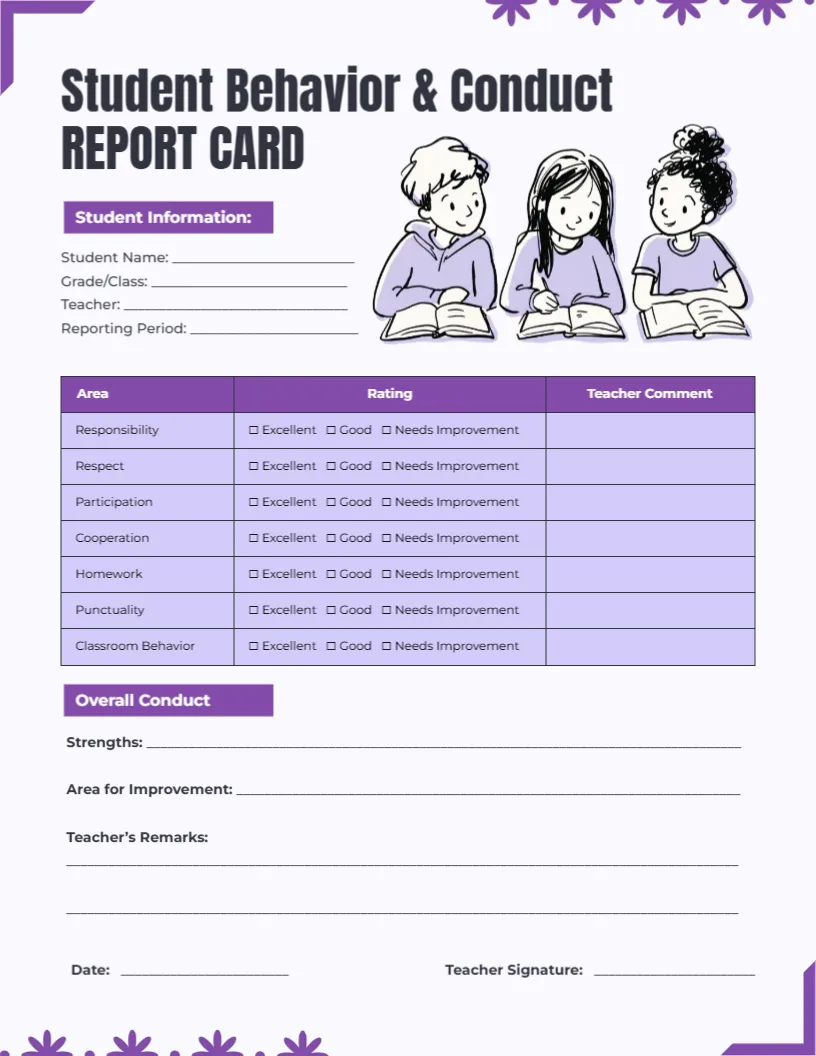
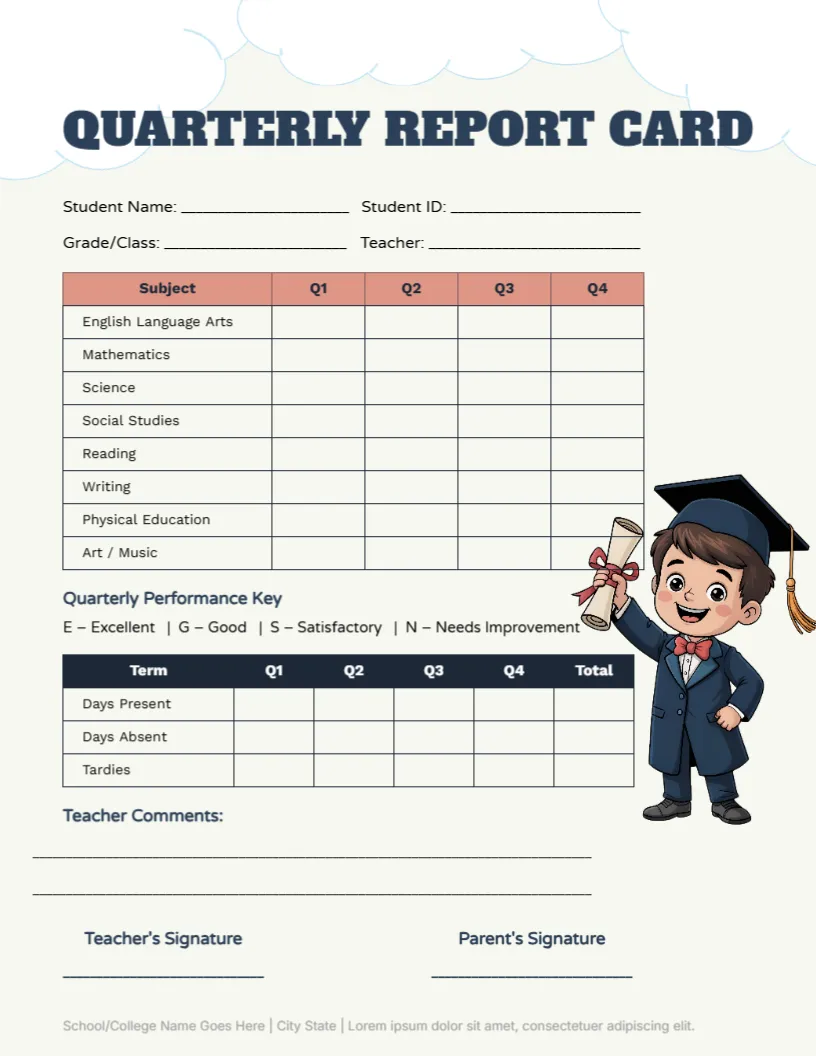
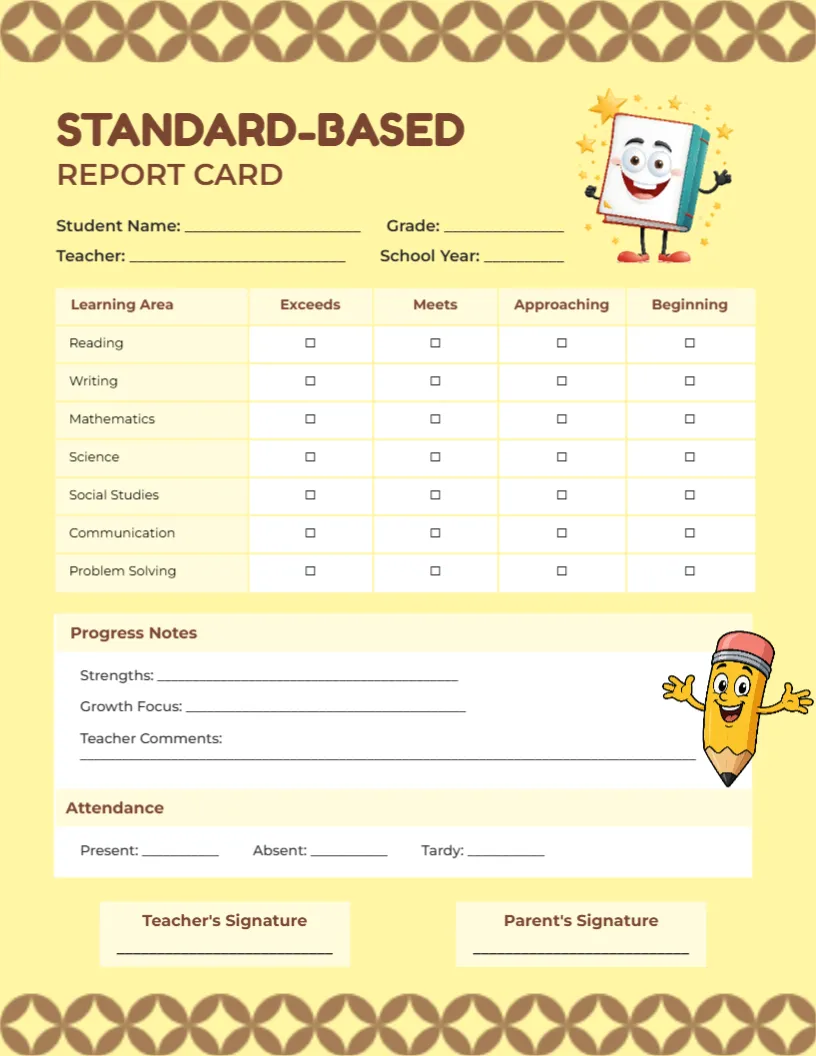
The page is 8.5 x 11 inches. Eleven subjects are already named: Reading, Language, Spelling, Writing, Math, Science, Social Studies, Physical Education, Art, Music and Extracurricular, which suits a typical primary timetable.
Marks, Totals and Class Statistics
Each subject has columns for four quarters, a Total, Obtained, and Grade. Beneath the comments sit Obtained, Highest Class and Lowest Class percentages, and the attendance counts. One small stray letter p sits after the Absent line, so delete it before printing.
Finishing the Cloud Border Card
- Type the school name.
- Fill the four header lines.
- Enter marks by quarter.
- Delete the stray p.
- Add the class percentages.
Showing Highest and Lowest Class Marks
The foot of the page records the pupil percentage next to the highest and lowest in the class. Some schools like this comparison; others avoid it for young children, so you can delete the two class lines if you prefer.
Writing Marks Across Four Quarters
The table runs from 1st to 4th Qtr, then Total, Obtained, and Grade. Fill one column at each quarter end, add the totals at the end of the year, and give the final grade from your school scale.
A Frame That Feels Like a Certificate
The border with its flourish corners gives the page a certificate-like feel, which pupils tend to treasure. Print it on slightly heavier paper, and families are more likely to keep it in a folder.
Readable Text on a Blue Gradient
The table sits on blue, but the cells are dark with white text, so marks are clear. Handwriting shows poorly on the dark cells, so type the numbers in the editor with white text before printing.
Attendance in the Footer Line
Total School Days, Attended, and Absent appear in a single line at the bottom. Fill them from the register, and check that attended plus absent equals the total before you print the final copy.
Changing the Subject Names
Rename any subject to match your curriculum, for instance, replacing Extracurricular with Computing or a second language. Keep the names short so they fit in the narrow first column without wrapping.
Printing the Blue Gradient
Blue gradients can show banding on cheap printers. Print one test sheet, and if the bands are visible, switch to the high-quality setting or choose coated paper.
Step-by-Step Editing of the Primary School Report Card Cloud Border Design
- On the primary school report card cloud border design, click the main headline and type your own words, keeping a similar length.
- Retype every name, date, and contact line on the primary school report card cloud border design, checking each against a trusted source.
- Search the primary school report card cloud border design for the words Lorem and Company so that no placeholder remains.
- Click any logo or photo on the primary school report card cloud border design, choose Replace Image, and resize the new picture to fit.
- Zoom the primary school report card cloud border design to full size and read each line aloud before you save it.
- Keep a clean master of the primary school report card cloud border design without private details, so later versions start tidy.
Consider the green ribbon version of this layout. Similar designs include the elementary school card. Compare it with the academic card with a teacher column. The rest of the series around the primary school report card cloud border design is in the report card templates.