Free Excel Work Order Tracker Template for Service & Repair Businesses
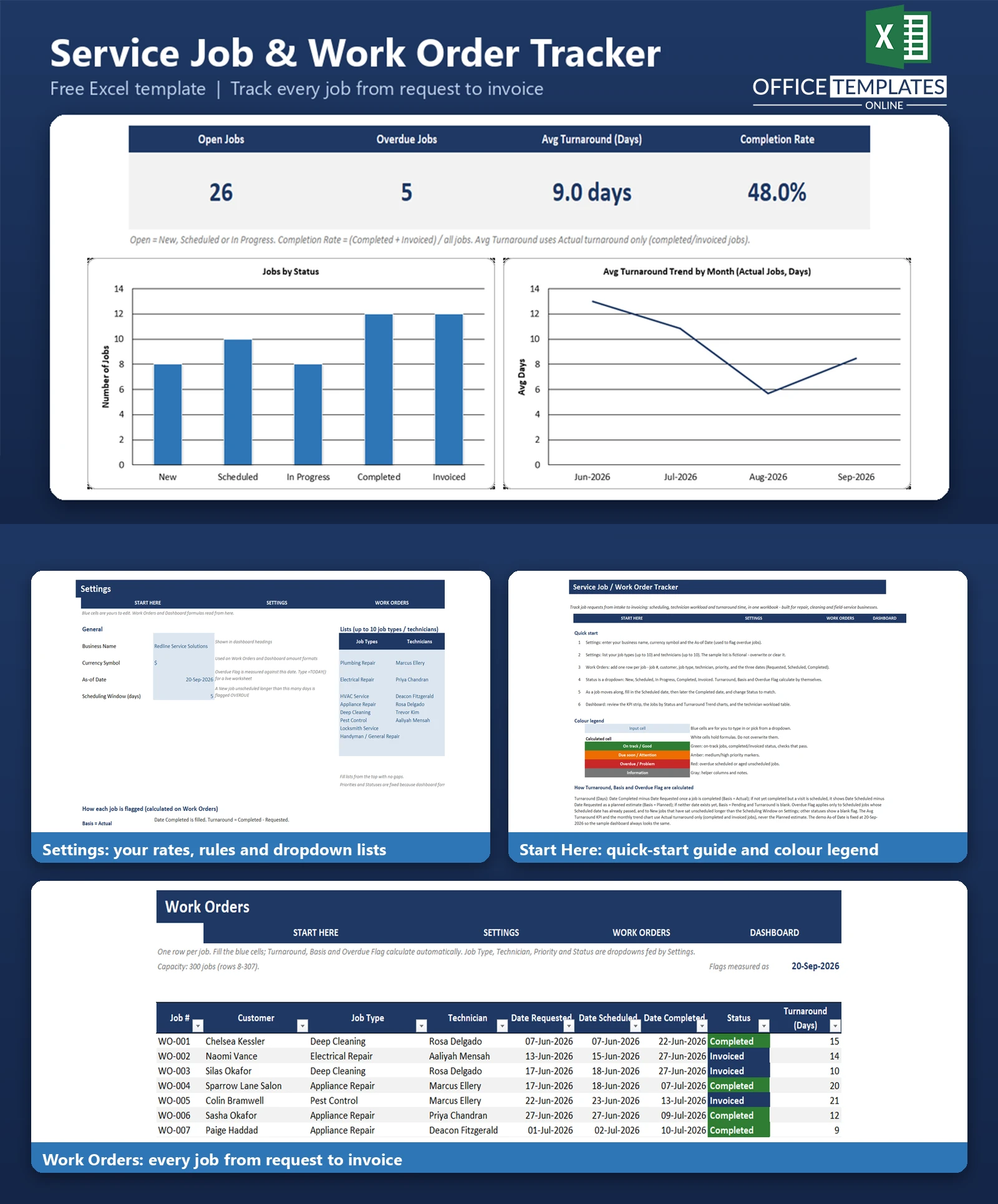
If your team still tracks service calls on sticky notes, a shared phone log, or a spreadsheet nobody agrees on, jobs get missed, forgotten, or scheduled twice. Repair shops, cleaning crews, HVAC and electrical contractors, pest control services, and other field-service businesses all run into the same problem: a job request comes in, someone jots it down, and from that point on there is no single place to see what stage it is in, who is handling it, or how long it has actually been sitting.
The Service Job/Work Order Tracker is a ready-to-use Excel workbook built specifically for this kind of intake-to-completion workflow. Every job moves through a clear status pipeline - New, Scheduled, In Progress, Completed, Invoiced - and the workbook automatically calculates how long each job takes, flags jobs that are overdue to be scheduled or started, and rolls everything up into a dashboard your whole team can check at a glance.
It is not a job-costing or profitability tool - there are no materials, labor-cost, or margin calculations here. It is focused on one thing: giving you visibility into job intake, scheduling, and status, so you always know what's happening and what needs attention next.
Key Features
- Job status pipeline (New, Scheduled, In Progress, Completed, Invoiced) controlled by a simple dropdown.
- Automatic Turnaround (Days) calculation that is precise about actual time (once a job is completed) vs. a planned estimate (while it is still open)
- Overdue Flag that catches scheduled jobs whose visit date has already passed, and New jobs that have sat unscheduled too long
- Technician workload table showing total jobs, open jobs, and average turnaround per technician
- Dashboard KPIs: Open Jobs, Overdue Jobs, Avg Turnaround, Completion Rate and Busiest Technician
- Jobs by Status bar chart and a month-by-month Avg Turnaround trend chart
- Dropdown lists for Job Type, Technician, Priority and Status, all editable from one Settings sheet
- Colour-coded status, priority and overdue badges so the job log is easy to scan
- No macros - built entirely with standard Excel formulas and formatting
What You Can Track
- Job number, customer name, job type and assigned technician
- Date requested, date scheduled, and date completed for every job
- Current status and priority (Low, Medium, High, Urgent)
- Turnaround time and whether it is an actual result or a planned estimate
- Which jobs are overdue to be scheduled or started
- Notes specific to each job (access instructions, backordered parts, repeat customers, etc.)
- The amount billed per job (for your records - this template does not calculate job costs or margins)
Dashboard & Reports
The Dashboard sheet gives you a one-screen view of how the business is running:
- A KPI strip with Open Jobs, Overdue Jobs, Avg Turnaround (Days), Completion Rate and Busiest Technician
- A Jobs by Status bar chart showing how many jobs sit at each stage of the pipeline
- An Avg Turnaround Trend line chart showing the last four months of actual turnaround time, so you can see whether jobs are getting faster or slower to close out
- A Technician Workload table comparing total jobs, open jobs, and average turnaround across your team
Who Is This Template For
- Repair and trade businesses: plumbing, electrical, HVAC, appliance repair, locksmith services
- Cleaning companies and pest-control services with a rotating list of jobs and technicians
- Handyman and general-repair operators juggling multiple customer requests at once
- Any small field-service team that assigns jobs to technicians and needs a shared, visible status pipeline
How to Use the Template
- Open the Start Here sheet for a quick overview and colour legend.
- Go to Settings and enter your business name, currency symbol, As-of Date, and Scheduling Window, then replace the sample job types and technicians with your own.
- Go to Work Orders and log each job: customer, job type, technician, priority, and the three key dates.
- Move each job's Status along the pipeline as it progresses, and fill in the Scheduled and Completed dates as they happen.
- Check the Dashboard any time for a live view of open jobs, overdue jobs, turnaround time, and technician workload.
Benefits
- Replace scattered notes and phone logs with one shared, always-current job list.
- Spot overdue jobs before a customer has to call and ask what happened
- See turnaround time trends over time instead of guessing whether things are speeding up or slowing down
- Balance workload across technicians using real job counts, not gut feel
- Get started in minutes - no setup, plugins, or macros required
Excel Requirements
This template contains no macros and uses only standard Excel formulas (COUNTIFS, AVERAGEIFS, INDEX, MATCH, IF, IFERROR, TEXT, EDATE, and similar long-standing functions). It works in modern desktop Excel - Excel 2016 and later- and Microsoft 365 on both Windows and Mac. It does not rely on newer dynamic-array functions such as XLOOKUP or FILTER, so it opens and calculates correctly across a wide range of Excel versions.
Frequently Asked Questions
Does this template calculate job costs or profit margins?
No. This template focuses on job intake, scheduling, and status tracking. It records the amount billed per job for your reference, but it does not break down materials, labor cost, or overhead, and it does not calculate margins. If you need job costing, look for a template built specifically for that purpose.
How is Turnaround Time calculated?
Once a job's Date Completed is filled in, Turnaround = Date Completed minus Date Requested (an actual result). If the job is not completed yet but has a Date Scheduled, Turnaround shows Date Scheduled minus Date Requested as a planned estimate instead, so you can still gauge how long it is taking. A Basis column always tells you which kind of number you are looking at.
How does the Overdue Flag work?
It applies to two situations: a Scheduled job whose scheduled visit date has already passed without the job moving to In Progress or Completed, and a New job that has sat unscheduled longer than the Scheduling Window you set on the Settings sheet. Other statuses show a blank flag.
Can I add more job types, technicians, or jobs than the sample data?
Yes. Settings has room for up to 10 job types and up to 10 technicians. The Work Orders table has formulas pre-filled down to row 307 (300 jobs); you can extend the table and copy the formulas further down if you need more capacity.
Is the sample data real?
No. All customer names, technician names, and job details are fictional, created only to demonstrate how the workbook and dashboard behave with a realistic mix of statuses and turnaround times.
Does the dashboard update automatically?
Yes. The KPIs, charts, and technician workload table are all formulas that recalculate automatically as you add, edit, or complete jobs on the Work Orders sheet.
Will this work on Mac Excel or Excel Online?
It is built and tested on desktop Excel and uses only standard formulas and formatting, so it works on both Windows and Mac desktop Excel. Excel Online should display it correctly for viewing, though we recommend desktop Excel for entering data and reviewing the dashboard.
Do I need to keep the sample data, or can I clear it right away?
You can clear it immediately. The README included with the template explains exactly which rows to clear on Work Orders and which fields to update on Settings before you start entering your own jobs.