Free Excel Sales Commission Calculator Template
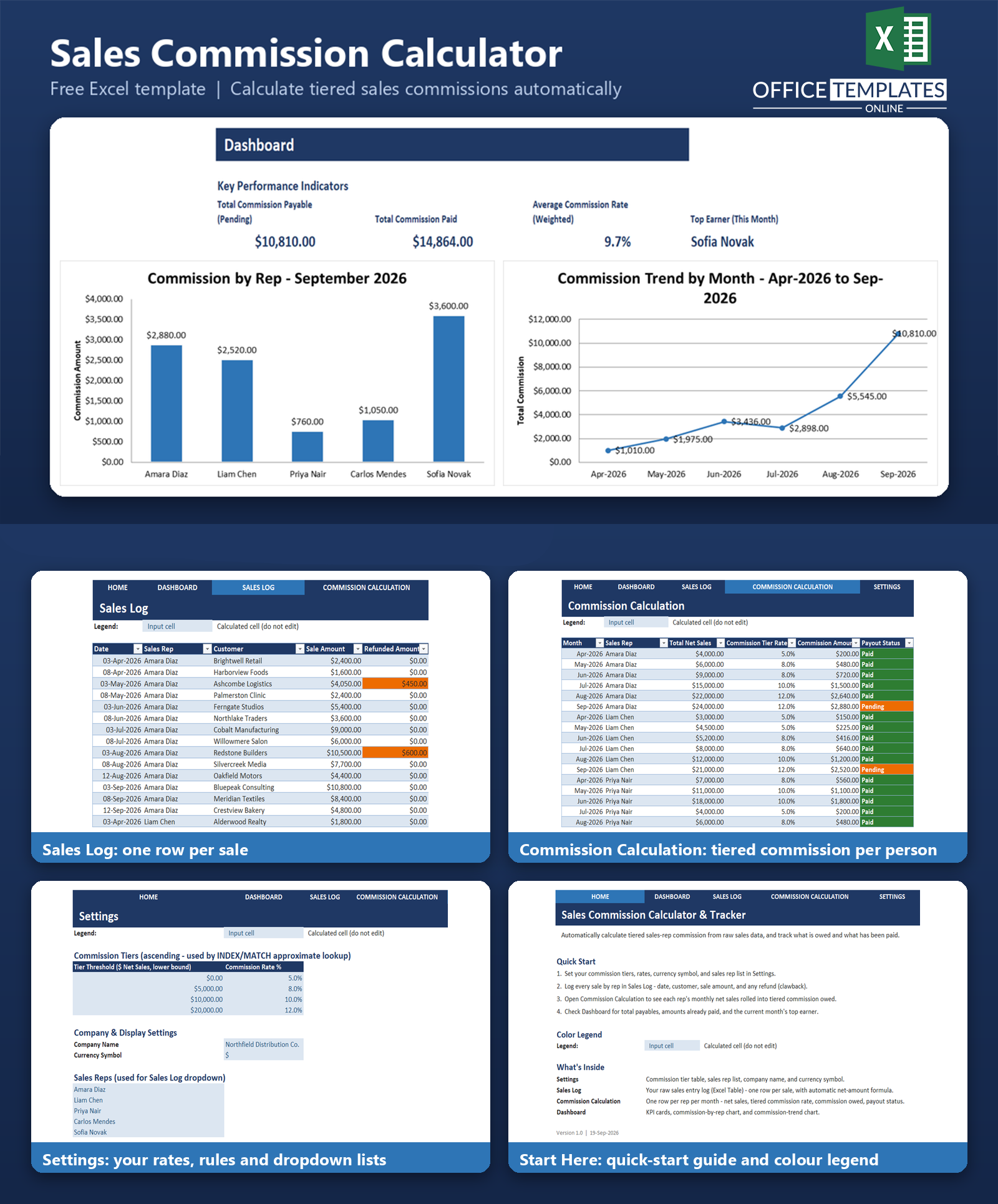
Calculating sales commission by hand - or worse, in an ad-hoc spreadsheet that gets rebuilt every payroll cycle - is slow and invites disputes. Reps question their numbers, managers spend hours re-checking totals, and every tier boundary is a chance for a manual error to creep in.
This free Excel template is a ready-to-use, tiered sales commission calculator built for small and mid-sized businesses running commissioned sales teams. You log each sale once in a Sales Log; the workbook automatically rolls every rep's monthly net sales into the commission tier defined in your own Settings sheet, calculates exactly what's owed, and shows you what's pending versus already paid on a live Dashboard.
It is a genuine rules-based tiered-commission engine - not a generic sales dashboard with a commission column bolted on. The tier thresholds and rates, your list of reps, your currency symbol, and your company name are all configurable in one place, and every calculation is a transparent, auditable formula you (or your reps) can trace back to the raw sale.
Key Features
- Ascending tiered-commission engine using INDEX/MATCH approximate lookup - add as many tiers as you need
- Automatic clawback: refunded sales reduce the net amount commission is calculated on
- One-click-clear rollup of every rep's monthly sales via SUMIFS - no manual totaling
- Payout status tracking (Pending/Paid) with color-coded conditional formatting
- Dashboard KPIs: total payable, total paid, weighted average commission rate, and current-month top earner
- Bar chart of commission by rep and a line chart of the commission trend over six months
- Color-coded input vs. calculated cells so it's always clear what's safe to edit
- No macros, no add-ins - works in standard desktop Excel
What You Can Track
- Every individual sale: date, rep, customer, sale amount, and any refund
- Net sales per rep per month, automatically totaled from the raw sales log
- Which commission tier and rate each rep/month combination falls into
- The exact commission amount owed for every rep, every month
- Whether that month's commission has been paid out or is still pending
Dashboard & Reports
The Dashboard sheet gives managers and owners a single page to check before running payroll. Four KPI cards show Total Commission Payable (pending only), Total Commission Paid, the sales-weighted Average Commission Rate, and the current month's Top Earner. Below the KPIs, a bar chart breaks down commission by rep for the current month, and a line chart shows the six-month commission trend across the whole team - both built from live formulas, so they update the moment new sales are logged.
Who Is This Template For
- Small and mid-sized businesses with a commissioned outside or inside sales team
- Sales managers who need a defensible, formula-driven commission calculation
- Owners currently doing commission math by hand or in an unstructured spreadsheet.
- Any business using a tiered commission structure (higher sales, higher rate)
How to Use the Template
- Set up your commission tiers, rates, sales reps, company name, and currency symbol on the Settings sheet.
- Log every sale in the Sales Log sheet, choosing the rep from a dropdown and entering the sale amount (and any refund).
- Open Commission Calculation to see each rep's monthly net sales, tier rate, and commission amount calculated automatically.
- Mark each rep/month row Pending or Paid as commission is processed.
- Check the Dashboard before payroll for total payable, total paid, average rate, and the current top earner.
Benefits
- Removes manual commission math and the errors that come with it
- Gives reps a transparent, formula-based explanation of how their commission was calculated
- Makes it easy to see, at a glance, what's still owed versus already paid
- Scales with your team - add reps or tiers without rebuilding the workbook
- One file, no software to install, works entirely offline
Excel Requirements
This template is a standard .xlsx file with no macros or VBA, so it opens safely with macros disabled in any modern desktop version of Excel (Windows or Mac). It relies only on functions available since Excel 2007 - SUMIFS, INDEX, MATCH, IFERROR, SUMPRODUCT, EOMONTH, TEXT, and LARGE - so it does not require a Microsoft 365 subscription or newer dynamic-array functions such as XLOOKUP or FILTER.
FAQ
Does this template calculate commission automatically as I enter sales?
Yes. Once you log a sale in the Sales Log with a date, rep, and amount, the Commission Calculation sheet's SUMIFS formulas pick it up automatically for that rep's month and recalculate the tiered commission owed.
Can I use more than four commission tiers?
Yes. Add a row to the tier table in Settings, extend the two named ranges the lookup uses (TierThresholds and TierRates), and the INDEX/MATCH formula will pick up the new tier automatically.
What happens if a customer gets a refund after the sale was logged?
Enter the refund amount in the Refunded Amount column next to that sale. The Net Sale Amount (and therefore the commission calculation) is automatically reduced, so the rep isn't paid commission on refunded revenue.
Does it support different commission rates per rep or per product?
No. This template uses one shared tiered-rate schedule that applies to every rep based on their own monthly net sales. It does not support per-rep custom rates or per-product commission rules.
Does the workbook use any macros or VBA?
No. It is a standard .xlsx file built entirely with formulas (SUMIFS, INDEX/MATCH, IFERROR, SUMPRODUCT) and opens safely with macros disabled.
Will this work in older versions of Excel?
Yes. The formulas used (INDEX, MATCH, SUMIFS, IFERROR, EOMONTH, TEXT, LARGE) have all been available since Excel 2007, so the workbook is not dependent on newer functions like XLOOKUP or FILTER.
How do I know which reps have been paid vs. still owed?
Each rep/month row in Commission Calculation has a Payout Status column (Pending or Paid) with color coding, and the Dashboard totals Pending and Paid commission separately as KPI cards.
Can I track more than five sales reps?
Yes. Add more names to the Sales Rep list in Settings, extend the RepList named range, and add the corresponding rows to the Commission Calculation table for each new rep's months.