Free Excel Follow-Up Tracker Template for Sales and Account Teams
Follow-ups are where deals and relationships quietly slip away. A prospect goes quiet after a promising call, a renewal date passes unnoticed, or a customer who should hear from you every quarter hasn't been contacted in six months - not because anyone dropped the ball on purpose, but because there was no simple system tracking who was due for a touch and when.
The Excel Customer Follow-Up Tracker is a lightweight, spreadsheet-based tickler system built for sales reps, account managers, freelancers, and small business owners who need outreach discipline without adopting a full CRM platform. You define your follow-up types and how often each one should happen, log your contacts and their last touch date, and the workbook does the rest - calculating exactly when each person is due again and flagging anyone who is overdue.
Unlike a full CRM, this template intentionally stays narrow: no lead-source tracking, no deal pipeline, no multi-stage sales funnel. It answers one question well - who do I need to contact, and when - so it can be adopted in minutes and used daily without training.
Key Features
- Configurable follow-up types (New Lead Check-In, Renewal Reminder, Post-Sale Check, Relationship Maintenance, and more), each with its own cadence in days
- Automatic Next Due Date and Days Until Due calculations for every contact - no manual math
- Color-coded OVERDUE/DUE SOON/OK status built with conditional formatting
- A daily Action List that automatically surfaces everyone due today, due this week, or overdue
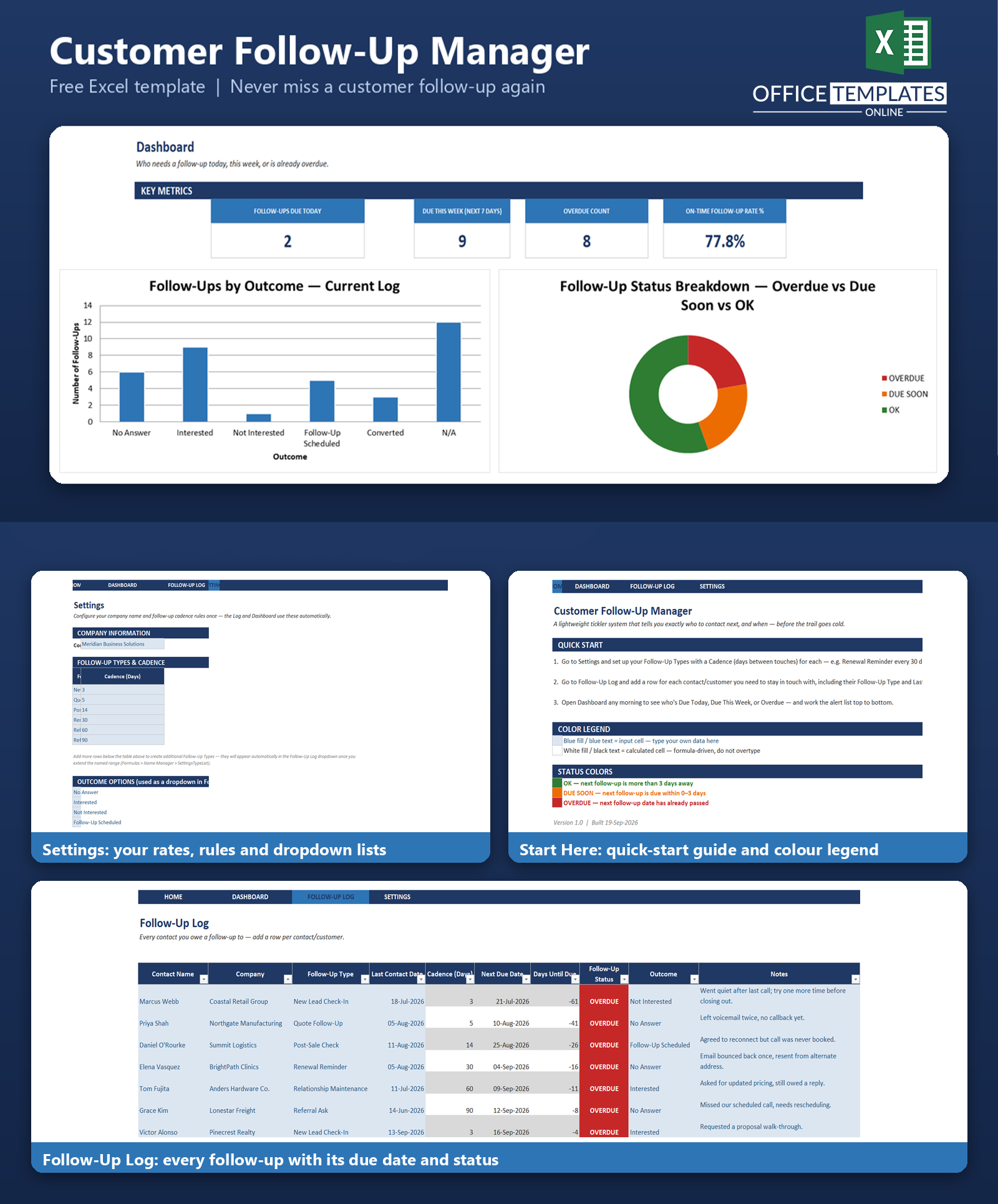
- Dashboard KPIs: Follow-Ups Due Today, Due This Week, Overdue Count, and On-Time Follow-Up Rate %
- Built-in bar and doughnut charts summarizing outcomes and status at a glance
- Dropdown-driven data entry for Follow-Up Type and Outcome, kept consistent via the Settings sheet.
- Ready to use immediately, with 36 rows of realistic sample data covering every status and type
What You Can Track
- Contact name and company for every relationship you're responsible for
- The type of follow-up cadence each contact is on, and how many days apart those touches should be
- The date you last made contact
- Automatically calculated next due date and how many days away (or overdue) it is
- The outcome of your most recent attempt - No Answer, Interested, Not Interested, Follow-Up Scheduled, Converted, or N/A
- Free-text notes for context you'll want the next time you reach out
Dashboard & Reports
The Dashboard sheet gives you a daily working view rather than a static report. Four KPI cards summarize how many follow-ups are due today, due within the next week, currently overdue, and what share of your book is on-time overall. Below that, a bar chart breaks down follow-ups by outcome,e and a doughnut chart shows the OVERDUE/DUE SOON/OK split across your entire contact list at a glance.
The centerpiece is the Action List: a formula-built table that automatically pulls in every contact who is overdue or due within the next several days, sorted and ready to work through top to bottom - no filtering, no pivot tables, no manual sorting required each morning.
Who Is This Template For
- Sales reps and account managers who need a disciplined outreach cadence across many contacts
- Small business owners staying in touch with customers without the overhead of CRM software.
- Freelancers and consultants managing check-ins across a client base
- Teams who already use a CRM but want a simpler, dedicated layer just for follow-up discipline
- Anyone who has ever lost a deal or a relationship simply because a follow-up was forgotten
How to Use the Template
- Open the Settings sheet and confirm your company name and your Follow-Up Types with their cadence in days.
- Open the Follow-Up Log and enter your contacts - name, company, follow-up type, and last contact date.
- Pick an Outcome from the dropdown each time you make contact, and jot a quick note for next time.
- Open the Dashboard every morning and work through the Action List, starting with anything marked OVERDUE.
- Add new contacts any time by typing into the row below the last entry - the table and formulas extend automatically.y
Benefits
- Removes the guesswork of remembering who needs a follow-up and when
- Gives you one clear daily list instead of scanning a long spreadsheet manually
- Keeps cadence consistent across different types of relationships (new leads vs. long-term accounts)
- Requires no software installation, subscription, or training - it's a spreadsheet you already know how to open
- Scales from a handful of contacts to several hundred without changing how it works
Excel Requirements
This template contains no macros or VBA and is delivered as a standard .xlsx file, so it opens safely with macros disabled. It works in modern desktop Excel (Excel 2016 and later, and Microsoft 365) and uses native Excel Tables, conditional formatting, data validation dropdowns, and standard formulas such as INDEX, MATCH, IFERROR, COUNTIFS, and SMALL - no add-ins and no newer array functions that could cause compatibility issues on older Excel versions.
FAQ
Do I need any add-ins or Office 365 features to use this template?
No. It's built entirely with standard formulas and Excel Tables that have worked the same way since Excel 2007, so it opens and calculates correctly in any modern desktop version of Excel.
Can I add my own follow-up types beyond the six included?
Yes. Open the Settings sheet and add a new Follow-Up Type and Cadence (Days) row beneath the existing list, then extend the dropdown and lookup range to include it.
How is this different from a CRM?
A CRM typically manages a full customer database, lead sources, and a sales pipeline. This template deliberately does one thing - tracking who is due for a follow-up and when - so it stays fast, simple, and usable without setup or training.
What counts as "overdue" versus "due soon"?
A contact is OVERDUE once its next due date has passed, DUE SOON if it's due within the next 0-3 days, and OK otherwise. Both thresholds are plain formulas you can adjust if your business needs a different definition.
Will the dashboard update automatically as I add contacts?
Yes. Every KPI, chart, and the Action List reads live from the Follow-Up Log using formulas - nothing is hardcoded, so adding, editing, or removing rows updates the whole Dashboard immediately.
Can I use this for both new leads and long-standing customers in the same file?
Yes - that's exactly what the Follow-Up Type and per-type cadence are for. Log a new lead on a 3-day cadence and a long-term account on a 60-day cadence in the same table, and each gets tracked on its own schedule.
Is my data private and stored locally?
Yes. This is a standalone Excel file with no cloud connection, external links, or telemetry - your data stays wherever you save the file.
Can multiple people on my team use this at once?
The template is a single-user Excel file rather than a shared multi-user database. Teams typically either save it on a shared drive and take turns, or use it as a personal follow-up layer alongside a shared CRM.