Free Excel Quotation Template for Small Businesses and Contractors
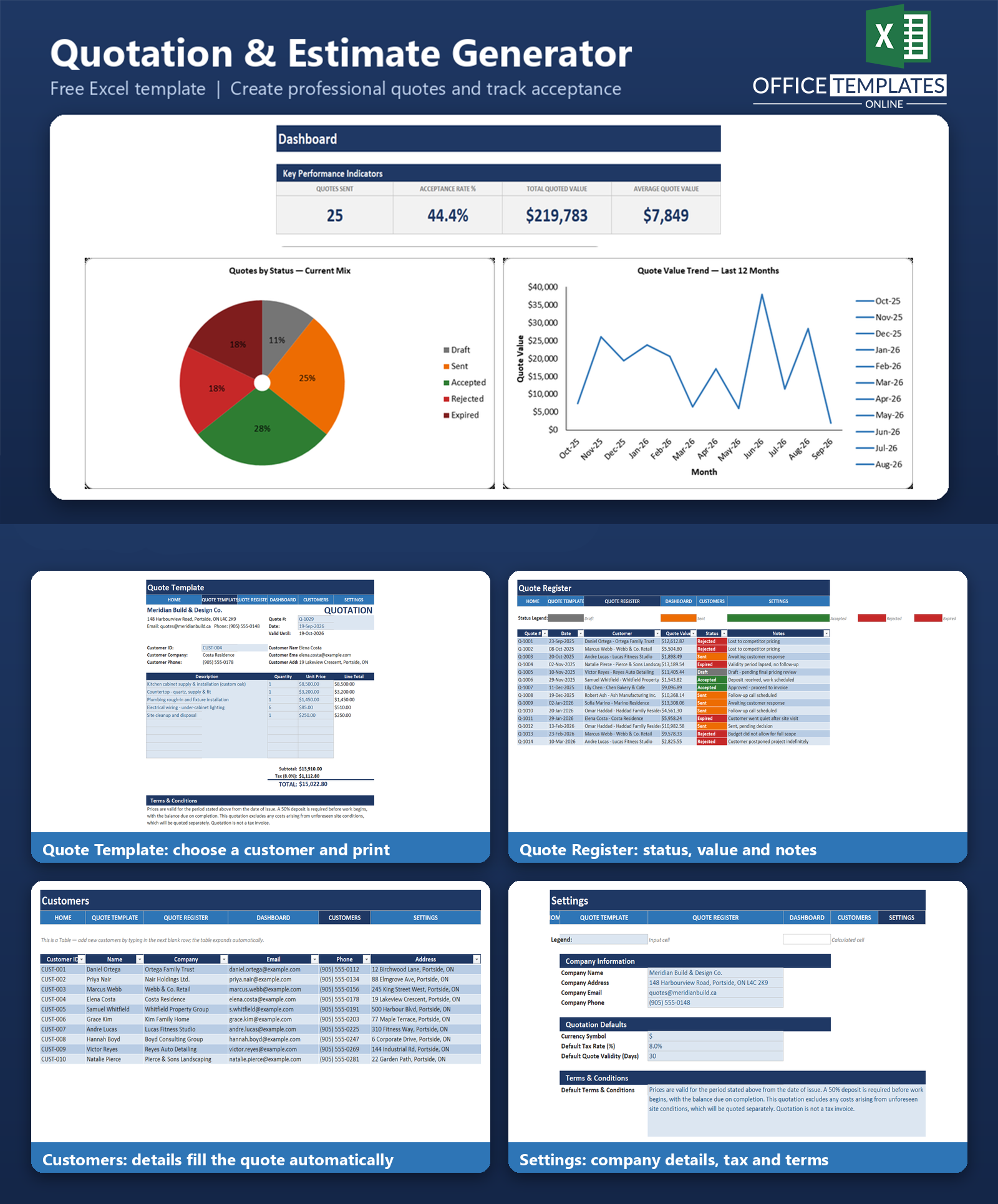
Manually typing every quote in Word or a plain document is slow, inconsistent, and an easy place to make a pricing mistake. This free Excel quotation template gives you a professional, print-ready quote layout with automatic subtotal, tax, and total calculations, plus a built-in register that tracks every quote you send from first draft through to acceptance.
It's built for contractors, consultants, freelancers, and small shops who quote jobs or orders before a customer commits, and who want their quotes to look consistent and calculate correctly every time - without paying for quoting software.
Unlike a one-off Word template, this workbook does two jobs in one file: a single-quote document you fill out and print for each customer, and a running log of every quote's status so you can see, at a glance, how many quotes you're winning.
Key Features
- One-page, print-ready quote layout with your company details, a customer lookup, itemized line items, and automatic subtotal, tax, and total calculations.
- Customer database with a lookup formula that auto-fills a customer's name, company, email, phone, and address on the quote from a single Customer ID.
- A separate quote history log that records every quote's date, customer, value, status, and notes.
- A dashboard with KPI cards for quotes sent, acceptance rate, total quoted value, and average quote value.
- Two charts: quotes broken down by status, and quote value trend by month.
- A Settings sheet for company info, currency symbol, default tax rate, default quote validity period, and default terms & conditions - change once, and the quote template updates automatically.
- Color-coded input vs. calculated cells and status colors, applied consistently across the workbook.
What You Can Track
- Every quote you issue: quote number, date, customer, and total value.
- Quote status over time: Draft, Sent, Accepted, Rejected, or Expired.
- Notes on why a quote was won, lost, or is still pending.
- Your customer list: contact details and addresses, ready to reuse on the next quote.
- Quoted value by month, so you can see seasonal patterns or slow months.
Dashboard & Reports
The Dashboard sheet turns your Quote Register into an at-a-glance conversion report. KPI cards show Quotes Sent, Acceptance Rate %, Total Quoted Value, and Average Quote Value, calculated automatically from your logged quotes. A doughnut chart shows the current mix of quote statuses, and a line chart shows quoted value by month over the trailing 12 months — so you can spot whether your pipeline is growing, shrinking, or seasonal.
Who Is This Template For
- Contractors and tradespeople quoting renovation, repair, or installation jobs.
- Consultants and freelancers sending scope-of-work estimates to prospective clients.
- Small shops and product sellers quoting custom or bulk orders.
- Any small business that currently quotes customers by hand in Word, email, or a notebook and wants a consistent, calculated document.
How to Use the Template
- Open the Settings sheet and enter your company name, address, contact details, tax rate, default quote validity period, and standard terms & conditions.
- Add your customers to the Customers sheet (ID, name, company, contact details, address).
- Open the Quote Template, select a customer, fill in your line items, and print or save the quote as a PDF to send.
- Log the quote in the Quote Register with its date, customer, value, and status, and update the status as it moves from Sent to Accepted, Rejected, or Expired.
- Check the Dashboard anytime to see your acceptance rate and quote value trend.
Benefits
- Quotes look consistent and professional every time, without retyping a layout from scratch.
- Line-item math (subtotal, tax, total) is calculated automatically, reducing pricing errors.
- You can see which quotes converted and which didn't, instead of losing track after the quote is sent.
- One file covers both document creation and tracking, so there's no separate system to maintain.
- No subscription or software to install - it works in the Excel you already have.
Excel Requirements
This template uses standard Excel formulas, Tables, data validation, conditional formatting, and charts - no macros or VBA. It opens safely with macros disabled and works in modern desktop Excel (2016 or later, including Microsoft 365). It relies only on widely supported functions (INDEX, MATCH, SUMIFS, SUMPRODUCT, IFERROR, COUNTIFS) rather than newer dynamic-array functions, so it also works in older Excel versions.
FAQ
Do I need any add-ins or special software to use this template?
No. It's a standard .xlsx file that works in any modern desktop version of Excel. No macros, add-ins, or subscriptions are required.
Can I use this template on Mac or with Excel Online?
Yes, the workbook uses standard Excel features that work across desktop Excel on Windows and Mac. Excel Online supports most of the same functionality, though we recommend desktop Excel for the best experience with print layout and charts.
How do I add my own customers?
Open the Customers sheet and type your customer's details into the next blank row below the existing table - the table expands automatically to include it.
Does the quote number update automatically?
No, the Quote # field on the Quote Template is a manual entry, so you stay in control of your numbering scheme. The Quote Register sample data shows a simple sequential numbering pattern you can copy.
How is the acceptance rate calculated?
Acceptance Rate % = Accepted quotes ÷ (Accepted + Rejected + Expired quotes), so it reflects the share of decided quotes that were won. It excludes quotes still in Draft or Sent status, since those haven't been decided yet.
Can I change the tax rate or currency symbol?
Yes. Both are set on the Settings sheet. Changing the tax rate updates every tax and total calculation on the Quote Template automatically. If you switch currencies, you'll also want to update the number format on currency cells to match your currency's symbol.
What happens to the sample data?
The workbook ships with one filled-in example quote and sample customers and quote history so you can see how everything works. The README explains exactly which rows to clear before you start entering your own data.
Is this template suitable for VAT/GST-registered businesses?
The tax calculation is a straightforward percentage-based calculation (Subtotal × Tax Rate), which fits most flat-rate VAT/GST/sales tax setups. If your tax rules involve multiple rates or exemptions, you may need to adjust the formulas for your specific requirements.