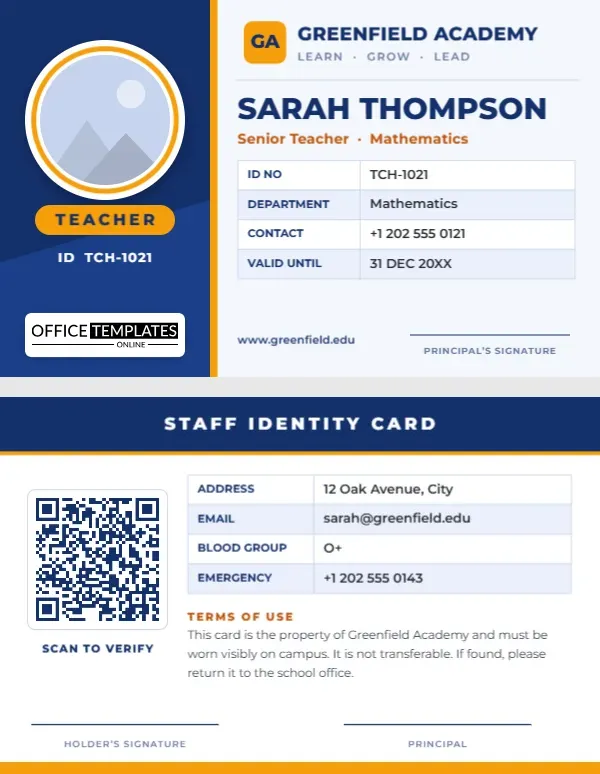
Most staff cards in schools are portrait, because that is how lanyards hang. Yet plenty of schools prefer a wide card: it reads like a driver’s licence, it fits a wallet, and it gives the name and job title room to breathe on a single line. This horizontal teacher ID card template is built for exactly that layout. It is a landscape card in royal blue and amber, with a round photo panel on the left, a clean details table on the right and a scannable QR code on the back.
Everything is editable in the browser. Type your teacher’s name, swap the photo, change the school name and colours, then download a file that is ready for a card printer or a local print shop. You do not need Word, Photoshop or any design experience.
Landscape or portrait: which one should your school choose?
Neither is better in general, but each suits a different situation.
- Choose landscape if staff keep the card in a pocket, wallet or badge reel, if you use a card printer with a landscape feed, or if teachers have long names and job titles that wrap awkwardly on a narrow card.
- Choose portrait if the card hangs on a lanyard all day and you want the photo and name to face outward at a glance.
- Mix both if you like: many schools give teachers a landscape card and give visitors or students a portrait one, so the roles are easy to tell apart across a room.
The rest of the teacher ID designs on our site are mostly vertical, so this template fills the gap for schools that want the wide format.
What sits on the front of the card
The blue photo panel
A deep blue column runs down the left side. In it you will find a large circular photo frame with an amber ring, a “Teacher” pill and the staff ID number in white. The photo is a shape filled with a placeholder picture, so when you use Replace Image your portrait is cropped to the circle and the frame stays exactly the same size.
School name and tagline
At the top right is a small amber tile with two letters, followed by the school name in heavy capitals and a short tagline line underneath. Replace the tile with your crest or initials and rewrite the text.
Name and role line
The teacher’s name is set large so it can be read from a metre away. Beneath it, an orange line holds the role and subject, such as “Senior Teacher · Mathematics”. Use it for head of year, form tutor or any title that matters to your school.
Reading the details table
Four rows carry the ID number, department, contact number and valid-until date. This is a real editor table, so you can add a row for room number or joining year, delete a row you do not need, or merge cells. The alternating row shading keeps it easy to scan even at small print sizes.
Bottom line of the card
A website line sits at the bottom left and a signature line for the principal at the bottom right. Our logo appears on the blue panel as a small template credit; you can delete it when you are ready to use the card.
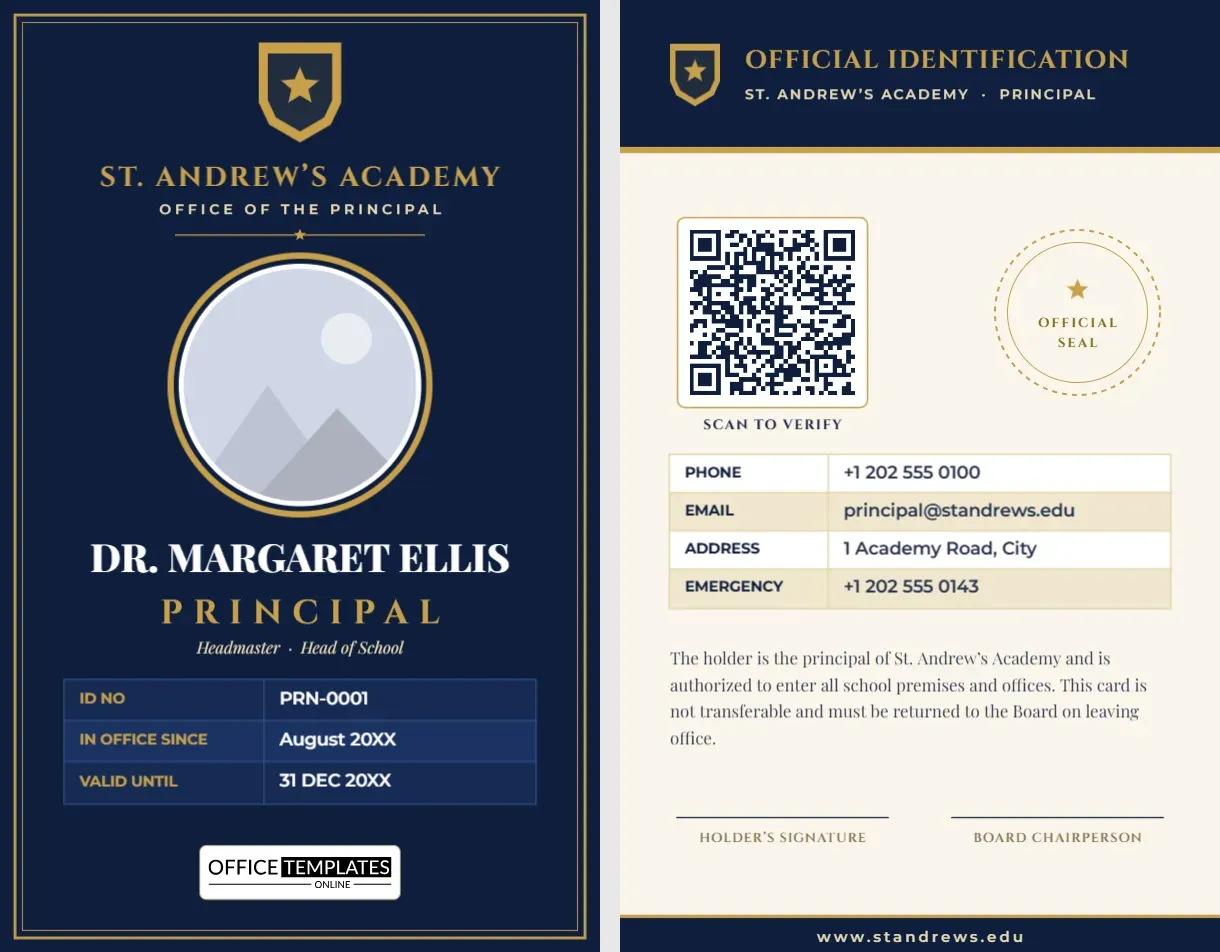
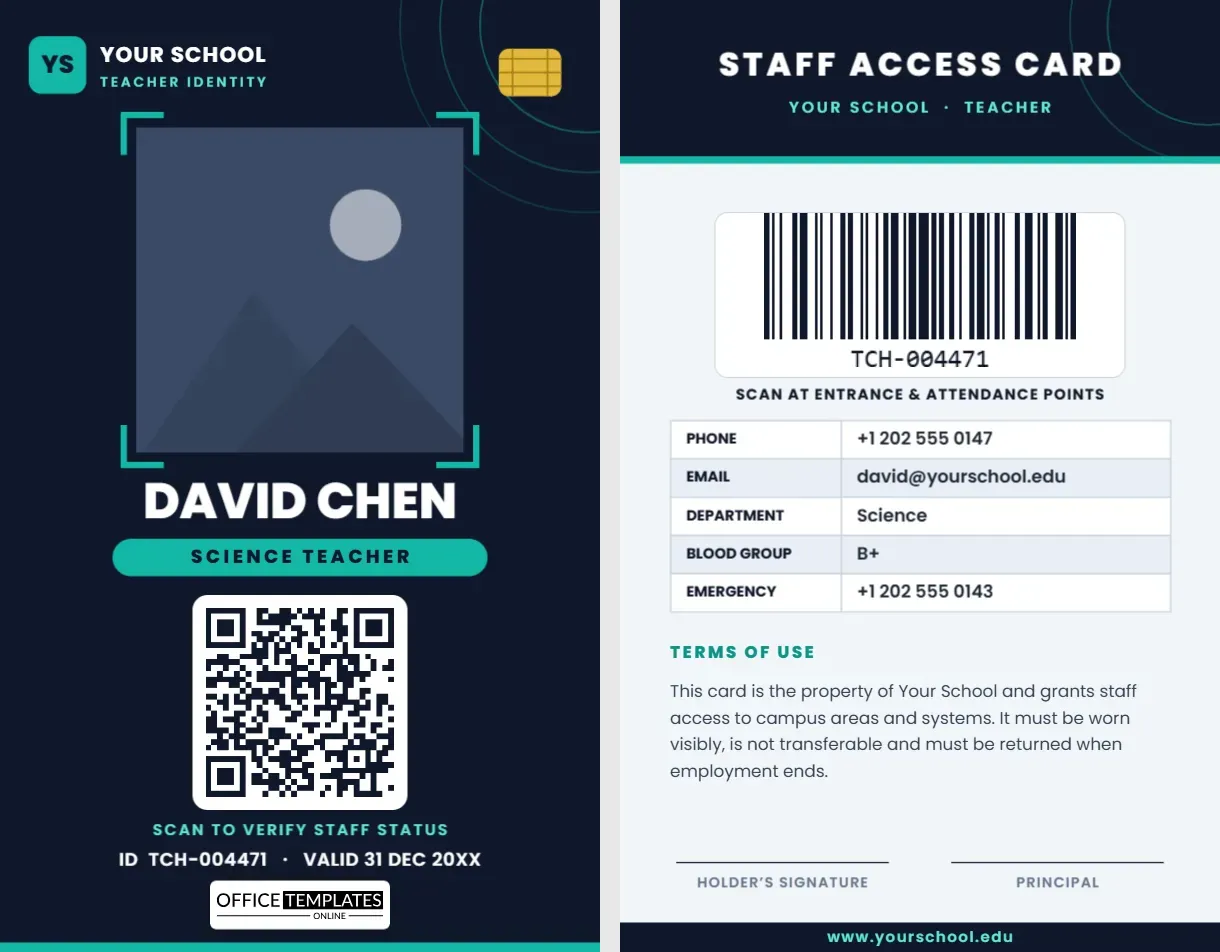
The reverse side at a glance
The back opens with a blue header that reads “Staff Identity Card”. Below it, a QR code sits on the left with a “Scan to verify” caption, and a second table on the right holds the address, email, blood group and emergency contact. A short terms paragraph explains that the card belongs to the school, must be worn visibly and must be returned if found. Two signature lines, one for the holder and one for the principal, finish the layout.
The QR code is created with the editor’s own QR tool. Click it, paste in the address of your staff page or verification link, and the image regenerates in place.
Fitting a landscape card into holders and readers
The card measures 3.375 x 2.125 inches (85.6 x 54 mm), the standard credit-card size known as CR80. That means it fits horizontal card holders, badge reels with a landscape clip, wallet sleeves and the feed tray of most PVC card printers. If you plan to use a lanyard, buy landscape holders with a slot on the short edge, or ask your printer to punch a slot along the top.
Making it yours in six steps
- Open the template and click the round photo, then choose Replace Image and upload the teacher’s portrait.
- Click each text line and type the school name, teacher name, role and ID number.
- Edit the details table: change the values, add or remove rows and adjust the column widths.
- Recolour the blue panel and amber accents to match your school colours from the toolbar.
- Go to page 2 and update the QR link, address table, terms and signatory names.
- Download the design as a PDF, PNG or JPG.
Role lines you can drop straight in
- Class Teacher · Grade 4
- Head of Department · Science
- Form Tutor · Year 9
- Assistant Principal · Academics
- Guest Lecturer · Visual Arts
- Sports Coordinator · Physical Education
Print settings that keep the edges clean
For the sharpest result, print at 300 dpi on 30 mil PVC or on heavy white card stock, then laminate a paper card with a 5 mil pouch. If your printer supports edge-to-edge printing, export the file as PDF and choose “actual size” so nothing is scaled. Colour-to-edge cards look best when trimmed with a proper CR80 cutter; a paper trimmer and a ruler also work for small batches. Always print one test card before starting a run, and scan the QR code from the printed sample to be sure it reads.
Questions we hear most
Can I change the colours?
Yes. Click any shape and choose a new fill. Because the blue panel is made of simple shapes, recolouring takes seconds.
Can I use the same card for non-teaching staff?
Yes. Change the “Teacher” pill to Librarian, Lab Technician, Office Staff or whatever you need.
Is the back required?
No. If you only want a one-sided card, delete page 2 before downloading.
Will the QR code work after I print?
It will, provided you keep good contrast and print it at least 0.4 inches wide. Test it with a phone before you print a full batch.
A wide, well-organised card tells everyone who walks into your school that the person wearing it belongs there. Open the template, add your teacher’s details and download a landscape ID card in minutes.