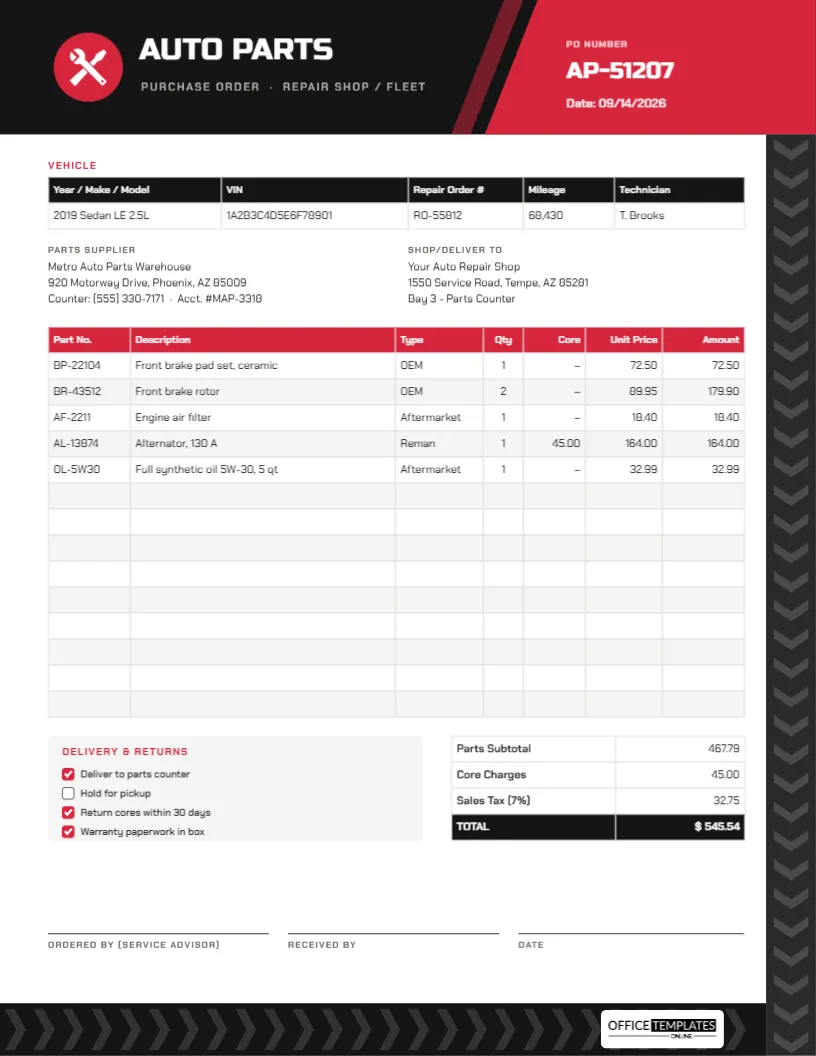
Every repair shop knows the feeling: the car is on the lift, the customer has approved the work, and the parts that arrive are for the wrong engine. Most of those mix-ups come from orders placed without the vehicle details. An Auto Parts Purchase Order ties each order to a specific vehicle and repair order, records whether you asked for original or aftermarket parts, and keeps track of core charges that are easy to lose. This template does all of that on one page.
Order Parts in Five Steps
- Start with the vehicle: Fill in the Vehicle table: year, make, and model with engine size, the full VIN, your repair order number, mileage, and the technician. Parts counters look parts up by VIN, so copy it carefully from the vehicle or the registration.
- Add the supplier and delivery point: Enter the parts warehouse, its counter phone number, and your account, then where the parts should go, such as Bay 3 – Parts Counter.
- List the parts: For each line, give the part number, a clear description, the type (OEM, aftermarket, or reman), quantity, any core charge, and the unit price.
- Tick delivery and returns options; then calculate and type the subtotal, core charges, tax, and total.
- Sign and send: The service advisor signs, and whoever receives the parts signs and dates on arrival.
The Design: Black, Red and Tread
The template is US Letter portrait, 8.5 x 11 inches. A black header carries AUTO PARTS in Russo One, a bold, squared typeface with a motorsport feel, above Purchase order · Repair shop/fleet in spaced grey capitals. A red circle on the left holds a crossed wrench and screwdriver icon. On the right, a red panel with a slanted edge, like a racing stripe, carries the PO number and date, with a thinner translucent red slash beside it.
Down the right-hand edge of the page runs a dark strip patterned with chevrons, like the tread of a tyre, and the same tread returns across the bottom of the page, where our logo sits on a white plate. The rest of the form is set in Chakra Petch, a technical-looking sans-serif, and includes the Vehicle table, supplier and shop blocks, a 14-row parts table with a red header, a Delivery & Returns checklist, totals, and signature lines for the service advisor, the person receiving, and the date.
OEM, Aftermarket or Reman?
The Type column records what kind of part you ordered, which matters for price, warranty, and what you tell the customer:
| Type | What it is | Typical reason to choose it |
|---|---|---|
| OEM | Made by or for the vehicle manufacturer | Exact fit, manufacturer warranty, customer preference, newer vehicles |
| Aftermarket | Made by another manufacturer to fit the vehicle | Lower price, wide availability, filters and service items |
| Reman | A used unit rebuilt to working specification | Lower cost than new for alternators, starters, steering racks, calipers |
Recording the type on the PO helps when the customer asks what was fitted, and when a warranty claim comes up months later.
Core Charges, Worked Out
When you buy a remanufactured part, the supplier usually adds a core charge, a refundable deposit that encourages you to return the old unit so it can be rebuilt. The template has its own Core column so these charges never get buried in the part price. In the sample:
- The remanufactured alternator costs 164.00 and carries a 45.00 core charge.
- The other four parts have no core, shown by a dash.
- Parts subtotal: 467.79. Core charges: 45.00. Sales tax at 7% on the parts: 32.75. Total: $545.54.
When you return the old alternator, the supplier credits the 45.00. Ticking Return cores within 30 days is a reminder that cores often have to go back within a set period to earn the refund, so put the old unit in the box the new one came in and send it back promptly. Check your supplier’s own core policy and whether tax applies to core charges where you are.
Using the Delivery & Returns Checklist
Four options cover the questions a parts driver or counter usually asks: deliver to the parts counter, hold for pickup, return cores within 30 days, and whether warranty paperwork is in the box. Keeping warranty paperwork is easy to forget and valuable later, especially for alternators, starters, and batteries.
Editing the Parts Order
- Click the PO number and date in the red panel to change them. Use a sequence that matches your shop management system if possible.
- The Vehicle table is a real table: double-click it to update all five cells in one window.
- The parts table works the same way; the + Row button adds lines for bigger jobs.
- The table stores text, so work out amounts and totals before typing them in.
- The wrench and screwdriver icon is an editable vector. Recolour it or swap the red for your shop’s brand colour, and change the header slash to match.
The VIN in the sample is a placeholder. Always enter the real one.
Fleet Maintenance and Multi-Vehicle Orders
Fleet managers can use the same form for company vans or trucks. Put the unit or fleet number in the Year/Make/Model cell, for example, Unit 14 – 2021 Transit 350, and use one PO per vehicle so costs can be charged to the right unit. For a stock order that is not tied to a vehicle, delete the Vehicle table and title the order Shop Stock.
Printing in the Workshop
Print on US Letter at actual size. The black header and tread strips use a fair amount of toner; for day-to-day copies, print in greyscale or lighten the tread. Keep the signed PO with the repair order so the parts, costs, and cores are all documented together.
Parts Counter Questions
Why include mileage?
Some parts differ by production date or mileage, and it helps with warranty claims.
Can I use it for tyres?
Yes. Put the tyre size and load and speed ratings in the description.
Can I delete the Core column?
Yes, in Edit Table Data, although keeping it avoids lost core refunds.
Right Part, Right Car, First Time
Tie every order to a VIN and a repair order, record the part type, and track your cores. This auto parts purchase order helps keep bays moving and customers happy.