Teal and Orange Side Stripes Around a Large Name
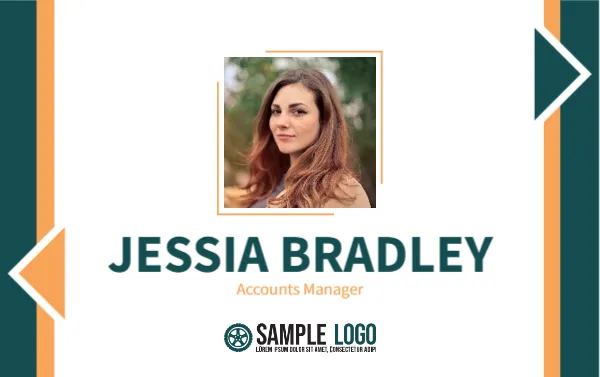
Teal and orange vertical stripes run down both edges of this landscape badge, with an orange arrow at the left and a teal arrow at the right. A framed photo with an orange outline sits at the top centre, a huge teal name, JESSIA BRADLEY, runs across the middle, with Accounts Manager in orange and a SAMPLE LOGO below.
A Standard Badge Size
The badge is 3.375 x 2.125 inches, the usual CR80 size for ID and bank cards. It fits a standard holder, and prints well on card printers and PVC.
Photo, Name and Job Title Fields
Drop a clear head and shoulders photo into the outlined frame. Replace JESSIA BRADLEY and Accounts Manager, and swap the wheel icon SAMPLE LOGO for your own. The name is very large, so long names need a smaller font.
Preparing the Worker Badge
- Add the photo.
- Type the name.
- Edit the job title.
- Replace the logo.
- Print and sleeve.
A Name First Badge
The name is the biggest element, which suits roles where people need to be addressed directly, such as reception, accounts and customer facing teams. Strangers can read it from a few steps away.
Arrows Pointing Inwards
The two arrows point towards the middle of the card, drawing the eye to the name. They are a simple decorative device, but they give the card a clear direction.
Orange Title Text on White
The job title is in light orange, which has modest contrast on white. Darken the orange or switch to teal if you print on a low quality printer.
A Photo Frame With an Offset Outline
The thin orange outline is slightly offset from the photo, which gives a modern, layered look. Keep the photo square so the offset outline lines up.
Lanyard and Clip Options
A slot punch at the top edge works for a lanyard, while a clip suits a shirt pocket. Choose a holder that does not cover the photo frame.
Consistency Across Teams
Use the same badge for every department, changing only the title and photo. Consistency makes your staff look organised, and it simplifies reprints.
Reprinting and Record Keeping
Save one file per employee named by employee number. When a title changes, edit the file and reprint, which takes only a minute.
Step by Step Editing of the Id Badge Worker Teal Orange Stripes Photo Design
- On the id badge worker teal orange stripes photo design, click the main headline and type your own words, keeping a similar length.
- Retype every name, date and contact line on the id badge worker teal orange stripes photo design, checking each against a trusted source.
- Search the id badge worker teal orange stripes photo design for the words Lorem and Company so that no placeholder remains.
- Click any logo or photo on the id badge worker teal orange stripes photo design, choose Replace Image and resize the new picture to fit.
- Zoom the id badge worker teal orange stripes photo design to full size and read each line aloud before you save it.
- Keep a clean master of the id badge worker teal orange stripes photo design without private details, so later versions start tidy.
Consider the project manager name card. Similar designs include the team leader name card. Compare it with the office assistant name card. Every id badge worker teal orange stripes photo style alternative sits in ID card templates.