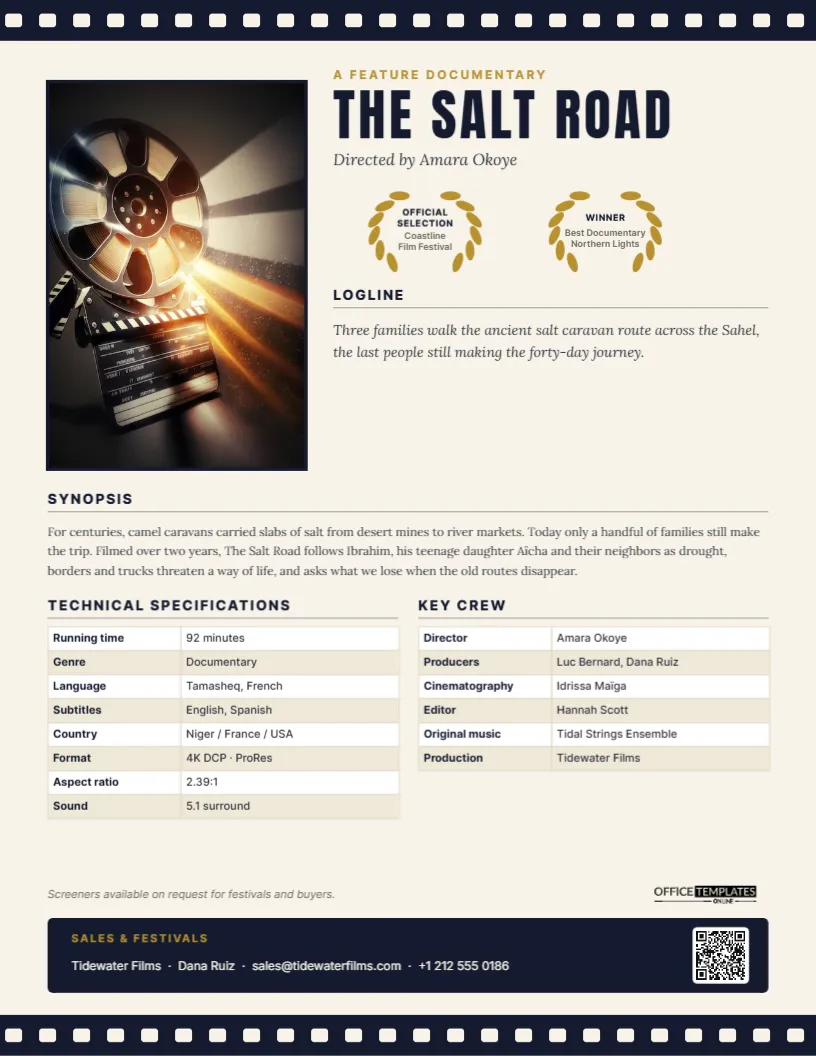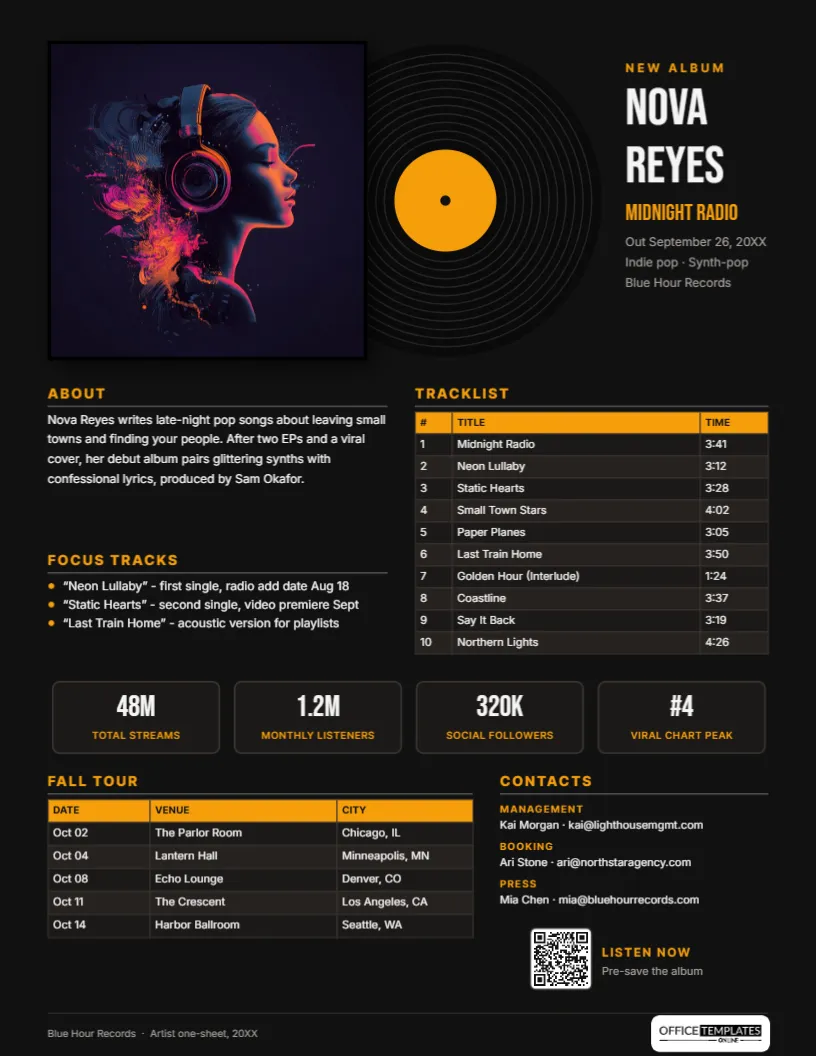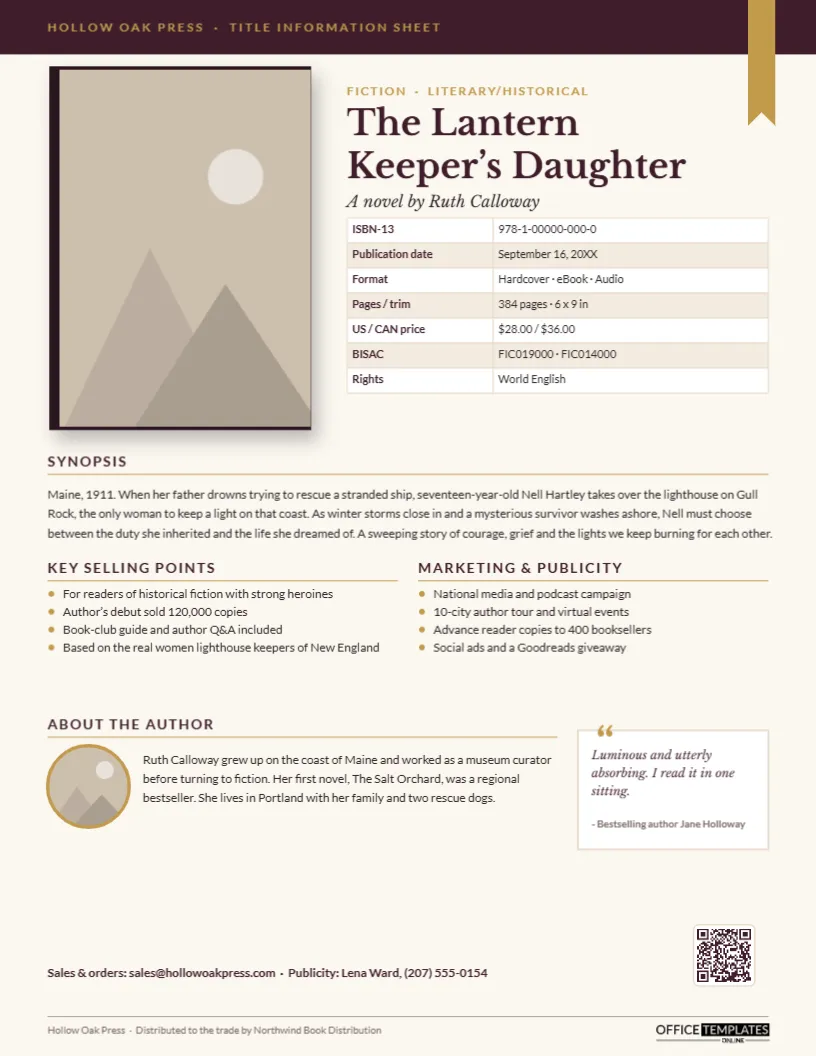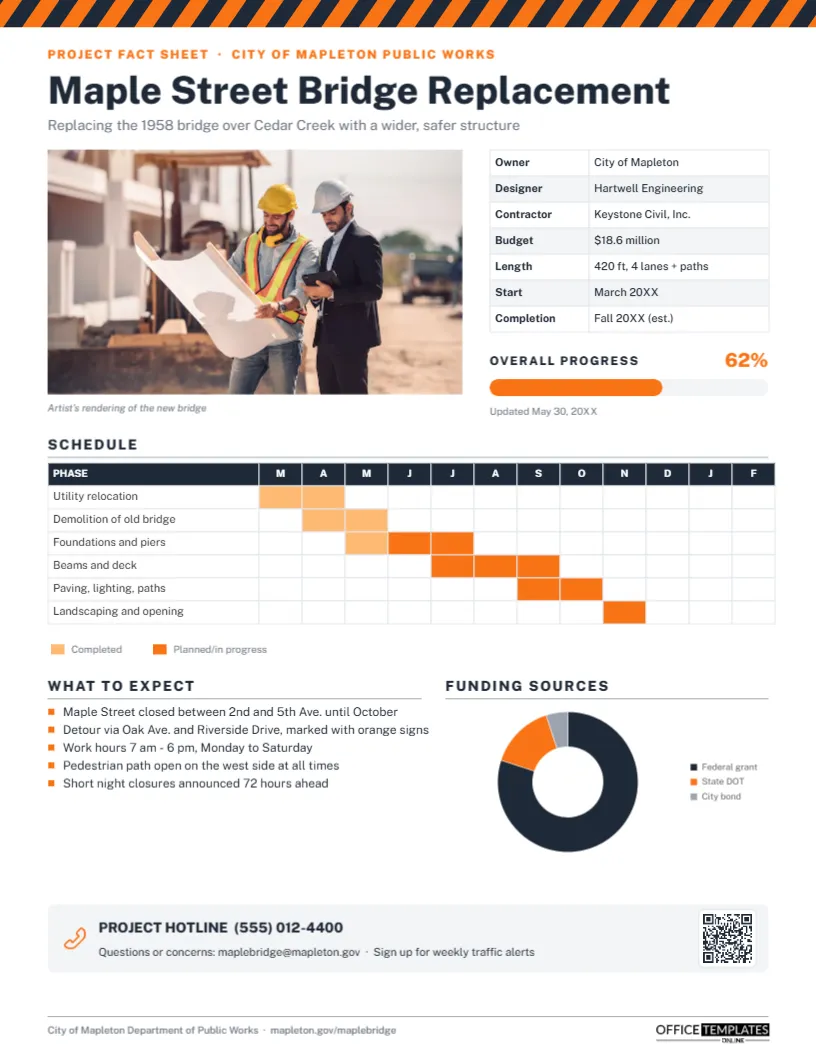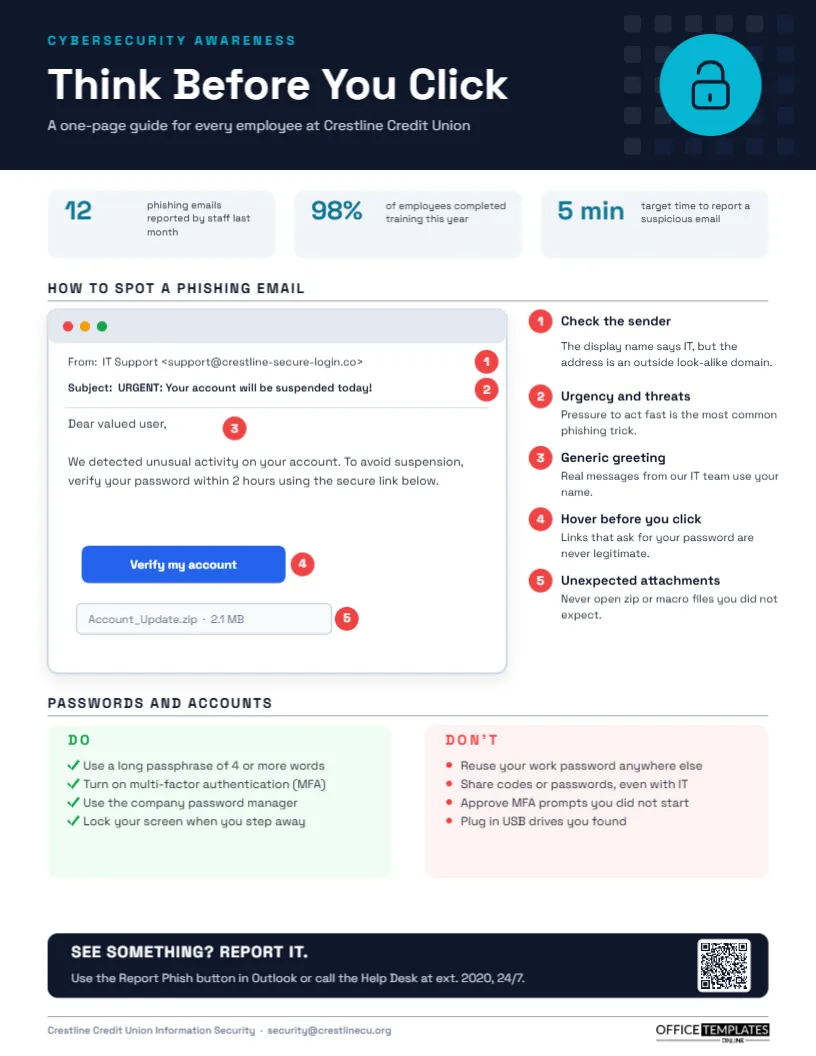
Most cyberattacks on organisations start the same way: someone clicks. A convincing email arrives, the link leads to a fake login page, and an attacker has a password. Firewalls and filters stop a lot, but not everything, which is why employees are called the last line of defence. This Cybersecurity Awareness Fact Sheet teaches the single most useful skill, spotting a phishing email, using a realistic example with numbered red call-outs. It fits on one page, so it can go on a break-room wall, into onboarding packs, and into every security awareness month campaign.
Learn by Example, Not by Rules
People remember what they see. A list of abstract rules (be careful with links) fades in a day; an annotated fake email that shows exactly where the warning signs are sticks. That is why the centre of this template is a mock email window, complete with traffic-light dots in its title bar, a suspicious sender address, a panicked subject line, a generic greeting, a bright blue Verify my account button and a zip attachment. Five red numbered circles sit on the tell-tale parts, and matching numbered notes on the right explain each one in plain language.
The Five Red Flags Explained
- Check the sender: The display name says IT Support, but the address uses a look-alike outside domain. Always look at the actual address, not the name.
- Urgency and threats:Your account will be suspended today! Pressure to act fast is the most common phishing trick, because it stops people from thinking.
- Generic greeting:Dear valued user is a sign of a mass email. Genuine internal messages usually use your name.
- Hover before you click: A button can say anything; hovering shows where it really goes. A link that asks for your password is never legitimate.
- Unexpected attachments: Zip files and documents with macros are common ways to deliver malware.
Dark Navy, Cyan and a Padlock
The page has a technical, trustworthy look. A dark navy header shows a subtle grid of rounded squares on the right, like a circuit board, with a cyan circle holding a padlock icon. The title Think Before You Click is set large in white Space Grotesk under a cyan CYBERSECURITY AWARENESS label, with a line naming the organisation, a credit union, on the sample. Three pale grey stat panels below the header give quick context: phishing emails reported by staff last month, the share of employees who completed training, and the target time to report a suspicious email.
Below the annotated email, a Passwords and accounts section splits into a green DO panel with checkmarks and a red DON’T panel with red bullets. At the bottom, a navy bar says SEE SOMETHING?REPORT IT. with instructions for the Report Phish button and the help desk extension, plus a QR code. It is sized for US Letter, 8.5 x 11 inches, in portrait.
Adapting It to Your Organisation
Replace the credit union name with yours in the subtitle and footer. Make the fake email look like the phishing emails your staff actually receive: if attackers imitate your payroll provider or a delivery company, change the sender and subject to match. Each line of the mock email is its own text box, so you can rewrite it freely, and the red circles can be dragged to the new positions. Update the three statistics with your own figures from your email security reports and training platform; real local numbers make the message feel urgent and relevant. Finally, edit the reporting instructions to name your actual tools and the help desk number, and link the QR code (in the Barcodes & QR panel) to your security intranet page or reporting form.
Five-Minute Team Huddle Script
Managers can use the fact sheet to run a quick huddle at the start of a team meeting:
| Minute | What to do |
|---|---|
| 1 | Hand out the sheet and ask everyone to find the red flags before looking at the notes. |
| 2 | Walk through the five call-outs and ask who has seen a similar email. |
| 3 | Show how to hover over a link on a real email client. |
| 4 | Review the do and don’t lists, especially MFA prompts they did not start. |
| 5 | Demonstrate the Report Phish button and thank anyone who reported one this month. |
Why Passwords and MFA Share the Page
Phishing and weak passwords are closely linked: a stolen password is only useful if it works and if nothing else stands in the way. Long passphrases, a password manager, and multi-factor authentication make stolen credentials far less valuable. The DON’T list includes a newer attack that many people have not heard of: approving an MFA prompt you did not start. Attackers who already have a password send repeated prompts, hoping someone taps Approve to make them stop. Teaching staff to deny and report unexpected prompts closes that gap.
Building a Reporting Culture
The most valuable outcome of awareness training is not that people never click, but that they report quickly when they do. Make reporting easy (one button), fast (the template sets a five-minute target), and blame-free. Thank reporters publicly, share the monthly count as the template does, and tell staff what happened with the emails they reported. When people feel their reports matter, they keep making them.
Where to Post and Share It
Print it for break rooms, kitchens, and printers, where people stand and wait. Include it in new-hire onboarding, attach it to your monthly security newsletter, and use it as the handout for phishing simulation debriefs. During Cybersecurity Awareness Month in October, it makes a strong first message in a campaign. Schools, clinics, small businesses, and nonprofits can use the same page with their own names and contacts.
Keeping the Example Current
Phishing tactics change. Review the mock email every six months and update it to reflect current campaigns: QR code phishing (sometimes called quishing), fake invoice requests, delivery notices, and messages impersonating executives. You can add a sixth call-out for a new trick by duplicating a red circle and adding a note.
Colour Matters on the Wall Version
The navy header and red call-outs need colour printing to work well, because the red is what draws the eye to each warning sign. Laminate copies for walls. For a digital version, the PDF works well on intranets and in Teams or Slack channels.
Security Team FAQs
Is it safe to use a realistic phishing example?
Yes. The example is a picture of an email, not a working link, and the fake domain is clearly labelled as suspicious.
Can I turn this into a quiz?
Duplicate the page, delete the numbered notes, and ask staff to circle the red flags themselves.
Can I add a section on smishing?
Yes. Replace the password section with a short phone text example and three tips about suspicious messages and calls.
Open the template, add your organisation’s name, numbers, and reporting steps, and help every employee think before they click.