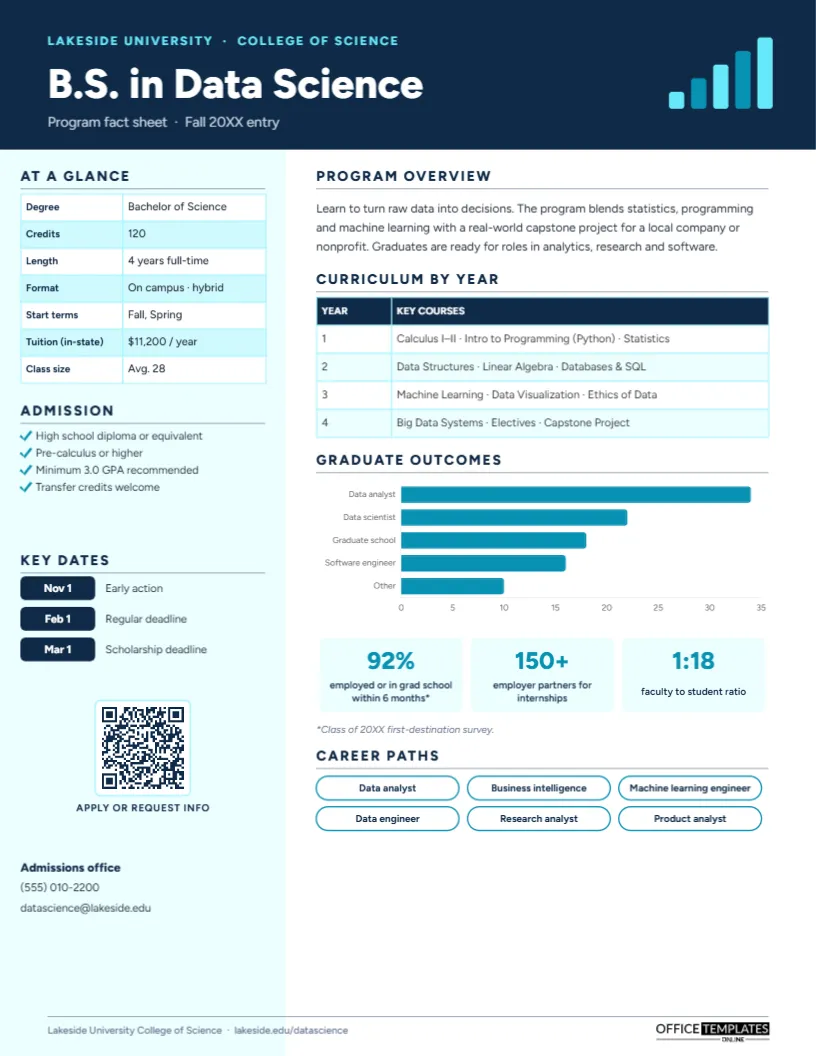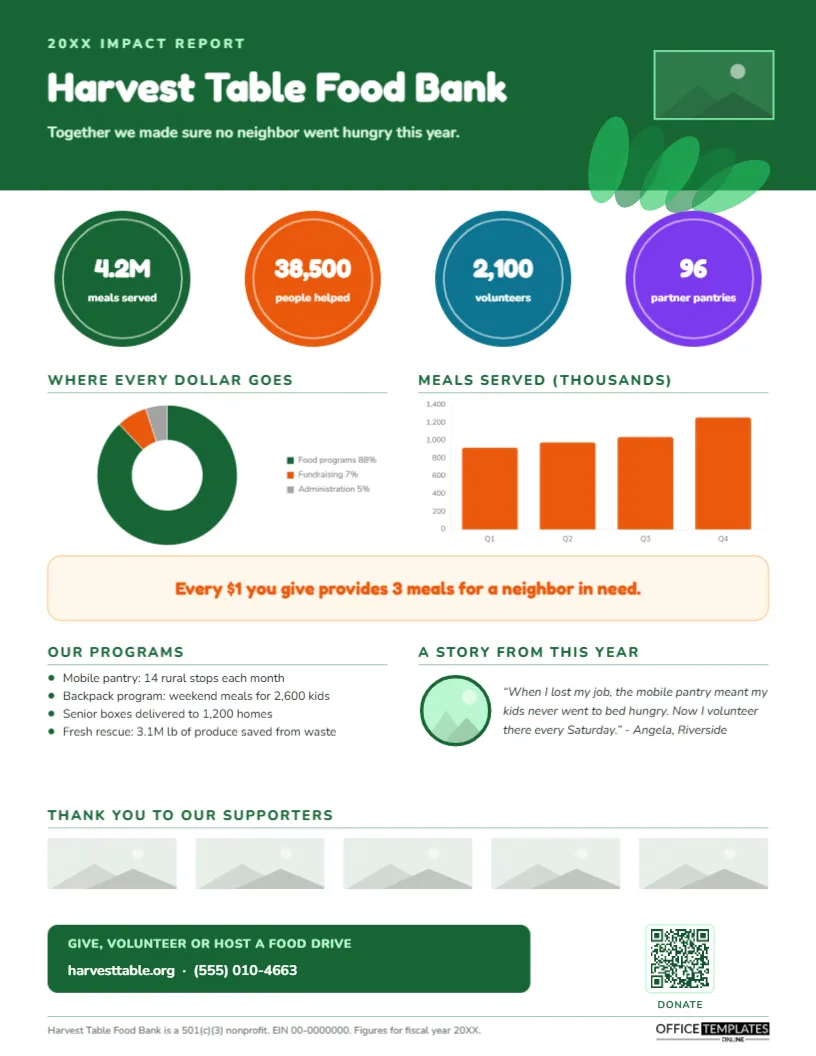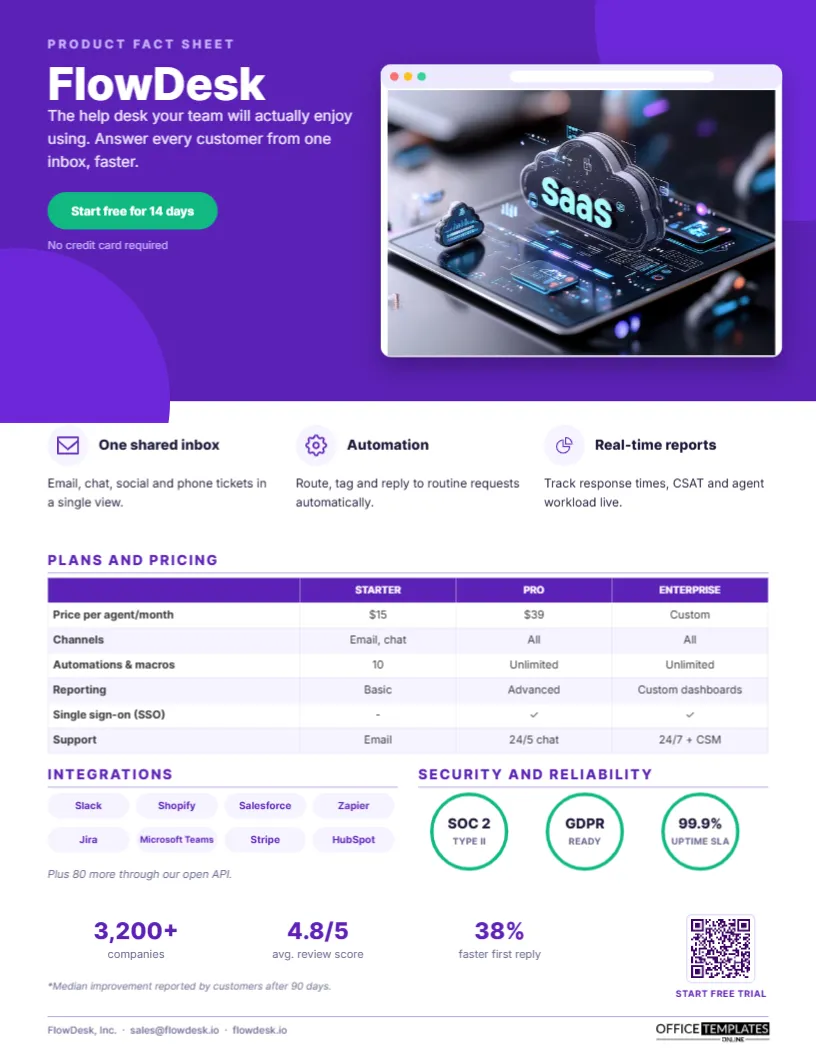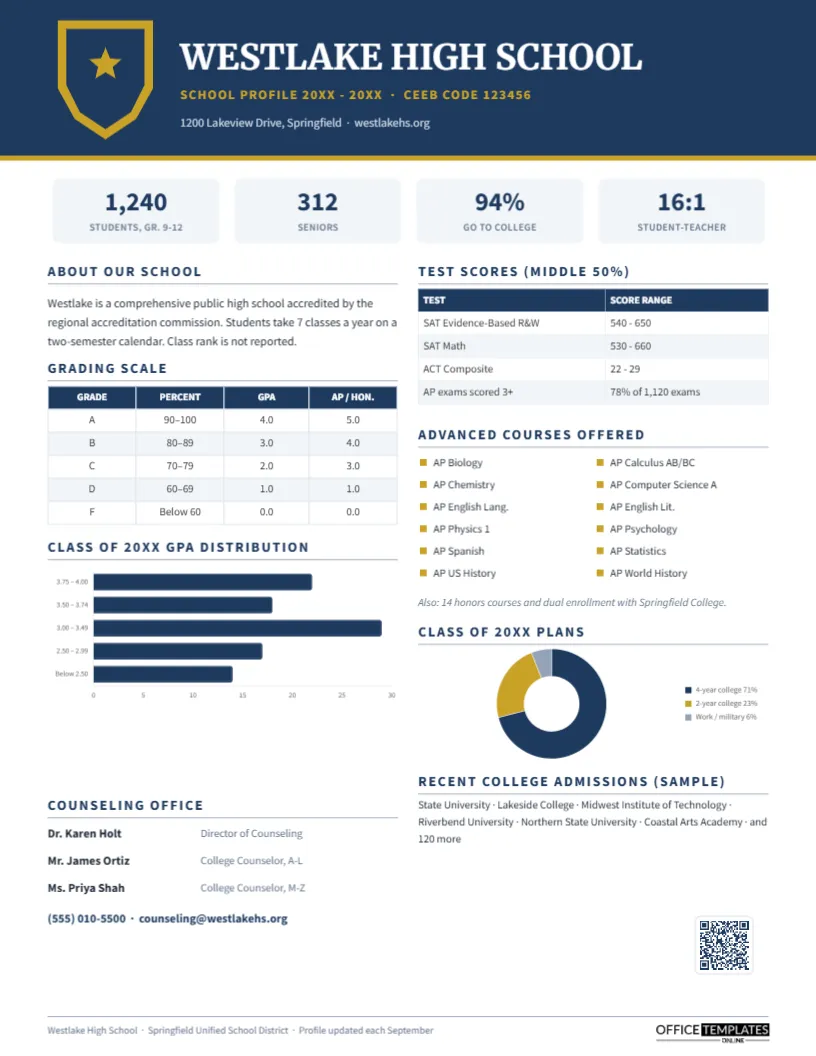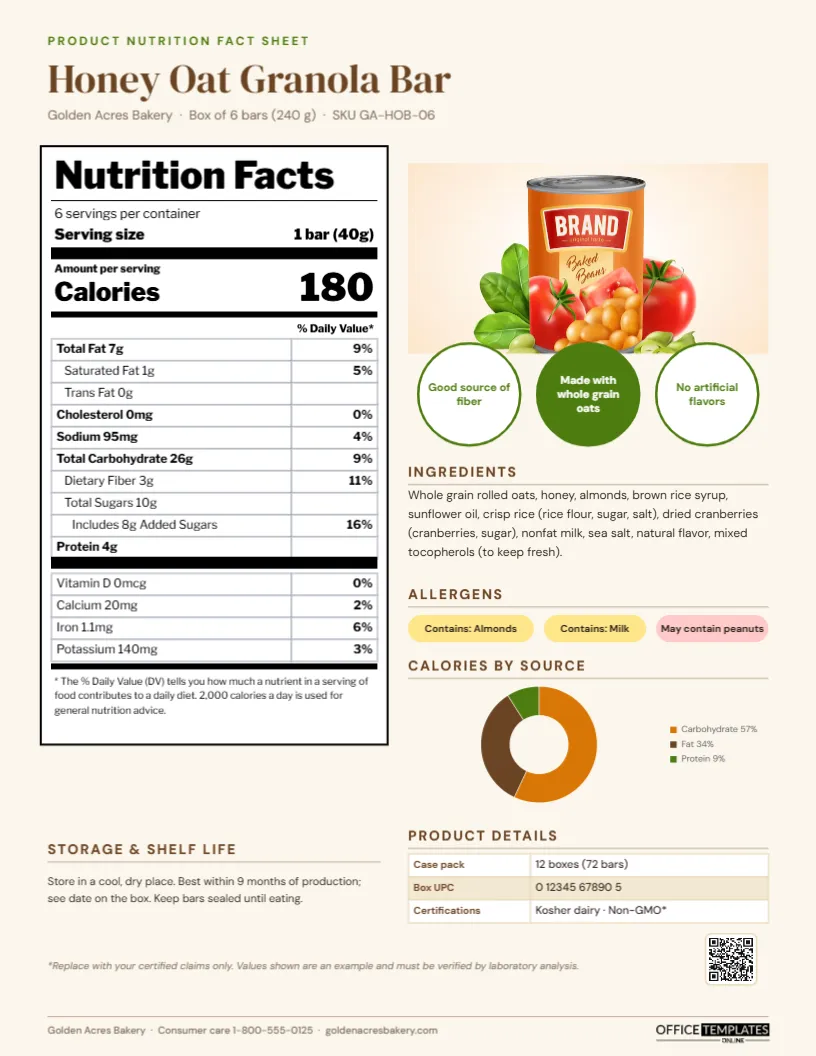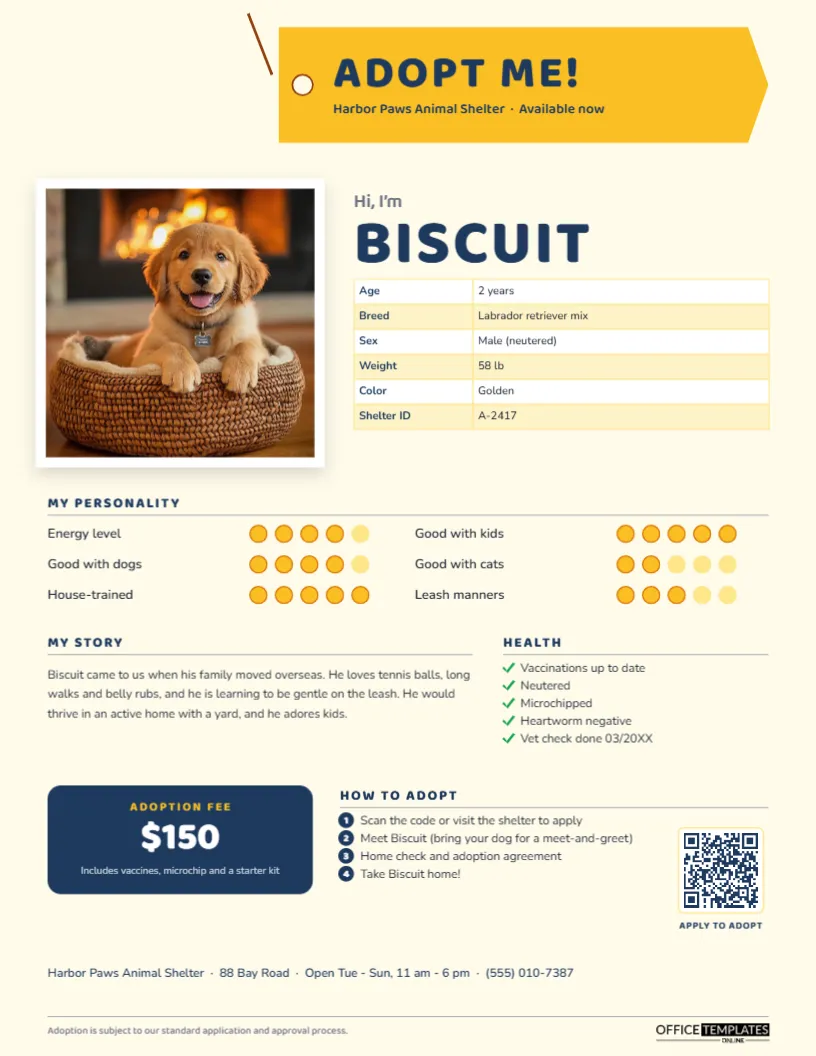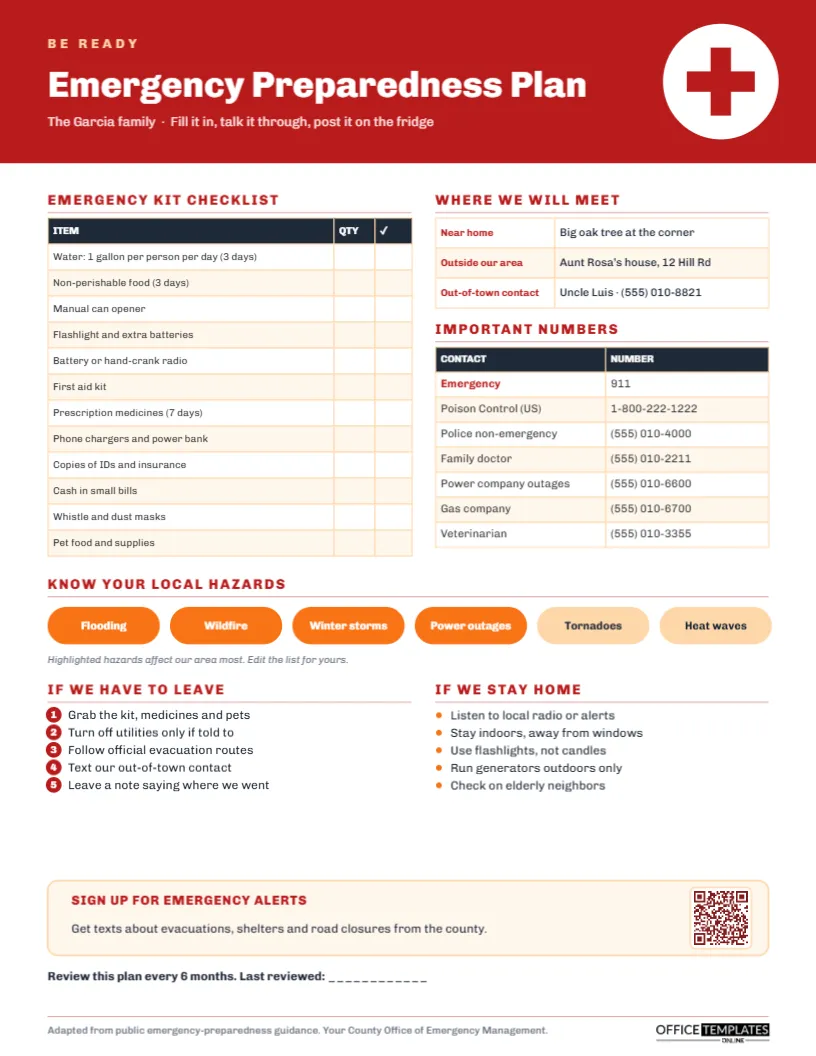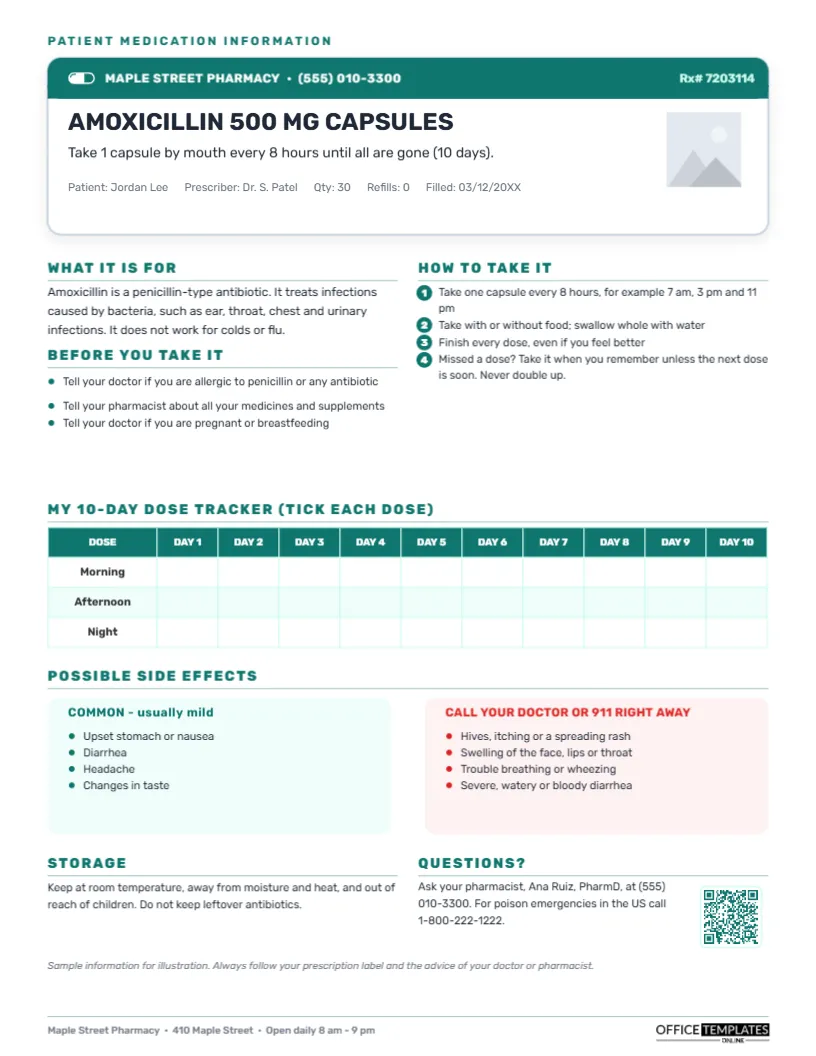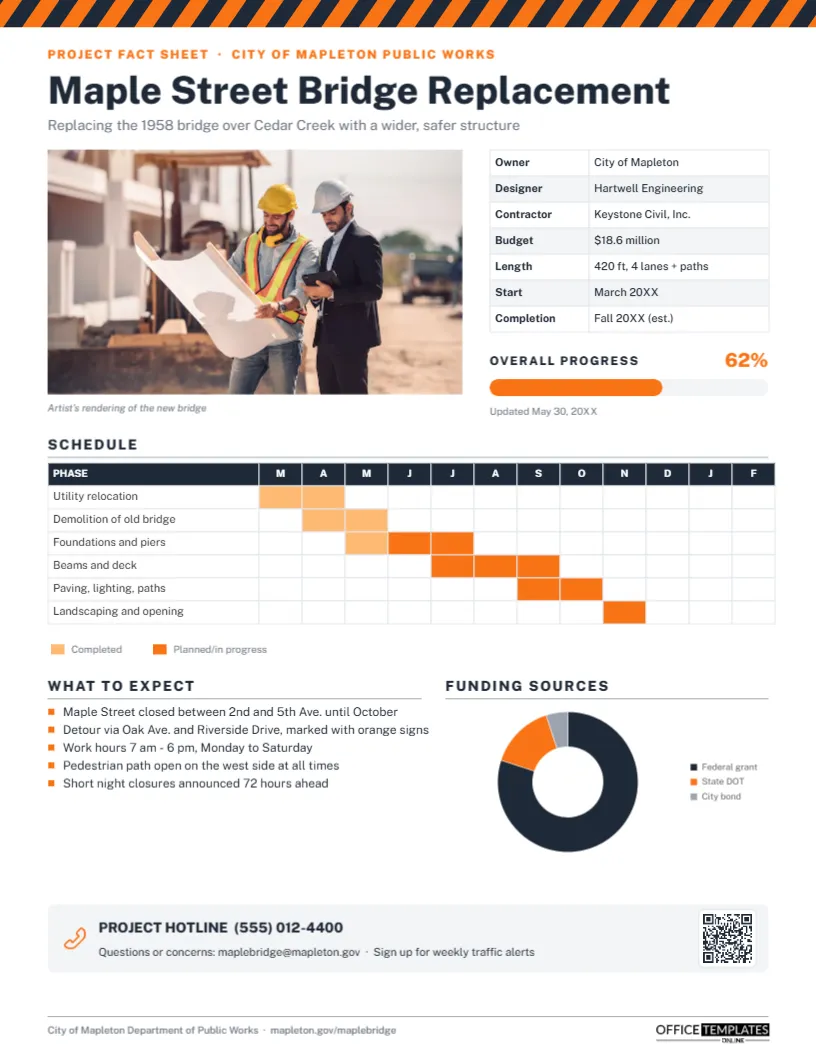
When a road closes, a bridge comes down, or a new school goes up, the neighbours want to know three things: what is being built, how long it will take, and how it affects them. Public works departments, contractors and developers answer with a project fact sheet. Done well, it reduces complaints, builds support, and shows taxpayers where their money goes. This Construction Project Fact Sheet Template, shown for a bridge replacement, gives the public a clear picture of the project on one page.
Public Information Is Part of the Job
Construction projects are judged by the public long before they are finished. Detours, noise, dust, and closed sidewalks test patience, and rumours spread fast when official information is missing. Agencies that communicate early and often, with a single reliable fact sheet, a hotline and regular updates, see fewer complaints and more patience. For federally funded projects, public involvement is often an explicit requirement, and a fact sheet is one of the simplest ways to meet it.
Hazard Stripes, Orange and Charcoal
The page borrows the visual language of a construction site. A band of diagonal orange and charcoal hazard stripes runs across the very top. Below, an orange label names the document and the agency, PROJECT FACT SHEET · CITY OF MAPLETON PUBLIC WORKS, above the project name, Maple Street Bridge Replacement, in heavy charcoal Public Sans, and a one-line summary.
An artist’s rendering fills the left half of the upper page, with a small italic caption. On the right, a project data table lists owner, designer, contractor, budget, length, start, and estimated completion. Under it, an Overall progress bar in orange shows 62% complete, with the update date. The middle of the page holds a Schedule: a Gantt-style table with six phases in rows and twelve months in columns, where shaded cells show when each phase runs (lighter orange for completed work, bright orange for work planned or in progress) and a small legend explains the colours. At the bottom, What to expect lists closures, detours, work hours, and pedestrian access, while Funding sources shows a doughnut chart of federal, state, and city shares. A grey hotline bar with a phone icon gives the project phone number and email, beside a QR code for traffic alerts. The whole design fits a single portrait US Letter page of 8.5 x 11 inches.
Reading and Editing the Gantt Schedule
The schedule is built from the editor’s real Table object, so it stays tidy as you edit. Each row is a phase, each column a month, and a shaded cell means work is scheduled that month. To update it:
- Select the table and open Edit Data to rename phases or change the month headings, for example, to start in a different month.
- To shade or clear a cell, click into the table and change that cell’s fill colour; use the lighter orange for months already finished.
- Add a phase with + Row; remove one with – Row.
- For projects longer than a year, change the column headings to quarters (Q1, Q2…) instead of months.
Updating Everything Else
Retype the agency name, project title, and summary. Replace the rendering with Replace Image; an artist’s rendering is ideal before and during construction, while a progress photo works well in later updates. Edit the project data table with Edit Data. For the progress bar, change the percentage text and drag the orange bar’s width to match (the grey track is 100%). The funding doughnut is an editor chart: select it, choose Chart Options, then Edit Chart Data to enter your funding sources and amounts. Finally, update the hotline, email, and QR code (in the Barcodes & QR panel) to point to your project page or alert sign-up.
The Information Neighbours Care About Most
| Concern | What to tell them | Where on the sheet |
|---|---|---|
| Access to homes and businesses | Which streets close and when; how driveways stay open | What to expect |
| Detours | The route and how it is signed | What to expect |
| Noise and hours | Daily work hours, night work notice | What to expect |
| How long | Phases and estimated completion | Schedule and project data |
| Cost and who pays | Budget and funding sources | Project data and funding chart |
| Who to call | A staffed hotline and email | Hotline bar |
Writing “What to Expect” in Plain Language
Avoid engineering terms in the public-facing list. Foundations and piers are fine in the schedule, but the impact list should talk about streets, sidewalks, parking, and times. Be specific about dates and locations, and promise only what you can deliver, such as 72 hours’ notice for night closures. If there is a business district nearby, add a line saying that businesses remain open during construction; it helps local shops.
A Sample Update Rhythm
Publish the first fact sheet before construction begins, then update it monthly or at each major milestone. Each update should change the date, the progress percentage, the schedule shading and the What to expect list. Keep the design identical so residents recognise it immediately. Post updates on your website, share them on social media, email them to subscribers and place printed copies at libraries, community centres and nearby businesses.
Beyond Bridges
The layout works for road resurfacing, water main replacements, sewer upgrades, school construction, park renovations, transit projects, hospital expansions and private developments. Developers can use it to show neighbours a new apartment building or retail centre; utility companies can use it for pipeline or power line work. Change the rendering, phases and funding, and the rest of the structure fits.
Handling Delays Honestly
Schedules slip because of weather, supply chains, and unexpected site conditions. When they do, update the fact sheet promptly, move the estimated completion date,e and briefly explain why. Residents are far more forgiving of an honest delay than of an outdated sheet that still promises a date everyone knows has passed.
Accessibility and Languages
Public agencies should make fact sheets accessible. Keep a text version on the project web page for screen readers, and translate the sheet into the main languages spoken in the neighbourhood. Duplicate the page in the editor for each language and keep the layout the same.
Printing for Door Hangers and Meetings
For public meetings, print on standard bright white paper; the orange and charcoal remain clear even on office printers. Some agencies deliver the sheet door to door along the detour route. Print extra copies for local businesses to display at their counters.
Project Communicator FAQs
Can I show a before photo and a rendering?
Yes. Split the image area into two photo slots, one for the existing condition and one for the rendering.
Can the funding chart be a table instead?
Delete the chart and insert a small Table with each source and dollar amount if you prefer exact figures.
What if the project has multiple contractors?
Add rows to the project data table for each contractor and their scope.
Open the template, add your project’s renderings, schedule, and contacts, and keep your community informed from groundbreaking to ribbon-cutting.