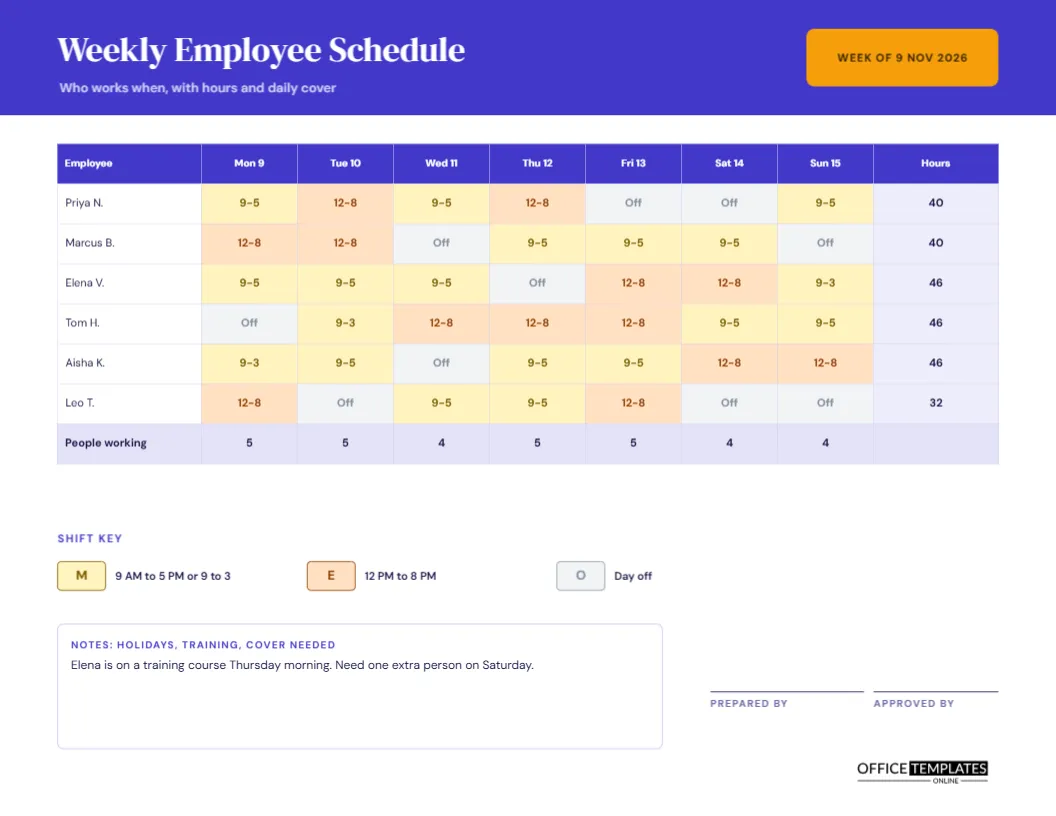
A schedule is a promise. It tells each person when they are needed and tells the manager that every day is covered. When it is drawn badly, people miss shifts, two people turn up when one was needed, or nobody is there on Saturday. This landscape schedule uses colour to make the week readable at a glance: one row for every employee, one column for every day, one coloured cell for every shift, with hours per person and a head count for each day.
Indigo Header With a Gold Week Tab
The header is deep indigo with the title Weekly Employee Schedule set in DM Serif Display, an elegant high-contrast serif. A gold rounded tab at the top right reads WEEK OF 9 NOV 2026. The line beneath the title says who works when, with hours and daily coverage. DM Sans sets the table. The design feels confident and tidy, which is what a schedule should be.
Six Employees, Seven Days
| Employee | Pattern for the week | Hours |
|---|---|---|
| Priya N. | 9 to 5, 12 to 8, 9 to 5, 12 to 8, off, off, 9 to 5 | 40 |
| Marcus B. | 12 to 8 twice, off, then 9 to 5 three times, off | 40 |
| Elena V. | 9 to 5 three times, off, 12 to 8 twice, 9 to 3 | 46 |
| Tom H. | Off, 9 to 3, 12 to 8 three times, 9 to 5 twice | 46 |
| Aisha K. | 9 to 3, 9 to 5, off, 9 to 5 twice, 12 to 8 twice | 46 |
| Leo T. | 12 to 8, off, 9 to 5 twice, 12 to 8, off, off | 32 |
The real page shows these as coloured cells under the day names Mon 9 to Sun 15.
What the Colours Mean
Yellow marks a morning or daytime shift, orange marks an evening shift, and grey marks a day off. Each coloured cell also carries the shift times in bold text, so the page still works when printed in black and white. A key under the grid shows the colours and times, which you can edit to suit your business.
The Hours Column
The last column adds the hours for each person, in a pale tint. A manager can scan it to see who is near a limit and who has room for extra shifts. In the sample, the figures run from 32 to 46, and a glance shows that three people exceed forty, which might trigger overtime or prompt a rebalance.
People Working Each Day
A shaded bottom row counts how many people are working on each day. This row is the quickest check that coverage is adequate. If your Saturday needs four people and the row shows three, you know before the week starts. The sample note even says Need one extra person on Saturday, a reminder written exactly where the gap shows.
Building the Schedule Step by Step
- List the staff in the first column.
- Decide how many people each day needs.
- Place the fixed shifts first, such as training or part-time limits.
- Fill the remaining cells, balancing hours and rest days.
- Check the bottom row against the cover you need.
- Retype the hours and issue the schedule.
Respecting Availability and Fair Rotations
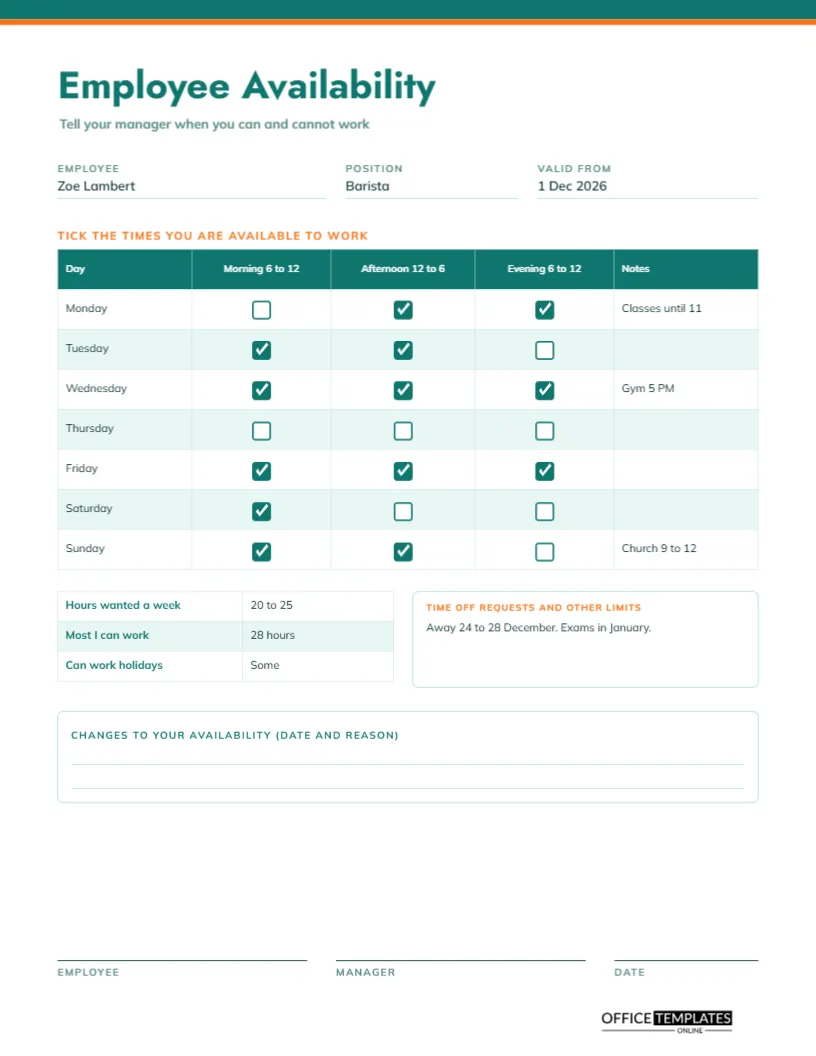
A good schedule respects what people told you they can work. Keep the availability forms handy and check them as you place shifts. Share the unpopular shifts, such as Saturday evenings, in turn, and make the rotation visible. Fairness lowers complaints and makes people more willing to help when you need a favour.
Notes: Holidays, Training and Cover Needed
A notes box records things that do not fit in the grid. The sample says Elena is on a training course Thursday morning and one extra person is needed on Saturday. Anything that changes who can work, or how many are needed, belongs here, where everyone will see it when they read the schedule.
Publishing the Schedule in Good Time
Staff needs notice. Many places have rules on how far ahead a schedule must be posted, and good managers aim for at least a week even when not required. Print the page, pin it in the staff room, and send a PDF to everyone. A visible schedule reduces mistakes and phone calls.
Changing a Published Schedule
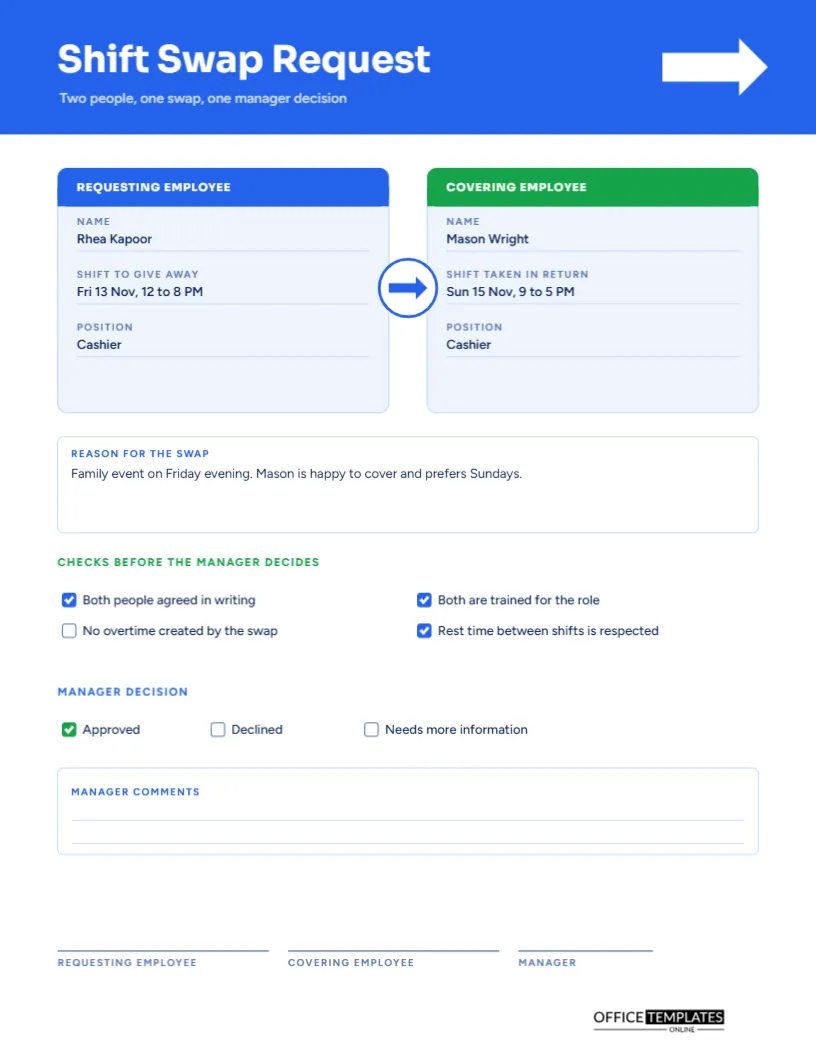
Changes will happen. When they do, mark the change on the page, initial it, and tell the people affected. If you reissue the whole page, write revised and the date. A shift swap form is the right tool when two staff exchange shifts, and it leaves a trail that explains why the page changed.
Editing Names, Codes and Colours
Every cell is editable. Retype names, change the shift times in each cell and the key, or recolour the cells to suit your branding. The table is a real Table object, so you can add rows for more staff. If you need a seventh or eighth employee, reduce the row height slightly to keep the page tidy.
Approval and Printing
Lines for the person who prepared the schedule and the person who approved it sit at the foot. The page is US Letter landscape and prints at actual size. The colours remain distinct in grayscale because each cell has its own label.
Spotting Gaps and Overloads Before the Week Starts
Read the schedule twice before publishing: once down the Hours column for overloaded people, and once along the bottom row for thin days. Fix the biggest problem first, then recheck. Ten minutes at this stage saves a week of phone calls, covering favours and unhappy staff who found out on Monday morning.
Using the Schedule Together With Time Records
Compare the finished schedule with the hours people actually record. Differences show where shifts ran long, where swaps happened, and where the plan needs more realistic times.
Weekly Schedule Questions
Can I use it for more than six people?
Yes. Add rows through Edit Table Data and lower the row height.
Does the daily count update itself?
No. It is typed text. Recount after any change.
How is this different from the monthly roster?
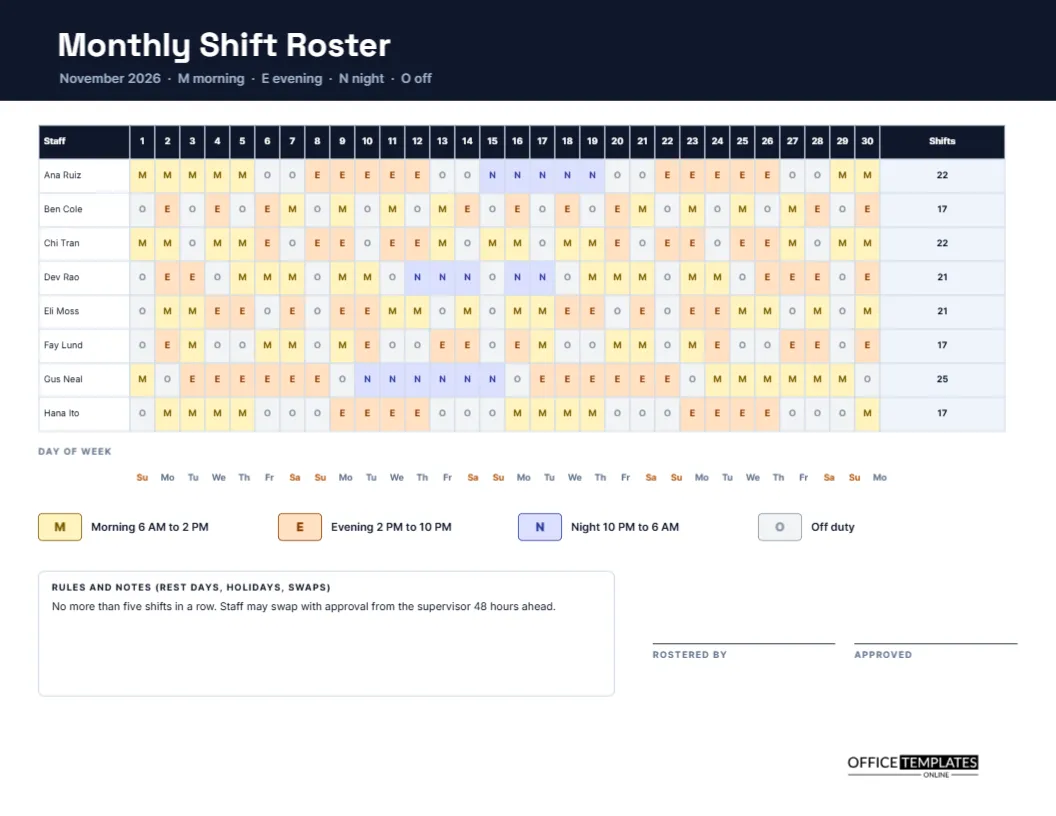
This page shows one week with times in each cell. The monthly roster uses short codes across a whole month.