A Title Page With a Splash of Orange Facets
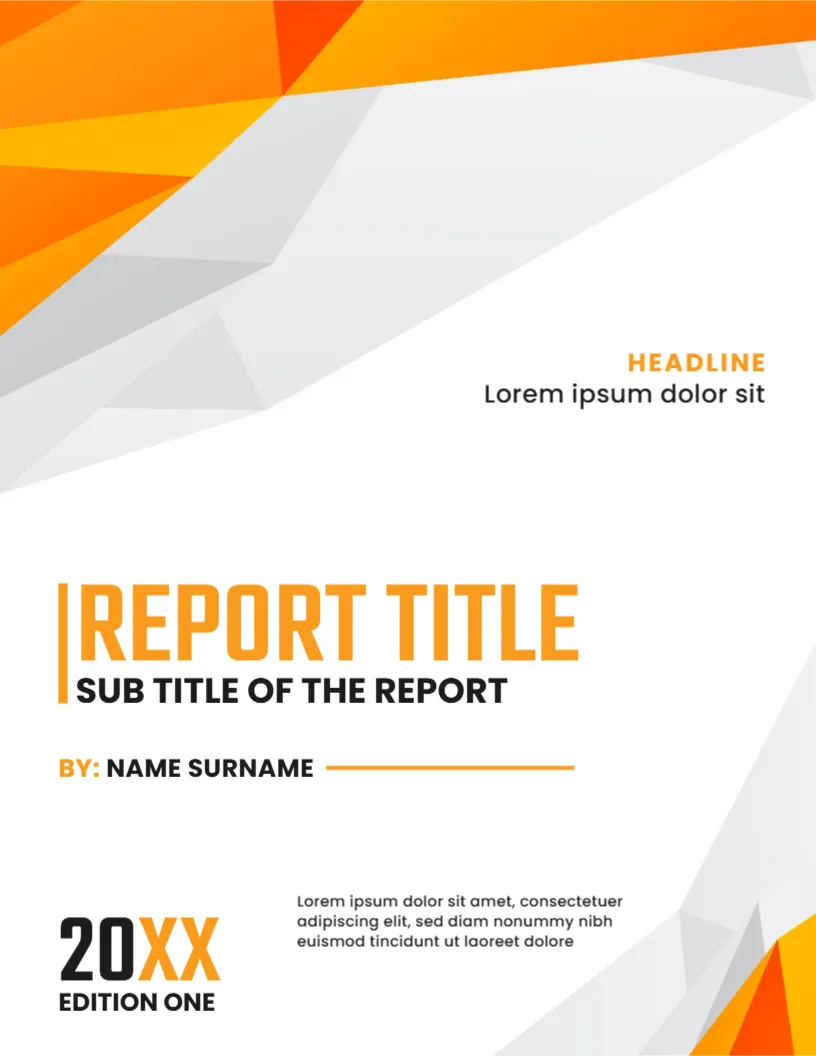
A crisp white page with a corner of faceted orange and grey makes this title page feel modern and warm. The title is big and left aligned with a thin orange bar, and the rest of the information is arranged in a neat column. It suits reports for companies, schools and nonprofits that want a unique look without photos.
The Low Poly Corner
The page is 8.5 x 11 inches, portrait, one page. A cluster of orange, amber and grey polygons covers the top left and spreads along the upper edge, and a small triangle echoes it at the lower right. The polygons are a graphic and stay fixed. White space fills the middle, so the title is easy to read.
Title Block in Orange and Black
HEADLINE in orange and Lorem ipsum dolor sit sit at the right above the title. REPORT TITLE appears in heavy orange capitals with a vertical orange bar at its left, followed by SUB TITLE OF THE REPORT in black. Under them, BY: NAME SURNAME has a thin orange line. At the lower left, a large 20XX in black and orange sits above the words EDITION ONE, with a small paragraph at its right.
Making the Title Block Work
- Keep the title under six words.
- Use the subtitle for the topic or period.
- Put the author name in capitals as shown.
- Change EDITION ONE to the real edition or delete it.
- Write one clear line in the small paragraph.
Using the Headline Label
The small label at the right can name the department, the course or the client. It helps a reader see the context before the title. If you do not need it, delete both lines and the page will still look balanced.
Editions and Version Control
The line EDITION ONE is helpful for reports that are reissued. Change it to Edition Two when you revise, and note what changed on the first inside page. This habit stops confusion about which copy is current.
Editing and Printing the Orange Polygon Page
The fonts are Poppins and Teko. Text edits freely. Orange prints brightly on most colour lasers. Use 100 to 120 gsm paper, or export a PDF.
Matching the Cover to the Inside Pages
Use orange for headings and table headers inside the report, so that the cover colour carries through. Keep the body text in black or dark grey. When cover and pages share a palette the document looks planned.
Step by Step Editing of the Orange Polygon Title Page Cover
- On the orange polygon title page cover, click the main title and type your own words, keeping the same style of capitals.
- Retype every name and contact line on the orange polygon title page cover, checking each spelling against an official source.
- Change the year or date on the orange polygon title page cover, then search the page for XX and for the word Lorem so that no placeholder remains.
- Click the logo or the photo on the orange polygon title page cover, choose Replace Image and resize the new picture until it fills its space.
- Zoom the orange polygon title page cover to full screen and read each line aloud, because spoken reading catches slips that silent reading misses.
- Keep a clean master of the orange polygon title page cover without your private details, so that later versions begin from a tidy copy.
Similar designs include the report title page design. Set it beside the title page design for report. You may also like the presentation report title page. Every orange polygon title page style alternative sits in business and report cover pages.