A Black and Lime Title Page for a Report That Is Presented
Some reports are meant to be shown on a screen or in a room. This title page uses a black background and a vivid lime green chevron to look sharp in a presentation, and it still works printed. It suits conference reports, pitch backups, internal reviews and any report that will be projected.
Lime Boomerang on Black
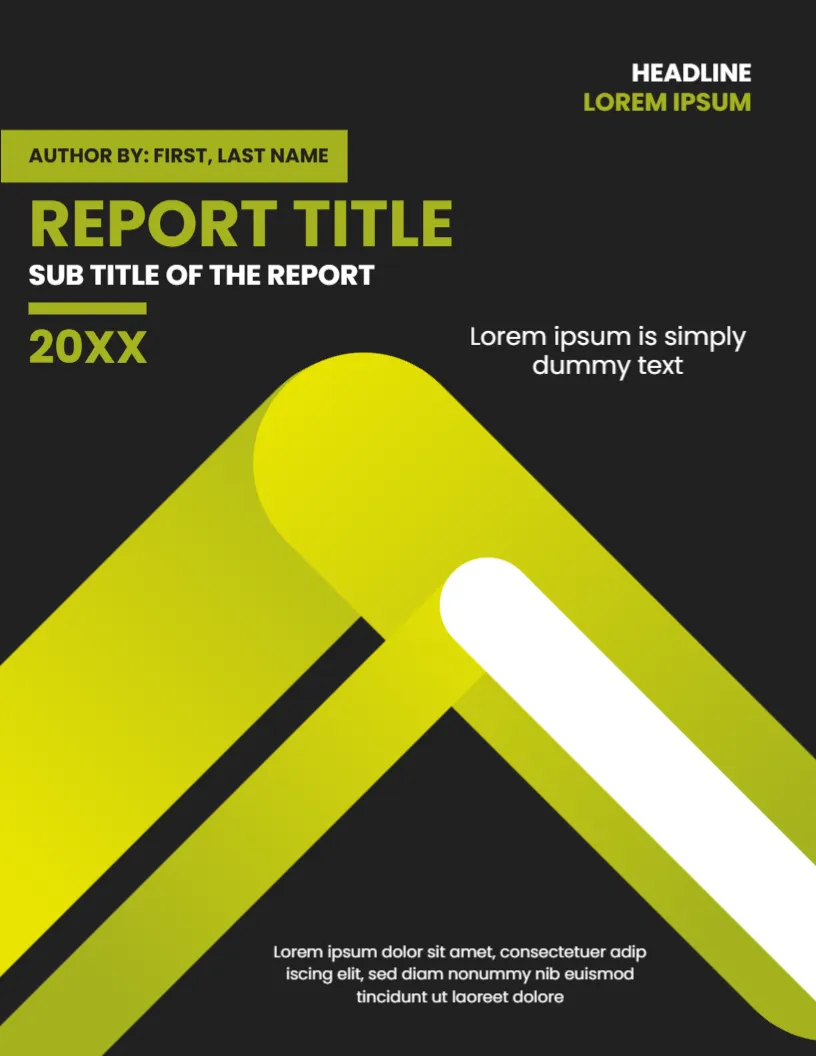
The page is 8.5 x 11 inches, portrait, one page. A thick lime green shape bends like a boomerang across the lower two thirds, with a white rounded bar cutting through it. The rest of the page is black. The shapes in the black lime presentation report cover are graphics and stay fixed. The high contrast makes the title legible even from a distance.
Author Tab, Title and Year
At the top right, HEADLINE in white and LOREM IPSUM in lime. Below, a lime tab holds AUTHOR BY: FIRST, LAST NAME. REPORT TITLE is large and lime, SUB TITLE OF THE REPORT is white, and a thick lime rule precedes 20XX. Lorem ipsum is simply dummy text sits at the right, and a three line paragraph in white centres at the foot.
Preparing the Page for a Screen
- Export as PDF and open it in presentation mode.
- Test the lime on the projector before the meeting.
- Keep the subtitle short so it reads from the back.
- Add the meeting date in the headline line.
- Print a few copies for people who want notes.
Contrast and Accessibility
Lime on black has very strong contrast, which helps readers with low vision. Avoid putting small grey text on the black area, because it can disappear on a projector. Use white for any text below 14 points.
Using the Three Line Abstract at the Foot
The three line paragraph is good for a short abstract. State the question of the report and the answer in two sentences. People who see the page only for a few seconds will then understand the point.
Editing and Printing the Black Lime Cover
The font is Poppins. Text edits freely. A black page uses a lot of toner, so for printing ask for a draft quality or use a PDF on screen. Lime may look yellowish on some printers.
Handing Out Printed Copies
If you present a report in a room, print only the pages people need, such as the title page, the summary and the key charts. Staple them, and write the meeting date on each. A short handout is more likely to be read than a thick report.
Step by Step Editing of the Black Lime Presentation Report Cover
- On the black lime presentation report cover, click the main title and type your own words, keeping the same style of capitals.
- Retype every name and contact line on the black lime presentation report cover, checking each spelling against an official source.
- Change the year or date on the black lime presentation report cover, then search the page for XX and for the word Lorem so that no placeholder remains.
- Click the logo or the photo on the black lime presentation report cover, choose Replace Image and resize the new picture until it fills its space.
- Zoom the black lime presentation report cover to full screen and read each line aloud, because spoken reading catches slips that silent reading misses.
- Keep a clean master of the black lime presentation report cover without your private details, so that later versions begin from a tidy copy.
Another option is the unique report title page. A related layout is the office report title cover page. Also see the tech business report cover. Find more designs next to the black lime presentation report cover in business and report cover pages.