A Round Photo and a Black ID Pill on Orange
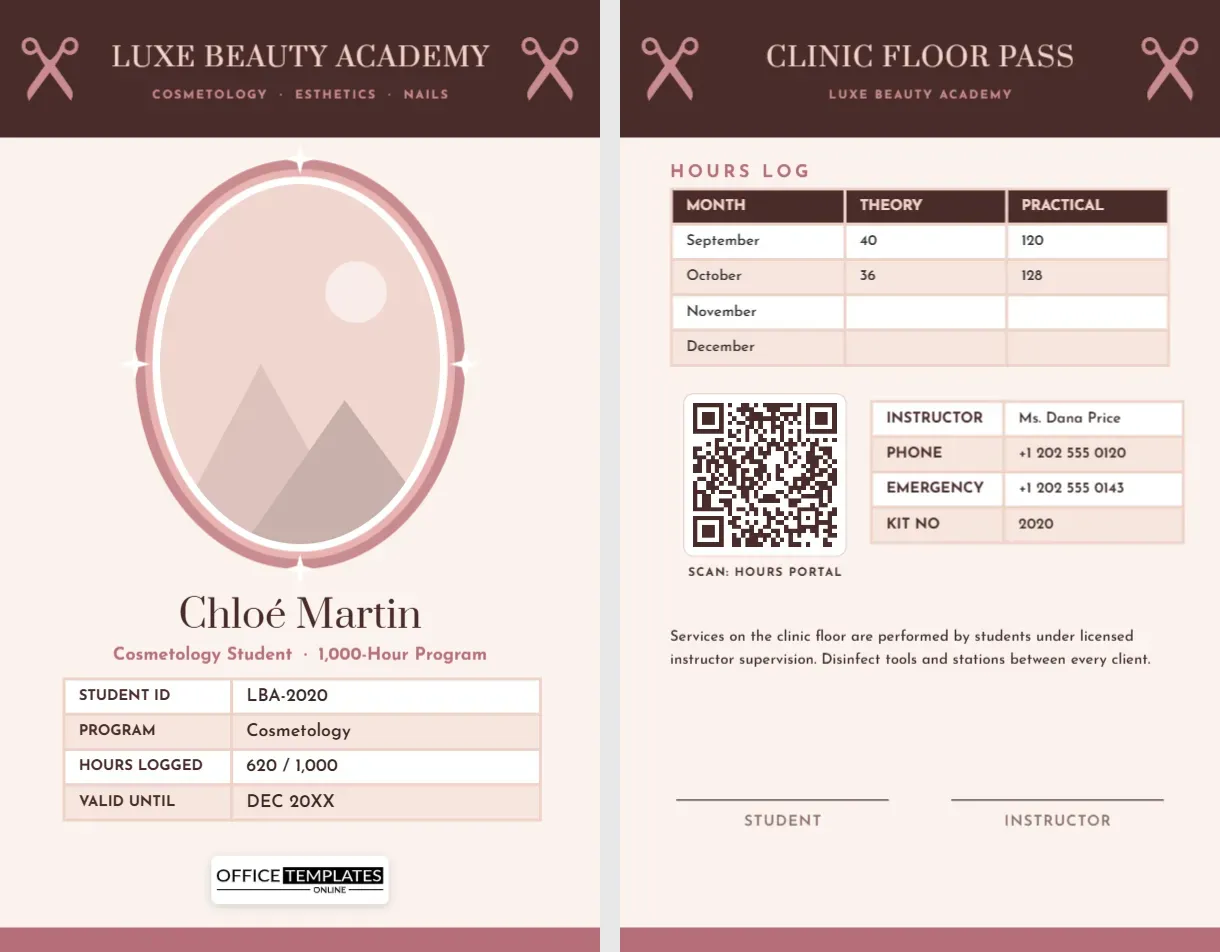
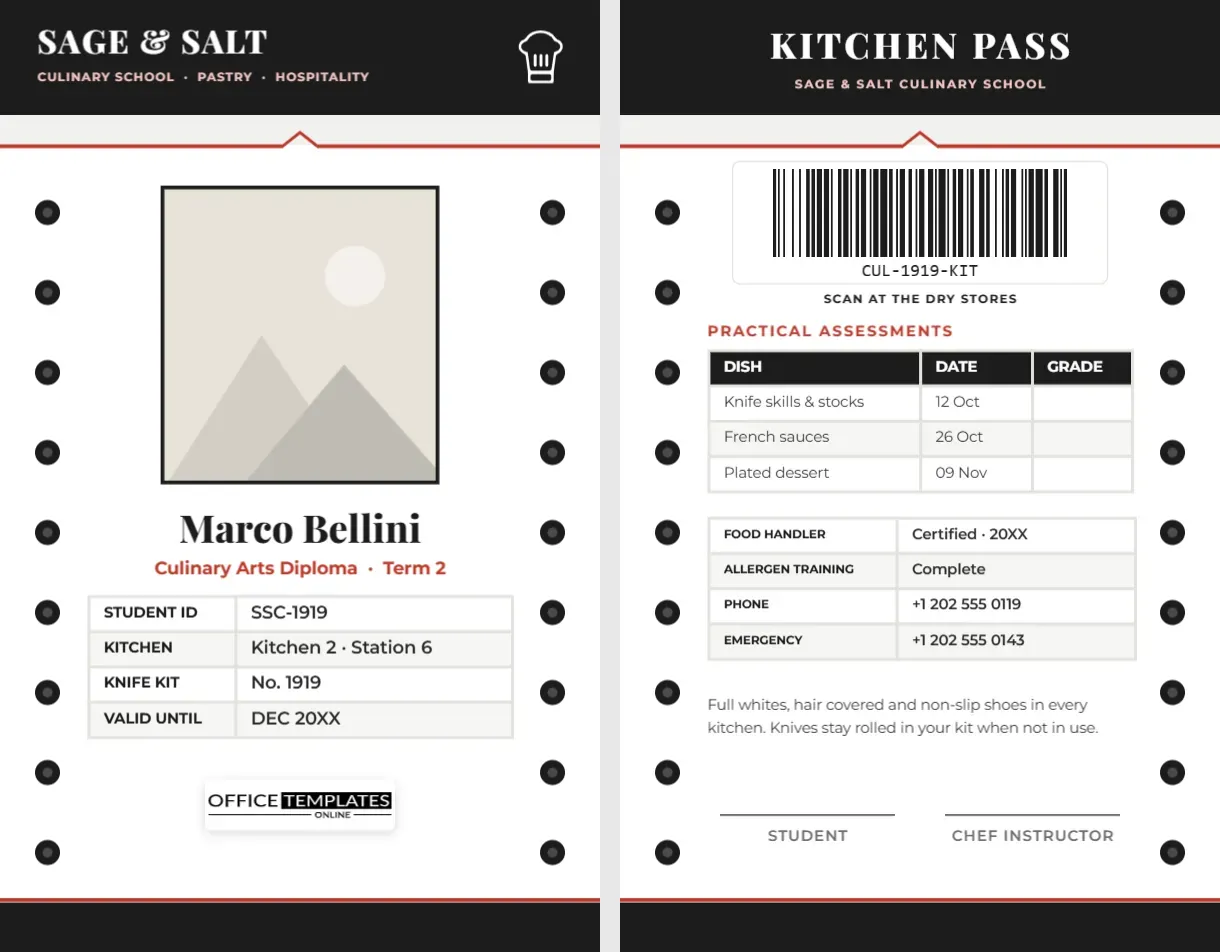
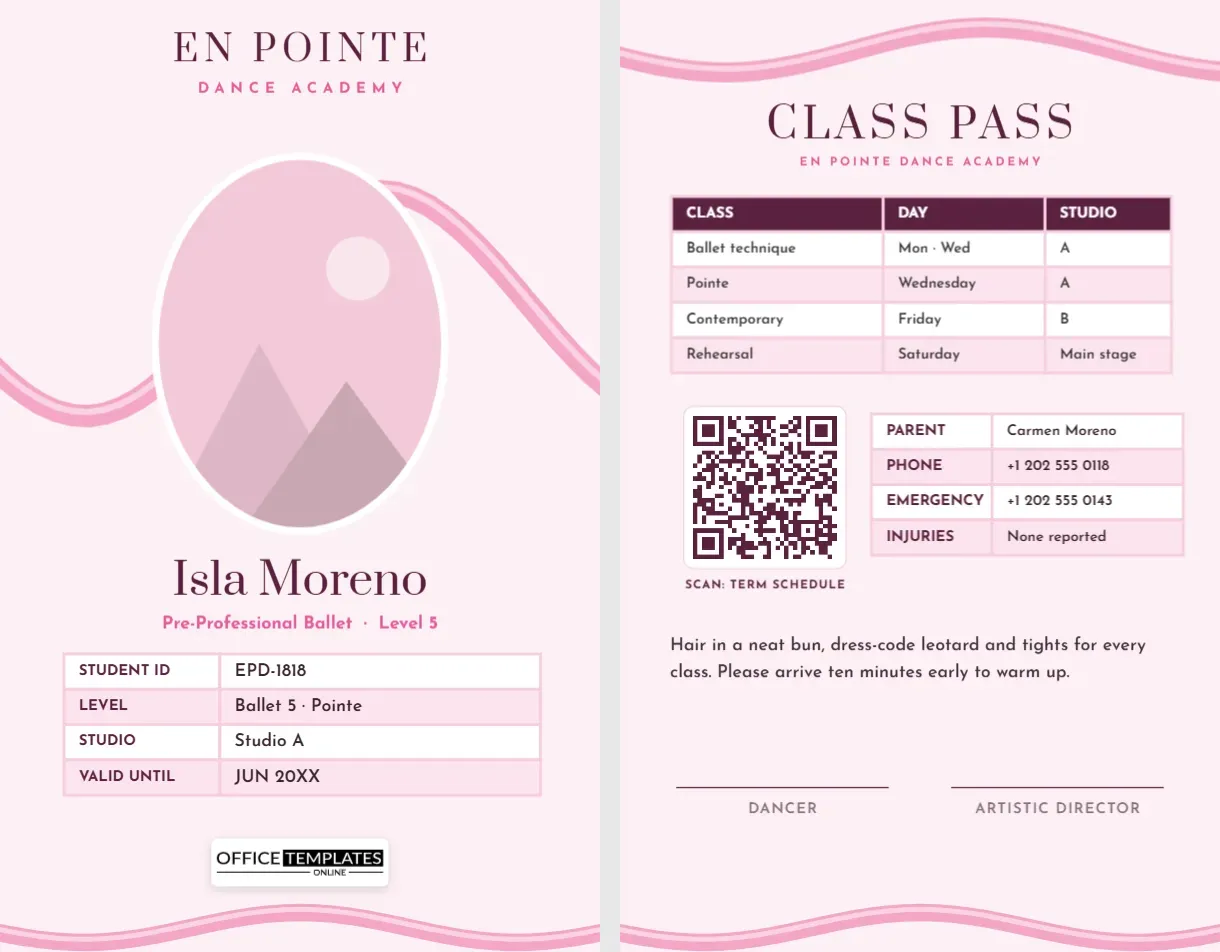
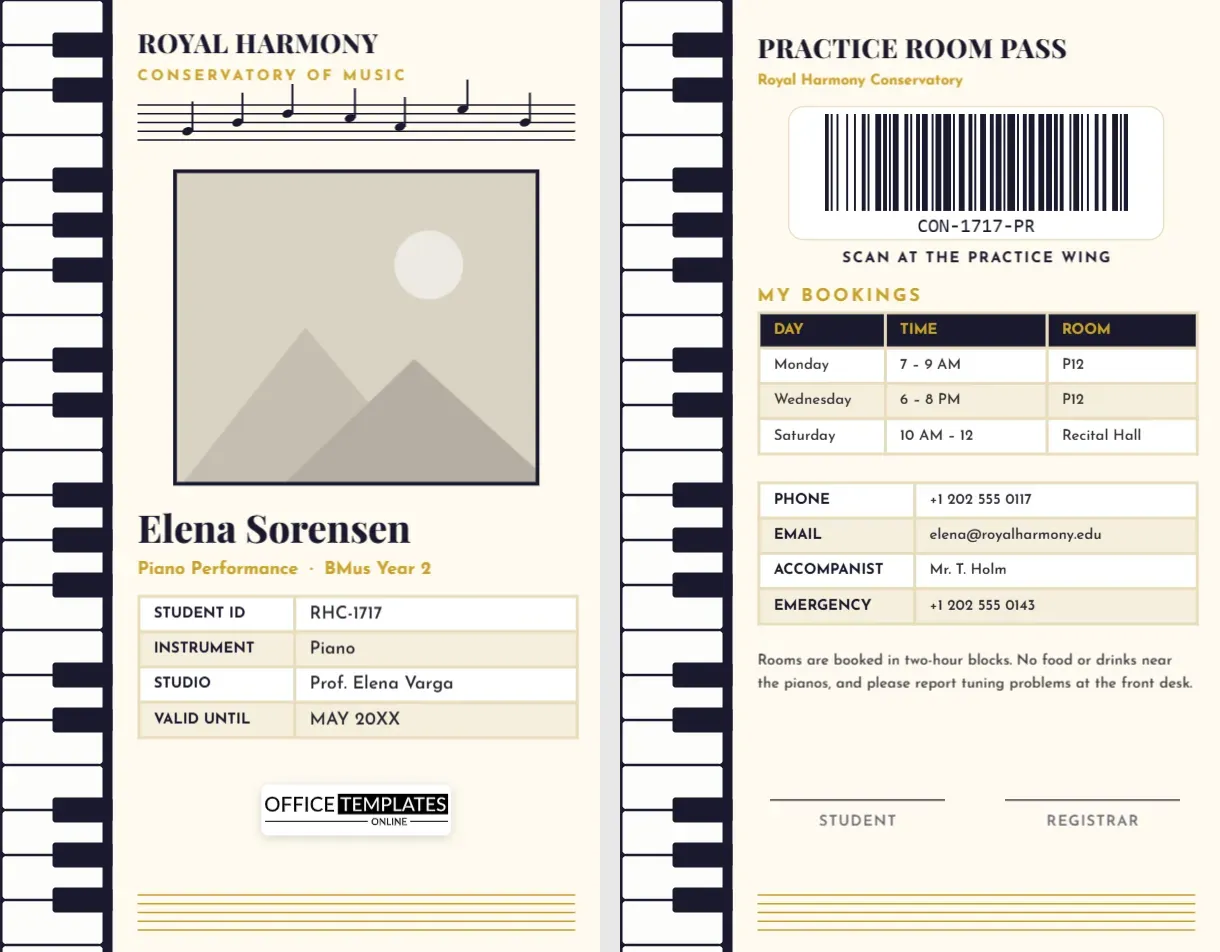
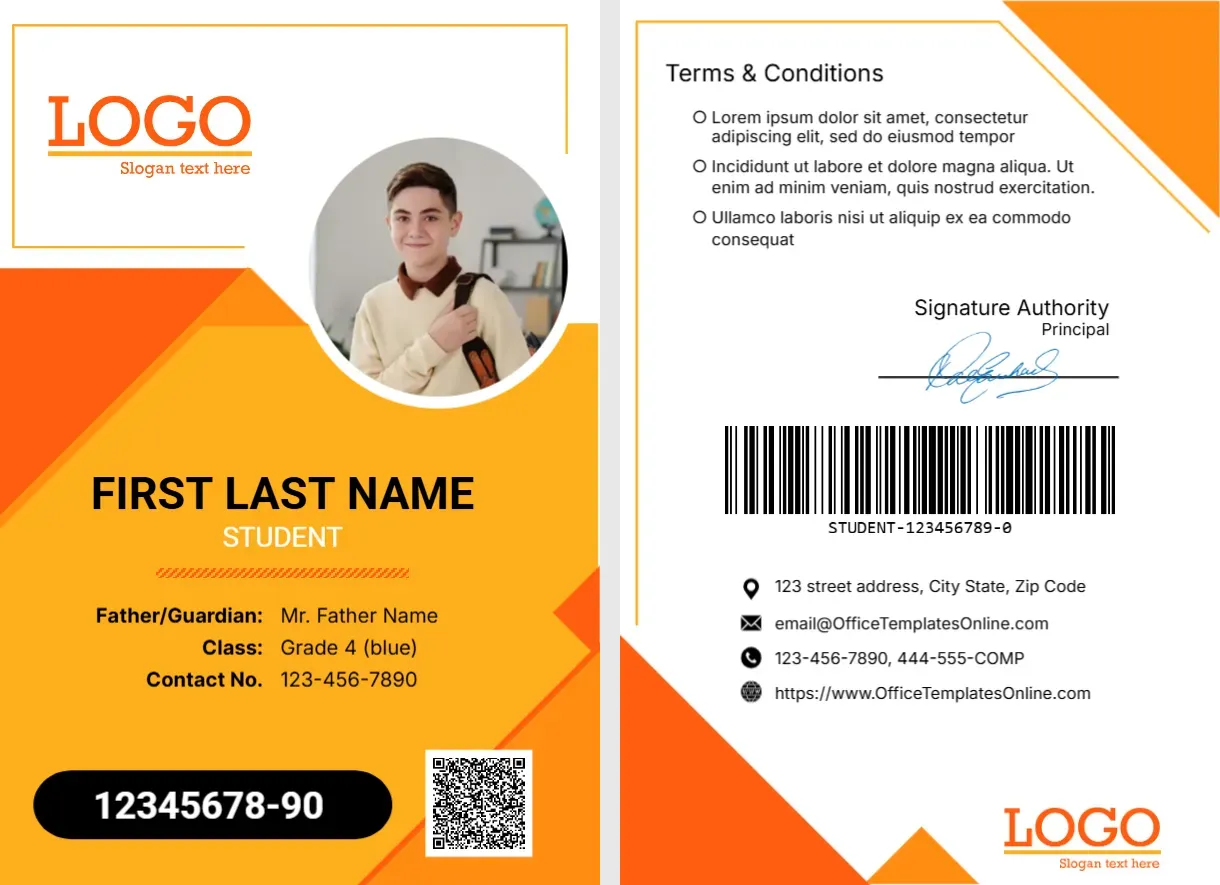
The front of this portrait card has a warm yellow and orange body with angled shapes, a thin orange frame with a LOGO at the top left and a round photo overlapping the corner. FIRST LAST NAME sits in bold black with STUDENT beneath, then Father/Guardian, Class and Contact No. lines, a black pill with 12345678-90 and a QR code. The back has terms, a signature, a barcode and contacts.
A Student Card Printed Front and Back
The card is 2.63 x 3.88 inches. Print the front and back on one card, or glue two sheets together, and use a holder with a lanyard slot.
Student Details and Back Contacts
Replace FIRST LAST NAME and fill the guardian, class and contact lines, where the sample reads Mr. Father Name, Grade 4 (blue) and 123-456-7890. Edit the ID pill and the QR code. On the back, replace the Lorem terms and contacts, which carry OfficeTemplatesOnline.com and 444-555-COMP samples.
Preparing the Orange Student Card
- Insert the round photo.
- Type the student name.
- Fill guardian and class.
- Set the ID number.
- Rewrite the back terms.
A Cheerful Card for Primary Pupils
Orange and yellow feel friendly, which suits primary and middle schools. The round photo is easy for children to find on a lanyard.
Guardian and Contact Lines
The guardian line and the contact number help staff reach a parent if a pupil is lost or unwell. Check that every number is current, and reissue cards when contacts change.
Class Colour Codes
The sample class reads Grade 4 (blue), a colour coded class. If your school uses colour houses or groups, keep the convention, and recolour a stripe to match.
The ID Pill and QR Code
A black pill holds the student number in large type, and a QR code sits beside it. Link the QR code to a record or an attendance system, and test it before printing.
School Property Notice on the Reverse
The back says that the card is the property of the school and must be returned or reported when lost. Keep each rule to a short sentence, so children and parents understand them.
A Barcode for the Library
The barcode can serve the library or the lunch counter. Generate it from the student number, and test it in the scanner to avoid mismatches.
Giving Pupils Their Orange Cards
Hand the cards out at the start of term in a short assembly. Explain when and where to wear them, and what to do if one is lost.
Step by Step Editing of the Student Id Card Orange Yellow Round Photo Barcode Design
- On the student id card orange yellow round photo barcode design, click the main headline and type your own words, keeping a similar length.
- Retype every name, date and contact line on the student id card orange yellow round photo barcode design, checking each against a trusted source.
- Search the student id card orange yellow round photo barcode design for the words Lorem and Company so that no placeholder remains.
- Click any logo or photo on the student id card orange yellow round photo barcode design, choose Replace Image and resize the new picture to fit.
- Zoom the student id card orange yellow round photo barcode design to full size and read each line aloud before you save it.
- Keep a clean master of the student id card orange yellow round photo barcode design without private details, so later versions start tidy.
Also worth a look: dark diagonal student card. Next to try is the springfield student card. Have a look at the preschool student card. Find more designs next to the student id card orange yellow round photo barcode design in student ID card templates.