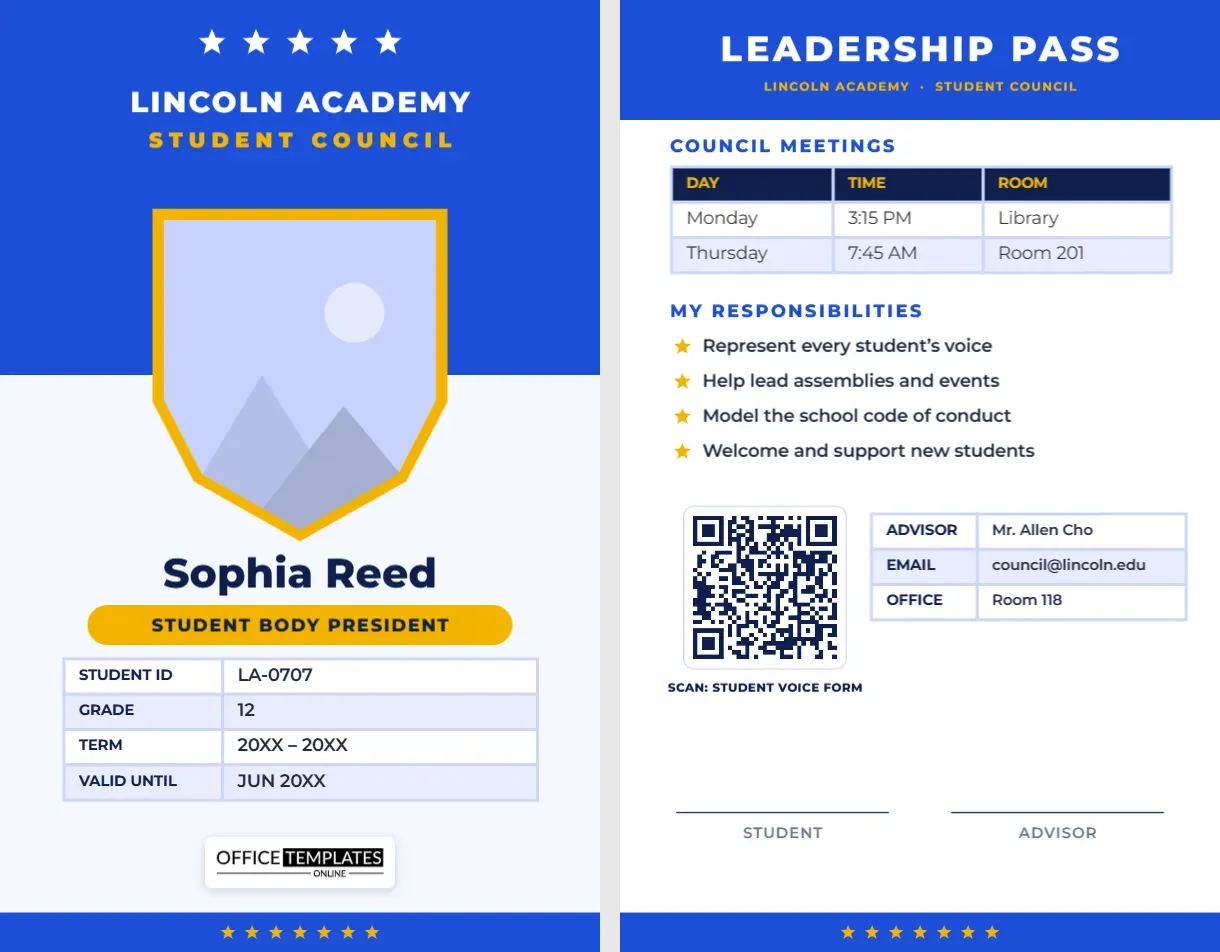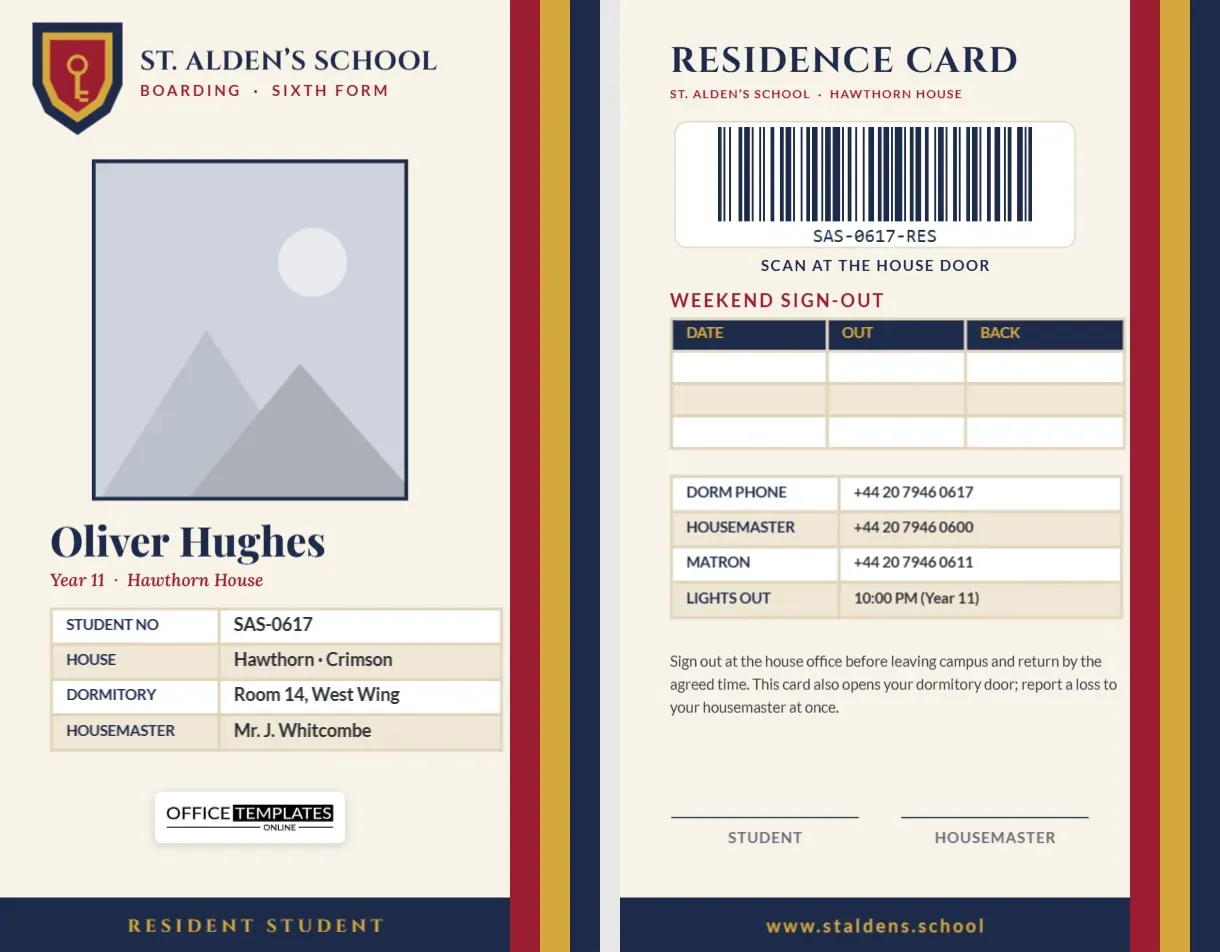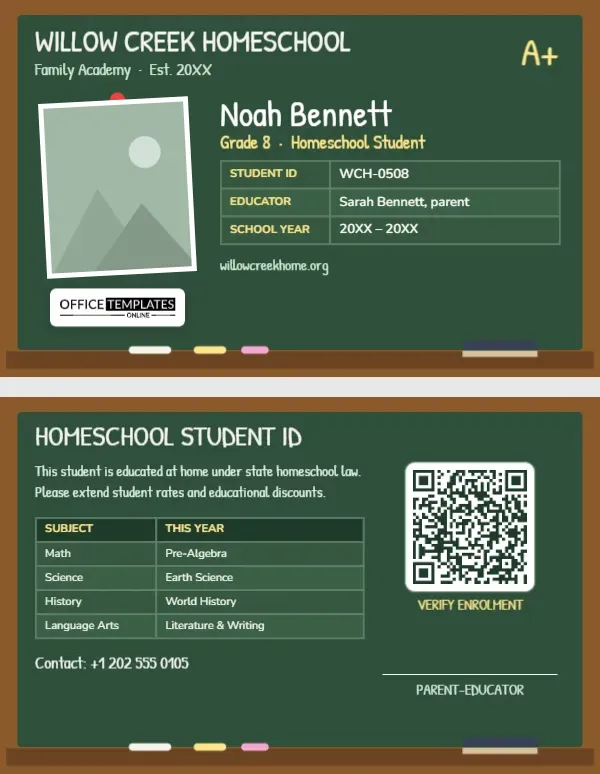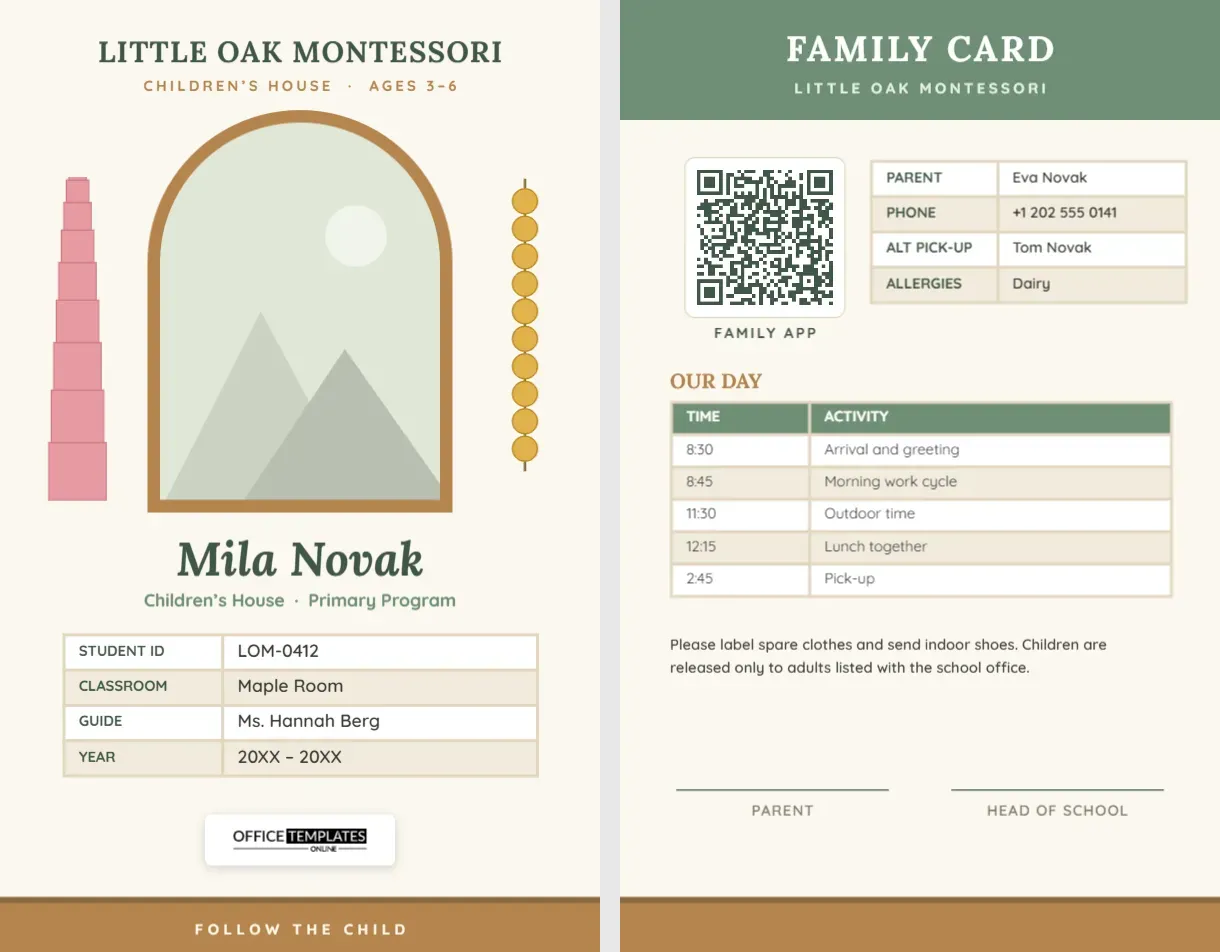
A Dark Diagonal Band With Cyan Accents for Pupils
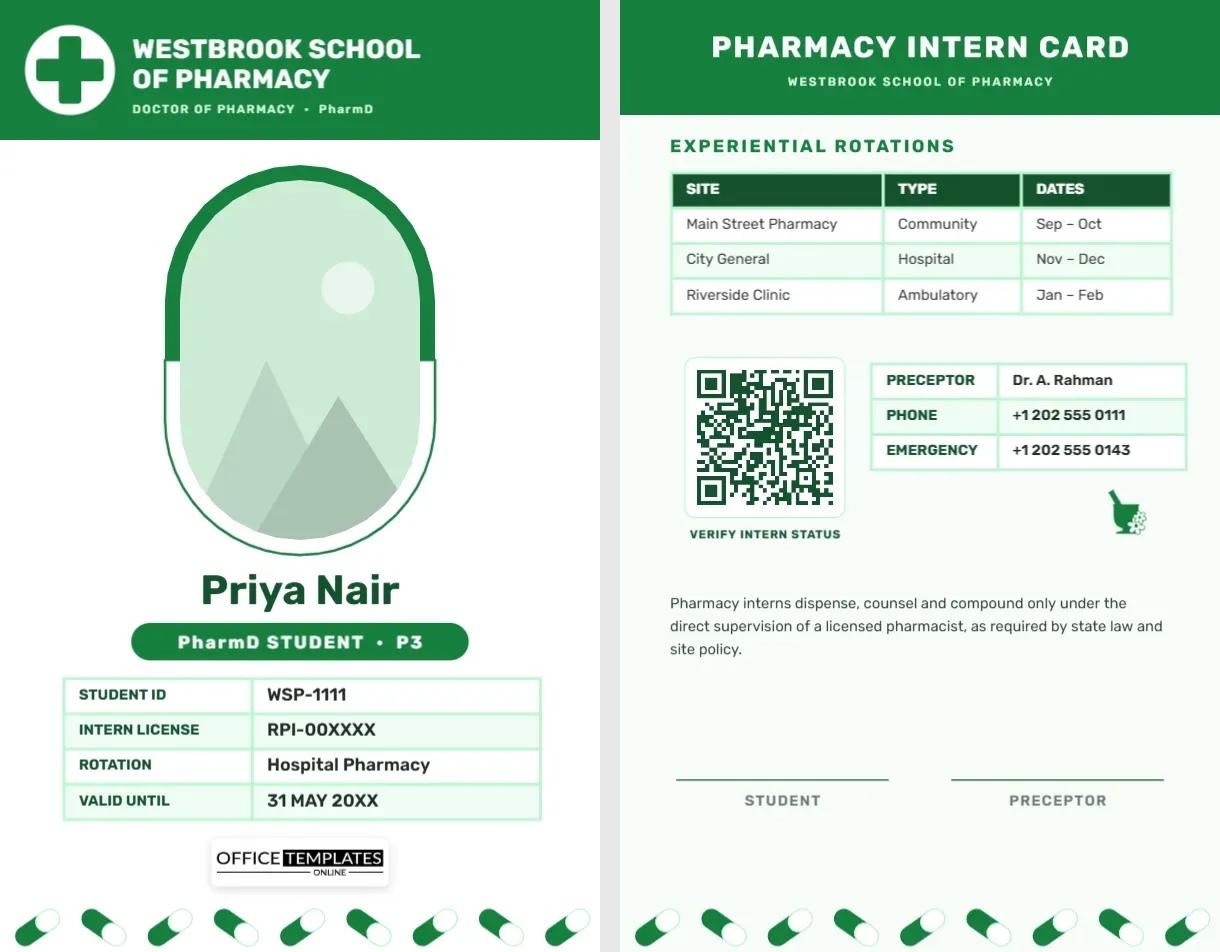
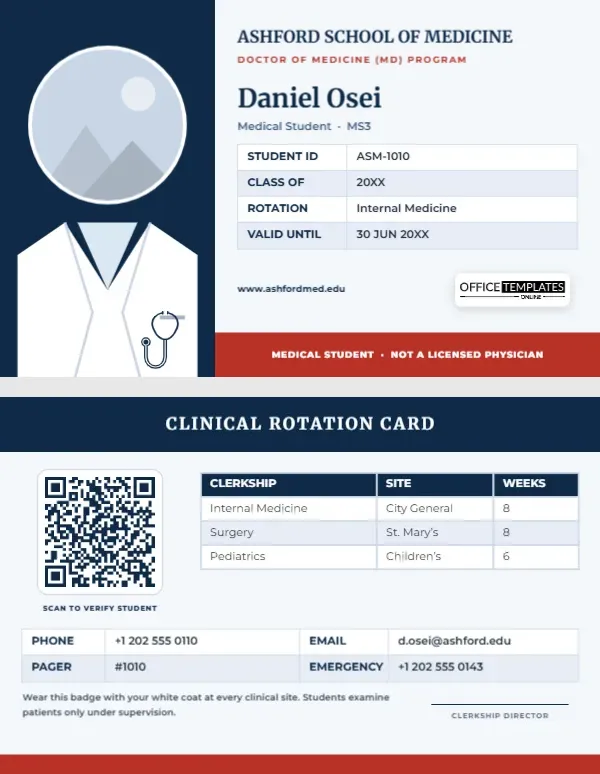
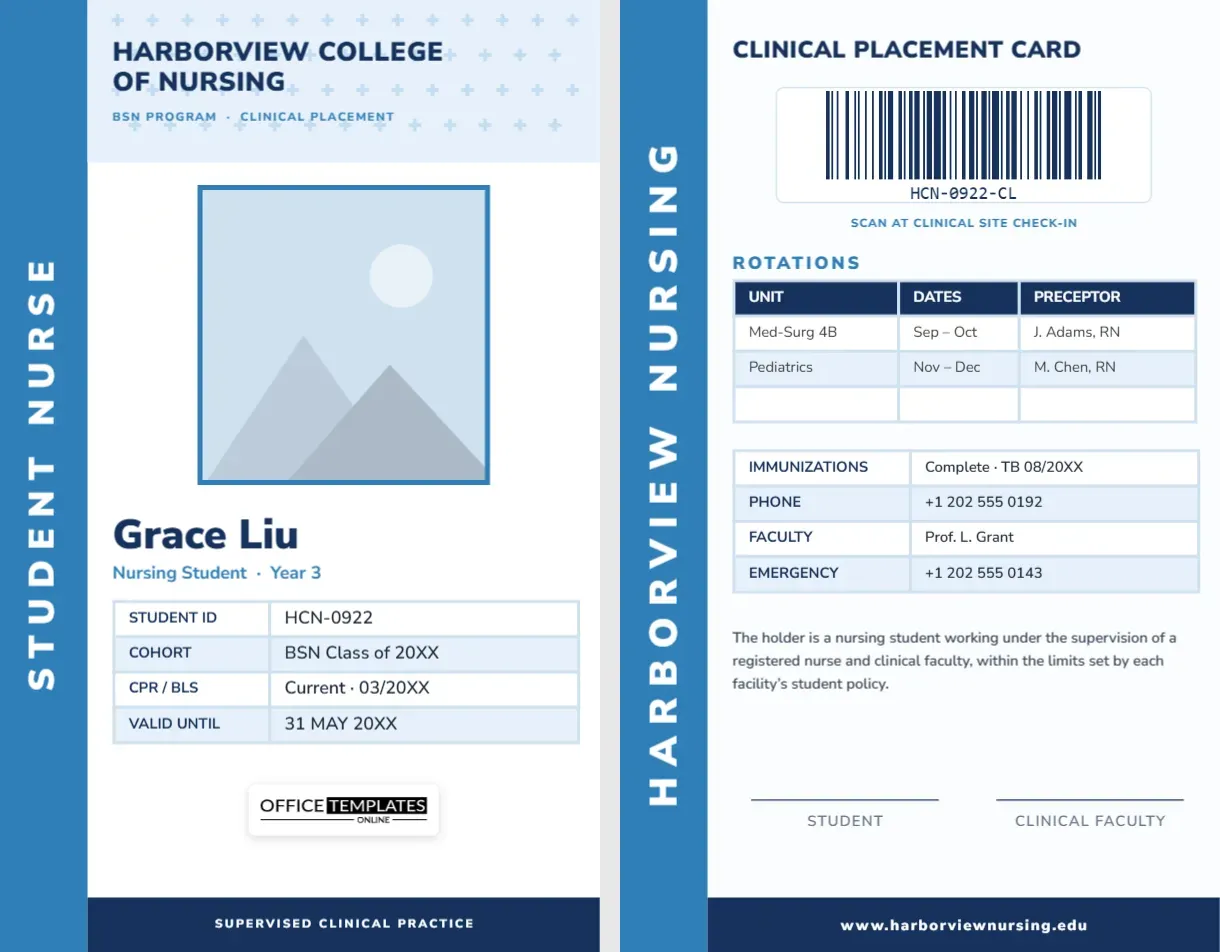
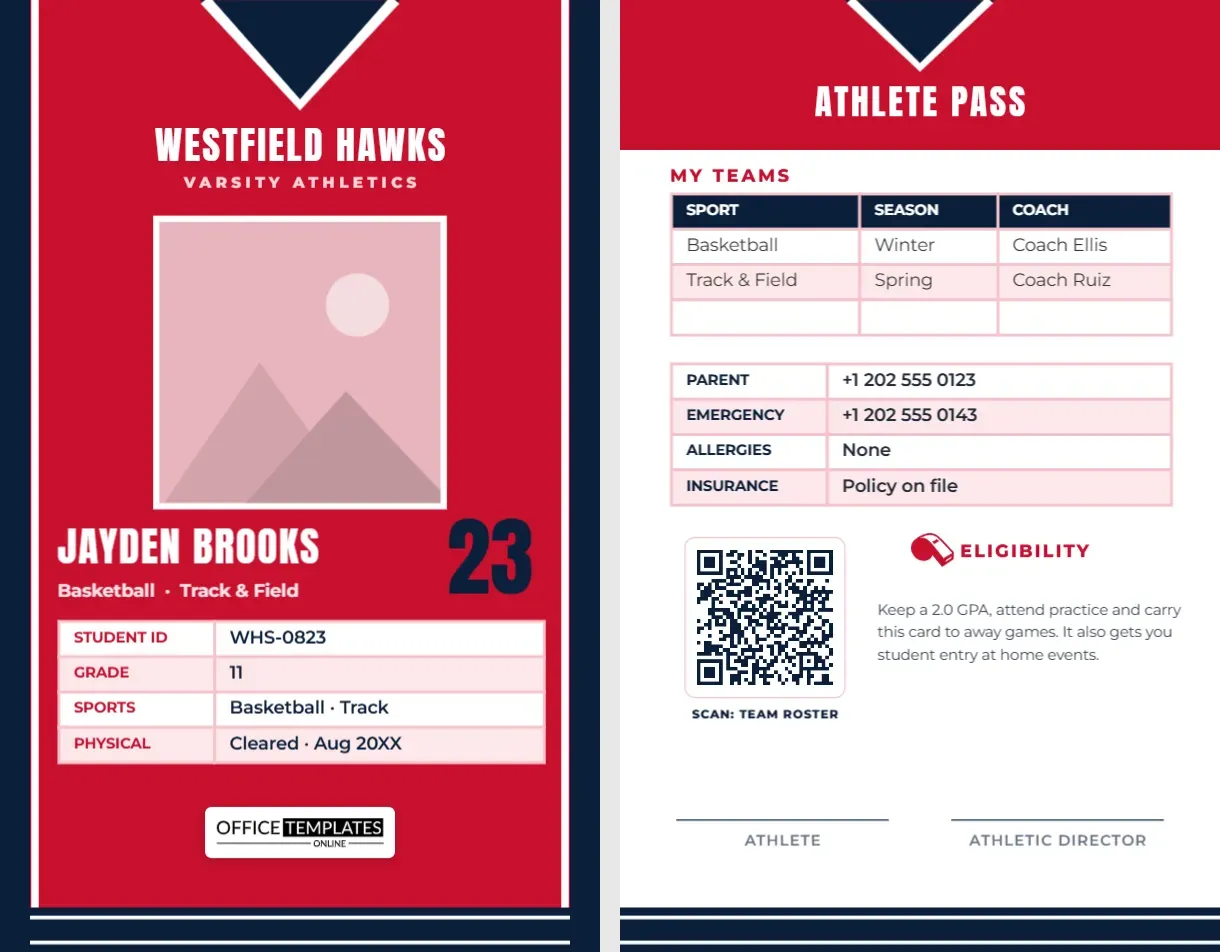
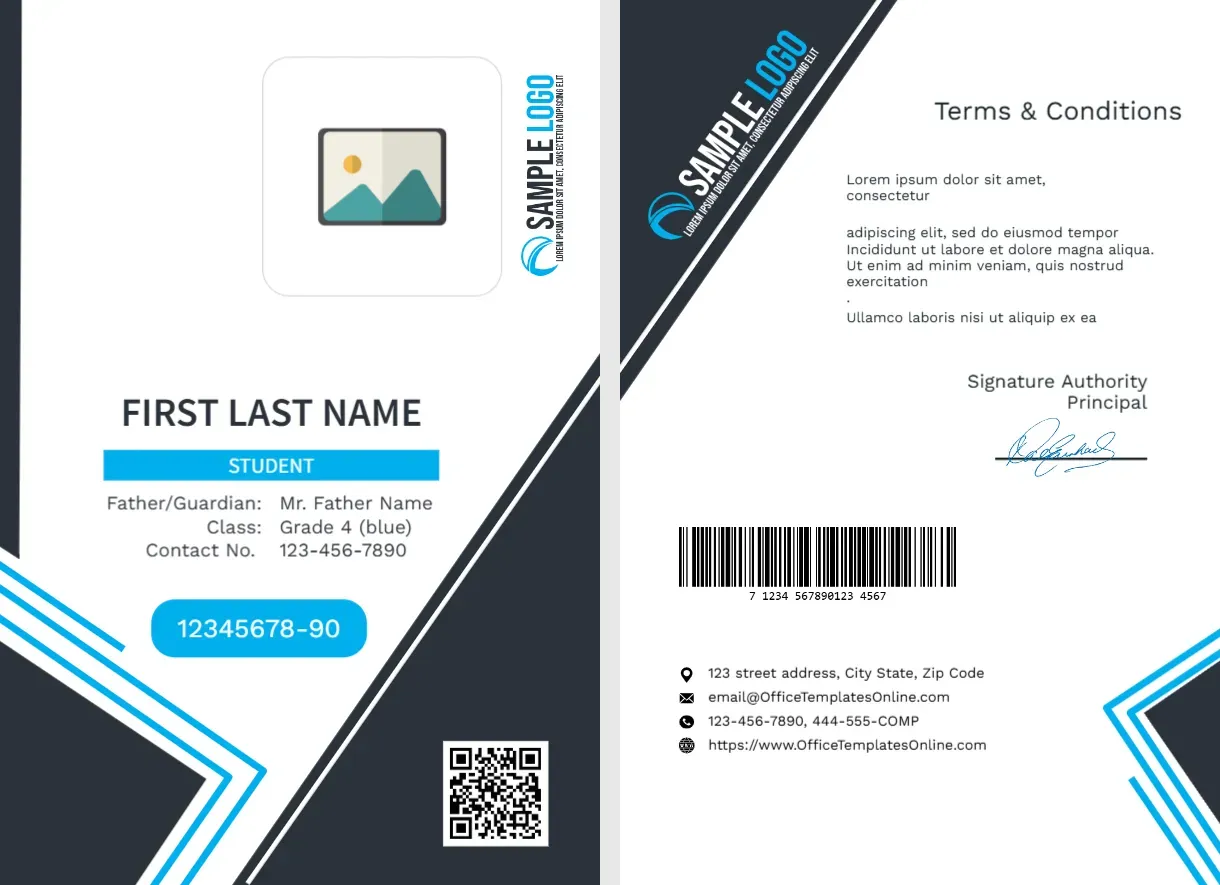
The front of this portrait card has a charcoal band running diagonally from top left to lower right, with cyan outlines, a photo tile at the top and a vertical SAMPLE LOGO at the right. FIRST LAST NAME sits over a cyan STUDENT strip, followed by the guardian, class and contact lines, a cyan pill with 12345678-90 and a QR code. The back has a diagonal logo, terms, a signature, a barcode and contacts.
A Dual Sided Pupil Card
The card is 2.63 x 3.88 inches. The charcoal area is large, so a laser or card printer gives the deepest result.
Details to Change
Replace FIRST LAST NAME, the guardian name, the class and the contact number, and swap the vertical logo for your school logo. On the back, edit the diagonal logo, the Lorem terms, the signature authority and the contact lines.
Preparing the Charcoal Student Card
- Insert the photo.
- Type the name.
- Fill guardian and class.
- Swap both logos.
- Check the back contacts.
A Modern Look for Older Pupils
The dark diagonal and the cyan outlines feel sporty and contemporary, so the card suits middle and high school students who might ignore a childish design.
A Vertical Logo Position
The logo is rotated, to run along the right edge of the photo. Use a horizontal logo file rotated 90 degrees, and check that it stays readable at this size.
Cyan Strip for the Role
The word STUDENT sits in a cyan strip. Change it to a house name, a grade or a role, such as PREFECT, if your school wants to mark those.
Number Pill and Admission Code
The cyan pill holds a student number. Use the same number on the library and canteen systems, so one card covers several uses.
Fine Print on the Diagonal Back
The terms text on the back sits beside a diagonal band, so it forms a narrow column. Keep it short, and avoid more than three lines.
Colour and Black Printing
On a black and white printer, the cyan becomes grey, and the card still works. The strip text remains readable, because white text on grey has contrast.
Replacing Worn Cards
Cards worn on lanyards wear out in a year or two. Print spares, and replace any card whose photo has faded or whose QR code no longer scans.
Step by Step Editing of the School Student Id Card Dark Diagonal Cyan Design
- On the school student id card dark diagonal cyan design, click the main headline and type your own words, keeping a similar length.
- Retype every name, date and contact line on the school student id card dark diagonal cyan design, checking each against a trusted source.
- Search the school student id card dark diagonal cyan design for the words Lorem and Company so that no placeholder remains.
- Click any logo or photo on the school student id card dark diagonal cyan design, choose Replace Image and resize the new picture to fit.
- Zoom the school student id card dark diagonal cyan design to full size and read each line aloud before you save it.
- Keep a clean master of the school student id card dark diagonal cyan design without private details, so later versions start tidy.
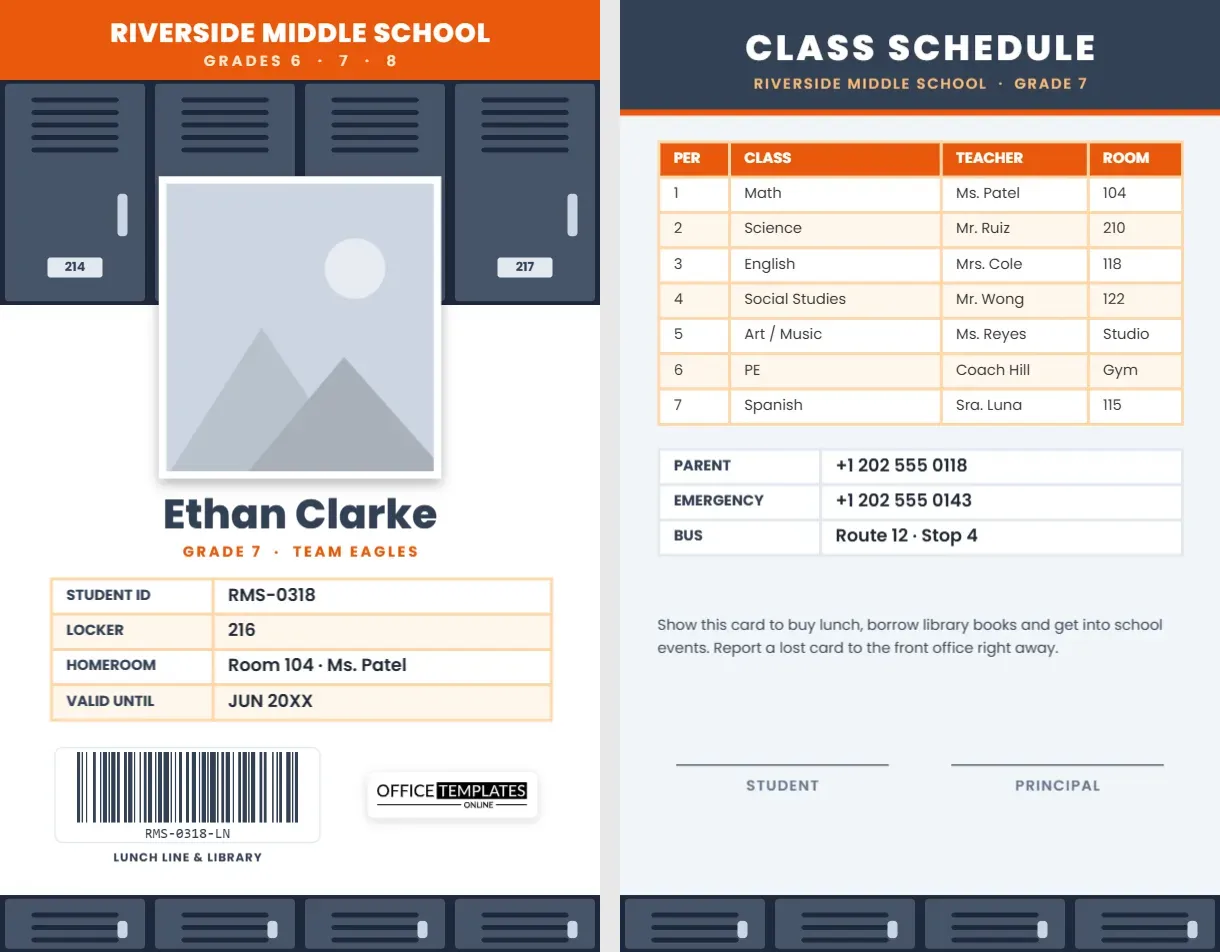
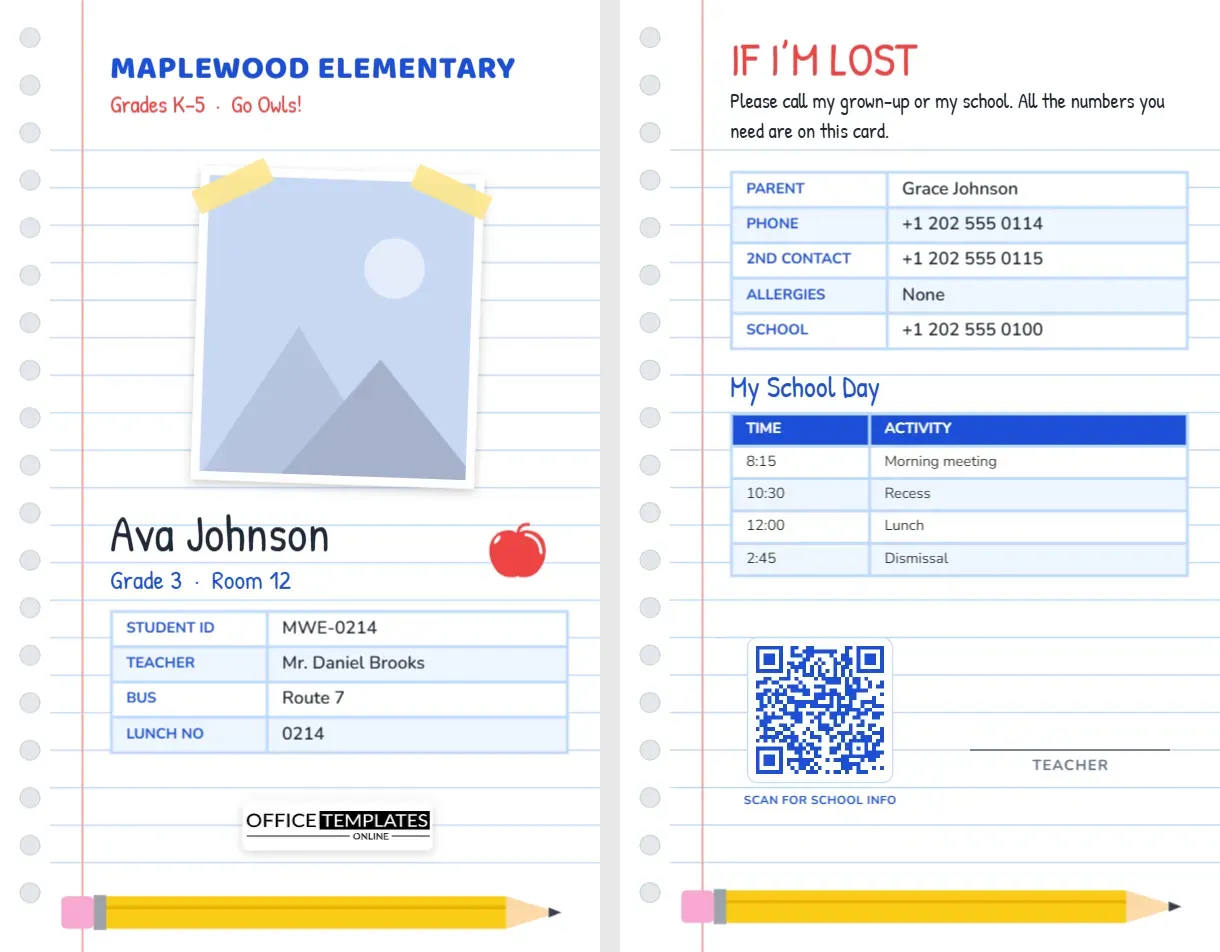
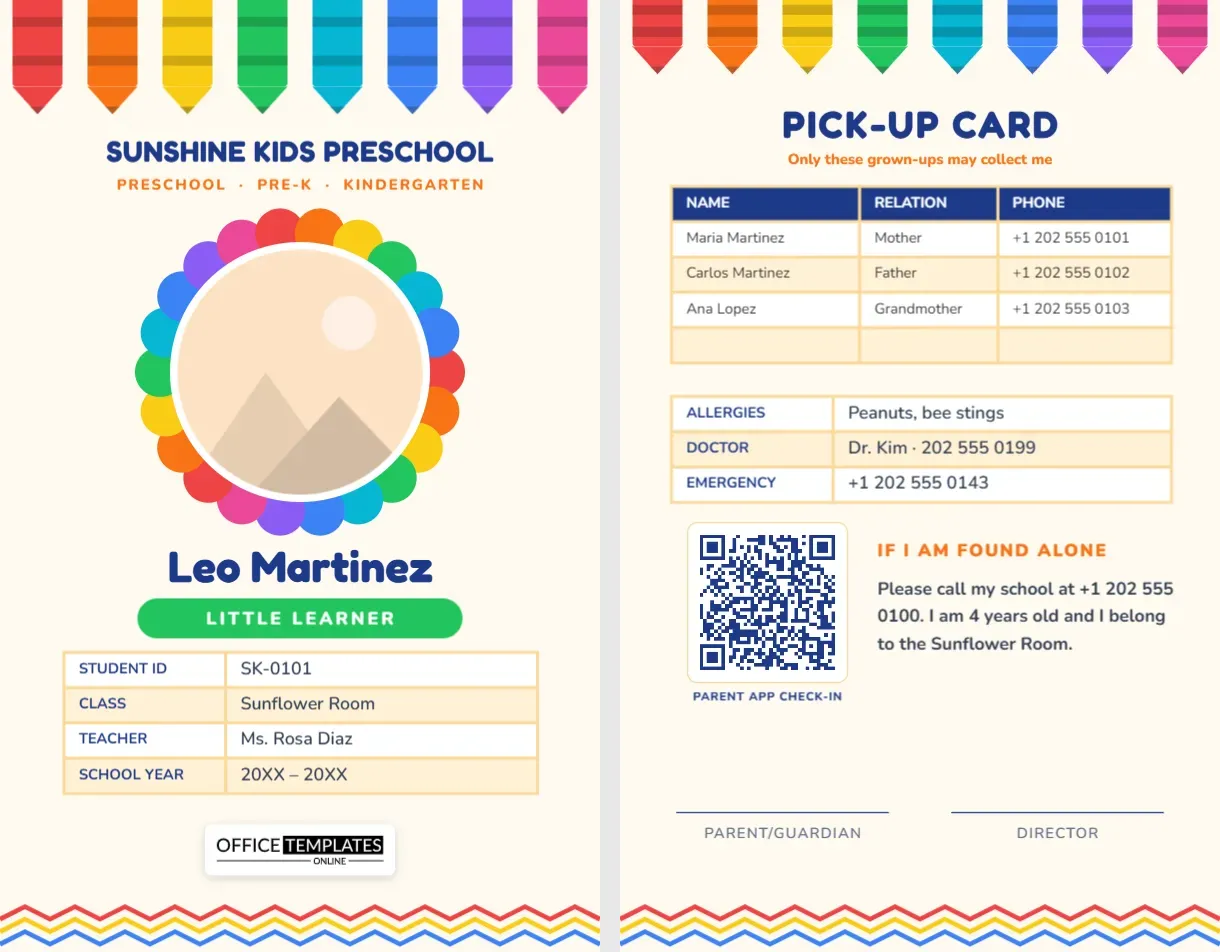
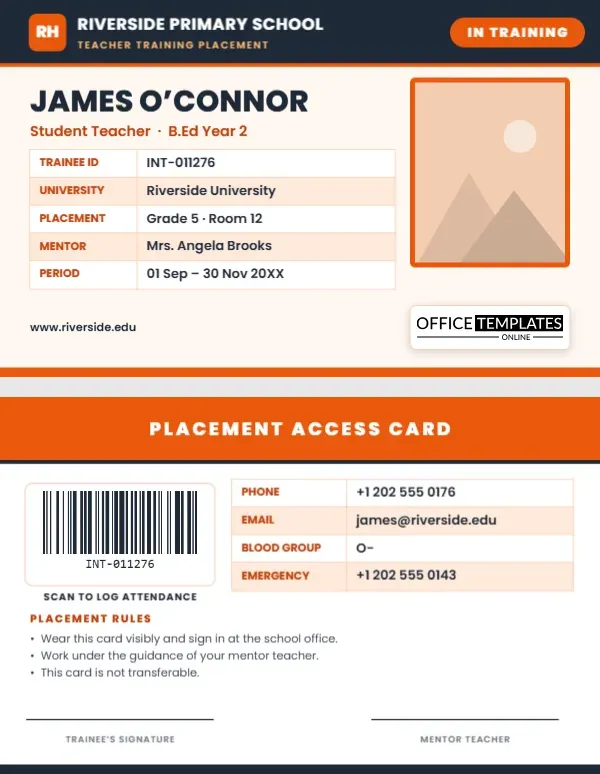
Have a look at the orange student card. Another option is the high school student card. A related layout is the middle school student card. Find more designs next to the school student id card dark diagonal cyan design in student ID card templates.