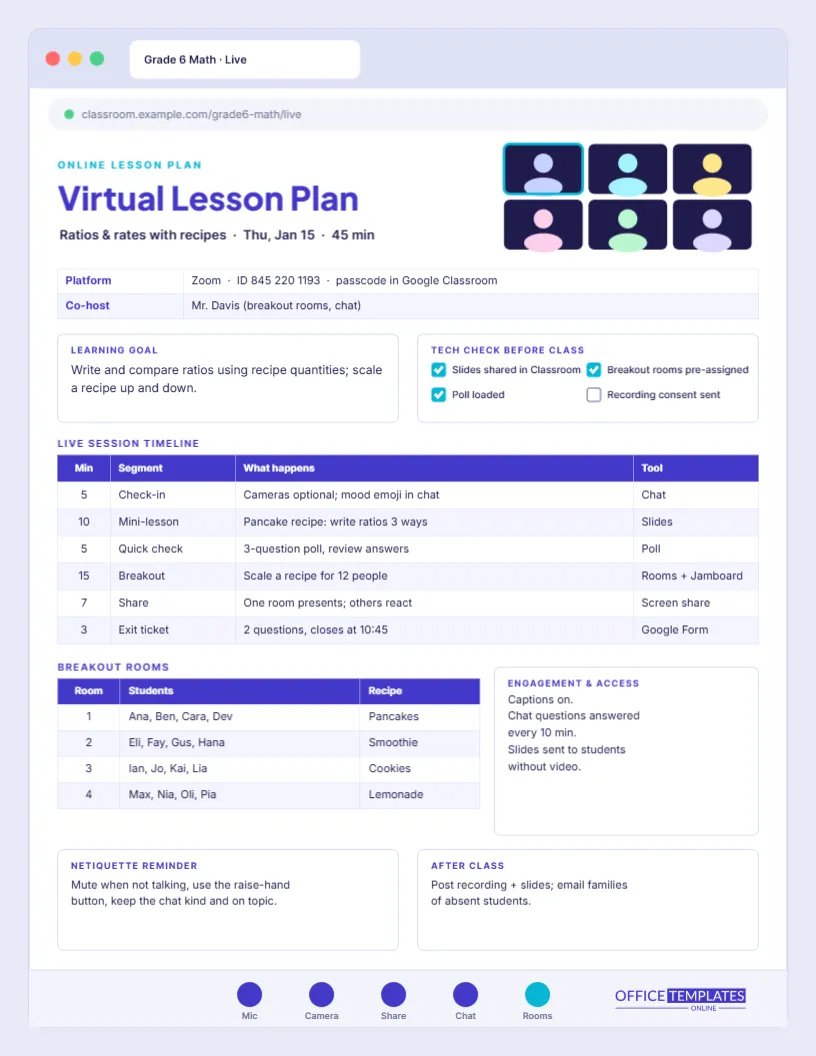
Teaching live online is a different craft. Students sit behind cameras that may be off; a dropped connection can lose a whole group, and every activity depends on a tool: a poll, a breakout room, a shared whiteboard, a form. An online lesson plan has to plan the technology as carefully as the teaching. This template is built for that, and it looks the part: the entire page is drawn as a browser window, complete with coloured window buttons, a tab, an address bar and a meeting toolbar at the bottom.
The Page Is a Browser Window
A soft lavender background surrounds a white window with rounded corners. Along the top are the familiar red, yellow and green window buttons and a tab labelled Grade 6 Math · Live. Below it, an address bar shows a classroom link. At the bottom of the window, a toolbar of five round buttons is labelled Mic, Camera, Share, Chat and Rooms, the controls you will use most during the lesson. In the top-right of the content area, a small grid of six video tiles with simple avatar silhouettes, one highlighted in cyan, suggests a live class.
Title, Topic and Platform
The title, Virtual Lesson Plan, is set in bold indigo Plus Jakarta Sans. Underneath: Ratios & rates with recipes · Thu, Jan 15 · 45 min. A two-row table records the platform and meeting details and the co-host, who will manage breakout rooms and chat.
Tech Check Before Class
Beside the learning goal, a tech check box lists four tasks with tick boxes: slides shared in the class stream, breakout rooms pre-assigned, poll loaded, and recording consent sent. In online teaching, ten minutes of preparation prevents most disasters. Tick each one before you open the meeting.
Live Session Timeline
The main table plans the live session with minutes, segment, what happens, and the tool you will use.
| Minutes | Segment | What happens | Tool |
|---|---|---|---|
| 5 | Check-in | Cameras optional, mood emoji in chat | Chat |
| 10 | Mini-lesson | Pancake recipe: write ratios three ways | Slides |
| 5 | Quick check | Three-question poll, review answers | Poll |
| 15 | Breakout | Scale a recipe for 12 people | Rooms and whiteboard |
| 7 | Share | One room presents, others react | Screen share |
| 3 | Exit ticket | Two questions, form closes at 10:45 | Form |
The tool column is the key difference from a classroom plan. If you cannot name the tool for a segment, you have not finished planning it.
Breakout Rooms
A second table lists four breakout rooms with the students in each and the recipe they will scale (pancakes, smoothies, cookies, and lemonade). Pre-assigning rooms saves minutes of live shuffling and lets you mix confident and quieter students on purpose.
Engagement and Access
A box on the right covers accessibility and engagement: captions on, chat questions answered every ten minutes, and slides sent to students joining without video. Online classes widen access for some students and narrow it for others; plan for students with poor connections, shared devices, or hearing needs.
Netiquette and After Class
Two boxes close the plan. The netiquette reminder asks students to mute when not talking, use the raise-hand button, and keep chat kind and on topic. After class lists follow-up tasks: post the recording and slides, and email families of absent students.
Making Online Lessons Interactive
Long stretches of teacher talk on video lose students quickly. Aim to change the mode every five to ten minutes: talk, poll, chat question, breakout, share. Short polls and chat waterfalls (everyone types an answer, but presses enter at the same time) give you a quick picture of understanding without putting anyone on the spot.
Synchronous and Asynchronous Work
Live time is precious. Use it for discussion, explanation, and collaboration, and move practice and reading into asynchronous tasks before or after the session. Add an asynchronous row to the timeline table with Add Row if you set pre-work or follow-up tasks.
Works With Any Platform
The sample mentions Zoom and Google tools, but the plan suits Microsoft Teams, Google Meet, Webex, or any learning platform. Rename the toolbar buttons and the tool column to match the features you use, such as Hand Raise, Reactions, or Whiteboard.
Hybrid and Blended Classes
In hybrid lessons, some students are in the room, and some are online. Use the breakout table to pair in-person and online students deliberately, and add a line to the tech check for the room camera and microphone. The co-host role becomes even more important.
Indigo Toolbar, School Colours
The indigo and cyan palette matches many video platforms. Change the toolbar buttons and title to your school colours, or make the background a different soft tint. The window frame and toolbar are simple shapes, so every part can be adjusted.
Keeping the Plan Beside Your Meeting Window
Download as a PDF and keep the plan open beside your meeting window, or print it so you can see it while sharing your screen. Sharing the PDF with your co-host before the lesson means you both know the plan.
When the Technology Fails
Plan a back-up for every tool. If breakout rooms will not open, run the task in the main room with the chat for answers. If the poll fails, ask students to type A, B, or C in the chat. If your connection drops, the co-host keeps the class going. Write one backup in the tool column for the riskiest segment.
Online Plan FAQ
Can I change the video tiles?
Yes. The tile grid is a group; recolour or delete it.
Are the tables editable?
Yes. Both the timeline and breakout rooms are real editor tables.
What size is it?
US Letter, 8.5 x 11 inches.
Can I use it for recorded lessons?
Yes. Replace the live timeline with a video outline and use the breakout table for follow-up discussion groups.
Where do I put the meeting link?
In the platform row of the details table, or in the address bar text at the top of the window.
Can students see the plan?
Share a version without names so students know the agenda and which tools they will use.