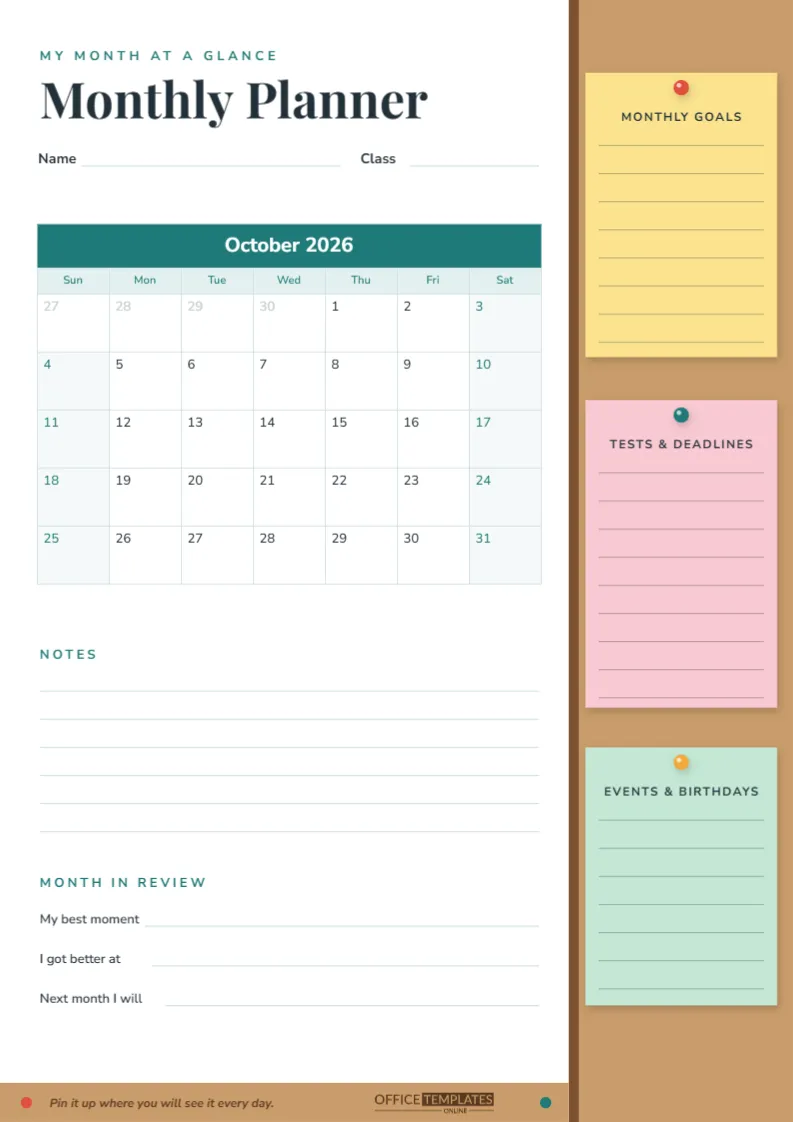
Daily planners catch the small stuff. A monthly planner catches the things that sneak up on you: the science fair three weeks away, a cousin’s birthday, the term’s first round of tests. Seeing the whole month on one sheet turns those dates from surprises into plans.
This Monthly Student Planner is an A4 portrait page (210 x 297 mm) with a working calendar on the left and a cork board of pinned notes on the right.
The Look: Calendar Meets Notice Board
A tall cork board runs down the entire right side of the page, edged with a darker wooden strip where it meets the paper. Three sticky notes are pinned to it with round push pins: a yellow Monthly Goals note with a red pin, a pink Tests & Deadlines note with a teal pin, and a mint Events & Birthdays note with an orange pin. Each note is ruled so it can be written on directly.
On the left, a small teal My month at a glance label sits above the title Monthly Planner, set in the elegant Playfair Display serif. Below it are lines for Name and Class, then the calendar: a teal month header, pale day-name row and roomy white date squares with weekends shaded. A strip of the same cork runs along the foot of the page, carrying the line Pin it up where you will see it every day and our logo, so the notice-board theme wraps around the page.
A Calendar That Changes Month With Two Clicks
The calendar is the editor’s built-in Calendar object, not a drawing of one. The template opens on October 2026, but you are never stuck with it. Select the calendar and open Calendar Options in the editor to change:
| Option | What it does for a student |
|---|---|
| Month and year | Jump to any month; the dates rebuild themselves correctly. |
| Week start | Start on Sunday or Monday to match your school week. |
| Style | Switch between the month grid, a task-calendar layout, or a full-year view. |
| Colours and font | Match the header to your school colours or your favourite pen. |
Because the dates regenerate automatically, you can make twelve pages for a whole school year in a few minutes: change the month, download, change it again.
What to Write in Each Part
Inside the date squares
Keep entries short, one or two words: Maths test, Trip, Essay due. The squares are big enough for two short items. Use a coloured pen for deadlines so they jump out.
On the three pinned notes
Monthly Goals is for two or three things you want to achieve by the end of the month, such as finishing a novel or improving a spelling score. Tests & Deadlines lists every assessment with its date, which is handy when the calendar squares get busy. Events & Birthdays holds the fun and social side: matches, performances, sleepovers, and presents to buy.
Notes and Month in Review
Six ruled lines under the calendar collect anything else. The Month in Review block has three prompts: My best moment, I got better at, and Next month I will.
Ten Questions for the Last Day of the Month
The Month in Review block works best when you actually pause to think. These questions make that five-minute reflection easier.
- Which deadline did I meet with time to spare?
- Which one did I rush, and why?
- What was the best grade or piece of feedback I got?
- Which subject felt easier by the end of the month?
- Did I keep any of my monthly goals?
- What did I spend too much time on?
- Who helped me this month?
- What am I looking forward to next month?
- Is there a test coming that I should start revising now?
- What is one habit I want to try for the next four weeks?
Customizing the Cork Board
- Click a sticky note to change its colour, or click its heading to rename it, for example, Club Dates or Books to Finish.
- Change the cork fill to a plain colour if you prefer a lighter print.
- Edit the tagline in the footer, or replace it with your school’s motto.
- Use Add Page if you want a second planning page, such as a weekly overview, in the same file.
Pairing the Month With Daily and Weekly Pages
A monthly page is the big picture, not the whole plan. Most students get the best results by using it alongside a daily or weekly sheet. On the first day of each month, copy every known test and deadline onto the calendar. Each Sunday, look at the coming seven squares and move those items onto your weekly or daily page, broken into smaller steps such as research, first draft, and a final spelling check. When something new is announced in class, add it to the month first, because that is the page you will look at when deciding what to start early.
Parents can keep a copy on the fridge as the family’s shared school calendar, with each child’s events in a different colour of pen.
Print It, Pin It
Download a PDF and print on A4 at Actual size. The cork sidebar and footer are the heaviest-ink areas; if you print twelve months at once, consider switching the cork to a pale beige first. Standard office paper is fine for a desk planner. If it is going on a real notice board or the fridge, heavier 160 gsm paper stays flat and survives push pins much better.
Digital planners can download PNG or JPG files for a tablet app and write straight onto the calendar squares with a stylus.
Monthly Planner Questions, Answered
Does the calendar show the right dates for any year?
Yes. Choose the month and year in Calendar Options, and the editor rebuilds the grid with the correct dates, including months that need six rows.
Can I mark a special date?
Draw a circle or highlight in the editor and drag it over the date, or simply circle it with a pen after printing.
Is this better for primary or secondary students?
Both. Younger children enjoy the sticky-note look and can fill in birthdays and events with a parent; older students use the test note most.
Make This Month Count
Set the month, fill in the dates you already know, and pin it somewhere you pass every day. At the end of the month, fill in the review and print the next one.