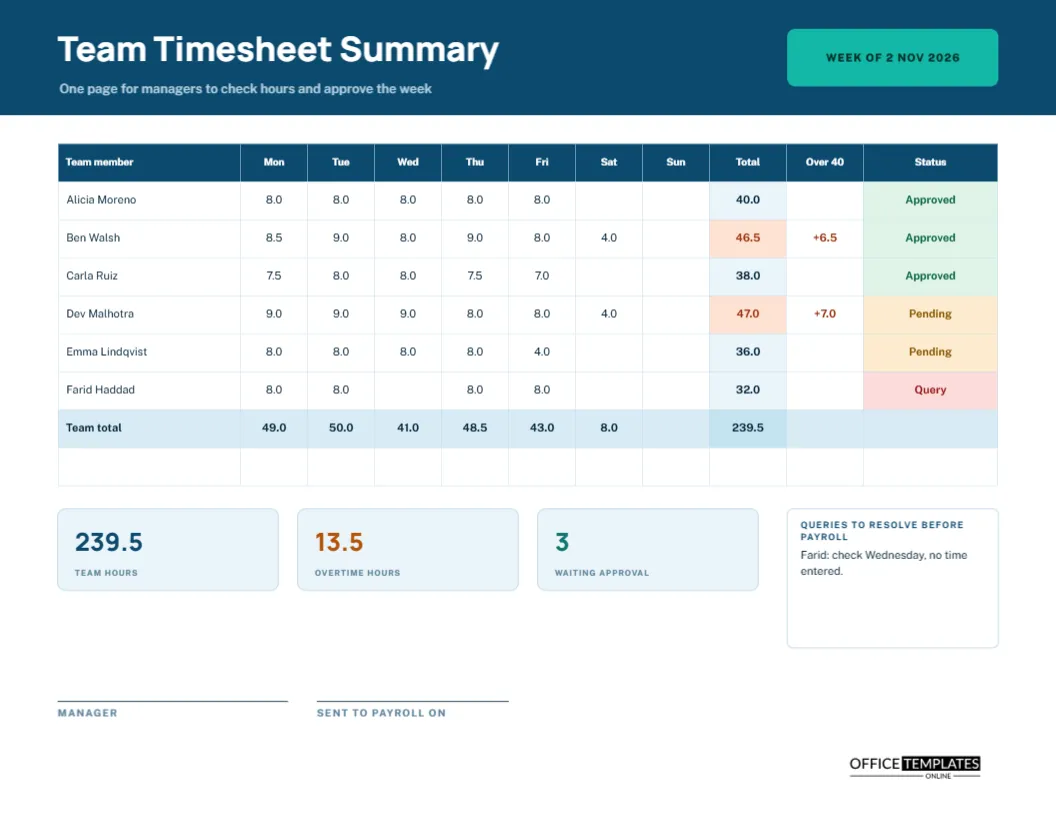
A manager with a team of six does not want six separate timesheets spread across a desk. They want one page that shows who worked how long on which day, who went over forty hours, whose sheet has been approved, and whose has a question mark. This landscape summary does that. Each team member has a row, each day a column, and a coloured status pill at the end tells you whether the sheet is approved, pending, or in query.
Deep Blue Header With a Teal Week Tab
The header is deep blue, with the title Team Timesheet Summary in heavy Manrope and a line saying one page for managers to check hours and approve the week. A teal tab on the right reads WEEK OF 2 NOV 2026. Public Sans handles the table text. The design looks businesslike and cool, which suits a document that is mostly numbers.
Six People, Seven Days
| Team member | Weekly total | Over 40 | Status |
|---|---|---|---|
| Alicia Moreno | 40.0 | None | Approved |
| Ben Walsh | 46.5 | +6.5 | Approved |
| Carla Ruiz | 38.0 | None | Approved |
| Dev Malhotra | 47.0 | +7.0 | Pending |
| Emma Lindqvist | 36.0 | None | Pending |
| Farid Haddad | 32.0 | None | Query |
The real page also shows the hours for Monday through Sunday for every person.
The Daily Grid
Seven narrow columns hold the hours for each day, written to one decimal place, with blanks for days not worked. Reading across a row shows a person’s week, and reading down a column shows how many hours the team gave on that day. The bottom row, shaded blue, adds each column, and the total of 239.5 hours sits in a darker cell.
Over 40 Flags
When a person’s total passes forty, the total cell turns a soft orange, and the Over 40 column shows the excess in bold. In the sample, Ben Walsh and Dev Malhotra exceed forty by 6.5 and 7.0 hours. The flags are the quickest route to the overtime questions a manager must answer before payroll: was it approved, and is the overtime paid or taken as time off?
Status Pills
The last column uses coloured pills: green for Approved, amber for Pending and red for Query. A manager can tell in a second which rows are finished and which need attention. In the sample, three sheets are approved, two pending and one in query. The pills are shapes inside cells, so change both the word and colour as the week progresses.
Team Hours, Overtime Hours and Waiting Approval Tiles
Under the grid, three tiles report team hours (239.5), overtime hours (13.5), and waiting approval (3). These are the numbers a department head or a finance partner is most likely to ask about, so they are placed where they can be read in a second. The overtime figure is the sum of the Over 40 column.
Queries to Resolve Before Payroll
A box at the right of the tiles lists queries. The sample says Farid: check Wednesday, no time entered. In the grid, Farid’s Wednesday is blank, and his total is only 32. Finding such a gap before payroll runs saves a correction later. Write the query, who will resolve it and by when, then cross it out once settled.
Building the Summary From Individual Timesheets
- Collect the individual timesheets for the week.
- Copy each person’s daily hours into the grid.
- Add across for the weekly total and down for the team total.
- Flag anyone over forty and note the excess.
- Set the status of each sheet.
- List queries, sign and send to payroll.
A Manager’s Checklist Before Approving
Check that every person has a sheet, that totals add up, that overtime was authorised, that unusual days have an explanation, and that no day is blank by mistake. A checklist on a sticky note beside the printer is enough. Consistent checking is what turns an approval signature into a genuine control.
Spotting Workload Imbalances
The grid shows how work is shared. If two people regularly exceed forty hours while a third sits at thirty-two, the workload may be unevenly distributed. Use the pattern in a team meeting to rebalance, hire, or change priorities. Because the data is on one page, such conversations start from facts.
Sending the Summary to Payroll
When every status is approved, sign the page and send it with the individual sheets. Write the date in the Sent to Payroll column. Payroll then has a single document to match against the pay run, and you have a record of exactly what you sent and when.
Keeping Weekly Summaries for Reporting
Store the summaries in date order. At month-end, add the team totals to see monthly hours and overtime. At year-end, they show the cost and shape of the team’s workload. They are also helpful when budgets are set, because they show what it really takes to deliver the team’s work.
Editing Names, Hours and Status
The grid is a real Table object, and every cell is editable. Add rows for a larger team, change the forty-hour limit in the heading and the flag logic, or add a column for leave. Retype totals and tiles after every change, because they are text and do not update on their own.
Manager Signature and Printing
The manager signs, and the date sent to payroll is recorded. Print on US Letter landscape at actual size. The status pills and flagged cells show as shades of grey in black and white, while the words stay readable.
Handling Part-Time Staff and Different Contracts
Not everyone on a team works forty hours. For part-time staff, change the over-forty rule to their contracted hours in the heading and the flags. Write the contracted figure beside the name so the reader knows what each total is measured against. A fair summary compares each person with their own agreement.
Team Summary Questions
Can I use it for a team of ten?
Yes. Add rows and reduce the row height a little.
Is the forty-hour flag automatic?
No. You colour the cell and type the excess yourself.
Can I use it for two weeks?
Use the biweekly timesheet for individuals, or print two summaries for the two weeks.