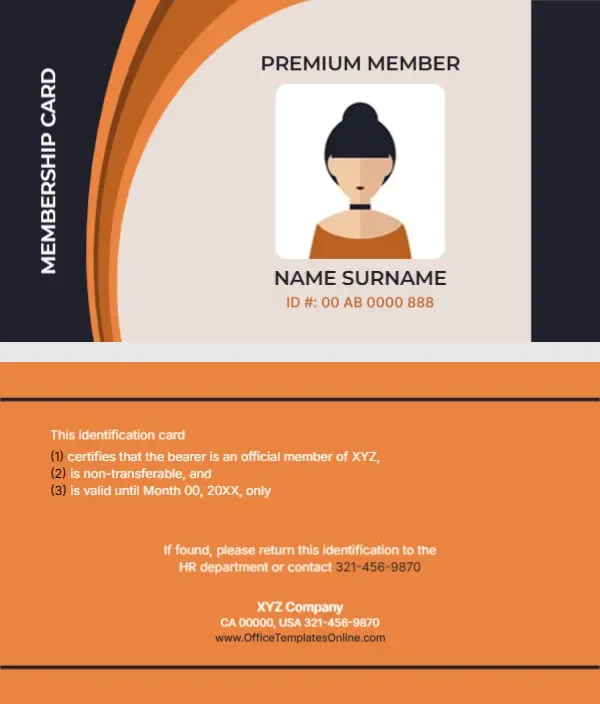
Orange Curves and a Vertical Title for a Business Member Card
A dark navy strip down the left side carries MEMBERSHIP CARD in white, turned on its side, and bold orange curves sweep across the front. A pale panel holds PREMIUM MEMBER, an avatar of a woman with a top knot, NAME SURNAME and an orange ID number. The back is bright orange, with a short numbered statement, a return note and the company details.
Avatar Front and Orange Terms Back
The card is 3.5 x 2 inches. The back has three numbered points, a return line with a phone number, and the company name, address and website between two dark rules.
Terms Text and Return Note
The back says the card certifies that the bearer is an official member of XYZ, is non transferable and is valid until Month 00, 20XX only. Type your organisation and a real date. The return note mentions the HR department, which suits a staff card more than a member card, so change it to the membership desk if needed. The website uses the template site address.
Personalising the Business Card
- Replace the avatar with a photo.
- Type the name and ID.
- Set the valid until date.
- Fix the return note.
- Update the website.
Member Card or Staff Badge
The wording works for staff too. For employees, keep HR in the return note and change PREMIUM MEMBER to a job title. A navy and orange staff badge with the same layout also looks tidy on a lanyard if you punch a slot at the top.
Using Real Photos
The avatar is a placeholder. A real head and shoulders photo makes the card more secure. Take photos against a plain wall in good light so all cards in the batch look consistent.
Writing Clear Validity Dates
Spell the month, such as valid until 31 March 2027, to avoid confusion between date formats. Write the same date format on every card so staff checking cards do not have to guess.
Printing Orange Backs
Bright orange shows wear quickly. Laminate cards used every day.
Collecting Cards on Exit
Ask members or staff to return cards when they leave, as the back already suggests.
Logging Business Cards
Keep a list of ID numbers and expiry dates.
Step by Step Editing of the Business Orange Curves Avatar Design
- On the business orange curves avatar design, click the main headline and type your own words, keeping a similar length.
- Retype every name, date and contact line on the business orange curves avatar design, checking each against a trusted source.
- Search the business orange curves avatar design for the words Lorem and Company so that no placeholder remains.
- Click any logo or photo on the business orange curves avatar design, choose Replace Image and resize the new picture to fit.
- Zoom the business orange curves avatar design to full size and read each line aloud before you save it.
- Keep a clean master of the business orange curves avatar design without private details, so later versions start tidy.
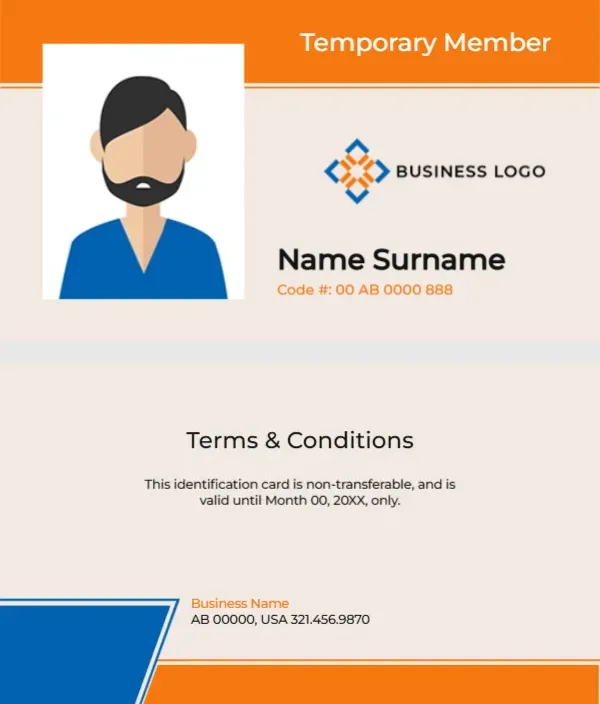
A related layout is the temporary membership card. Also worth a look: wellness membership card. Next to try is the mosque membership card. Every business orange curves avatar style alternative sits in membership card templates.