Checklist First
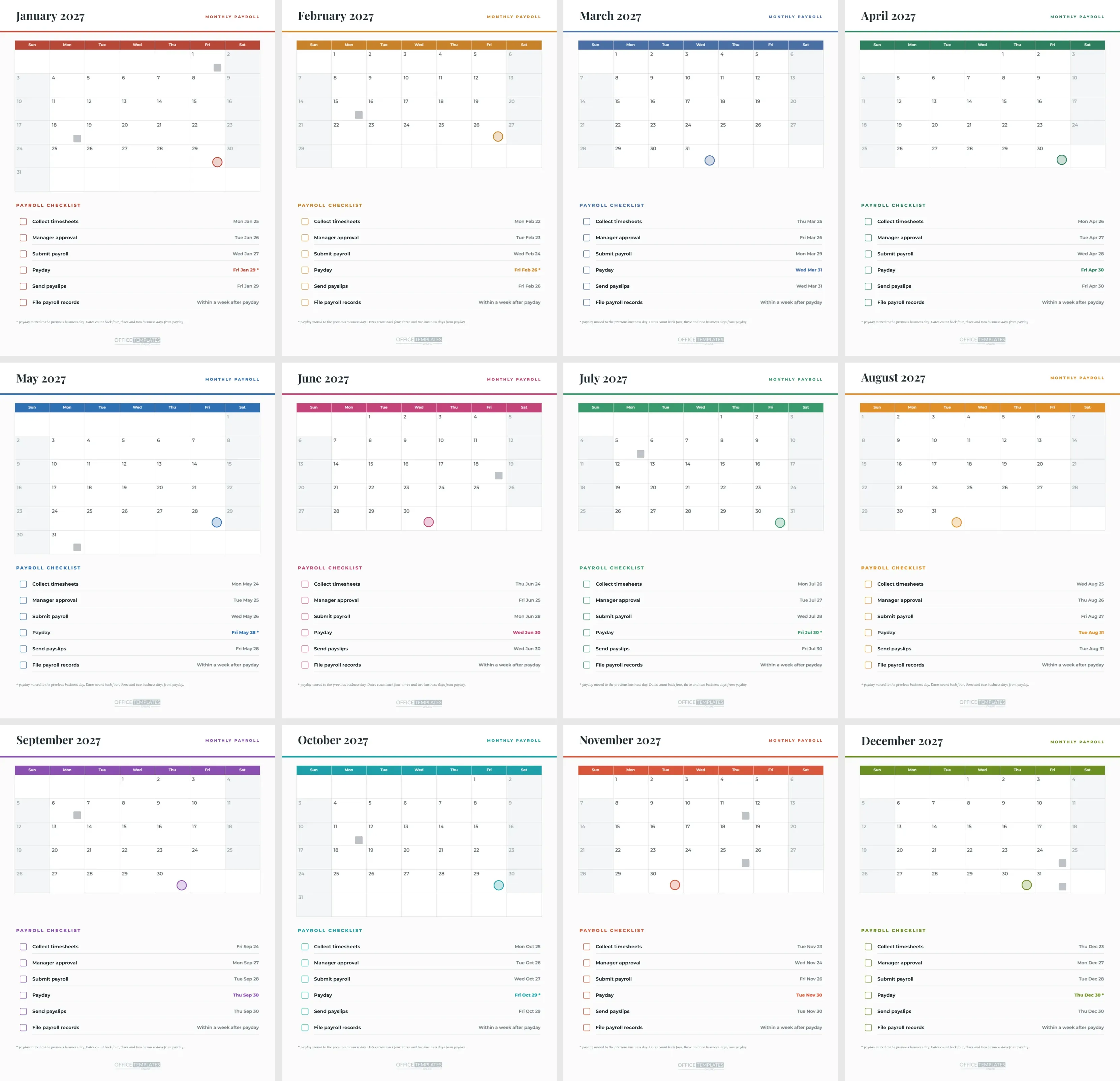
Every page in this set ends with the same six steps: collect timesheets, manager approval, submit payroll, payday, send payslips, and file payroll records. Each step has an empty checkbox on the left, the task in bold, and a date on the right. The dates are different on every page, so this is a working checklist, not a generic one.
The Month Calendar Above It
The top half of each page is a month calendar, drawn with the editor’s Calendar object, in the page’s accent colour. A single ring in the lower right of a cell marks the monthly payday. Observed US federal holidays carry a small grey square. Above the grid sits a white header with the month and 2027 in Playfair Display and the words MONTHLY PAYROLL.
Sample Page: July
| Step | Date on the July page |
|---|---|
| Collect timesheets | Mon Jul 26 |
| Manager approval | Tue Jul 27 |
| Submit payroll | Wed Jul 28 |
| Payday | Fri Jul 30, moved from Saturday the 31st |
| Send payslips | Fri Jul 30 |
| File payroll records | Within a week after payday |
How the Dates Are Worked Out
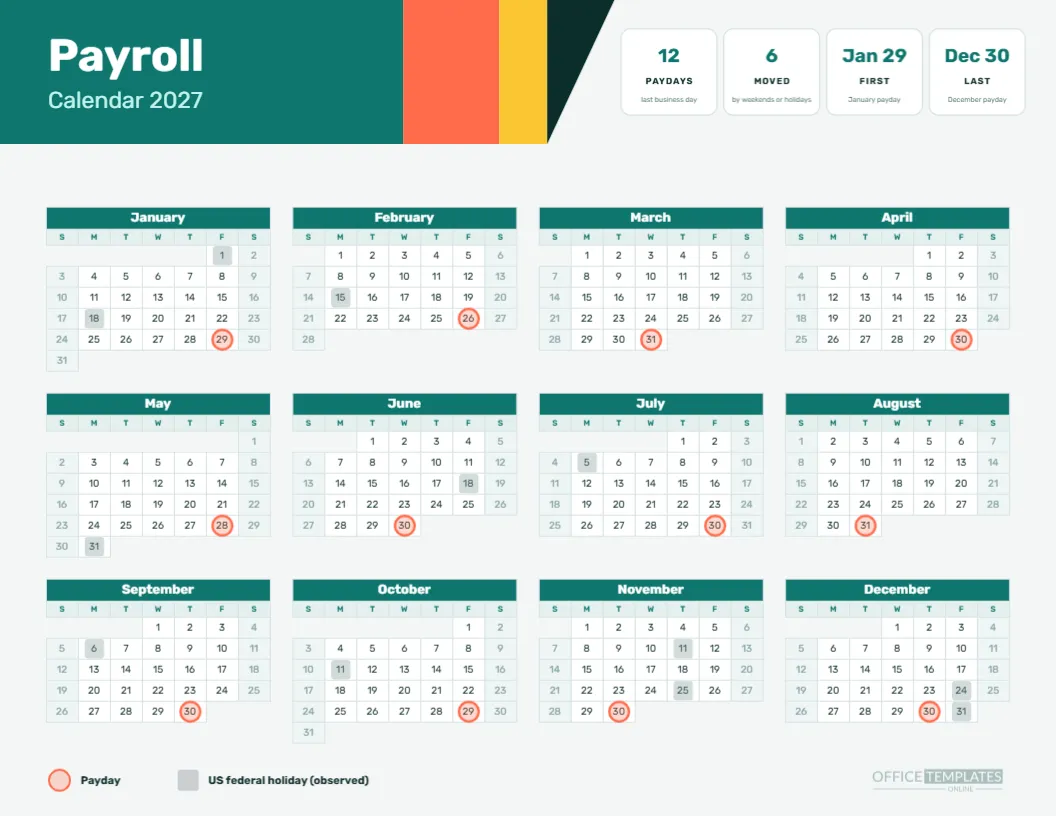
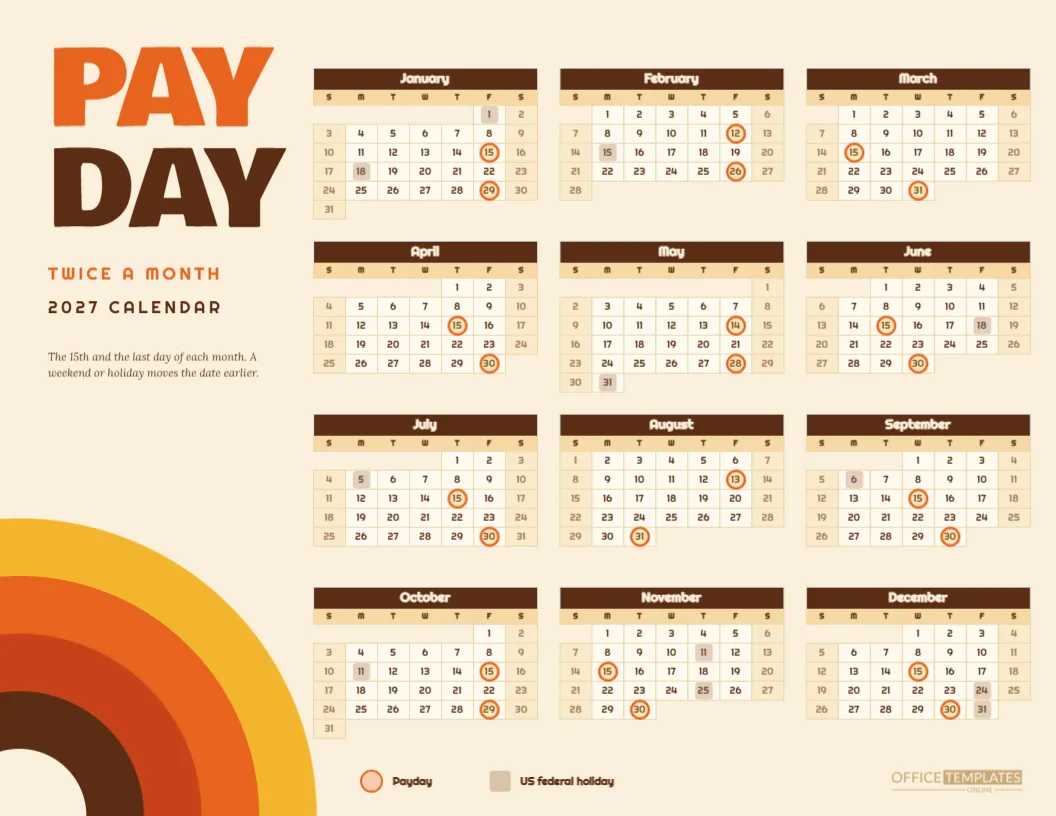
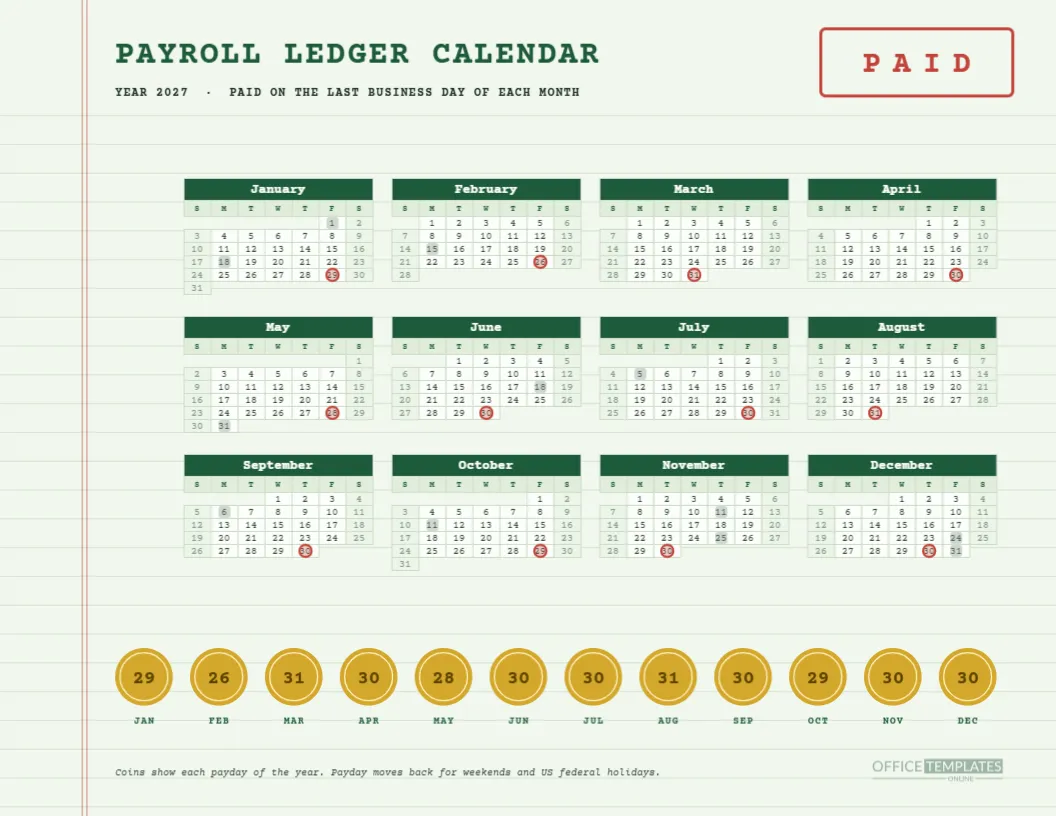
Payday is the last business day of the month. Timesheets are due four business days before it, approval three days before, and the payroll is submitted two days before. Weekends and observed US federal holidays are skipped. The result is a set of twelve slightly different checklists, which reflect what actually happens in each month.
When Memorial Day Interferes
May’s last day is Memorial Day, so payday moves to Friday, May 28. The checklist for May shows timesheets due Monday, May 24, approval Tuesday, May 25, and submission Wednesday, May 26. Nothing is odd about those, but the page makes it easy to see that the whole sequence slipped a few days earlier because of the holiday.
When December Closes the Year
December’s payday is Thursday, December 30, because Friday, December 31 is the observed New Year’s holiday for 2028. The checklist lists timesheets due Thursday, December 23, approval Monday, December 27, and payroll submission Tuesday, December 28, since Christmas observed on Friday, December 24, removes a business day.
What Send Payslips Means Here
The payslip step is dated the same as payday. Some employers send payslips a day before, others on payday. Edit the date if your policy differs. The task wording is plain text, so you can also change it to publish payslips in a portal or print them for collection.
Filing Records
The last step says within a week after payday. That is an internal habit, not a legal deadline. Many employers file the payroll register, bank confirmation, and any approvals in a folder for each month. Change the wording to your own routine, and add a line for tax payments if you want to track them on the page.
Using the Check Boxes
The boxes are small outlined squares with no text in them. Print the page and tick by hand, or open the design and fill the box with a tick character if you prefer to complete the checklist on screen. Keep a signed copy with the month’s records for a simple audit trail.
Who Benefits Most
Small businesses where one person does payroll monthly. The page tells them what to do and when, in order, and a successor can pick it up cold. Larger teams can adopt it as the shared working sheet for each run, adding a column or a name beside each step.
Editing the Steps
Each row is a check box, a task line, a right-aligned date and a faint rule. Rename a step, delete one, or add one by copying a row and changing the text. Keep the six rows aligned with the rule lines so the page stays tidy.
Changing the Accent Colours
The accent runs through the month header, day names, ring fill, and check box outlines. Change all of them for a branded set. If you want a single colour for all twelve months, apply the same change on every page.
Calendar Options and Markers
Use Calendar Options to change the year or week start. The ring and holiday squares are separate grouped shapes, so they do not follow changes. After you edit the calendar, move the group so the ring sits over the payday cell again, and check the checklist dates against the new month.
Printing and Filing the Checklist Pages
Print portrait on Letter at actual size. If you file the pages after each run, use a three-hole punch and a month tab. A year later you will have twelve pages with ticks and initials, a tidy record of every run.
Pairing the Checklist Pages With the Monthly Year Grid
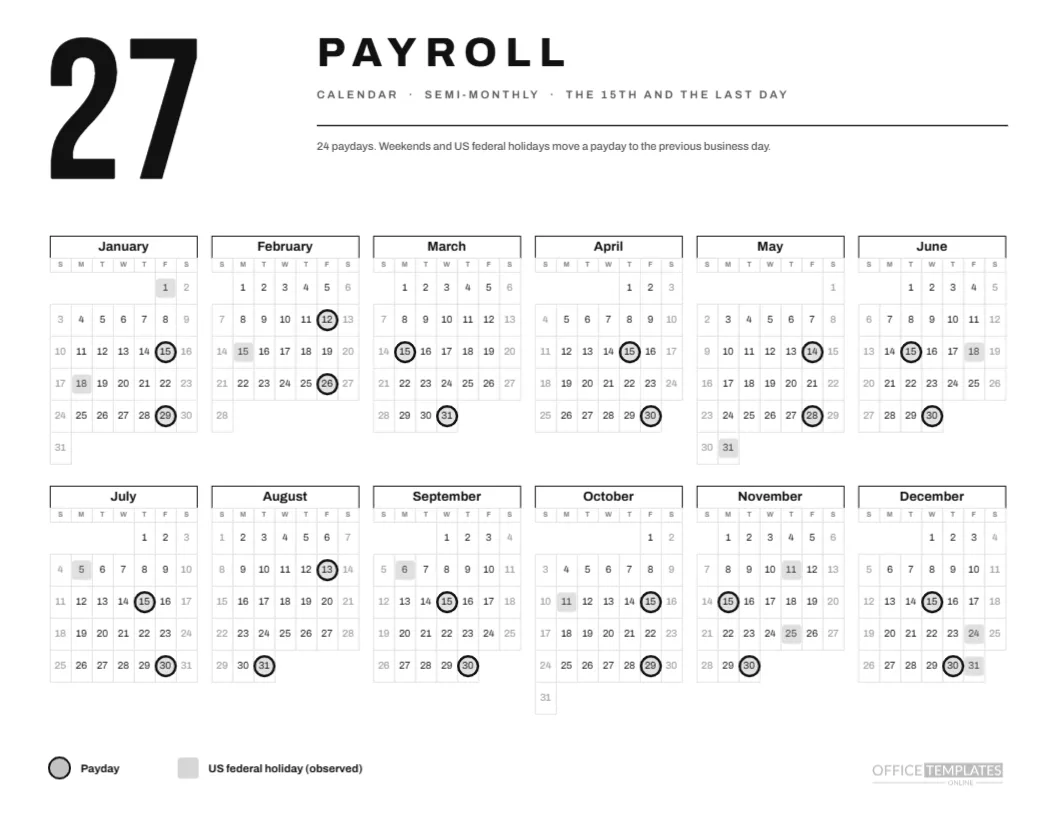
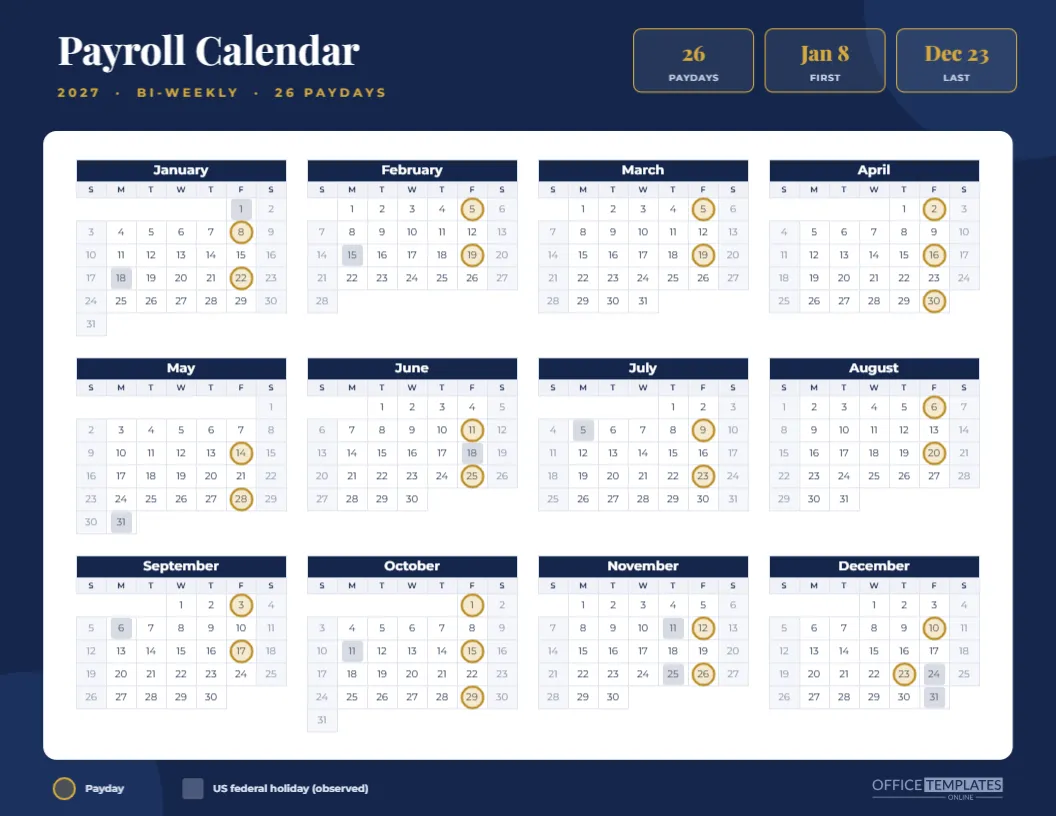
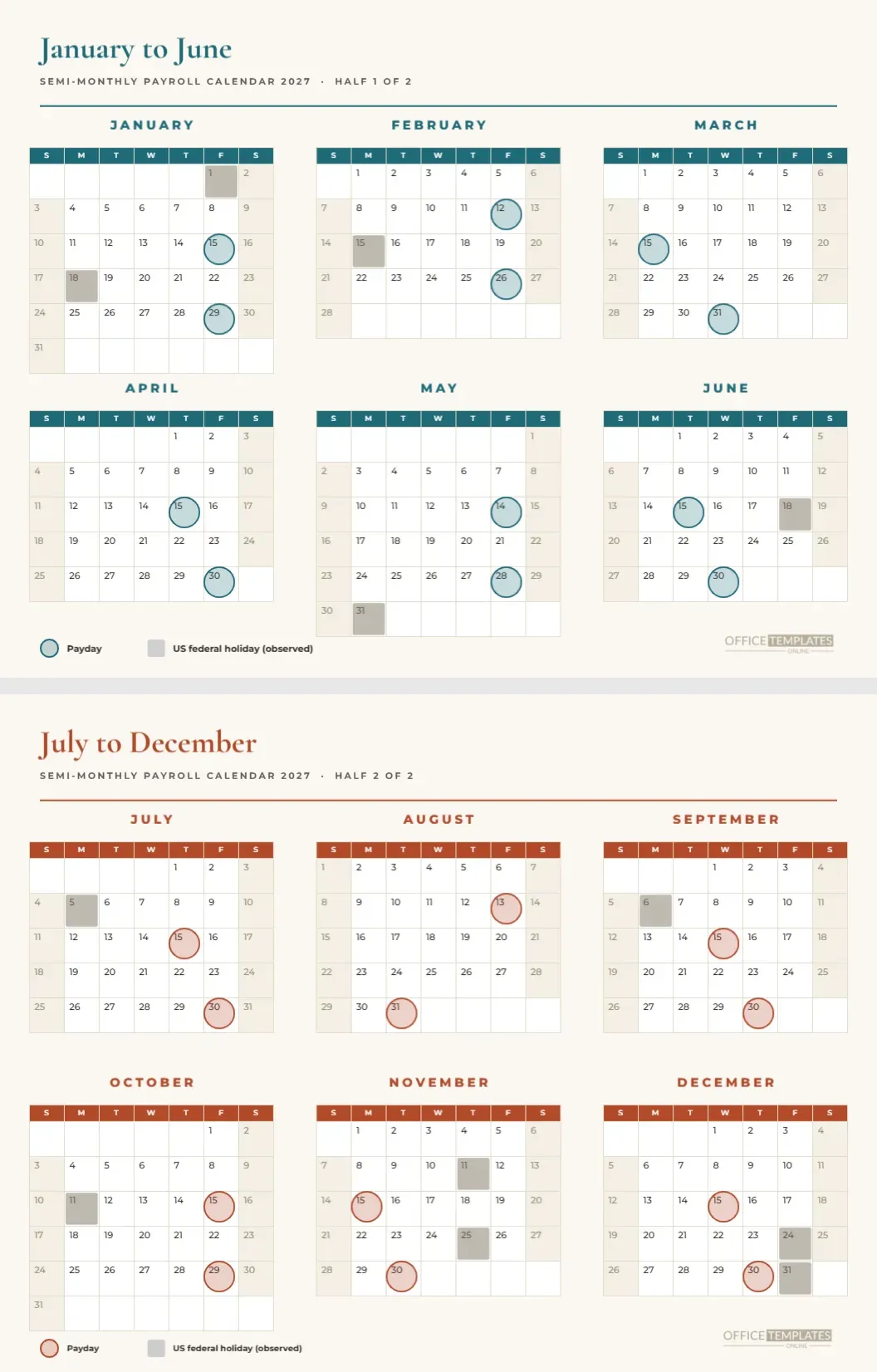
The monthly payroll year calendar in this collection shows all twelve paydays on one page. Use it to plan and these pages to execute. Both use the same dates, so planning and execution never disagree.
Honest Caveats
The dates assume a last business day payday and four-, three-, and two-day lead times. Your provider may need different lead times, and local holidays may differ from the US federal list. Treat the checklist as a template and adjust anything that does not match how you work.
Quick Reminders
Twelve portrait pages. Six checklist steps. One payday ring per month. Dates computed for each month. Checkboxes and text editable.
A Worked Example for August
August’s last day, the 31st, is a Tuesday, so payday stays put. Timesheets are due Wednesday, August 25, approval Thursday, August 26, and payroll is submitted Friday, August 27. Payslips go out on Tuesday, August 31, and records are filed within a week. Nothing is unusual, which makes it a good page to hand a new payroll assistant as a first practice run.
A Worked Example for October
October 31 is a Sunday, so the payday steps back to Friday, October 29. Timesheets are due Monday, October 25, approval Tuesday, October 26, and payroll submit Wednesday, October 27. The grey square on Monday, October 11 reminds you of Columbus Day earlier in the month, which does not affect these dates but may affect other work.
Training Someone New With the Pages
Hand a new colleague the January page and the July page and ask them to explain why the two checklists differ. The answer- a Sunday last day in January and a Saturday last day in July with different holiday neighbours- teaches the business day rule better than any manual. It takes ten minutes and tends to stick.
Adding Your Own Steps
Six steps suit many small offices, but yours may need more. Add a row for a funding transfer, an overtime review, or a benefits deduction check. Copy a row, move it down, change the text and the date, and shift the footer lines if needed. Keep the date column right-aligned for a tidy look.