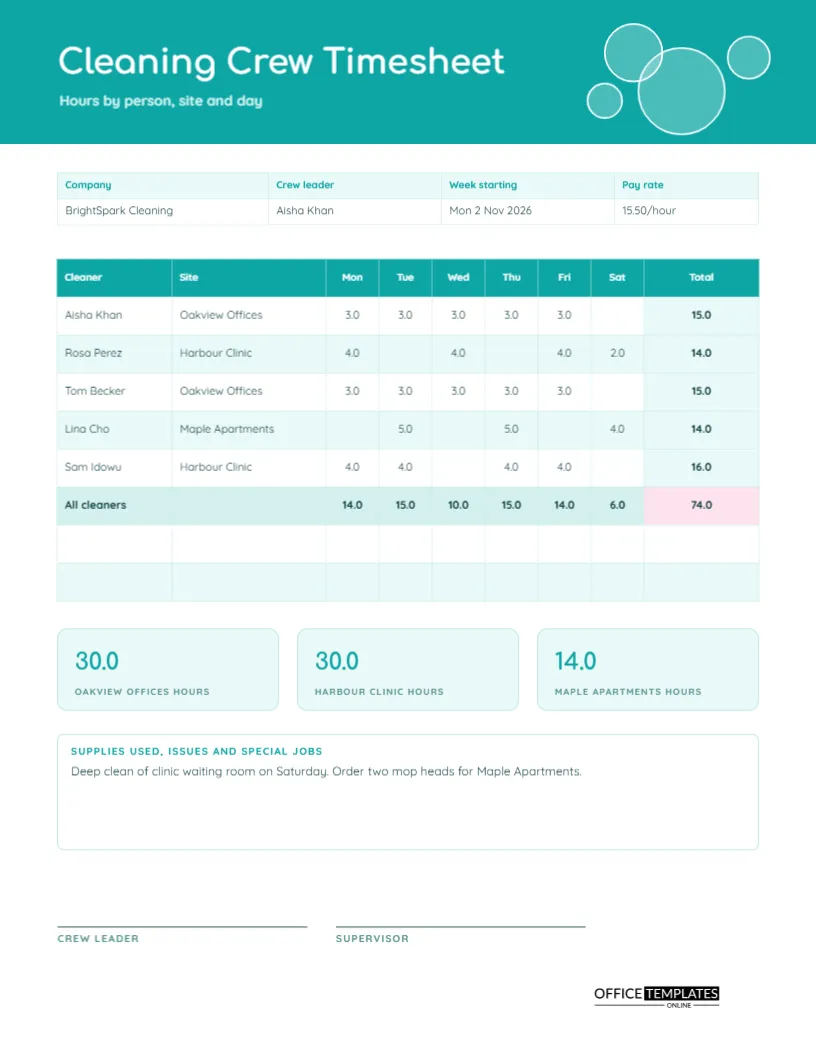
A cleaning company runs on a spread of small jobs: an office in the morning, a clinic in the afternoon, apartments in the evening. Each site has a contract, each cleaner has a schedule, and each hour belongs to someone and somewhere. Tracking it on a plain timesheet makes it hard to see which site is using the most time. This US Letter sheet arranges hours in a grid by cleaner, site, and day, so that totals appear in every direction.
Turquoise Header With Soap Bubbles
A turquoise band at the top holds the title Cleaning Crew Timesheet in rounded Comfortaa, and four translucent circles with white outlines float at the right like soap bubbles. A pink accent marks the total later on. Quicksand sets the smaller text. The page looks fresh and clean, which suits the trade and makes it pleasant to pick up on a busy Monday.
Company, Crew Leader, Week and Pay Rate
The strip lists the company, the crew leader, the week starting, and the pay rate. The sample shows BrightSpark Cleaning, crew leader Aisha Khan, week starting Monday 2 November 2026, at 15.50 an hour. Putting the pay rate on the sheet lets a crew leader work out labour cost at a glance and makes the sheet useful for quoting new jobs.
Reading the Hours Grid
| Cleaner | Site | Mon to Sat pattern | Total |
|---|---|---|---|
| Aisha Khan | Oakview Offices | 3 hours Monday to Friday | 15.0 |
| Rosa Perez | Harbour Clinic | 4, 4, 4 and 2 hours | 14.0 |
| Tom Becker | Oakview Offices | 3 hours Monday to Friday | 15.0 |
| Lina Cho | Maple Apartments | 5, 5 and 4 hours | 14.0 |
| Sam Idowu | Harbour Clinic | 4 hours on four days | 16.0 |
The real page shows one column for each day, so that a manager can see exactly which days a person worked.
Totals in Two Directions
The last column adds each cleaner across the week, and the shaded bottom row adds each day down the page. The total of 74.0 hours sits in a pink cell at the corner. When the row totals and the column totals reach the same number, you know the grid is right. Blank cells are left empty instead of showing zeros, which keeps the grid easy to scan.
Three Site Tiles
Under the grid, three tiles show hours for each site: Oakview Offices 30.0, Harbour Clinic 30.0, and Maple Apartments 14.0. These figures answer the question every owner asks: where is the time going? Compare them with what each client pays, and you can tell at once whether a contract is profitable or quietly losing money.
Supplies, Issues and Special Jobs
A notes box records anything beyond routine cleaning. The sample mentions a deep clean of the clinic waiting room on Saturday and an order for two mop heads for Maple Apartments. Special jobs are often billed separately, and supply requests need a paper trail. Writing them on the weekly sheet keeps them from being forgotten.
Filling the Grid Each Week
- Write the crew leader, week, and pay rate.
- List each cleaner and the site they worked.
- Enter hours in the day columns, leaving blanks for days off.
- Add across for each cleaner and down for each day.
- Fill in the three site tiles and sign.
Cleaners Who Work at More Than One Site
If a cleaner splits the day across two sites, add a second row for the same person. Their total is the sum of both rows, and each site gets its fair hours. Make a note of travel time between sites, because some contracts pay for it and others do not. Consistency matters more than which rule you choose.
Using the Sheet to Check Contract Hours
Many cleaning contracts specify several hours per week. Compare the site tile with the contract figure. If a site uses more than agreed, talk to the client early about extra charges or a change in scope. If it uses less, check that the work is still meeting the standard they expect.
Quoting New Contracts From Past Sheets
A few weeks of sheets give you real data for a quote. Measure the hours a similar site needed, multiply by the pay rate, add supplies and your margin, and you have a number you can defend. The sheets turn a guess about how long it takes into a record of how long it actually took.
Editing Names, Sites and Rates
All text is editable, and the grid is a real Table object. Change sites, retype the cleaners, and add rows for a larger crew. If you want a Sunday column, reduce the widths of the other day columns slightly and add one through Edit Table Data.
Signatures and Weekly Filing
The crew leader and the supervisor sign at the foot. File the sheets by week in a folder per company, and keep scans of signed sheets with payroll records. If a client questions a bill, you can show exactly who cleaned which site and for how long.
Printing the Cleaning Sheet
US Letter portrait. Print at full scale, because the day columns are narrow. The turquoise header uses a block of ink, but the grid itself prints cleanly in black and white.
Keeping Cleaners Fairly Paid When Sites Change
Sites come and go, and a cleaner may move from one contract to another mid-week. Because each row names the site, pay follows the work. If a site pays a different rate, add the rate to the row or the notes, and your payroll clerk can apply it without hunting through emails.
Handling Cancelled Visits and Client Closures
When a client closes for a public holiday or cancels a visit, write the reason in the notes box next to the day. Decide in advance whether the cleaner is paid for cancelled hours. A line on the weekly sheet shows what happened and prevents quiet disagreement at the end of the month.
Cleaning Crew Timesheet Questions
Can I show half hours?
Yes. The sample uses one decimal place, so 3.5 means three and a half hours.
Is there a column for travel time?
Not by default. Add one through Edit Table Data or note travel in the notes box.
Does the grid calculate totals?
No. Totals are typed text, so retype them after any change.