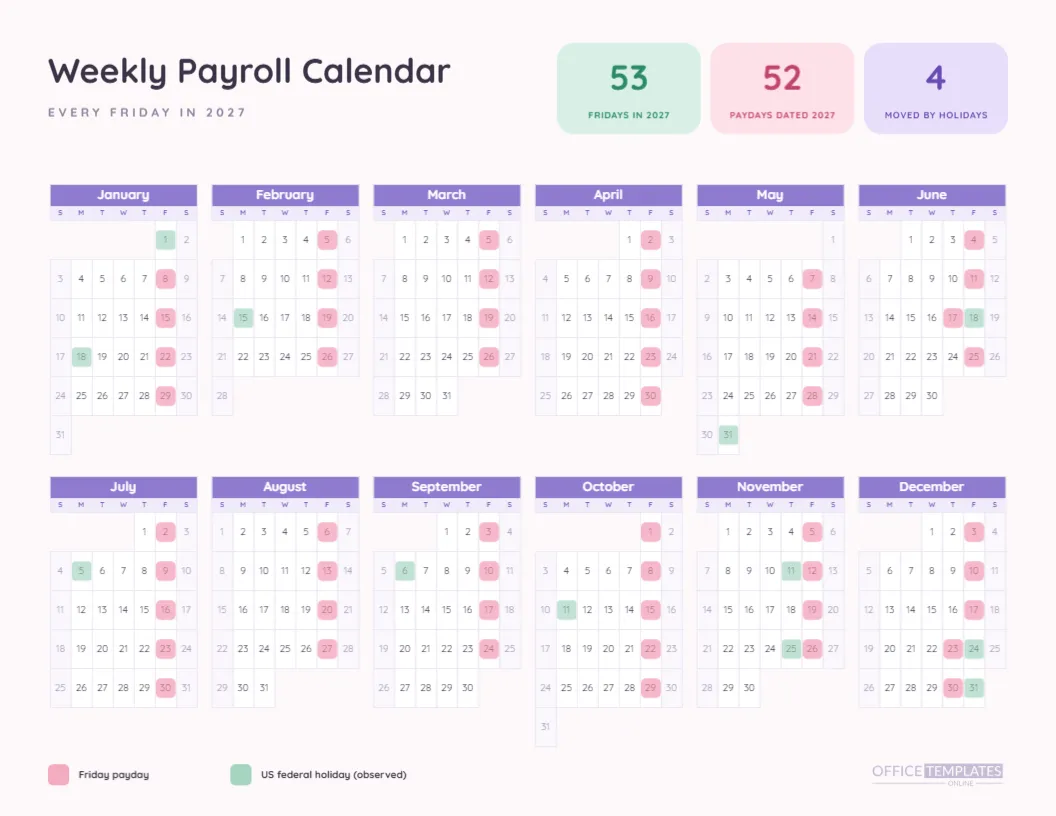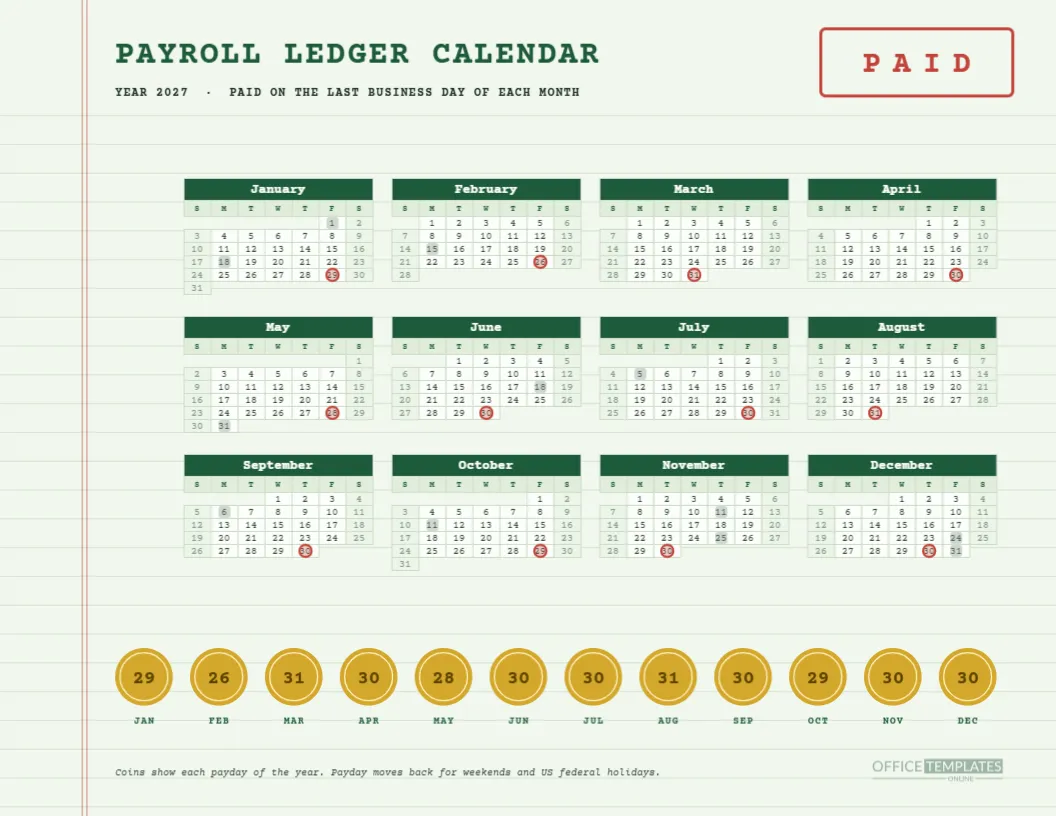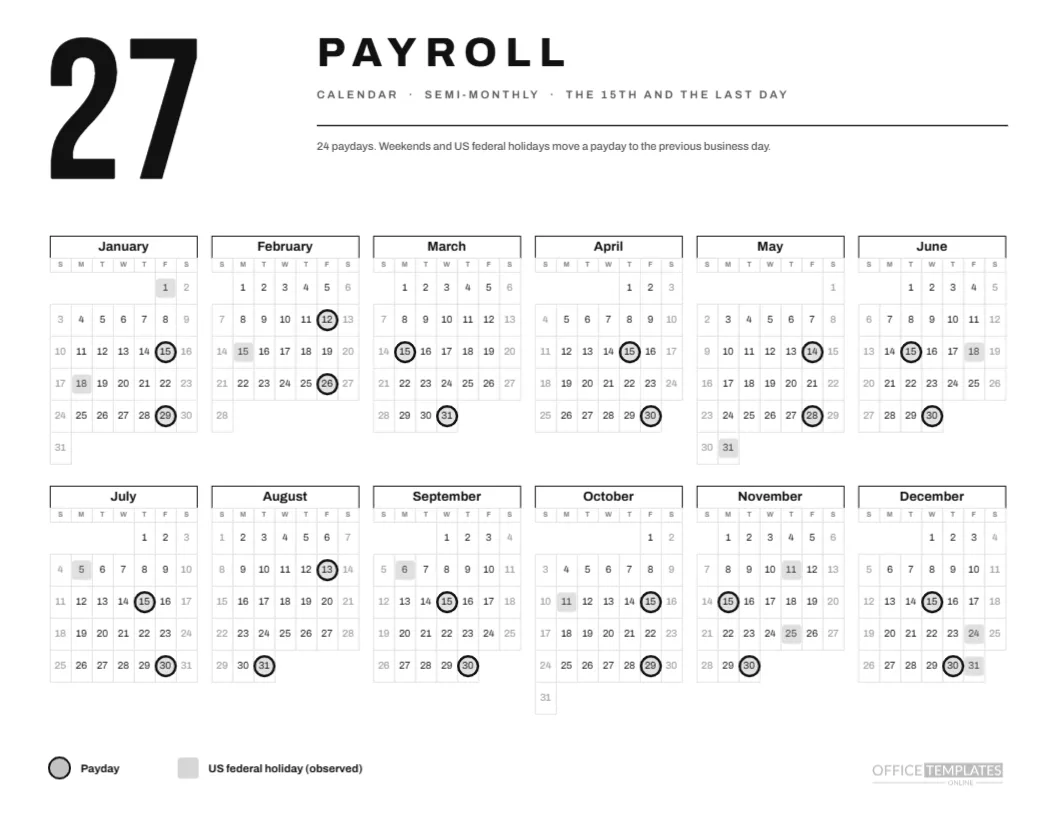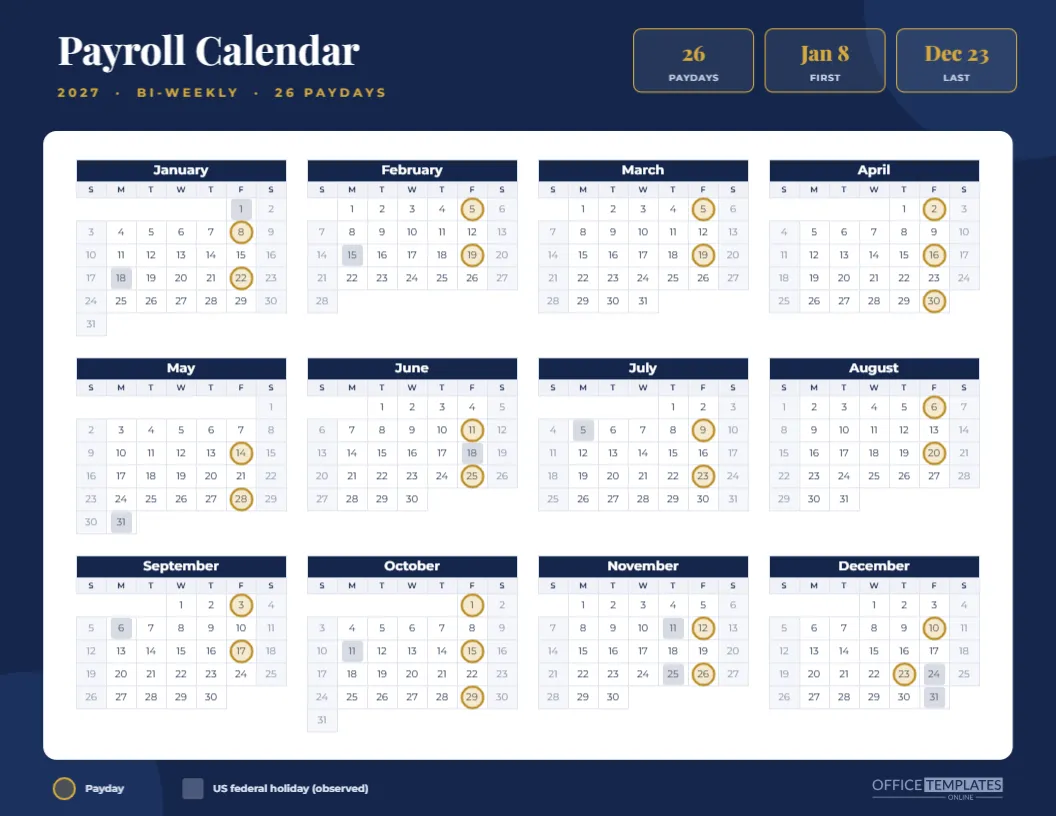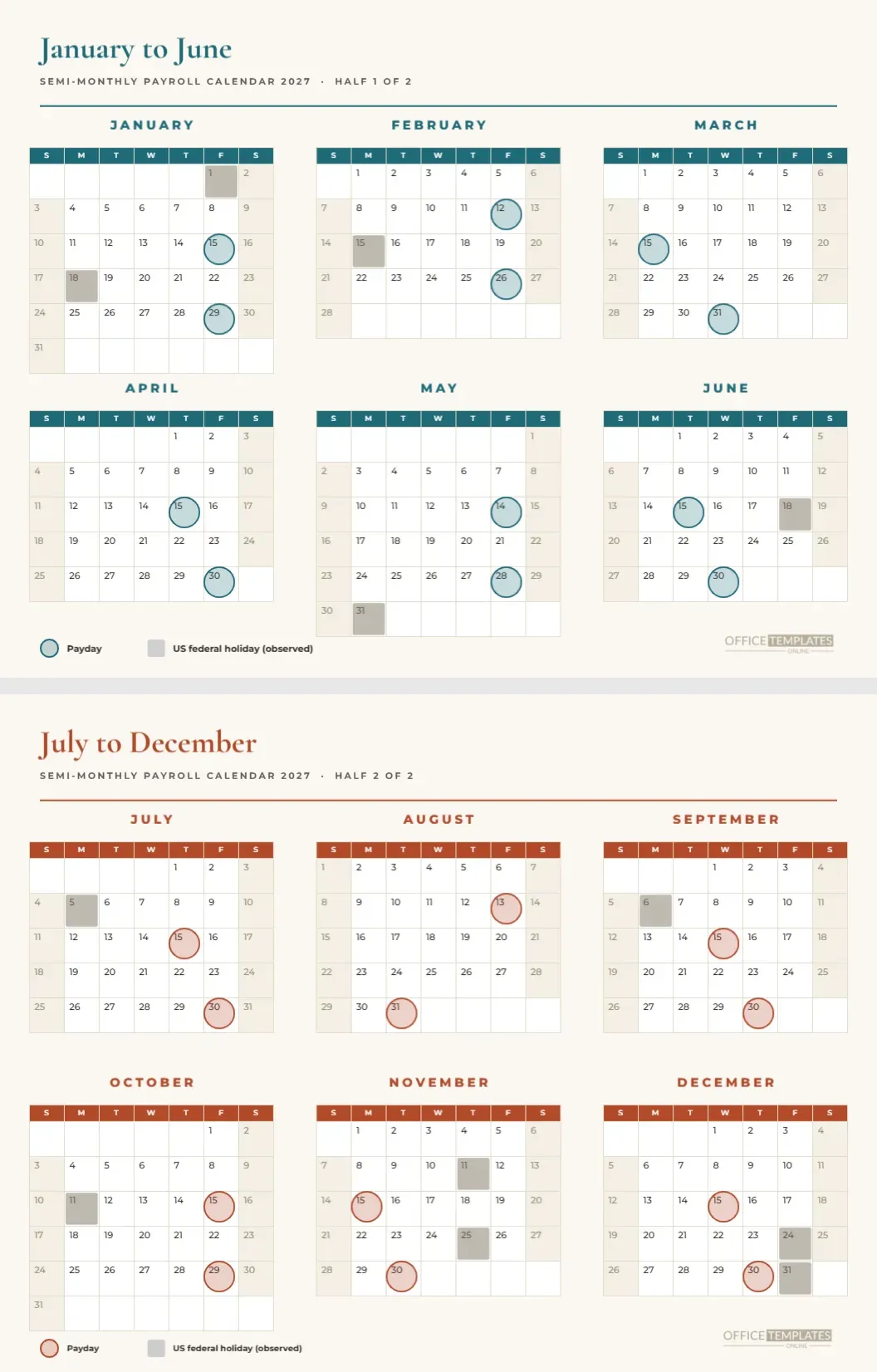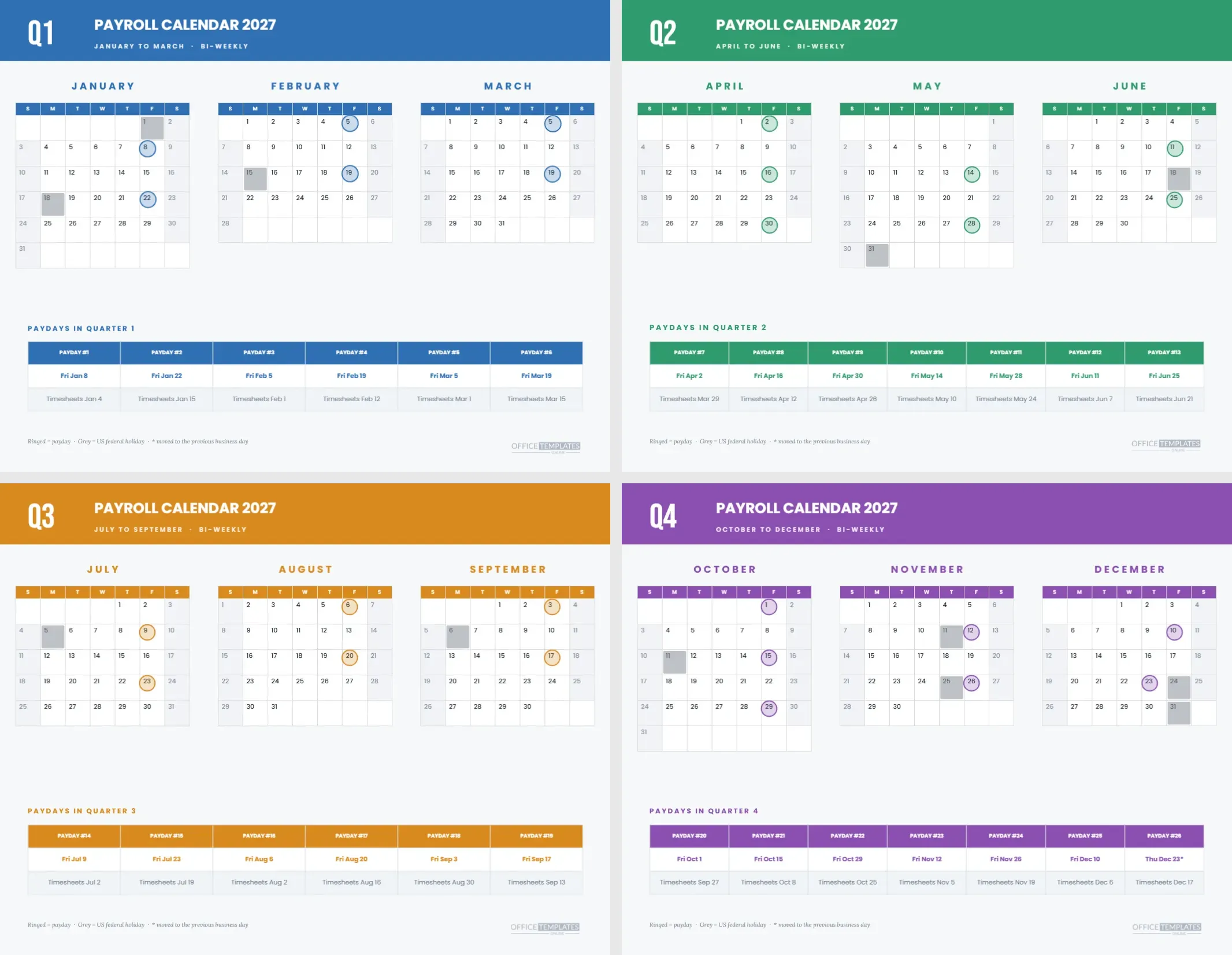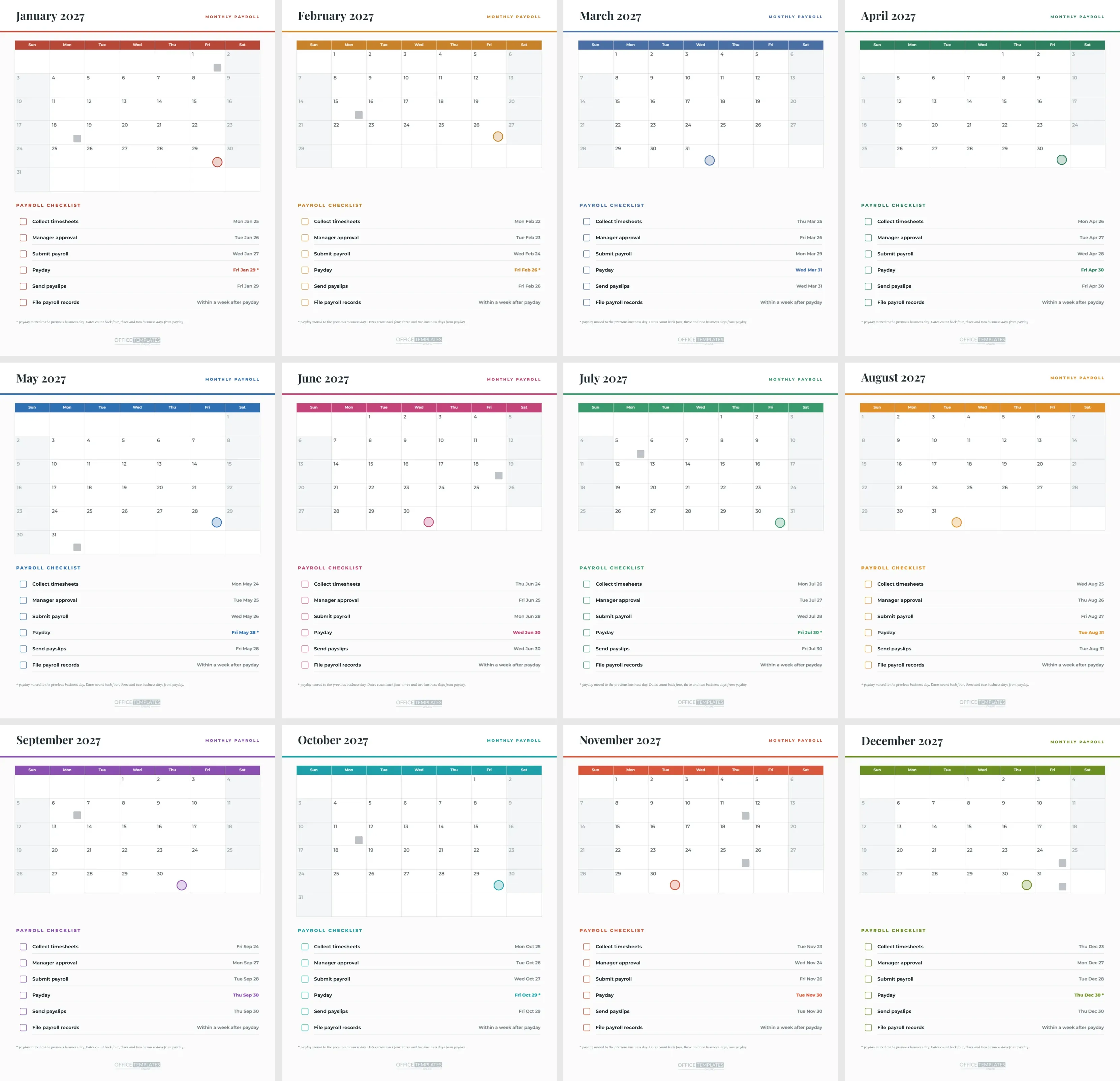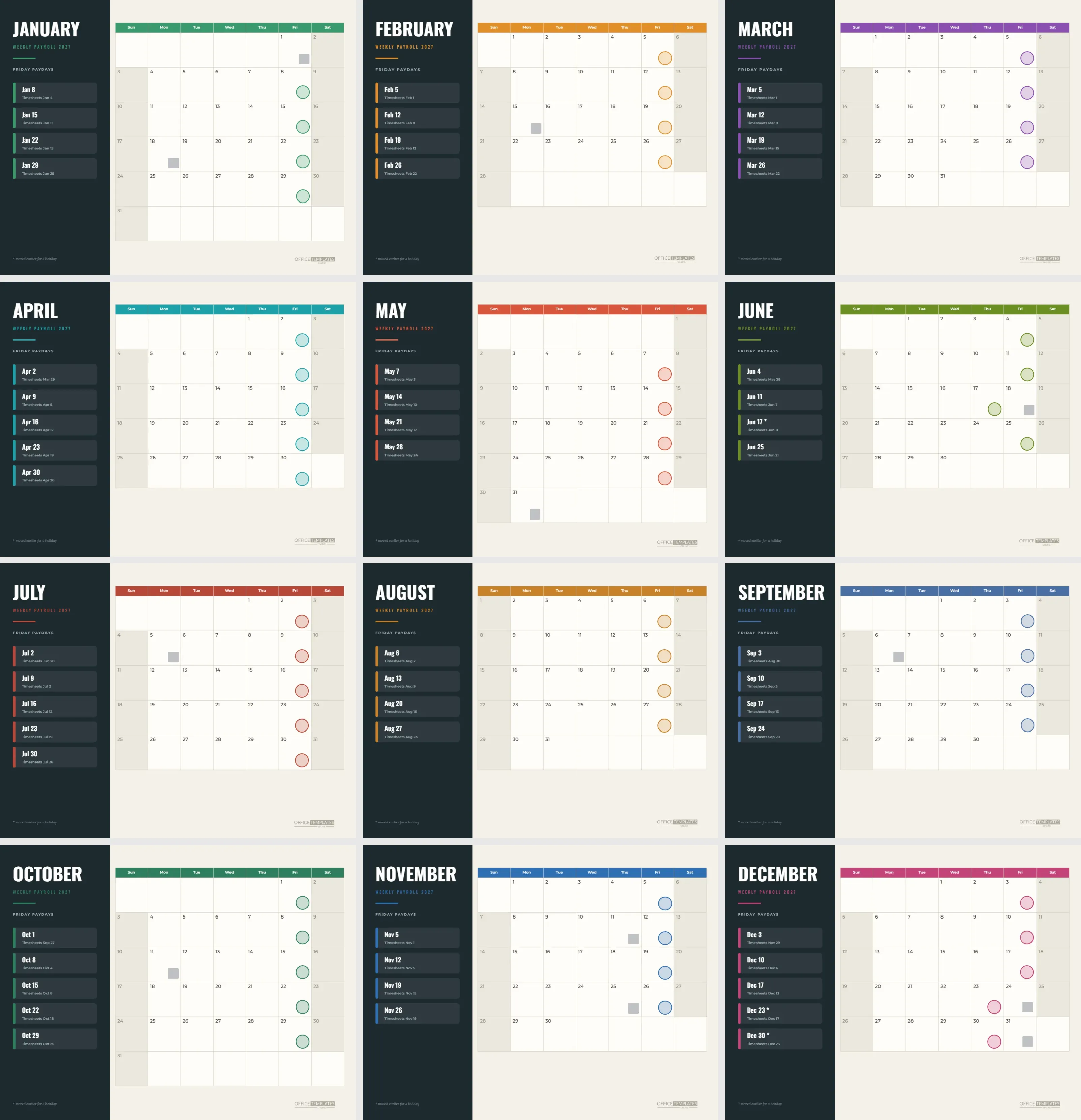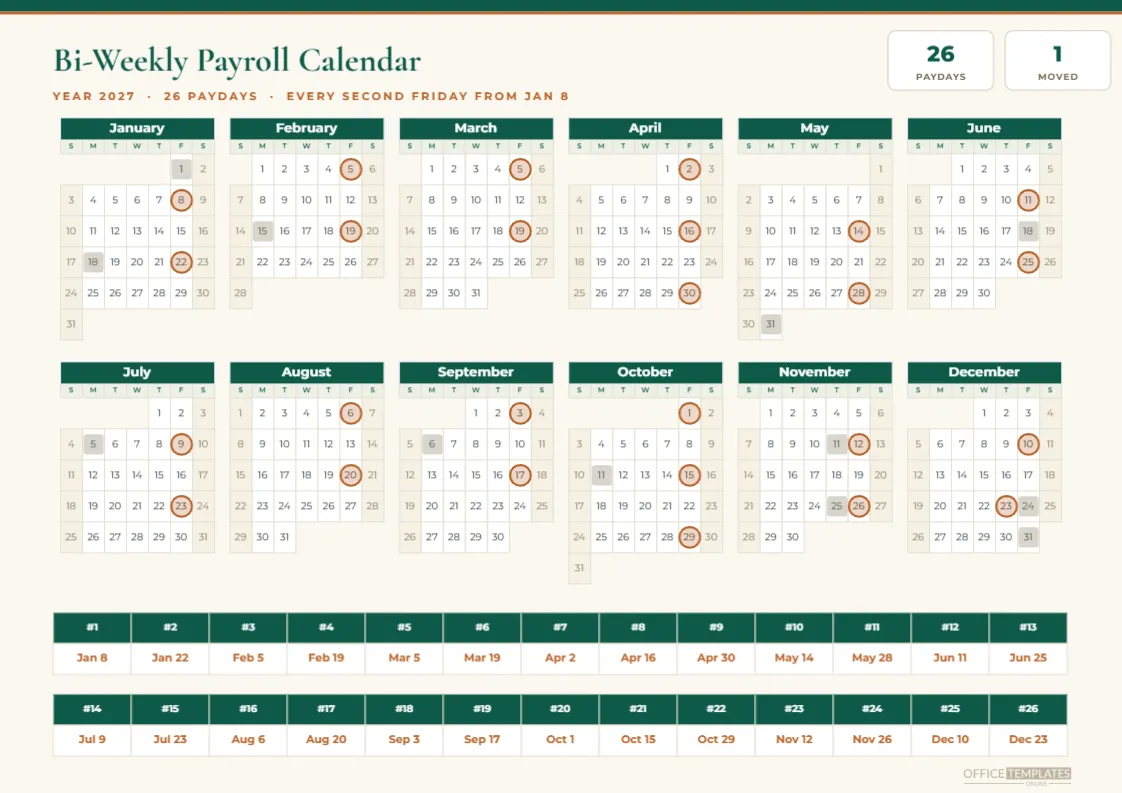
Most payroll pages on the web are built for US Letter paper, which leaves the rest of the world resizing them and losing the margins. This A4 landscape version of the bi-weekly payroll calendar for 2027 is drawn on 297 by 210 millimetre paper from the start, so a printer in Karachi, Jakarta, London or Sydney produces it at full size without shrinking.
An Ivory Page With Emerald and Copper
The page is warm ivory with a thin emerald stripe along the top edge and a copper line beneath it. The title Bi-Weekly Payroll Calendar sits at the top left in Cormorant Garamond, followed by a subtitle noting the 26 paydays from January 8. This is a gentler look than the teal Letter version in the same collection.
Two Tiles at the Top Right
Two white tiles at the right read 26 PAYDAYS and 1 MOVED. The second figure counts the single payday that shifts earlier, the Christmas week one. Everything else falls on an ordinary Friday. Having both numbers in the header answers the two questions every reader asks first.
The Six Column Year
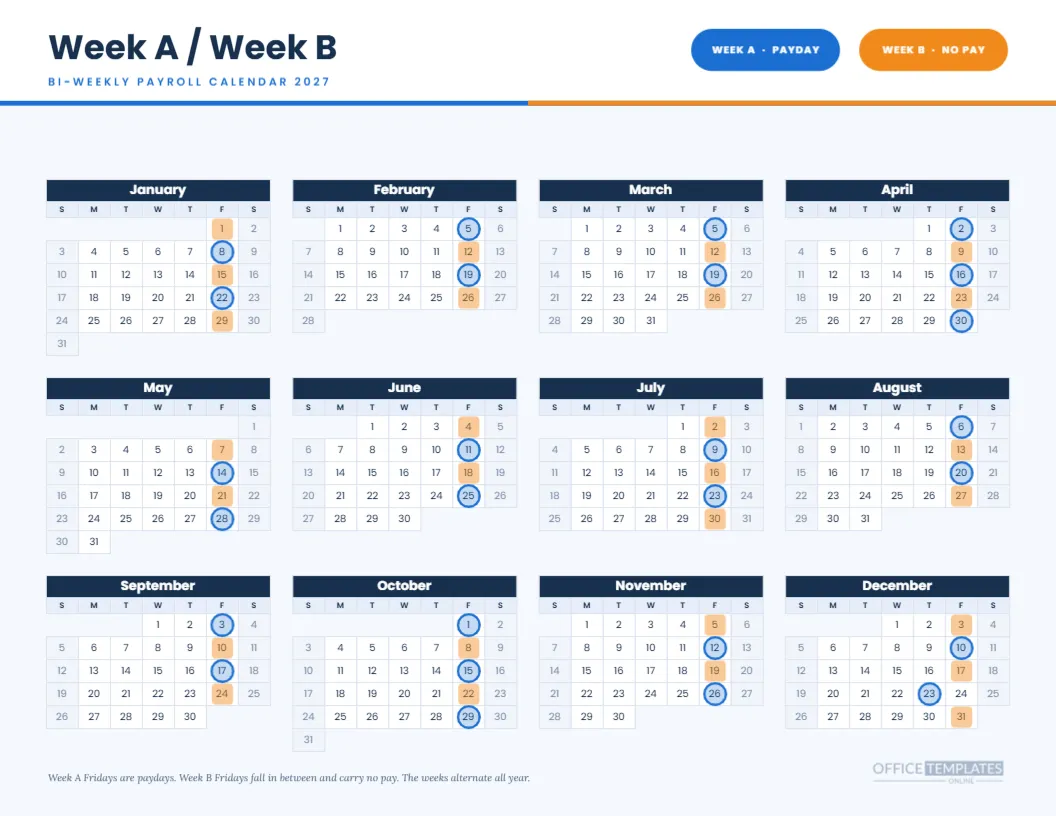
Twelve mini months sit in two rows of six, which gives a wide calendar that spans the full A4 width. Copper rings mark the paydays and beige squares mark the observed federal holidays. Day names run Sunday to Saturday, and the weekend columns carry a light tan fill so they recede.
The Payday Strip Below
Under the calendar, two compact tables list the paydays in order. The first has numbers 1 to 13 along the top and dates Jan 8 to Jun 25 beneath, and the second runs 14 to 26 from Jul 9 to Dec 23. Each is a real Table object, so you can edit a date or add a third row for approval deadlines.
Why Two Rows of Thirteen
Thirteen columns across A4 gives each date about 0.8 inches, enough for text such as Mar 19 at a readable size. Splitting the year at the halfway point makes the strip look balanced and easy to read in sequence, and it lines up with the first and second halves of the financial year in many countries.
Pay Period Numbers as Reference
Numbering the paydays 1 to 26 helps payroll teams who refer to a run by number. A message that says run 14 is late is shorter than one that gives a date. The numbers also tie neatly to timesheet systems that count pay periods rather than dates.
Using A4 Paper Correctly
When you print, select A4 in the printer dialog and choose actual size instead of fit to page. If your office printer defaults to Letter, change the paper setting or the file will be scaled. The layout leaves a margin of roughly half an inch all round for printers that cannot print edge to edge.
Holidays on the Page
The beige squares follow the observed US federal holidays, for example January 18, February 15 and May 31, and the observed dates of June 18, July 5, December 24 and December 31. If you work outside the United States, replace them with your own national holidays, or remove the holiday squares to keep only the paydays.
Customising Holidays for Other Countries
Select a beige square, then drag it to a new date, or delete it. Public holidays differ widely, so doing this step carefully matters more than the design. A short list written on the side of the page is a useful backup if your holidays vary by region.
Changing Week Start
Many countries start the week on Monday. Open Calendar Options, set the week start to Monday, and then shift the rings one cell to the left or right as needed. The strip and header do not change. It is a quick edit that makes the page feel native to your office.
Editing Text and Colours
Every line of text is a normal text box, and every colour is a fill you can change. Swap the emerald for your brand colour in the month headers and the top stripe. Keep the ring colour contrasting with the calendar so paydays remain the first thing the eye lands on.
A Companion to the Letter Version
Companies with offices in more than one country can print the Letter version for the US team and this A4 version elsewhere, with identical payday dates. That keeps everyone aligned while respecting local paper sizes.
Presenting It in Digital Form
Download the page as a PDF for email or an image for a shared intranet. The strip stays crisp because the type is live text, and the calendar keeps its grid lines. Many HR teams pin the file in a team chat channel for staff to find without searching.
Cautions About Pay Dates
Payroll law and bank processing differ by country, so check any date that affects employees with your payroll provider. This page shows a planning schedule built on one rule, the previous business day, and not an official calendar.
Short Answers About the A4 Page
Is it A4? Yes, 297 by 210 mm. How many paydays? 26, from January 8 to December 23. Does the strip have numbers? Yes, 1 to 26. Can the holiday squares be removed? Yes, delete them. Is it print-ready? Yes, at actual size on A4 paper.
Hanging the A4 Sheet in a Shared Office
An A4 landscape page is large enough to read from a metre away and small enough to fit in a standard frame or a clear pocket on a partition wall. Place it near the kitchen or printer, where people gather, rather than on a closed door. Replace it when the year changes so nobody reads an old schedule by mistake.
Checking the Page Against the Payroll Software
Before you distribute the sheet, compare each strip date with the payroll software’s own pay period list. A mismatch of even one day usually means the cycle started a week earlier or later than assumed. Fix the strip and the rings together, then reprint, so the page and the software tell the same story.
Keeping a Spare Digital Copy
Store the edited design and a PDF in a shared folder named for the year. When next year’s schedule is needed, open the saved design, change the year, and rebuild the rings. Having a file you can reuse cuts the setup time to a fraction of starting from a blank page.