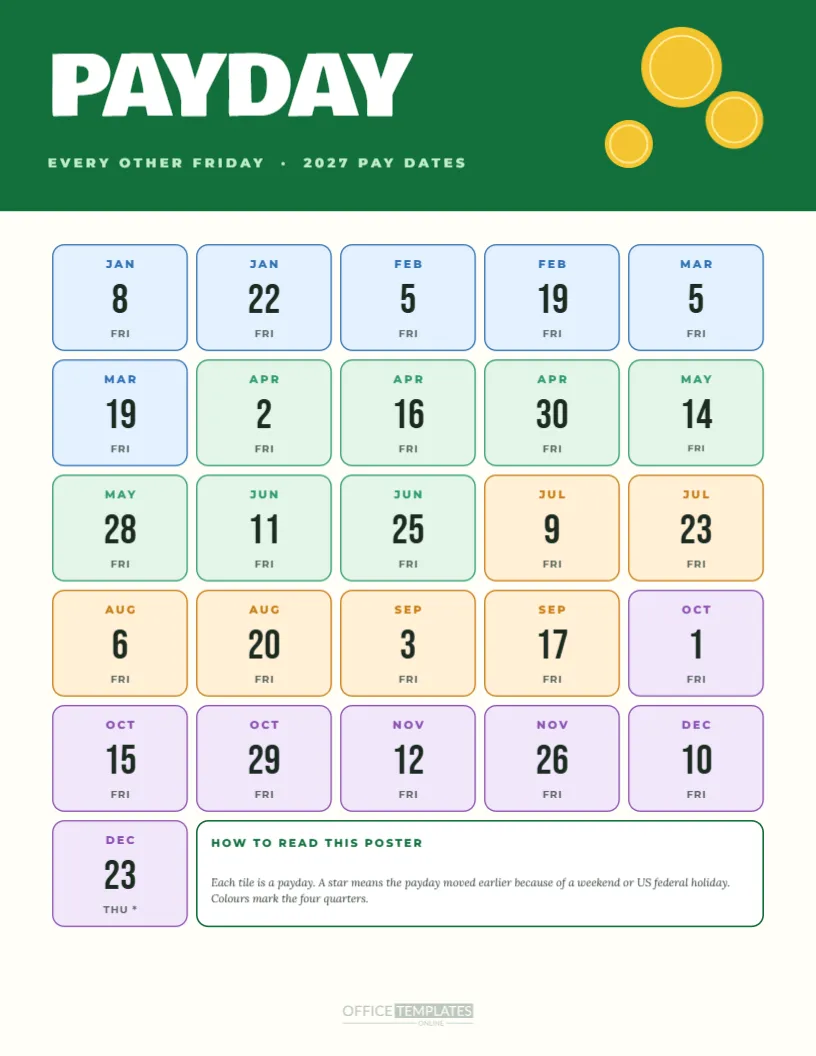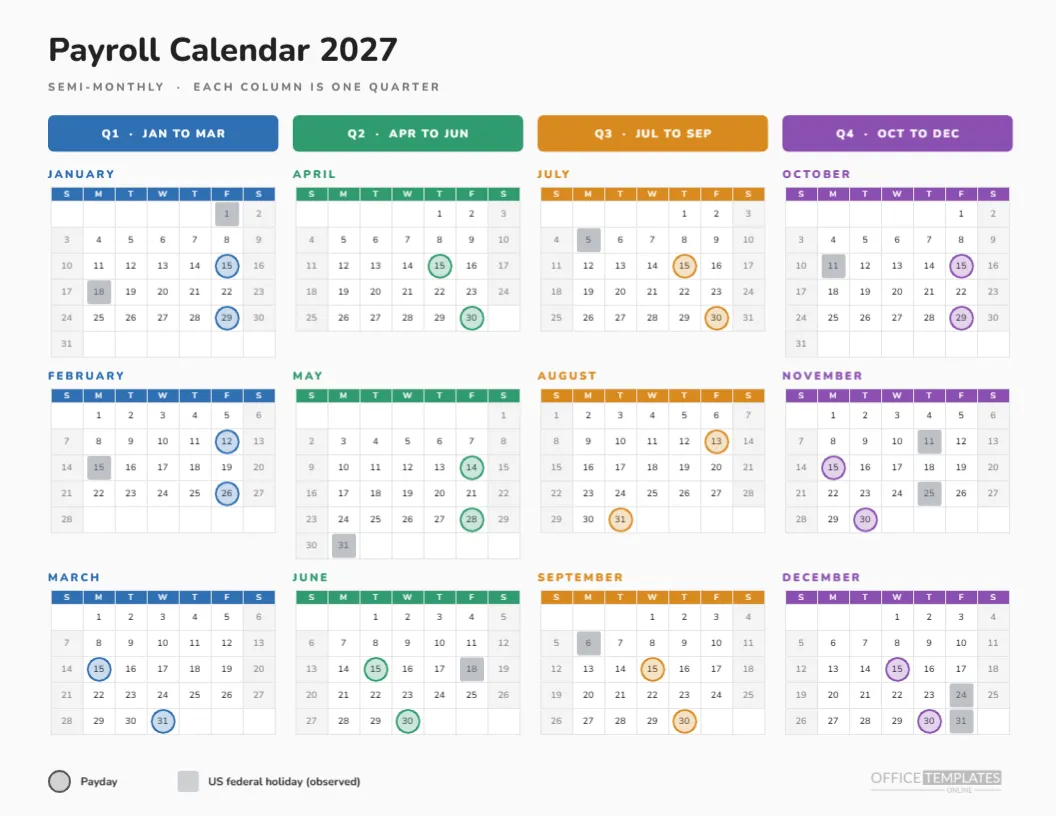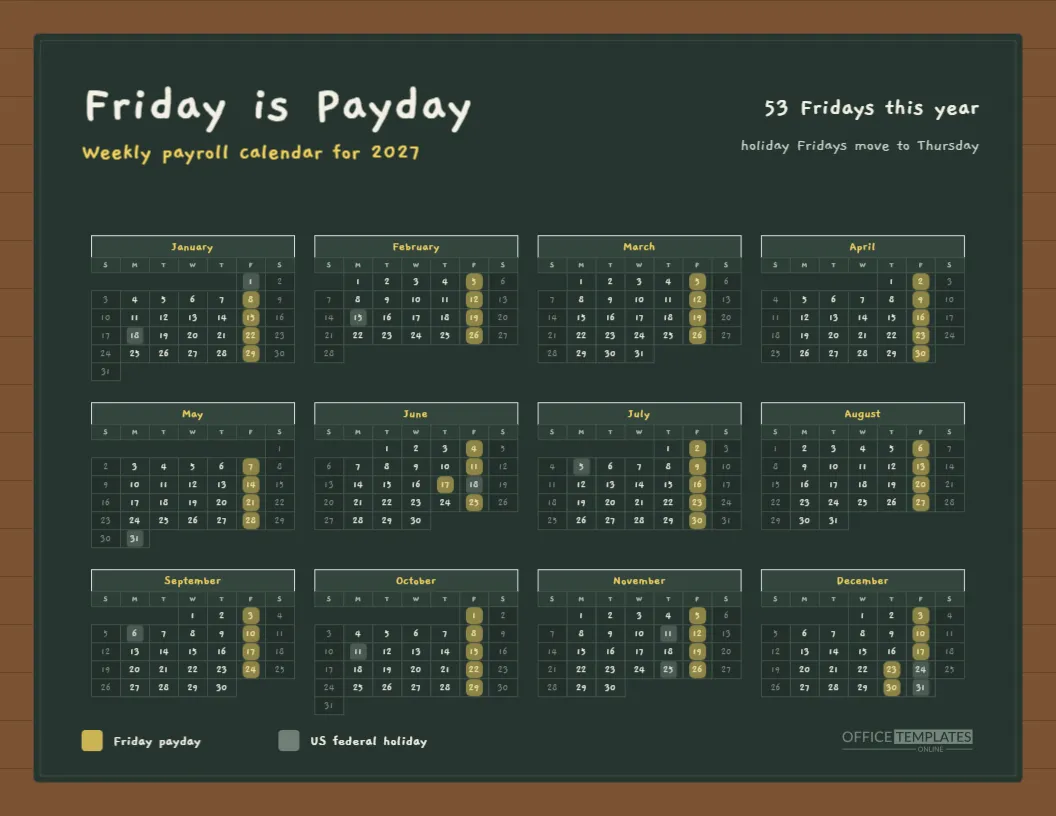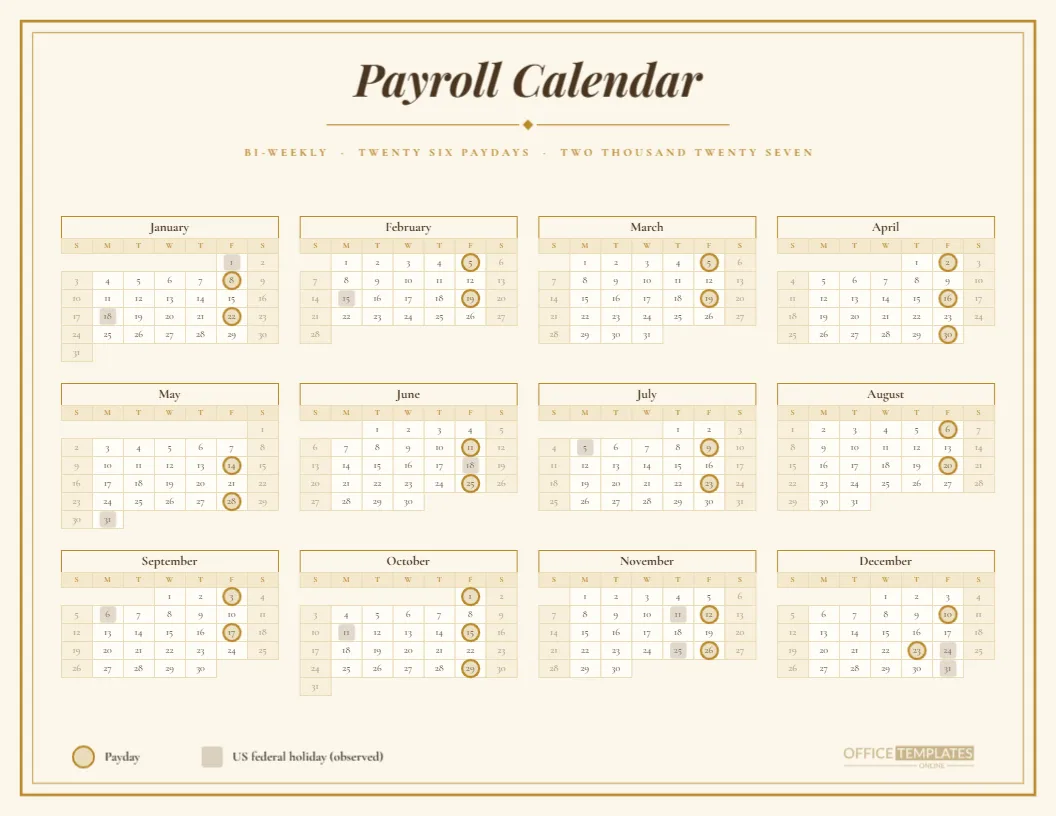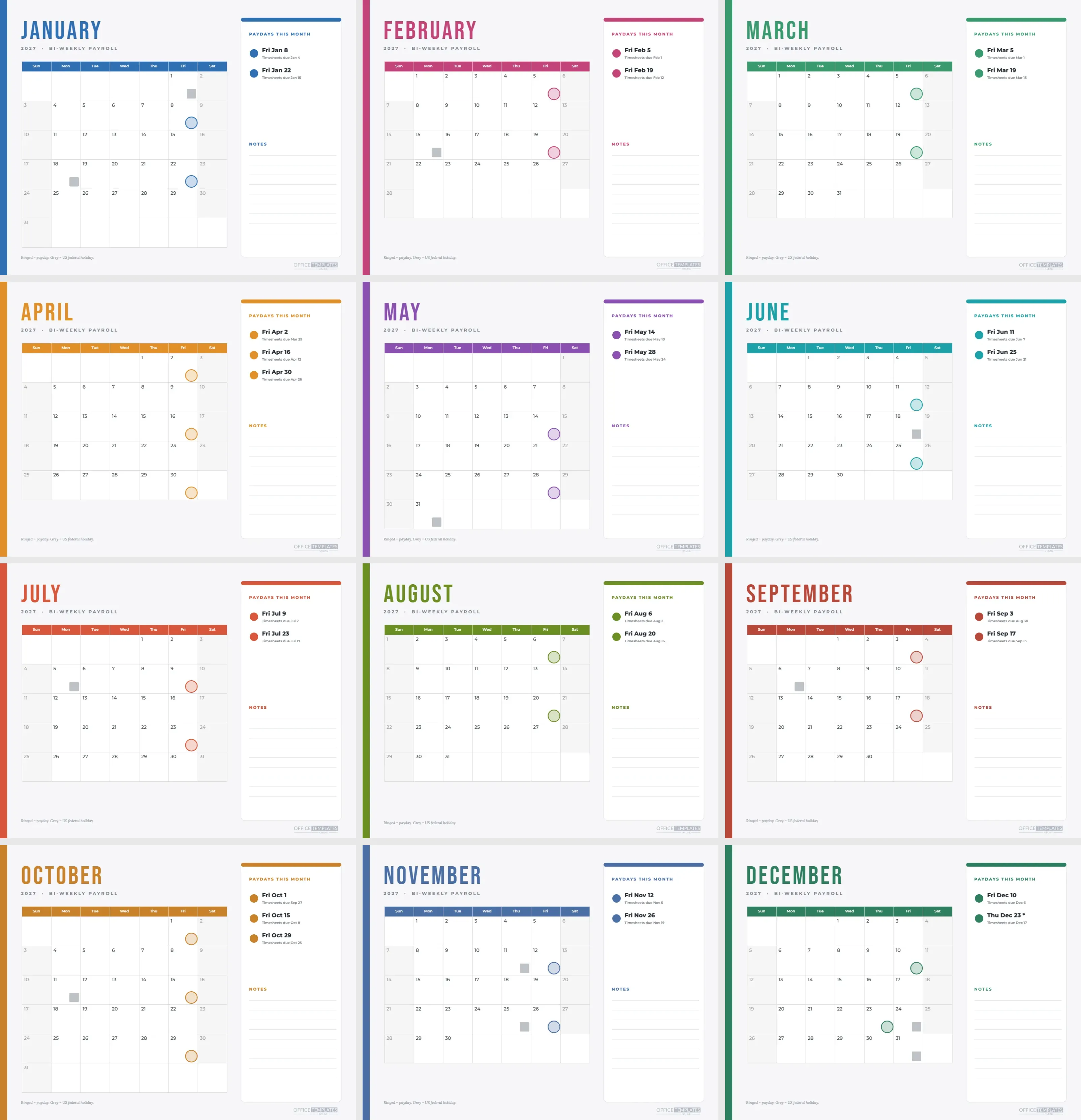
A year at a glance is great for the wall, but the person running payroll works one month at a time. This template gives them twelve landscape pages, January through December, each with a large month grid on the left and a payday panel on the right. Every page changes colour, so flipping through the set feels like turning the pages of a desk calendar.
Month by Month, Page by Page
| Month | Paydays on the page | Accent colour |
|---|---|---|
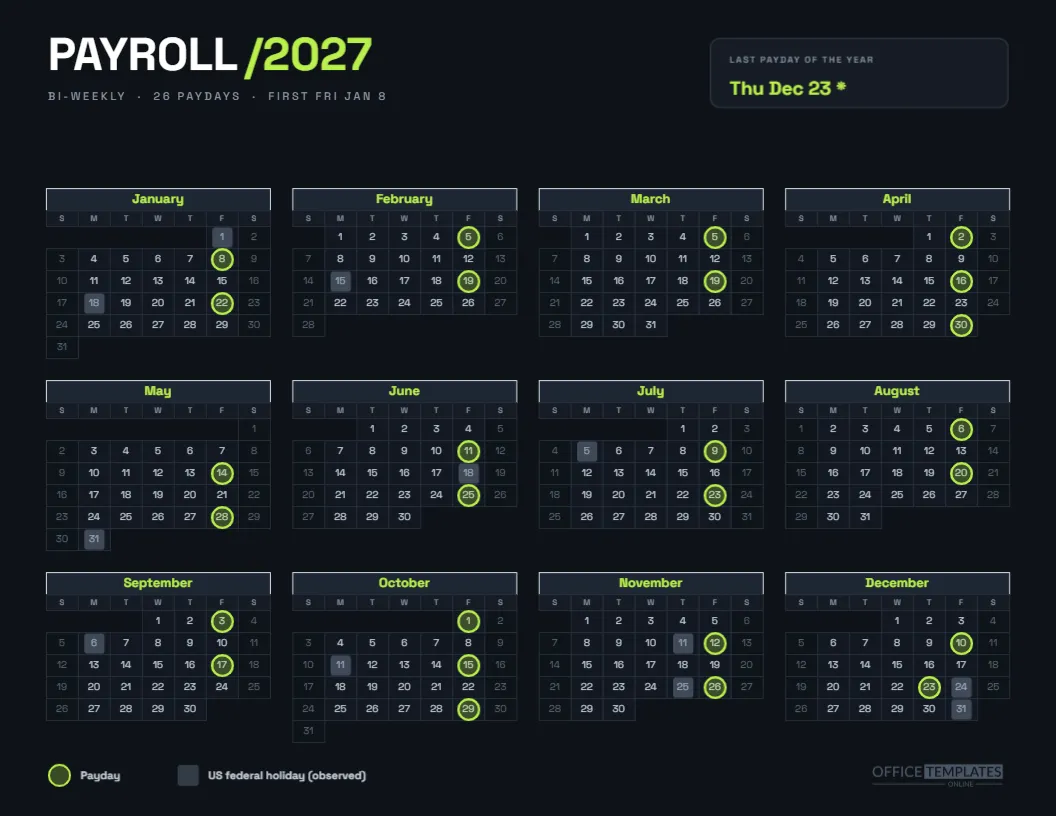
| January | Jan 8, Jan 22 | Blue |
| February | Feb 5, Feb 19 | Magenta |
| March | Mar 5, Mar 19 | Green |
| April | Apr 2, Apr 16, Apr 30 | Orange |
| May | May 14, May 28 | Purple |
| June | Jun 11, Jun 25 | Teal |
| July | Jul 9, Jul 23 | Red |
| August | Aug 6, Aug 20 | Olive |
| September | Sep 3, Sep 17 | Brick |
| October | Oct 1, Oct 15, Oct 29 | Amber |
| November | Nov 12, Nov 26 | Steel blue |
| December | Dec 10, Dec 23 | Pine green |
The Left Side of Each Page
The month name appears in tall Bebas Neue capitals in the page’s accent colour, with a spaced line beneath it reading 2027, BI-WEEKLY PAYROLL. Below sits a month grid with full day names, generous cells, and Friday paydays marked by a coloured ring in the lower right corner of the cell. Holidays carry a small grey square in the same position.
The Right Side of Each Page
A white card carries a coloured top edge and the heading PAYDAYS THIS MONTH. Each payday has a coloured dot, the date in bold, and a small line saying Timesheets due followed by the date. Below the list is a NOTES heading with nine ruled lines, which are plain thin shapes, so you can print and write by hand or type over them.
Why the Rings Sit in the Corner
On a large month cell, the date number sits at the top left, so a ring around it would be tiny and hard to see. Placing the marker in the lower right corner leaves room for a handwritten note, such as a bonus or a leave day, in the middle of the cell. It also keeps the date number readable.
The Two Months With Three Paydays
April and October each contain three bi-weekly paydays. Those two pages list three dates in the panel, and the three rings fall on Fridays two weeks apart. Employers should watch those months for cash flow, since a third payroll lands inside one calendar month. The set makes the month visible at the moment you flip to it.
Moved Payday in December
The December page shows a payday on Thursday, December 23 with an asterisk, rather than Friday the 24th. A grey square sits on the 24th as the observed Christmas holiday. The panel also shows Timesheets due Friday, December 17. This is the only bi-weekly date in the year that changes because of a holiday.
How Timesheet Reminders Are Calculated
Each timesheet date is four business days before payday, skipping weekends and observed US federal holidays. For Friday, March 5, that is Monday, March 1. For Friday, January 22, it is Friday, January 15, because Monday, January 18 is a holiday. The calculation is done in the generator, not typed by hand.
Using the Pages in a Binder
Print all twelve pages and punch them into a binder or a spiral wire. Landscape pages bound on the long edge read like a desk planner. Flip to the current month at the start of each cycle, jot the payday notes in the panel, and clip a sticky note on any page that needs a follow-up.
Using the Pages Digitally
Download the finished set as a PDF and share it in a team folder, or turn individual pages into images for a chat channel. Each page has the same layout, so teammates learn it quickly. Pages can also be shown on a wall screen in a payroll office, one page per month.
Editing One Month Without Touching the Rest
The set is one template with twelve pages, and each page is edited separately. Move to the page you need, change the text in the panel, or move a ring, and the other pages are untouched. To rename a heading on all twelve, you will need to repeat the edit on each page.
Rolling the Bi-Weekly Pages Forward to a New Year
Each month grid is the editor’s Calendar object. In Calendar Options, you can set the year, and the month stays what it is. After changing the year, delete the rings and the panel dates, since the markers do not move with the calendar. It is quicker to rebuild a year than to correct a stale one.
Customising the Accent Colours
Every page has an accent that colours the month name, the header row of the month grid, the panel top edge, the dots and the rings. Select those items on a page and recolour them together. If you prefer one colour for the whole year, make the same change on all twelve pages for a calmer look.
Handling Extra Pay Runs
Bonuses and corrections do not appear in a bi-weekly schedule, but they happen. Use the notes lines to record them next to the date, or add a small marker of a different colour on the calendar. Keep the marker legend near the footer, which says that a ring is a payday and a grey square is a holiday.
Printing Landscape Pages
Print landscape on Letter paper at actual size, with background graphics on so the coloured side bar and panel edges appear. If you plan to hole punch the pages, leave the left margin alone: the coloured bar sits at the very edge, so a binder hole will pass through it, which is fine.
Pairing With the Year Overview
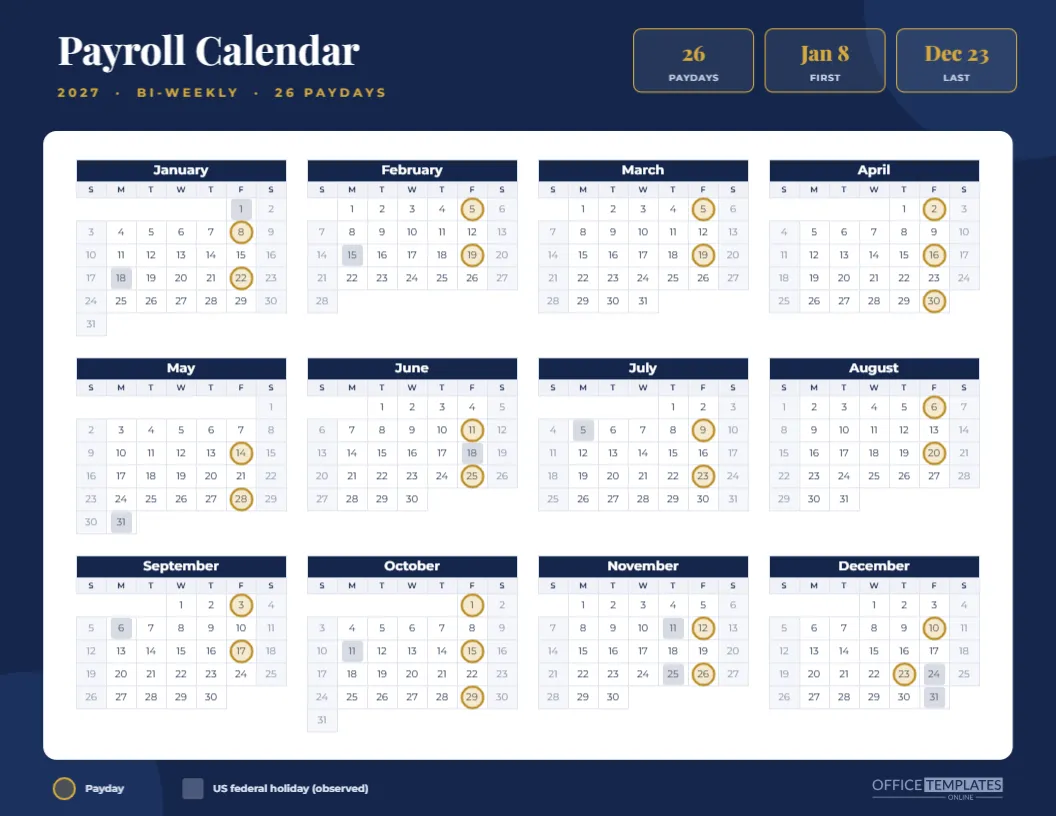
The bi-weekly year at a glance page in this collection shows all 26 paydays on a single sheet. Use it on the wall and these monthly pages on the desk. They draw on the same dates, so what you see on the wall will always match what you write on the desk.
Cautions Before Relying on the Bi-Weekly Month Pages
The page assumes the first 2027 payday is January 8 and that you pay every second Friday. If your cycle is different, the rings will be in the wrong places. Check against your payroll provider’s schedule before printing, and note that holiday handling can vary by provider.
Facts at a Glance for the Bi-Weekly Month Set
Twelve pages. Landscape. Sunday start. Twenty-six paydays in total. Twenty-six timesheet reminders. One moved payday. All text editable.