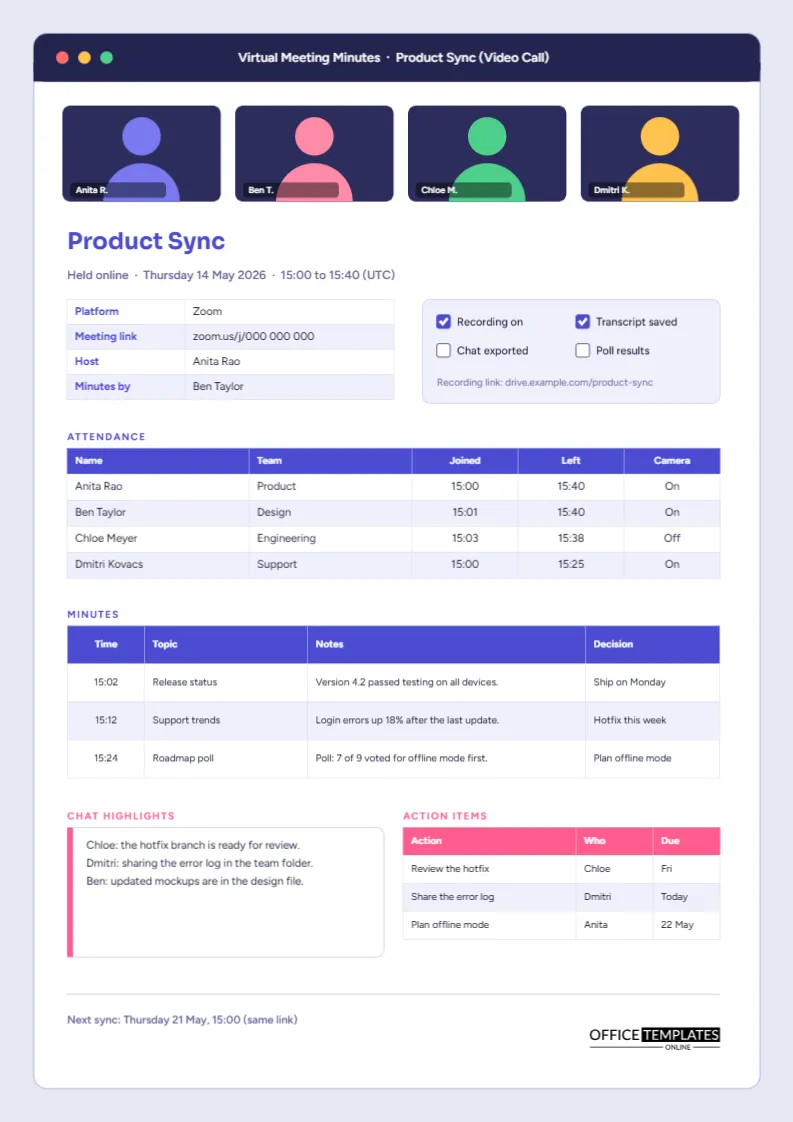
Online meetings leave a different kind of trail from room meetings. There is a link, a recording, a chat full of useful scraps, a list of who joined late, and a poll that someone ran at the end. Ordinary minutes forms ignore all of it. This template does not. The whole page is drawn as a video call window, and its fields are built for the things that only happen when people meet online.
A Checklist for Recording Any Online Meeting
Run through these points before the call ends, and the page will almost fill itself.
- Note the platform and the meeting link.
- Check whether the call was recorded and save the recording link.
- Record when each person joined and left.
- Save the chat if it contains decisions, links, or files.
- Copy poll results while they are still on screen.
- Write actions as you hear them, with names and days.
The Page as a Call Window
A dark indigo title bar runs across the top of a white window with rounded corners, carrying three small dots in red, yellow and green. Four dark tiles below it show participant avatars, each a coloured head and shoulders with a name label. The background outside the window is a pale lavender grey, which makes the page look like a screenshot of a call, while the body text is set in Figtree and the headings in Sora.
Platform, Link, Host and Note-Taker
A four-row table under the meeting title records platform, meeting link, host, and who took the minutes. The sample reads Zoom, a placeholder address, Anita Rao, and Ben Taylor. The link row looks trivial, but it matters months later when someone needs the recording and cannot remember where the meeting was held.
Where to Find Each Detail on the Main Platforms
| Detail | Zoom | Microsoft Teams | Google Meet |
|---|---|---|---|
| Meeting link | Invitation or meeting info | Meeting details in the calendar event | Joining info in the calendar event |
| Recording | Cloud recordings page or local folder | Meeting chat or the recording folder | Meeting organiser’s Drive |
| Attendance list | Participants report | Attendance report | Attendance details if your plan allows |
Menu names change as platforms update, so treat this as a pointer and check your own account.
The Recording and Chat Box
To the right of the details sits a pale panel with four check boxes: Recording on, Transcript saved, Chat exported, and Poll results. In the sample, the first two are ticked. Below them, a line records the recording link. These boxes take seconds to complete and make the minutes a reliable index to everything the meeting produced.
Common Questions About Recording Online Meetings
Do I need permission to record?
Rules differ by country and workplace. Many platforms show a notice when recording starts, and good practice is to say it aloud and note it in the minutes.
Where should I keep the recording?
Store it in a shared, access-controlled folder and paste the link in the minutes.
Should I attach the chat?
Only if it contains decisions or links the team needs. The chat highlights box on the page is for the useful lines.
The Attendance Table With Join and Leave Times
Unlike a room meeting, an online one has exact timestamps. The attendance table has five columns: name, team, joined, left, and camera. The sample shows one person joining at 15:03 and another leaving at 15:25. Join and leave times are helpful when someone says they missed a decision, because you can check whether they were on the call.
Timestamped Minutes
The main table adds a time column, so each topic is anchored to a moment in the recording. If you need to find the roadmap poll later, the entry at 15:24 tells you where to jump in the video. This is one of the best habits for online meetings, and it costs almost nothing.
Chat Highlights and Actions Side by Side
At the bottom of the window, a white box with a pink left edge holds three lines of chat highlights, and a pink-headed table lists actions with who and when. Notice that the sample actions, such as review the hotfix by Friday, came from the chat as well as the spoken discussion. Keep both in view.
Editing the Participant Tiles
Each tile is a group of simple shapes, so you can change the avatar colour, retype the name label, and move or copy tiles. Delete a tile if fewer people joined, or add a fifth by shrinking the others. The tiles are decorative, so you do not need one per attendee.
Time Zones and the Meeting Header
Online teams span regions, so the date and time line in the header should name a time zone. The sample uses UTC, but you can write the zone your team uses most. Where people join from different regions, add the local equivalent for the most distant participant. A missing time zone is one of the most frequent causes of people turning up an hour early or late to the next session.
Accessibility and Fairness in Hybrid Meetings
When some people join in a room, and others join online, remote participants often get less airtime. Use the camera column in the attendance table as a reminder of who is in the call, and write down questions raised by remote attendees as carefully as those from the room. If someone had audio problems, note it, so a missed contribution is not mistaken for silence.
After the Call: A Ten Minute Routine
Once the call ends, spend ten minutes finishing the page while the meeting is fresh. Paste the recording link, tick the boxes that apply, check the join times against the platform report, and tidy the actions so each has a clear owner. Then send the PDF to everyone invited, including people who could not attend, with a one-line message pointing to the actions that affect them. Online teams that follow this routine rarely need a second meeting to repeat what was agreed.
Sharing the Window as a PDF
Most people will share this page as a PDF. If you print it, remember that the lavender frame is a background colour, so choose a printer setting that includes backgrounds. Download the PDF from the editor and attach it to the meeting invitation for the next session.