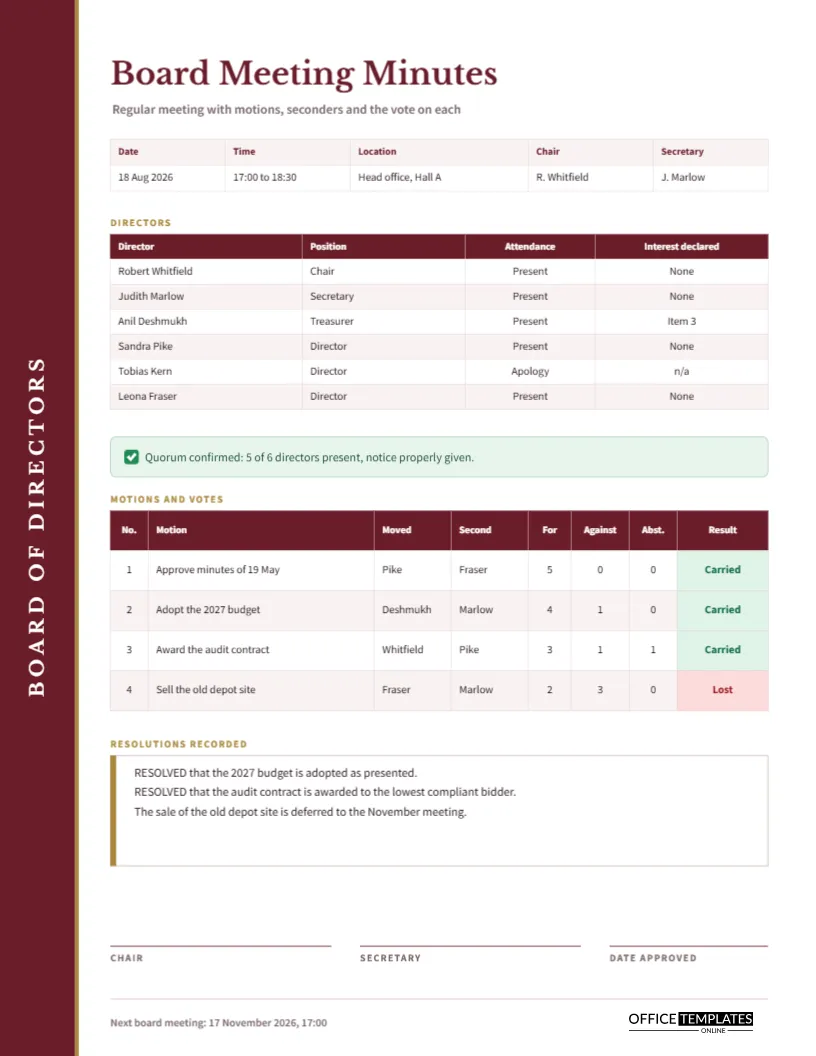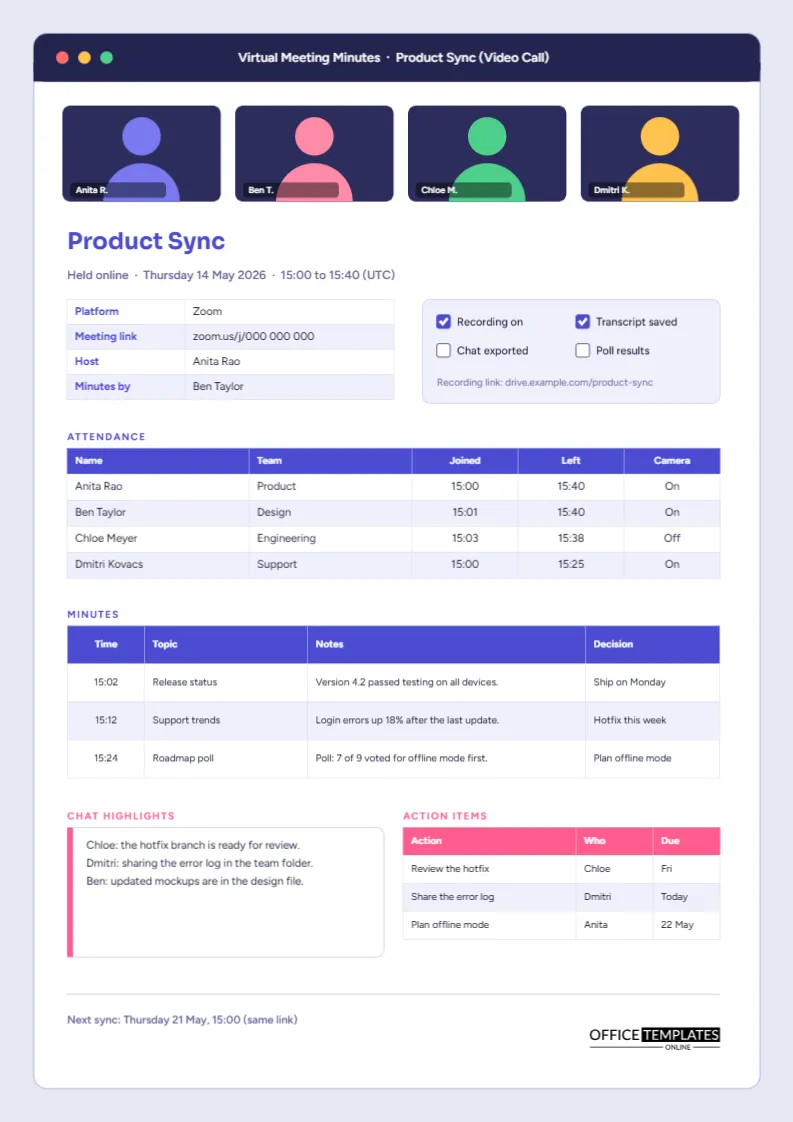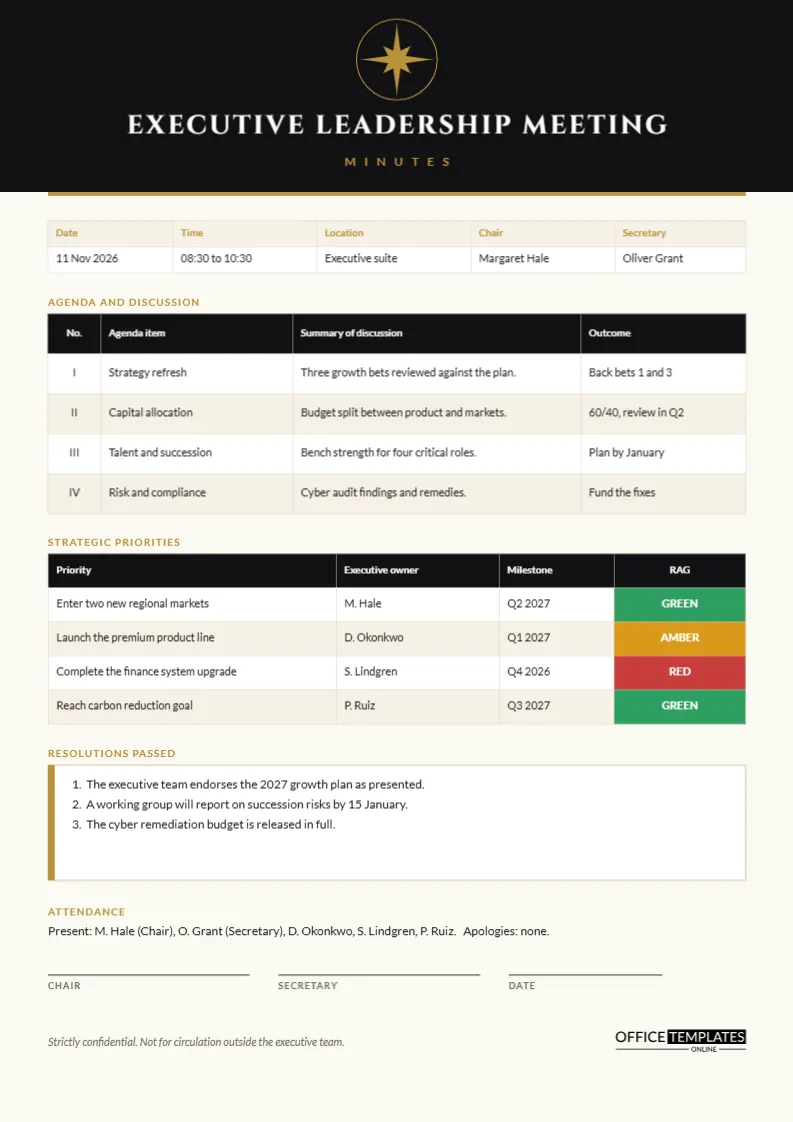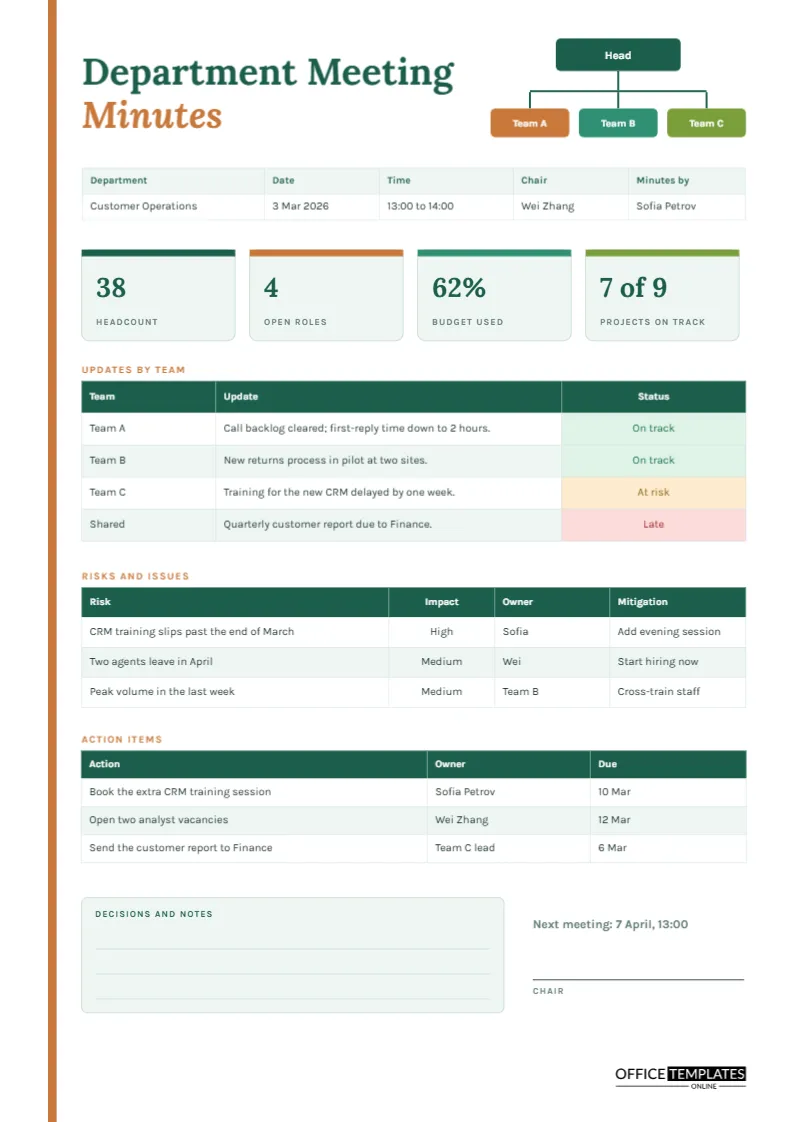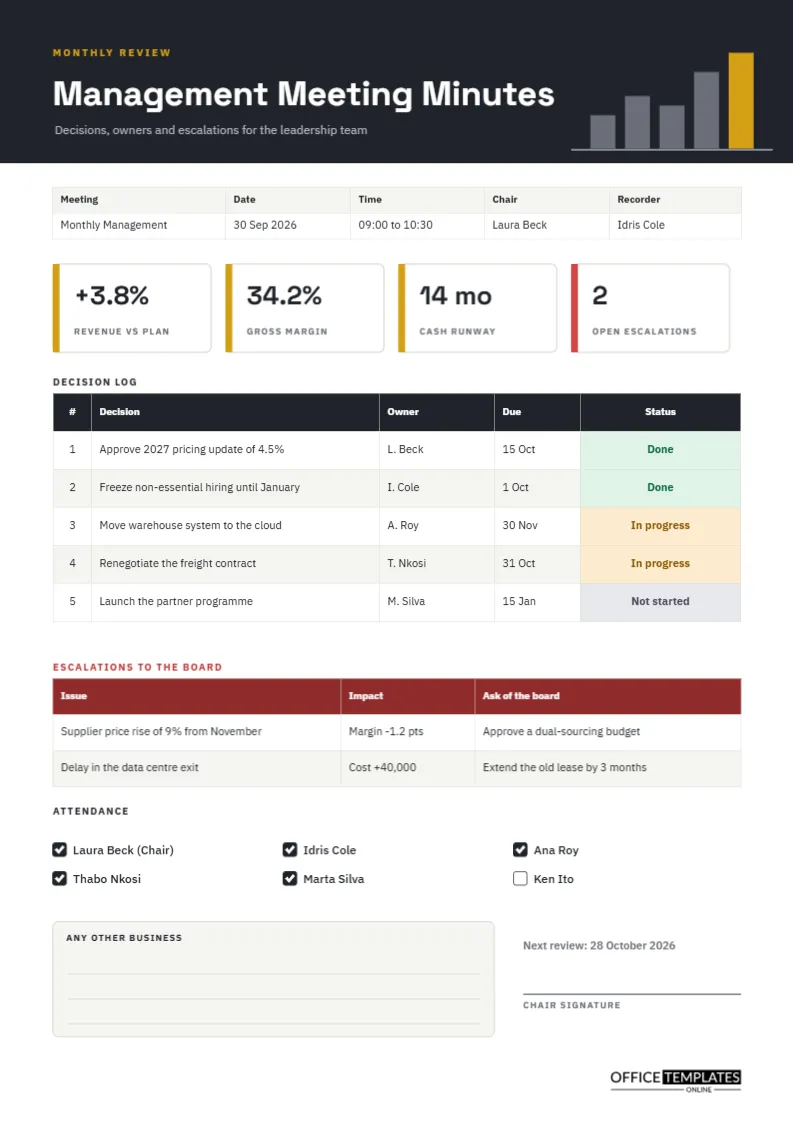
Managers rarely lack meetings. What they lack is a record that shows which decisions are done, which are slipping, and which need to go higher. This page is built as a management dashboard that also happens to be minutes. A charcoal header with a gold bar chart sets the tone, four tiles show the numbers that matter, and a decision log keeps score of every commitment.
Seven Ways Managers Use the Decision Log
The centrepiece of the page is the decision log, a five-row table with number, decision, owner, due date, and a coloured status cell. Here are seven practical uses for it.
- Reviewing last month’s decisions at the start of the meeting, before new business.
- Spotting decisions that stay in progress for months and need a push.
- Showing a director in thirty seconds what the management team has committed to.
- Giving new managers a way to see what was decided before they arrived.
- Providing evidence during audits that decisions were made and followed up.
- Preparing the quarterly report, because the log already holds the wording.
- Settling disputes about who agreed to what and when.
Charcoal, Gold and a Small Bar Chart
The header is a solid charcoal block that runs across the page. Five bars in grey and one gold bar rise toward the right, standing on a thin baseline, like a quiet reminder that management is about direction. Small gold capitals above the title read Monthly review, and the title itself, Management Meeting Minutes, appears in Space Grotesk bold white. The body uses IBM Plex Sans for a clean, businesslike feel.
Reading the Four Number Tiles
Under the details strip, four white tiles with a gold edge show revenue against plan, gross margin, cash runway, and open escalations. In the sample, these read plus 3.8 percent, 34.2 percent, 14 months, and 2. The last tile has a red edge because an escalation is a signal to act. Replace each figure with the numbers your team tracks. Because the tiles are text boxes, you can change a label as easily as a value.
What the Status Pills Mean
The last column of the decision log uses colour fills so the table reads like a traffic report.
| Status | Colour | Meaning | Typical next step |
|---|---|---|---|
| Done | Soft green | The decision is fully carried out | Close the item |
| In progress | Soft amber | Work has started but is not finished | Check the due date |
| Not started | Soft grey | Agreed but no action yet | Confirm the owner |
Keep the set of statuses small. Three or four are enough, and everyone should read them the same way.
Escalations to the Board
A red-headed table lists issues that the management team cannot resolve alone. Each row states the issue, its impact, and the ask of the board. The sample shows a supplier price rise and a delayed data centre exit. Putting the ask in its own column forces the team to say what they need, and the board reads a clear request, not a vague worry.
Attendance as a Simple Tick List
Six names appear with check boxes, five ticked and one empty. This is deliberately light, because a management team is small and known. If someone attends as a guest to present, add a line below the tick list and note their role.
Any Other Business and the Next Review
A pale box with three writing lines holds anything that did not fit the agenda. Beside it, a short line gives the next review date, and a signature line records the chair’s approval. Closing on a date keeps the cycle moving.
Editing the Decision Log
The log is a real Table object. Double-click it to open Edit Table Data, retype the cells, and add more rows with the Add Row button. The status cells hold typed text and a cell colour, so when a decision moves from In progress to Done, change both the word and the fill. There are no formulas, so nothing updates automatically.
Keeping Management Minutes Short
The discipline of this layout is that it limits detail. The five rows of the log cover the decisions that matter. If your team makes twenty decisions a month, put the top five here and keep the rest in a project tracker. Short minutes are read; long ones are filed and forgotten.
Choosing Which Numbers Earn a Tile
A tile is valuable only if someone would act on it. Before filling the four spaces, ask what number would change the conversation if it moved by ten percent. For many management teams, the answers are revenue against plan, margin, cash, and the number of unresolved escalations, which is exactly what the sample uses. Avoid vanity measures that always look good, because they take the place of figures that might prompt a hard question.
Handling Decisions That Change Between Meetings
Sometimes a decision is revised before the next meeting, perhaps by email or by a quick call. Do not overwrite the original row. Add a new row that states the revised decision, mark the old one as Superseded in the status cell, and note the date. That way, the log shows the real history, which is exactly what an auditor or a new manager will want to read later.
Restyling the Management Page for Your Brand
Select the header block and change its fill to your brand colour, then update the gold accent bar and tile edges. The table headers in the sample are charcoal, which keeps the page serious even after a colour change. Check contrast if you pick a light header, so the white title text remains readable.
Printing the Management Page
The page is A4 portrait. The dark header prints best on a colour printer, and the rest of the page is light enough for fast draft copies. For a board pack, print double-sided only if the second page is blank, since this template is designed as a single sheet.
Questions Managers Ask
Can I use it weekly instead of monthly?
Yes. Change the small gold label from Monthly review to Weekly review and update the date.
Do I need all four tiles?
No. Delete any tile that does not apply and widen the rest, or use the space for another figure.