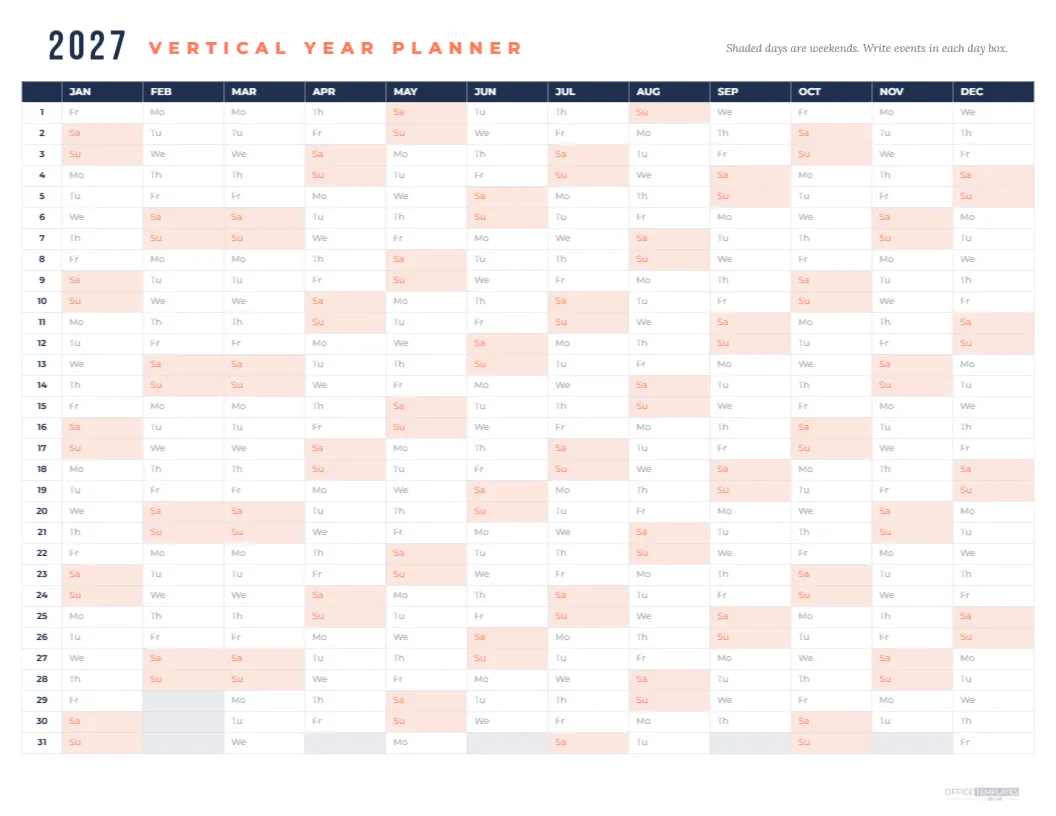
A vertical year planner shows the entire year as twelve columns, one for each month, with days 1 to 31 running down the left side. This 2027 version fits on a single US Letter landscape page, making it perfect for long-range planning at a glance. The navy header row lists the months, the first column numbers the days, and every cell shows a small weekday abbreviation so you always know whether the 14th of May is a Friday or a Sunday. Weekends are shaded in soft coral with coral lettering, and days that do not exist, such as February 30, are greyed out. Each box has room for a short note.
Why Choose a Vertical Year Planner
Traditional year calendars show twelve small month grids, which are great for spotting dates but leave no room to write. A vertical planner gives every day its own box in a straight line, so you can write events, block out holidays, or draw a line across several days for a trip. It is the layout many offices, schools, and project teams use on their walls.
How the Vertical Layout Works
Read down a column to see a whole month, or across a row to compare the same date in different months. Seeing all twelve 15ths side by side, for example, is handy for monthly payments or recurring meetings. Shaded weekends create a visual rhythm that helps you spot weeks and long weekends at a glance.
Planning Holidays and Leave
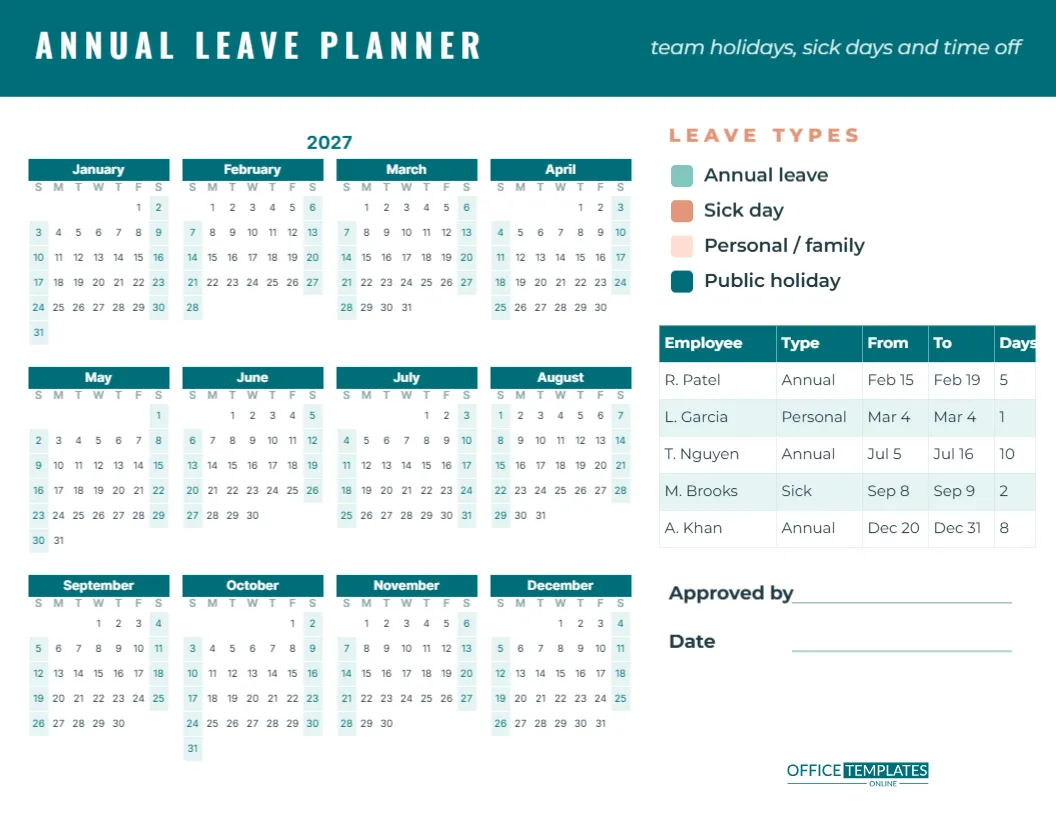
Use a highlighter to block out school holidays, annual leave and travel. Overlapping plans become obvious immediately, which helps families coordinate trips and helps teams avoid too many people being away at once.
Planning Projects and Deadlines
Project managers can mark deadlines, launches and review dates across the year. Drawing a bar through several days shows how long each phase lasts and whether projects overlap. The single page view makes it easy to discuss timelines in meetings.
Planning Content and Marketing
Marketers can map campaigns, product launches, seasonal promotions, and newsletter dates across the year. The vertical layout shows quiet periods where a new campaign could fit, as well as busy months that need extra resources.
Using the Planner for Personal Goals
Track a habit across the whole year by colouring in each day you complete it, such as exercise, reading or journalling. By December, the planner becomes a colourful record of your consistency.
Editing the Vertical Planner
The planner is a single editable table. You can change the colours of the header and weekend shading, add text to any day box before printing, or swap the weekday abbreviations for single letters. Change the title year if you update the dates for another year.
Navy and Coral Design
The navy header gives structure, while coral weekends add warmth and make the planner easy to scan. Change either colour to match your office or brand. Soft greys for non-existent days keep the table tidy.
Printing the Vertical Year Planner
Print at actual size on US Letter or use Fit to page on A4 in landscape orientation. For a wall planner, ask a print shop to enlarge it to tabloid, A3, or even poster size, where each box becomes big enough for detailed notes.
Using the Planner Digitally
Download a PNG and annotate it in a tablet app with a stylus, or share it with your team as a planning reference. You can also add notes directly in the editor before downloading.
Vertical Planner for Schools
Teachers and school administrators can mark term dates, holidays, exam periods, trips, and events. The planner is ideal for a staff room wall where everyone can see the year at a glance.
Vertical Planner for Small Businesses
Business owners can plan busy seasons, staff holidays, tax deadlines, maintenance, and marketing in one place. The clear layout helps small teams coordinate without complex software.
Matching 2027 Calendars
Pair the vertical planner with our week number calendar for ISO week references, the fiscal year calendar for financial planning, or the country holiday calendars for public holiday dates.
Saving the Planner Template
Save the planner in your account. For a new year, update the weekday letters and weekend shading for the new dates, or start from the latest version in our collection.
Year Planner File Formats
Download a PDF for printing or an image for digital use. The table stays aligned and readable in every format and at every print size.
Colour Coding Tips
Choose a colour for each type of entry, such as blue for work, green for personal, red for deadlines and yellow for travel. Add a small key in the margin after printing. Colour coding makes a busy year planner far easier to read from across the room.
Vertical Planner for Shift Workers and Carers
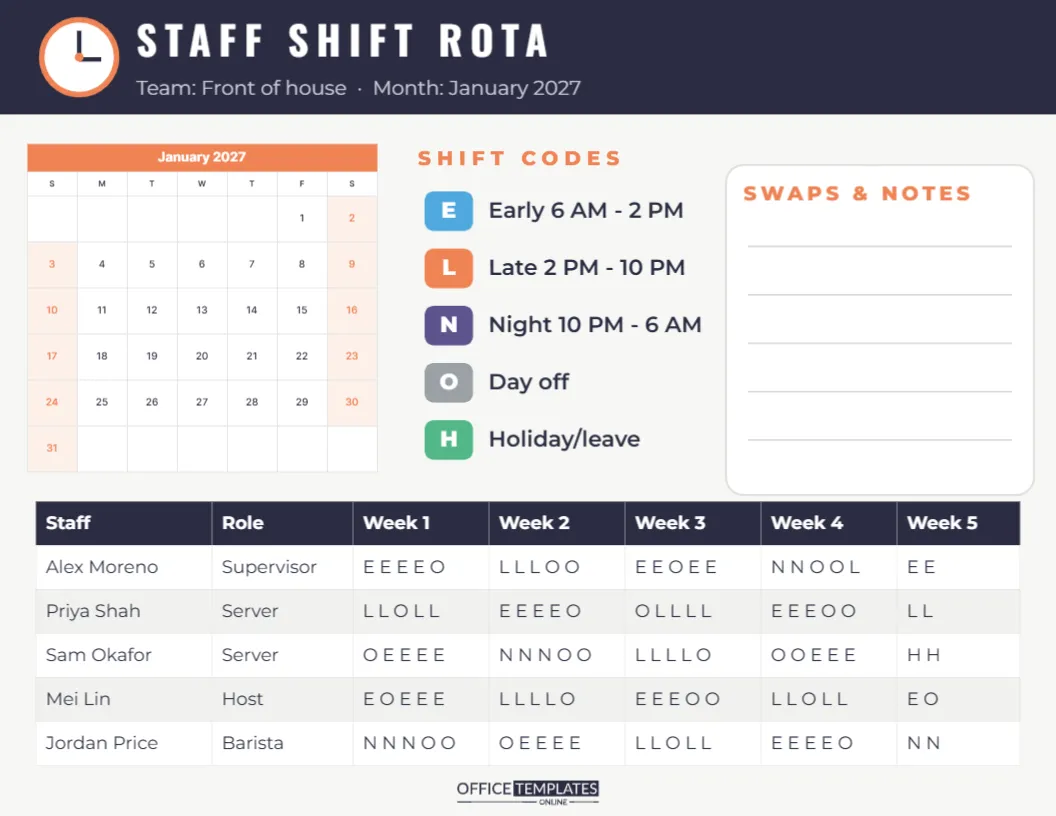
People who work shifts or share caring duties can mark working days, rest days and handovers in each box. Seeing the whole year in columns makes it easy to spot long runs of work or weekends off, and to plan family events around the rota. Use two colours for different people if you share responsibilities with a partner or relatives.
Tracking Birthdays and Anniversaries
Write birthdays and anniversaries in the right boxes at the start of the year, and you will see them coming weeks in advance. Glance across the month column at the start of each month to plan cards and gifts in good time.
Team Wall Planner Ideas
Print a large copy for the office wall and give each team member a coloured sticker or pen. Everyone can mark their leave, travel, and deadlines, giving the whole team a shared view of the year.
Erasable Planner Tip
Laminate the printed planner and use dry-erase markers, so you can update plans as they change through the year.
Combining Year and Month Views
Use the vertical planner for the big picture and a monthly calendar for detailed daily plans. Copy key dates from the year view into each month as it arrives, and you will rarely miss an important deadline or event.