Crew credentials on location: the problem
A news video crew rarely works in one place. One day it is a studio floor, the next a courthouse, a stadium or a flooded street. At each stop someone asks who you are and whether you are allowed to be there. If you are a camera operator or video journalist, a clear crew card is the quickest answer. This camera operator ID card template was designed for that reality, with a dark, film-inspired look that feels right in a production world.
Anatomy of a crew card
Front: the viewfinder look
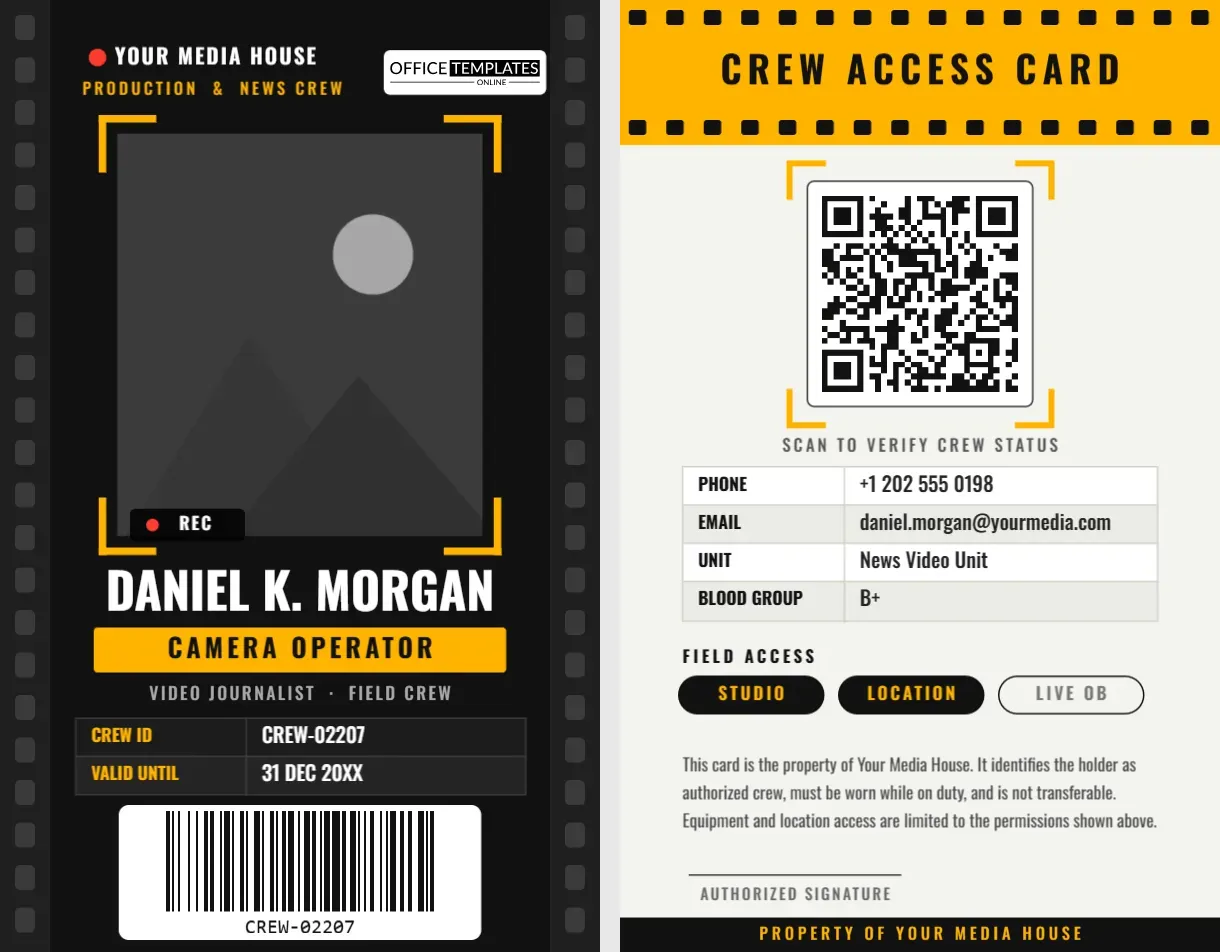
Two film strips run down the edges, and four amber corner brackets frame the photo like a camera viewfinder. A small “REC” tag with a red dot sits at the lower left of the picture, giving the card personality without getting in the way. Your media house name and “Production & News Crew” appear at the top with our logo plate at the right.
Front: name, role and IDs
The operator’s name is set in tall condensed capitals, followed by an amber bar with the role, “Camera Operator”, and a smaller line for “Video Journalist · Field Crew”. A two-row table holds the crew ID and the validity date. Adapt it for a Camera Assistant, Video Editor, Drone Operator or Producer by changing the words.
Front: the barcode
A barcode on a white plate sits at the bottom, so it scans cleanly against the dark background. It encodes the crew ID, which is perfect for gate scanners and equipment check-out desks.
Back: the crew access card
The back flips to a light, printable layout with an amber header dotted with film perforations. A large QR code framed by viewfinder brackets sits in the center, followed by a contact table for phone, email, unit and blood group.
Field access chips
Under the contact table you will see three rounded chips: Studio, Location and Live OB. A filled black chip means access is granted, and an outlined chip means it is not. To change access, click a chip, recolor it and change the text color. Rename the chips for your own permissions, such as Newsroom, Edit Suite or Vehicle Bay.
Equipment and location permissions
Crew cards often need to say what a person may bring or do. A short paragraph on the back states that the card identifies the holder as authorized crew, must be worn while on duty and is not transferable, and that equipment and location access are limited to the permissions shown. If your station has extra rules, such as drone use or restricted-area filming, add a line for each.
A checklist before you print
- Replace the placeholder photo with a well-lit, front-facing portrait against a plain background.
- Check that the crew ID in the table matches the barcode value.
- Point the QR code to a page that confirms the crew member’s status.
- Confirm the validity date and access chips for the current assignment.
- Add an emergency contact if crews travel abroad or to remote areas.
Working with the editor’s QR and barcode tools
Both codes are real objects created by the editor, not pictures. Click the QR code and the panel shows its link, colors and optional center logo. Click the barcode and you can change its value, format and whether the number appears under the bars. After you edit either one, the image updates in place, so your layout never has to be rebuilt.
Materials and durability
Field crews are rough on cards. The template is portrait CR80, 2.125 x 3.375 inches, which fits standard rigid holders. For heavy use, choose a 30 mil PVC card with a matte finish and a retractable badge reel. If you print on paper, laminate both sides and round the corners. Avoid glossy finishes for the front because dark backgrounds show fingerprints, and make sure the barcode plate stays white so scanners read it reliably.
Customizing step by step
- Open the template and click the photo frame to Replace Image.
- Edit the name, role, crew ID and validity date.
- Recolor the amber accents to match your station’s brand if you like.
- Edit the barcode value and QR link with the built-in tools.
- On page 2, update contact details and access chips, then sign.
- Download the card as a PDF, PNG or JPG.
Q and A for crew leads
Can I use the card for a freelancer?
Yes. Change the “Your Media House” name to the production company and add an expiry date that matches the contract.
Can I add a second table for equipment?
Yes. Copy the table on the back, or add rows to it, and list the equipment the holder may use.
Does it work for photographers?
Absolutely. Change the role to Photographer or Photo Journalist and you have a versatile card for stills crews as well.
Safety and emergency information on the card
Crews sometimes work in crowds, on roads or in unpredictable settings, so it helps to make the back of the card genuinely useful in an emergency. Blood group and an emergency contact are already in the layout, and you may add allergies, next of kin or an insurer’s helpline. Keep the information short and only include what your organization is comfortable storing on a physical card. Encourage crews to keep their card somewhere they can reach it quickly, such as a chest-height holder.
Temporary crews and guest operators
Productions often hire extra crew for big events. Create a temporary version of the card by changing the header line to “Temporary Crew” and setting the validity to the length of the contract. A different accent color, such as white or blue instead of amber, helps security staff separate temporary passes from permanent ones at a glance.
Keeping the design consistent
A crew card is most effective when every card in the team looks the same. Save a finished version as your master, and duplicate it for each new hire, changing only the photo, name, ID number and codes. Consistent placement of the photo, role bar and barcode means security staff know exactly where to look, and it reduces the chance of errors when many cards are printed on the same day.
Help your crew get through every gate with a card that looks the part. Open the template, add their details and download a crew ID in minutes.