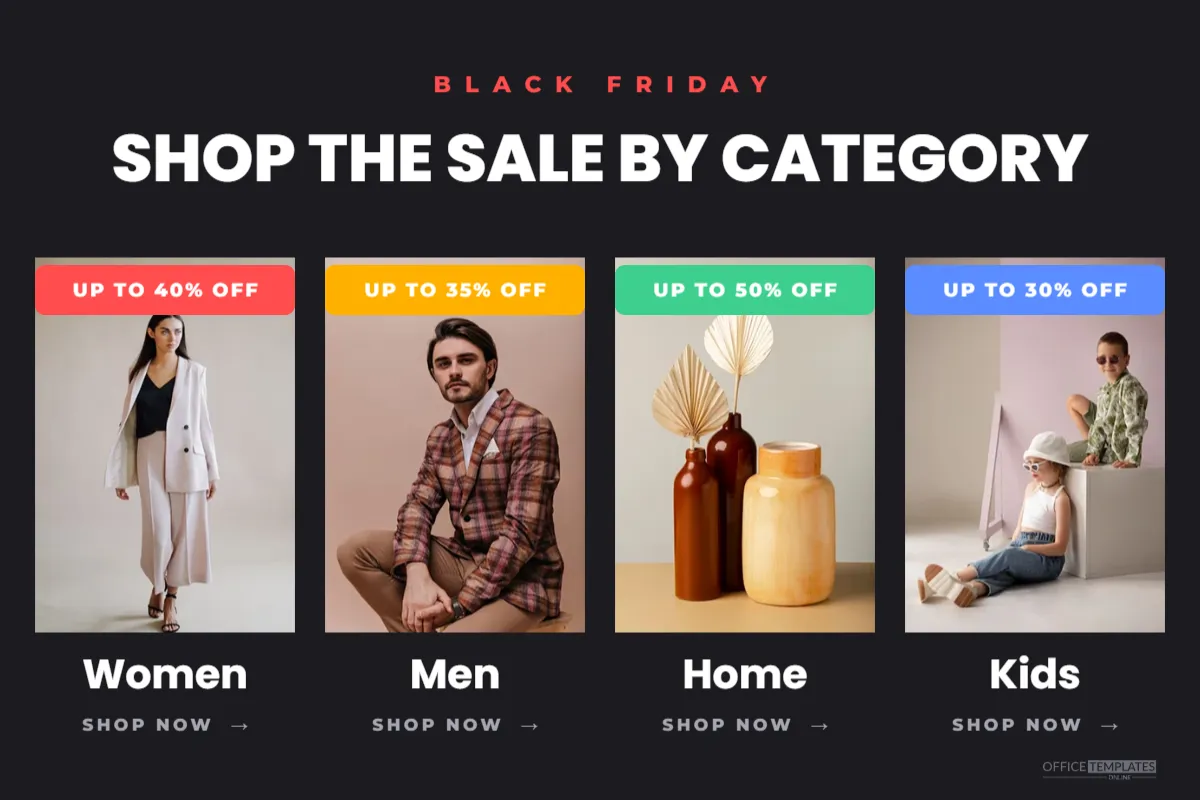
On Black Friday, shoppers want to get to the right deals fast. If your store sells to different people, such as women, men, kids, or the home, a category banner lets them jump straight to their section. This 1200 x 800 pixel banner presents four categories as photo tiles, each with its own coloured discount ribbon, under a clear headline.
Category Sale Banner Layout
The background is a deep charcoal. At the top, BLACK FRIDAY appears in small-spaced red capitals, with the headline Shop the Sale by Category in white Poppins ExtraBold below. Four tall photo tiles sit side by side across the banner, each with rounded corners.
Above each tile is a coloured ribbon showing that category’s best discount: red for Women, amber for Men, green for Home, and blue for Kids, with UP TO 40% OFF, UP TO 35% OFF, UP TO 50% OFF, and UP TO 30% OFF in white. Below each tile, the category name appears in white, followed by a small grey SHOP NOW link with an arrow. A small logo mark finishes the lower right corner.
Why Category Navigation Helps Sales
- Less searching: shoppers find their section in one click.
- Clear value: each category shows its own discount, so nobody has to guess.
- Visual browsing: photos tell shoppers what each section contains faster than words.
- Better mobile experience: big tiles are easier to tap than small menu links.
Choosing Your Four Categories
Pick the four sections that matter most during Black Friday, usually your biggest or most discounted. Some examples by store type:
| Store | Four categories |
|---|---|
| Fashion | Women, Men, Kids, Accessories |
| Home store | Living, Bedroom, Kitchen, Outdoor |
| Electronics | TVs, Laptops, Audio, Gaming |
| Beauty | Skincare, Makeup, Hair, Fragrance |
| Sports | Running, Gym, Outdoor, Kids |
| Gift shop | For Her, For Him, For Kids, Under $25 |
Adding Category Photos
Click each tile and use Replace Image. Tall portrait photos fill the tiles best. Use the same style for all four, such as the same background colour or the same type of shot, so the banner looks like a set. Models, flat lays, or room scenes all work; mixing them can look messy.
Editing the Ribbons and Labels
Change each ribbon’s text to the category’s discount, and the label below to the category name. The ribbon colours help tell categories apart at a glance; recolour them to your brand palette if you prefer, but keep them different from each other. If all categories have the same discount, use one colour for every ribbon and change the headline to include the offer.
Linking Each Category
A single image can only link to one page in most website builders. To link each tile separately, you have a few options:
- Use your theme’s collection list or image grid section and upload each tile as a separate image.
- Use an image map feature, if your platform supports one, to link areas of the banner.
- Place the banner as a visual, with real category buttons underneath.
The first option is usually the most reliable and works best on mobile.
Exporting Individual Category Tiles
To create separate tile images, make a copy of the design for each category, change the canvas to the size of one tile, and keep only that tile’s photo, ribbon, and label. Upload them into your theme’s grid section with their own links. The banner then works as a set of clickable cards.
Category Banner Colour Choices
Charcoal makes the colourful ribbons and photos stand out. A white background gives a lighter, cleaner look, with the headline and labels in black. For a holiday mood, try deep green with gold ribbons. Keep text contrast high whichever you choose.
Category Banners in Emails
Category grids work well in emails too, letting subscribers choose what interests them. Resize the design to about 600 pixels wide, arrange the tiles in a two-by-two grid, and link each tile in your email builder. Emails with clear choices often get more clicks than single-product emails.
Updating Discounts During the Weekend
If category discounts change during the sale, for example, deeper discounts on Sunday, update the ribbons promptly. Shoppers who click a tile promising 50% off and find 30% will be disappointed. Keeping the banner accurate protects your reputation for honest deals.
Category Banners for Small Shops
Even a small shop with a few dozen products benefits from categories during a sale. Group items by gift recipient, price range, or occasion, such as Under $25 or Stocking stuffers. The banner makes a small range feel organised and easy to shop.
Testing the Category Banner
Click every tile or button on desktop and mobile before the sale starts. Check that each one goes to the right collection and that the collection shows the discounted prices. Broken links during Black Friday cost sales quickly.
Writing Clear Category Labels
Category names should match the words used in your store menu, so shoppers recognise them immediately. Avoid clever names that need explaining; Home is clearer than Nest, and Kids is clearer than Little Ones unless that is the name of your collection. Keep labels to one or two words so they stay large and readable under each tile. If a category has a special angle for Black Friday, such as gifts under a price, put the price in the label itself.
Ordering the Category Tiles
Put your most popular or most discounted category first, on the left, where most people start reading. Place gift-friendly categories next, since many Black Friday shoppers are buying for others, and keep niche sections for the end.
Category Sale Banner Questions
Can I show six categories?
Yes. Make the tiles narrower, or arrange them in two rows of three on a taller canvas.
Can I remove the ribbons?
Yes, if all categories share one discount. Put the discount in the headline instead.
Will the banner work on mobile?
Four tiles side by side become small on phones. Separate tiles in a responsive grid work better there.
Guide shoppers to their deals, and they will buy more. Add your category photos, set each discount, and give your Black Friday store a clear, friendly map.