When the Black Friday weekend is over, the most valuable thing you can do is look back. Which day sold the most? Did you hit your targets? What was the average order? A one-page results tracker answers those questions and helps you plan a better sale next year. This landscape template combines key numbers, a daily table, and a simple bar chart.
Sales Tracker Layout
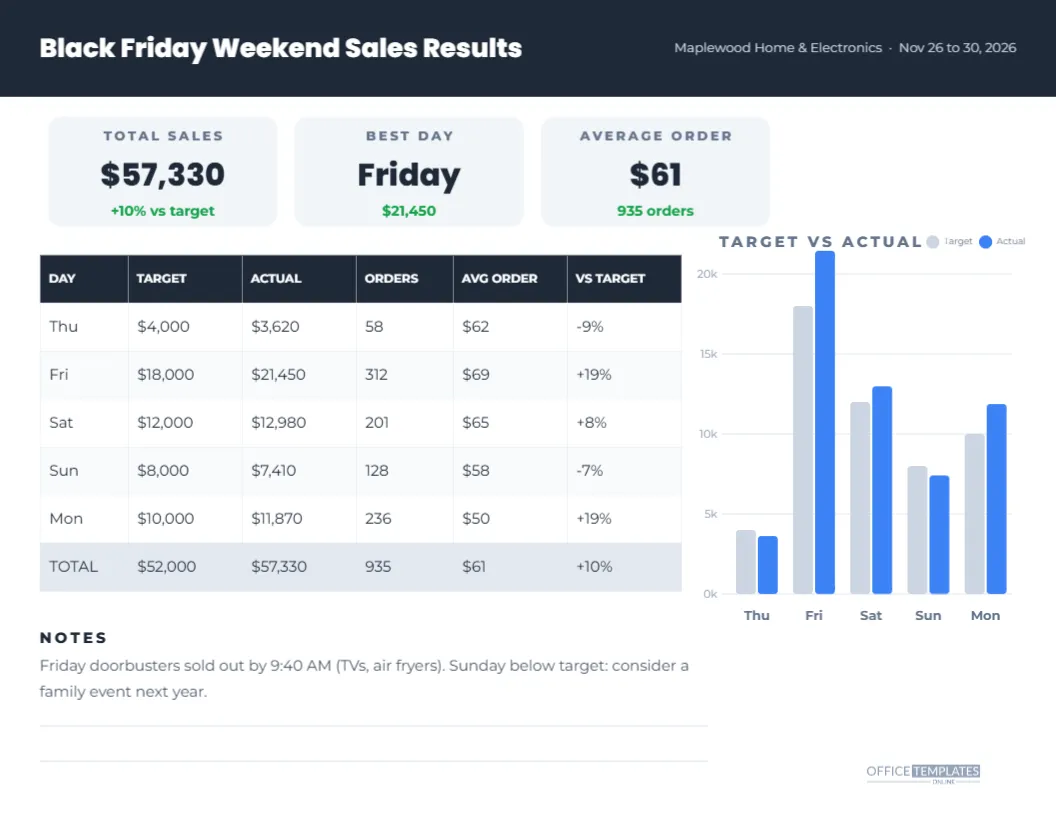
The tracker is 11 x 8.5 inches, landscape, so it prints neatly and fits a meeting folder or noticeboard. A dark slate header carries the title Black Friday Weekend Sales Results with the store name and dates on the right.
Three light grey KPI tiles sit below the header: TOTAL SALES with the percentage against target, BEST DAY with its sales, and AVERAGE ORDER with the number of orders. On the left, a real editable table lists each day from Thursday to Monday with TARGET, ACTUAL, ORDERS, AVG ORDER, and VS TARGET columns, followed by a shaded TOTAL row. On the right, a bar chart compares target (grey) and actual (blue) sales for each day, with a small legend and axis labels. A notes section at the bottom records what happened, with lines for more comments and a small logo mark.
Sample Weekend Results
| Day | Target | Actual | Orders | Vs target |
|---|---|---|---|---|
| Thu | $4,000 | $3,620 | 58 | -9% |
| Fri | $18,000 | $21,450 | 312 | +19% |
| Sat | $12,000 | $12,980 | 201 | +8% |
| Sun | $8,000 | $7,410 | 128 | -7% |
| Mon | $10,000 | $11,870 | 236 | +19% |
The sample totals are $52,000 target against $57,330 actual, 10% above target, with 935 orders and an average order of about $61. These figures are examples to show how the tracker works.
Filling In Your Results
- Enter each day’s sales target, set before the sale.
- Enter actual sales from your till or e-commerce reports.
- Add the number of orders or transactions.
- Calculate average order value: sales divided by orders.
- Calculate the difference from target as a percentage.
- Add up the totals and update the KPI tiles.
Updating the Bar Chart
The chart is drawn from shapes, so you update it by hand. Each bar’s height represents sales on the same scale as the axis labels. Select a bar and change its height to match your figure, keeping the bottom edge on the baseline. If your sales are much larger or smaller than the sample, change the axis labels, such as 50k, 100k, and 150k, and resize all bars in proportion.
Useful Metrics to Track
- Sales by day: shows which days deserve more staff and stock next year.
- Orders: shows how many customers you served.
- Average order value: shows whether bundles and upsells worked.
- Versus target: shows whether planning was realistic.
- Online versus in-store: add a column if you sell both ways.
Writing Useful Notes
Numbers tell what happened; notes explain why. Record things like which doorbusters sold out and when, weather, staffing problems, website issues, and which promotions drew attention. The sample notes mention that doorbusters sold out by 9:40 AM and that Sunday was below target. Notes like these turn into next year’s plan.
Sharing Results With Your Team
Print the tracker for a post-sale team meeting or share it as a PDF. Celebrate the wins, such as a best-ever Friday, and discuss what to change. Teams who see the results understand how their effort paid off and contribute ideas for improvement.
Changing the Sales Tracker Colours
Slate, blue, and green are calm and business-like. Change the header and chart colours to your brand palette, but keep the table text dark on light backgrounds for readability. Use one colour for actuals consistently across the chart and tiles.
Using the Tracker for Other Campaigns
The layout works for any multi-day sale or event: a holiday season, a summer sale, a product launch week, or a fundraising campaign. Change the title and day labels and track the same metrics.
Comparing Year Over Year
Keep each year’s tracker in a folder. Next year, add a LAST YEAR column to the table or a third bar per day in the chart. Seeing growth year over year is one of the most motivating things for a small business team.
Tracker Accessibility Tips
Charts should not be the only way to read results, which is why the same figures appear in the table. When sharing digitally, include the key totals in your message text as well.
Setting Realistic Targets
Good targets make results meaningful. Base next year’s targets on this year’s actual figures, adjusted for planned changes such as a bigger marketing budget, longer opening hours, or new products. Set a target for each day rather than one total, because the days behave very differently.
Where to Find Your Numbers
Most till systems and online store platforms provide daily sales reports, including the number of orders and average order value. Export or print them on Tuesday after the weekend, before the details are forgotten, and fill in the tracker while the weekend is still fresh.
Turning Results Into Actions
End your review with three actions for next year, such as ordering more stock of the top doorbuster, adding staff on Friday morning, or running a Sunday family event. Write them in the notes so they are easy to find when planning begins.
Keeping the Tracker Simple
A results page is most useful when it fits on one sheet. Resist adding every possible metric; choose the few numbers your team will actually use to plan next year, and keep detailed reports in your accounting or e-commerce system.
Sales Tracker Questions
Can I track more days?
Add rows in the table editor for Wednesday or Tuesday, and add bars to the chart.
Can I use the tracker for multiple stores?
Make one tracker per store, or change the DAY column to STORE for a single-day comparison.
Does the table calculate automatically?
No. Calculate totals in a spreadsheet or calculator and type them in; the sample figures are already calculated.
The best Black Friday plans start with last year’s results. Fill in your numbers, write your notes, and turn this weekend’s lessons into next year’s success.