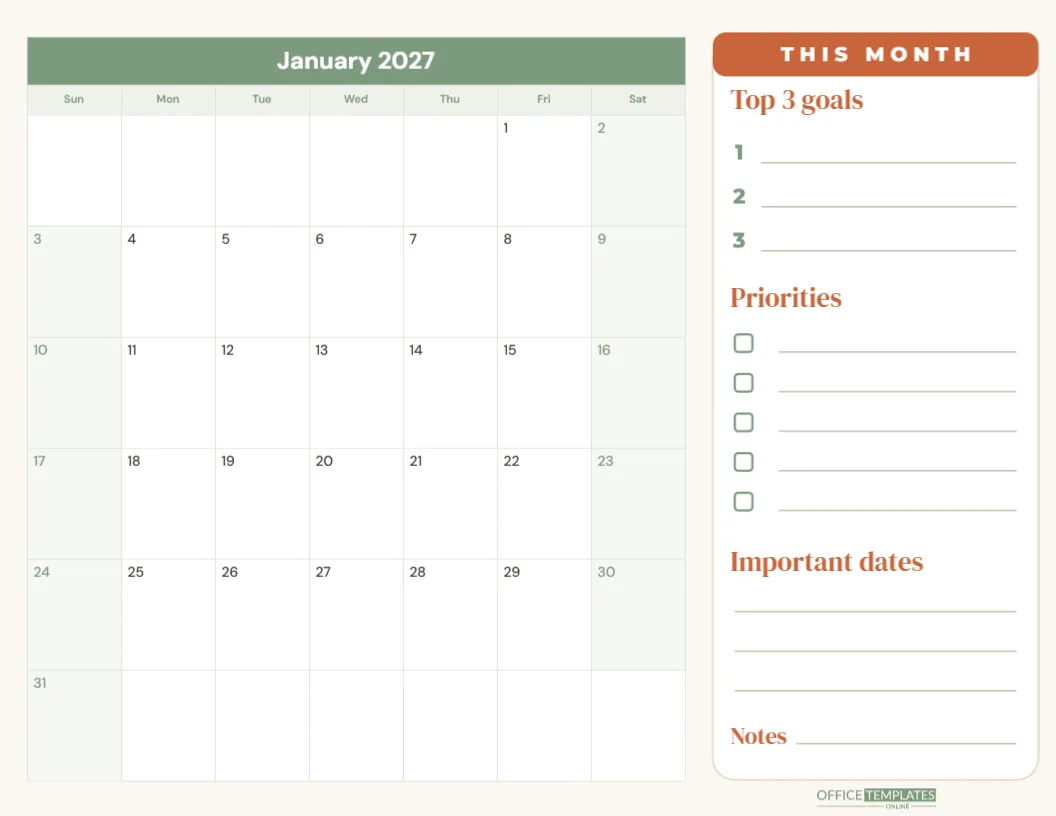
A calendar tells you when things happen. A planner tells you what matters. This Monthly Planner Calendar does both on one page: the month on the left, and a sidebar on the right where you choose your top three goals, list priorities, note important dates, and jot down anything else. It is the page you fill in on the first of the month and glance at every day after.
Your First-of-the-Month Checklist
- Set the month and year in Calendar Options.
- Write birthdays, bills, and appointments into the dates.
- Choose three goals and write them in the sidebar.
- Break the goals into five priorities with checkboxes.
- Copy the two or three most important dates into the sidebar.
- Put the page somewhere you will see it every day.
The Checklist, Step by Step
- Set the month: Open Calendar Options and choose the month and year. The title and dates update automatically.
- Write fixed dates first: Birthdays, bills, appointments, school events, and travel go straight onto the calendar.
- Choose three goals: What would make this month a success? Keep them specific: Finish the kitchen painting; be productive.
- Break goals into priorities: List the five tasks that move those goals forward, and tick them off as you go.
- Copy key dates: Repeat the most important dates in the sidebar so they stand out.
- Review weekly: Every Sunday, look at the page, tick what is done, and adjust.
Answers for New Planners
Can I use the planner for any month?
Yes. Change the month and year in Calendar Options.
Can I add more goal lines?
Yes. Duplicate a numbered line in the sidebar and move it into place.
Is the planner good for students?
Yes. Use goals for grades or projects, and priorities for assignments.
Can I fill it in digitally?
Yes. Type into the sidebar and use the Task Calendar style for dated notes.
What size is it?
US Letter landscape, 11 x 8.5 inches.
The Layout: Calendar Left, Focus Right
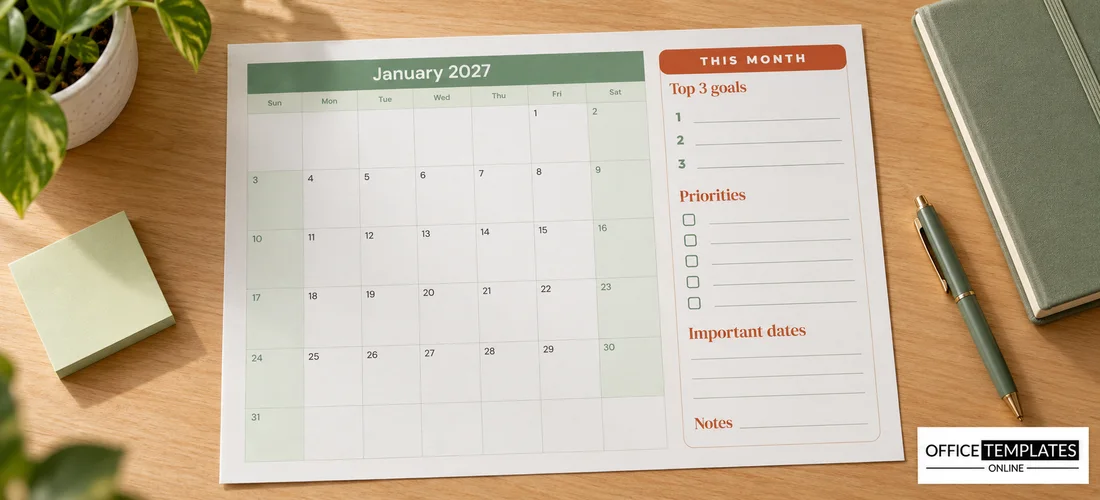
The planner is US Letter landscape, 11 x 8.5 inches, on a warm cream background. The left two-thirds hold the month calendar, with a sage green title row (January 2027), a pale sage weekday row, white date squares, and softly tinted weekends with sage numbers. The squares are tall enough for two or three short entries each.
On the right, a white rounded sidebar starts with a terracotta THIS MONTH tab. Below it come four sections, each with a heading in DM Serif Display: Top 3 goals (three numbered lines), Priorities (five checkboxes with lines), Important dates (three lines), and Notes. The OTO logo sits in sage at the foot of the sidebar.
Examples of Monthly Goals
| Area of life | Example goal | Matching priority |
|---|---|---|
| Health | Walk 10,000 steps on 20 days | Schedule lunchtime walks |
| Money | Save 10% of income | Set up an automatic transfer |
| Home | Declutter the spare room | One box a weekend |
| Work | Launch the new website | Final content by the 15th |
| Learning | Finish an online course | Two lessons a week |
| Relationships | One date night a week | Book a babysitter |
Why Three Goals Is the Right Number
It is tempting to write ten goals at the start of a month. Most of them quietly disappear. Three goals are enough to make real progress and few enough to remember without looking. If you finish all three early, add a bonus goal on the Notes line. If you are struggling, choose one goal to focus on and let the others wait. A month where one important thing gets done is better than a month of ten half-started projects.
Using the Planner at Work
The same page works brilliantly for work planning. Use the calendar for deadlines, meetings and launches, the goals for the month’s key results, and the priorities for the tasks that must happen first. Team leaders sometimes print one for each team member at the start of the month as part of a planning meeting. Freelancers use it to plan client work, invoices, and time off.
Changing the Month and Style
The calendar is the editor’s built-in Calendar object. In Calendar Options, you can change the month and year, set the week to start on Monday, change the colours or font, and even switch to the Task Calendar style to type notes into individual dates. The sidebar is made of ordinary shapes and text, so you can rename sections: swap Important dates for Habits or Notes for Wins this month.
Restyling the Planner
Sage and terracotta give the planner a warm, grounded feel. To change the mood, recolour the calendar in Calendar Options and the sidebar tab and headings to match: navy and gold for a professional look, blush and grey for a softer feel, or black and white for minimalism. Headings use DM Serif Display and the calendar uses DM Sans; both are Google fonts, and any other Google font can be used instead.
Reviewing the Month Before You Start the Next
The most useful moment with a planner is the five minutes at the end of the month. Look at your three goals and mark each one as done, in progress, or dropped. Ask what helped and what got in the way. Carry over unfinished priorities only if they still matter. Then take a fresh page, set the new month in Calendar Options, and begin again. Over a year, these short reviews teach you how much you can realistically achieve, which makes every following month easier to plan.
Pairing the Planner with a Year Calendar
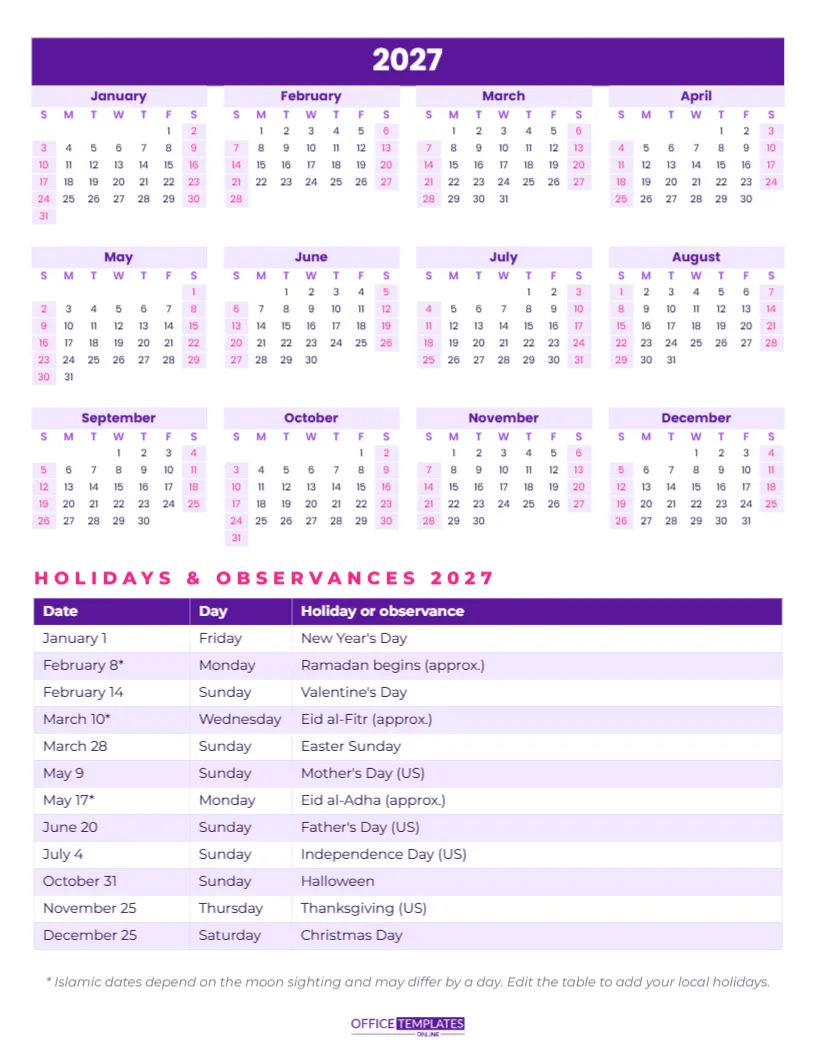
Many people use this monthly page together with a one-page year calendar. The year page shows the big picture, such as holidays, launches, and family events, while the monthly page breaks each month into goals and tasks. At the start of each month, copy the relevant dates from the year page into the monthly calendar, and you never lose track of the long-term plan.
Printing and Organising
Download the PDF and print in landscape on letter paper. Keep each month’s page in a ring binder, so you build a record of the year. At year-end, flip back through the goals to see how far you have come; it is often more than you remember. Printing on 120 gsm paper keeps the pages smooth for writing and sturdy in a binder.
Set the month, write your three goals, and start ticking. A focused month starts with one page.