Warm Yellow Shapes and a Black PRESS Foot for Managers
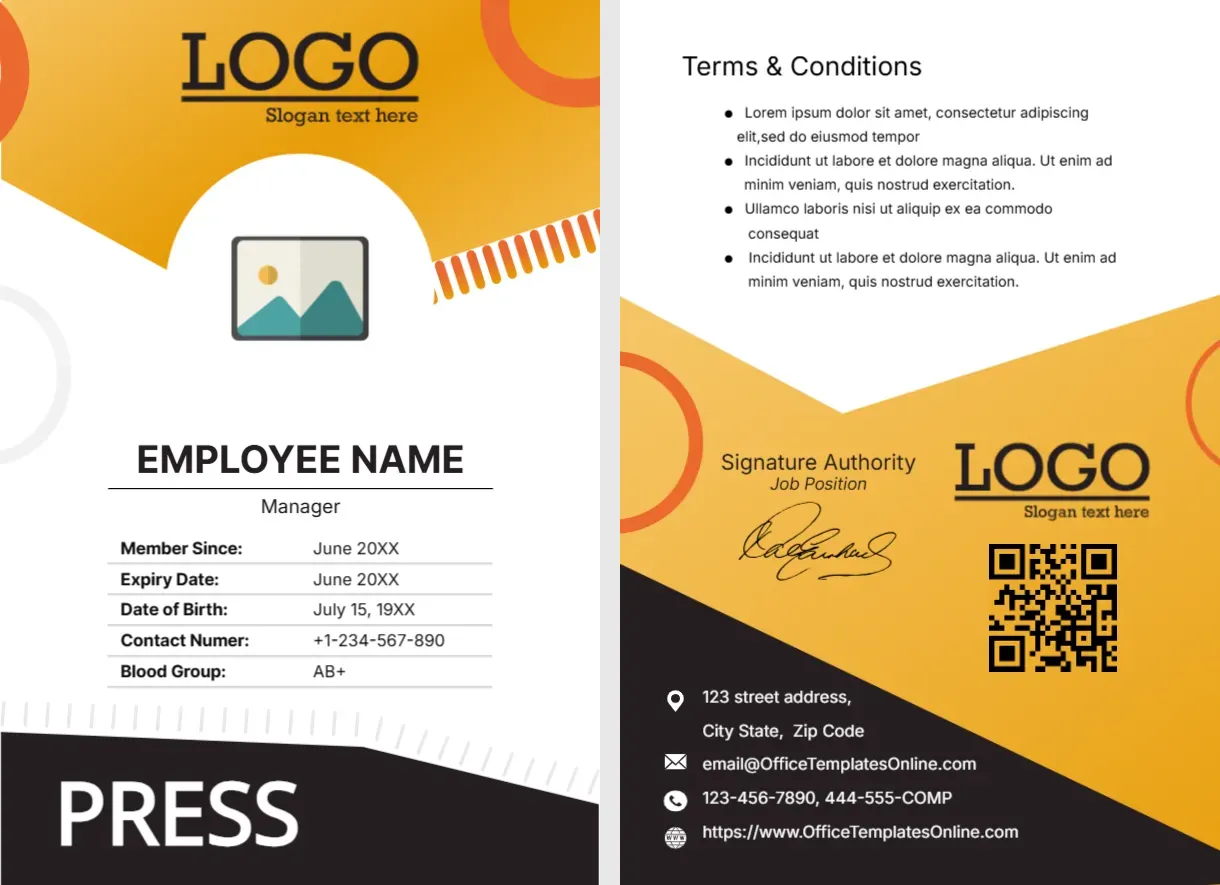
The front of this portrait card has warm yellow and orange shapes at the top, a logo with a slogan line and a photo placeholder in a white arch. EMPLOYEE NAME is set in dark capitals with Manager beneath, over a five row table with bold labels. A black angled foot reads PRESS in white. The back has terms, a signature, a QR code and a yellow and black contact area.
A Newsroom Card Printed on Both Sides
The card is 2.63 x 3.88 inches. The front is clean and the back has the logo, a QR code and contact lines in a bright yellow and black block.
Fields to Edit
Replace EMPLOYEE NAME and Manager, then the dates, the birth date, the phone and the blood group. Correct Contact Numer to Contact Number. The title in the page name reads Manger, so fix it in your own copy, then edit the back terms, signature authority and contacts.
Preparing the Media Card
- Insert the photo.
- Type name and title.
- Correct Contact Numer.
- Fill the table.
- Edit the back block.
A Warm and Confident Palette
Yellow and black is a bold pairing used in warning signs and taxi branding. It stands out in a crowd, so the card is easy to spot at a busy event.
Bold Labels in the Table
The table labels are in bold, with values in lighter type. That makes the table easy to scan, and a reader can find the expiry date at a glance.
Arch Frame for the Photo
The photo sits in a white arch that cuts into the yellow header. The arch softens the top, and it keeps faces away from the edges.
QR Code and Signature on the Back
The back pairs a signature and the logo with a QR code. Link the code to a verification page, and have a manager sign every card by hand.
Managing Media Teams
A press manager may handle accreditations for others. A card that looks different from the standard reporter card helps people spot who to approach for permissions.
Printing Yellow Correctly
Yellow can look pale on some printers. Test a sheet, and boost the colour slightly if the header looks washed out.
Safe Handling of Cards
Treat cards as controlled items. Record numbers, store spare blanks in a locked drawer, and report lost cards at once.
Step by Step Editing of the Media Press Manager Identity Card Yellow Orange Design
- On the media press manager identity card yellow orange design, click the main headline and type your own words, keeping a similar length.
- Retype every name, date and contact line on the media press manager identity card yellow orange design, checking each against a trusted source.
- Search the media press manager identity card yellow orange design for the words Lorem and Company so that no placeholder remains.
- Click any logo or photo on the media press manager identity card yellow orange design, choose Replace Image and resize the new picture to fit.
- Zoom the media press manager identity card yellow orange design to full size and read each line aloud before you save it.
- Keep a clean master of the media press manager identity card yellow orange design without private details, so later versions start tidy.
Have a look at the press manager card. Another option is the news editor identity card. A related layout is the freelance press pass. Find more designs next to the media press manager identity card yellow orange design in ID card templates.