It happens at every family gathering. Someone asks for the Wi-Fi password; you go and find the router, read out a string of letters, and then spell it twice more. This little sign ends the routine. Guests point their phone camera at the code, tap the prompt, and they are online. No typing, no spelling, no hunting behind the television for a sticker.
A Doorway Made for Welcome
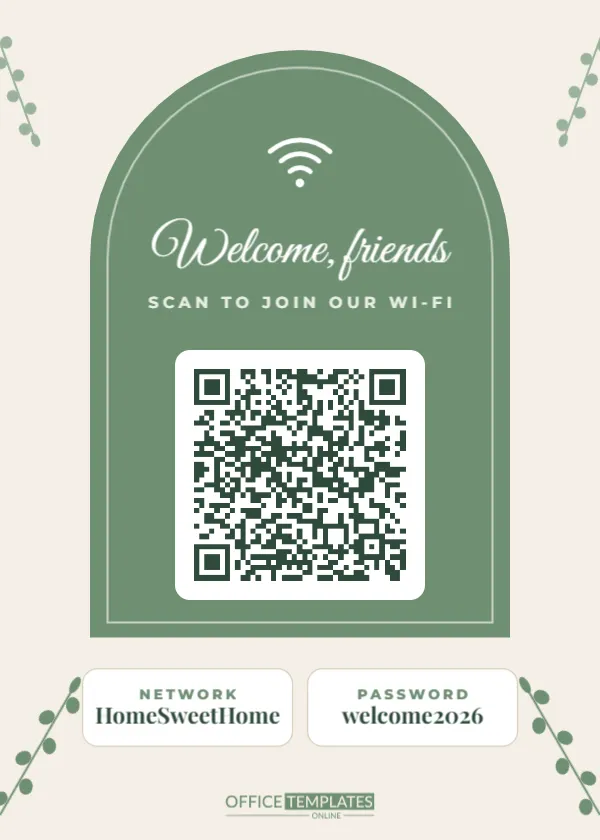
The sign is 5 x 7 inches, the size of a small photo frame. A soft sage arch fills most of the page, like an open doorway, with a fine white line tracing its inner edge. Inside the arch, a white Wi-Fi symbol sits at the top, then Welcome, friends in flowing Great Vibes script and a short line in spaced capitals: Scan to join our Wi-Fi. The QR code rests on a white rounded card in the middle of the arch.
Below the arch, two small white cards show the network name and the password in Playfair Display, for anyone whose phone does not scan or who wants to connect a laptop. Leafy sage branches grow from all four corners, so the sign looks at home on a bookshelf, a hall table, or a guest room nightstand.
Why a Wi-Fi QR Code Beats a Written Password
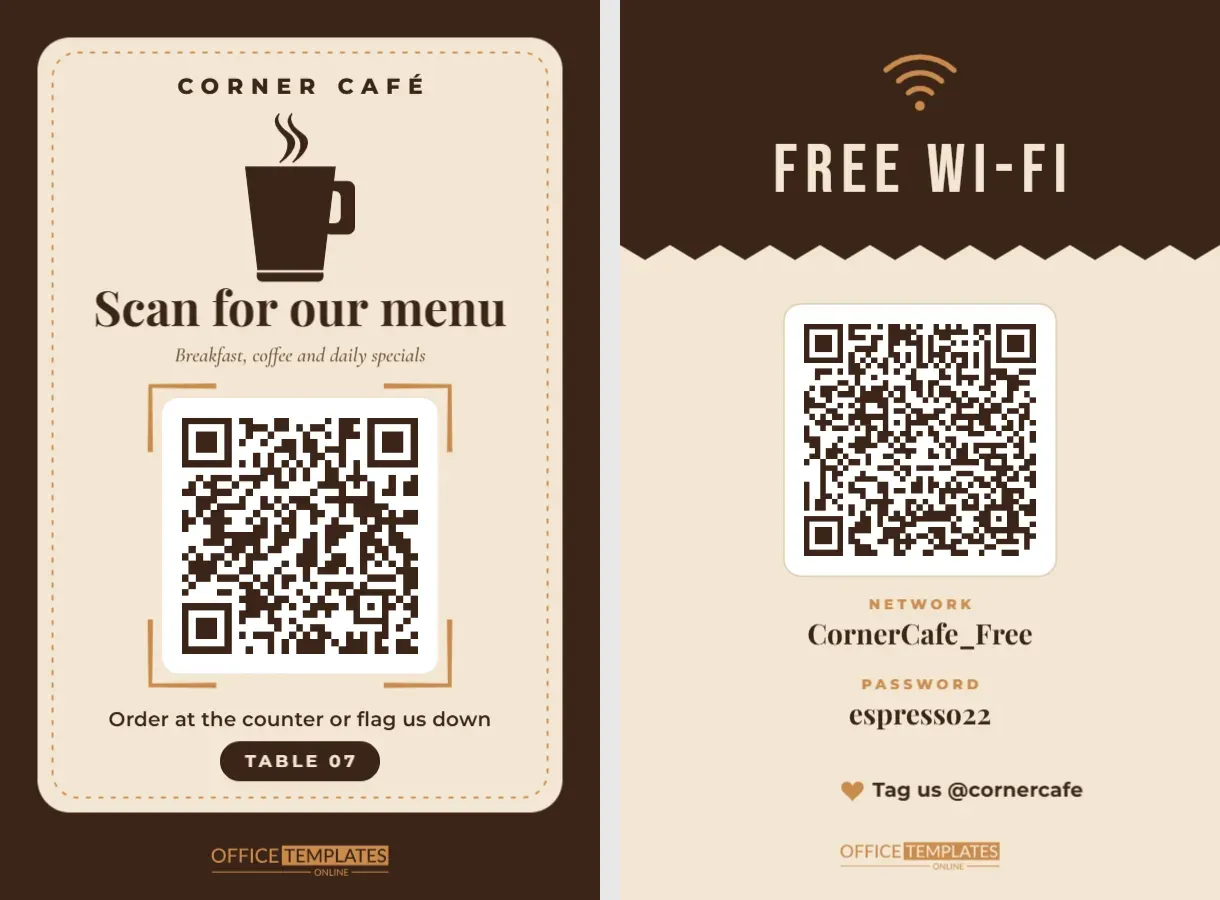
This is not a link to a website. The code on this template holds your actual network details in the standard Wi-Fi format that iPhone and Android cameras understand. When a guest scans it, the phone offers to join the network directly. That has three nice side effects:
- Long, secure passwords stop being a nuisance, so you can use one.
- No one mistypes a zero for the letter O.
- Children and older relatives can connect without help.
Putting Your Own Network Into the Code
Because the template uses the editor’s Wi-Fi QR type, updating it is simple:
- Click the QR code to select it, then click Edit Code in the toolbar.
- The drawer opens on Wi-Fi Network with the sample details already filled in.
- Type your network name (SSID) exactly as it appears on your phone’s Wi-Fi list, including capitals, spaces, and underscores.
- Type your password and leave Encryption on WPA, which covers almost every home router today. Tick Hidden Network only if your network does not appear in the usual list.
- Press Update QR Code, then edit the two printed cards below the arch so they match.
Test it before you frame it: turn off Wi-Fi on your phone, scan the screen, and check that it connects.
Guest Network or Main Network?
Most modern routers can broadcast a separate guest network. It is worth turning on before you print this sign. Guests get the internet, but they cannot see your printers, smart speakers, cameras, or shared folders, and you can change the guest password whenever you like without reconnecting every device in the house.
| Question | Guest network | Main network |
|---|---|---|
| Can visitors see your shared devices? | No, they are kept separate | Yes, unless you change settings |
| Changing the password | Easy, only guests reconnect | Every device in the home reconnects |
| Best for | Parties, holiday stays, babysitters | Household members only |
| Ideal sign location | Guest room, living room, entry hall | Not on display |
Little Touches That Make It Yours
The script greeting is ordinary editable text, so it can say whatever suits your home: Make yourself at home, Welcome to the Parkers, or Hello, lovely guests. The sage arch and branches can be recoloured to match your decor: dusty blue for a coastal home, terracotta for a warm living room or charcoal for a modern flat. If you change the arch colour, keep the QR code on its white card so it stays easy to scan.
Planning a party? Print a second copy and stand it by the drinks table. Hosting relatives for a week? Add a short line under the password cards, such as Router reset button: hallway cupboard, so nobody has to text you while you are out.
When to Change the Password
A printed password is only as private as the room it sits in. Change the guest network password after a large party, when a lodger or au pair moves out, or once or twice a year as a matter of habit. Because the details live in the editor, updating the sign takes a minute: open the design, click Edit Code, type the new password, update the two printed cards, and reprint. Keep the old copy until every family device that needs it has reconnected, then recycle it so the outdated password is not left lying around.
Framing and Placement
Because the sign is exactly 5 x 7 inches, it drops into any standard photo frame, which also protects it from fingers and spilled coffee. Glass is fine; the camera reads through it as long as there is no strong reflection, so angle the frame slightly away from ceiling lights. Good homes for the sign include the guest bedroom nightstand, the entry hall table, the fridge door (use a magnetic frame), and the shelf beside the router itself.
Print on bright white photo paper or matte card stock. The QR code prints at nearly two inches wide, ideal for scanning from a comfortable distance.
Common Wi-Fi Sign Questions
My phone shows the network but will not connect. What went wrong?
The most common cause is a small difference in the network name or password, often a capital letter. Re-open Edit Code and compare each character with your router settings.
Is it safe to display my password?
Anyone who can see the sign can join, just as if you told them. That is why a guest network is the best choice for a sign in a shared space.
Does it work with older phones?
Most phones made in the last several years scan Wi-Fi codes from the camera app. For older devices, the printed name and password are right there underneath.
Edit the network details, print it in a few minutes, and pop it in a frame. Your guests will thank you, and you will never have to spell your password aloud again.