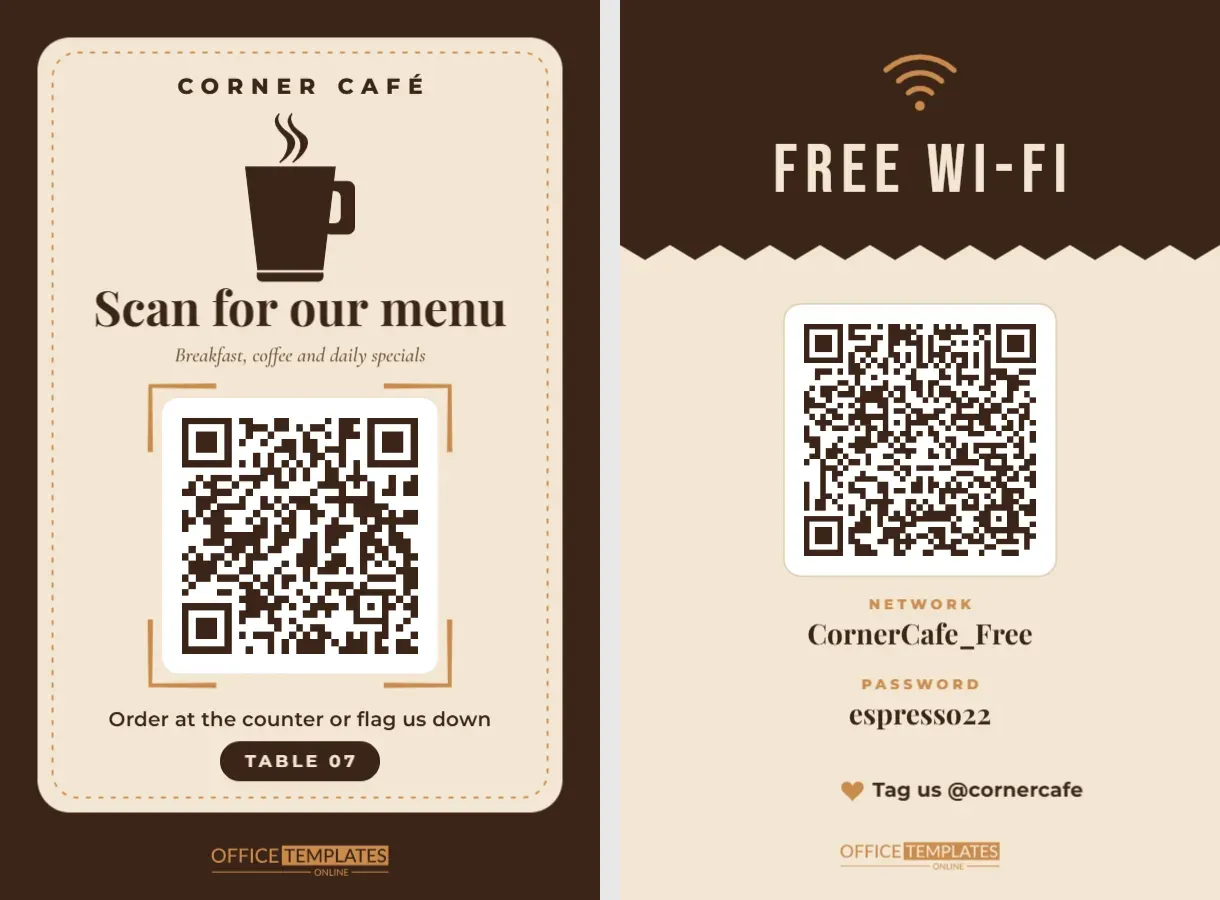
Paper menus get sticky, go out of date, and cost money every time prices change. A QR code menu fixes all three, but only if guests actually notice it. This two-sided table tent puts your menu code exactly where diners look first, in a warm café style, and uses the back for the second thing every guest asks about: free Wi-Fi.
Front and Back at a Glance
Front: a deep coffee-brown page holds a cream card with a dashed caramel border, like a stitched menu cover. Your café name sits at the top in spaced capitals, above a steaming coffee mug illustration. Scan for our menu is set in Playfair Display, with an italic line underneath: breakfast, coffee, and daily specials. The QR code sits on a white plate with caramel scan brackets, followed by a line about ordering and a small Table 07 pill so servers know where food goes.
Back: the colours reverse. A brown header with a zigzag edge carries a Wi-Fi symbol and FREE WI-FI in tall Bebas Neue lettering. Below, a second QR code joins guests to your network, with the network name and password printed in large serif type, and a heart beside Tag us @cornercafe.
Each side is 4 x 6 inches, the standard size for slide-in acrylic table tents.
Two Codes, Two Different Jobs
The front code is a link. It opens whatever web address you give it: a PDF menu, a page on your website, or an online ordering system. The back code is not a link at all; it is a Wi-Fi code that stores your network name and password, so phones can join directly. Both are real editor QR codes, so you update them the same way:
- Select the code and click Edit Code.
- For the menu, paste your menu URL into the URL/Website field.
- For the Wi-Fi, enter your network name and password in the Wi-Fi Network form.
- Press Update QR Code and test both with your phone.
Menu Link Tips From Working Restaurants
A QR menu is only as good as the page it opens. A few habits make the difference between happy diners and frustrated ones.
- Link to a page, not a file you will replace. If your menu link stays the same while you update the content behind it, you never need to reprint the tents.
- Check it on a slow connection. Large image-heavy PDFs can take a long time to open in a basement dining room.
- Make text readable on a phone. A menu designed for A3 paper is painful to pinch and zoom.
- Show prices. Guests notice, and sometimes complain, when the digital menu hides them.
- Keep a few paper menus for guests without phones or with low battery.
Numbering Tents for Table Service
The Table 07 pill turns the tent into a table marker as well as a menu. If guests order online, many ordering systems ask for a table number, and a clear number on the tent avoids mix-ups. Make one copy of the design per table and change the number on each. A quick way to work: finish one tent, duplicate the template, then only edit the pill text.
| Dining style | What the front code should open | Use the table number? |
|---|---|---|
| Counter-service café | Menu page with prices | Optional |
| Table-service restaurant | Menu plus specials page | Yes, for servers |
| Order-at-table venue | Online ordering page | Yes, essential |
| Bar or brewery | Drinks list and food menu | Yes, for runners |
| Food hall stall | Menu with dietary icons | Usually not |
Measuring Whether Guests Use It
If your menu link is a page on your own website, your site statistics will show how many visits come from the tables each day. Some owners create a separate link just for the tents so they can tell table scans apart from website visitors. Watch for patterns: a spike at lunch, a drop when tents are missing from tables, or more visits after you redesign the menu page. Those numbers help you decide whether to keep printed menus, how many to stock, and when to remind staff to put tents back after wiping tables.
Changing the Café’s Look
Everything on both sides is editable. Replace Corner Café with your name, recolour the brown and cream to match your branding, and swap the coffee mug for something closer to your food: the editor’s elements library has plenty of food and drink artwork. If you sell mainly pastries, try a softer palette of blush and cream; for a cocktail bar, black and brass. Keep the QR codes dark on a light plate, whatever palette you choose.
Printing for Table Tents
Print each side on a 4 x 6-inch photo card, or print both on a letter-size card and trim. Slide the front and back into a double-sided acrylic holder so diners see the menu code from one side of the table and the Wi-Fi from the other. Place the tent toward the middle of the table, where every seat can reach it without stretching. If you prefer fold-over paper tents, print both sides on one sheet of card stock and fold along the middle. Laminated tents wipe clean between guests, which matters on busy tables.
Download as a PDF for crisp printing, or as a PNG to post the same artwork on your social pages.
Questions Café Owners Ask
Do I need a separate code for each table?
Only if your ordering system uses table-specific links. Otherwise, one menu code works on every tent; just change the table number.
Can the back show something other than Wi-Fi?
Yes. Change the code to a link and use the back for a loyalty sign-up, today’s specials, or your review page.
What size should the code be?
Keep it as designed, around two inches wide on the front, so guests can scan without picking up the tent.
Add your menu link, your Wi-Fi details, and a table number, then print a set for every table. Your menu stays current, and your guests stay connected.