The hours sign on your door is one of the most-read pieces of text your business owns. Customers check it before they try the handle, delivery drivers check it before they knock, and people walking past at night read it to plan a visit tomorrow. It deserves better than a handwritten note taped to the glass. This Business Hours Sign Template turns your opening hours into a small piece of shopfront design: a striped awning at the top, your shop name in a friendly script, and a neat table with a row for every day of the week.
Designed Like a Little Shopfront
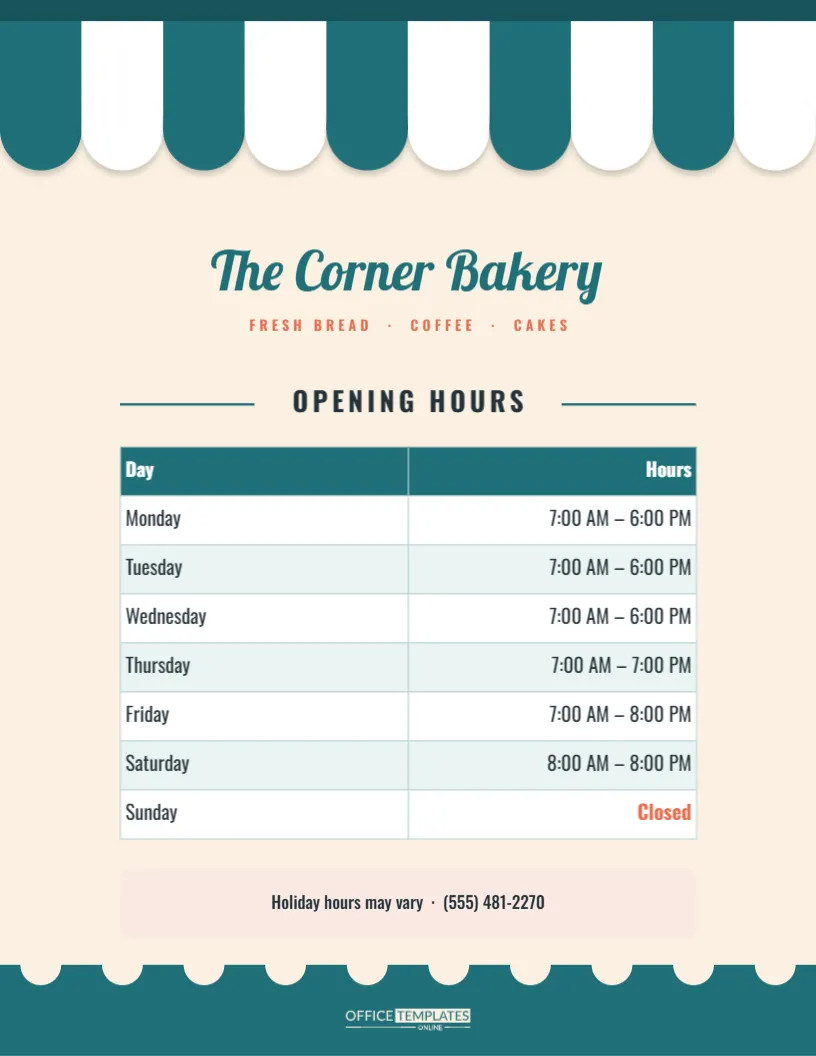
The sign is US Letter, 8.5 x 11 inches, portrait, a size that suits most glass doors and window corners and prints on any home printer. Across the top hangs a striped awning in teal and white with a scalloped edge and a soft shadow under each scallop, just like the canvas awning over a bakery or corner shop. Below it, The Corner Bakery is set in teal Lobster script, with FRESH BREAD · COFFEE · CAKES in small coral capitals underneath.
A heading, OPENING HOURS, sits between two thin teal rules. Then comes the main feature, the hours table: a teal header row reading Day and Hours, and seven rows for Monday to Sunday with pale teal and white alternating backgrounds. Sunday’s hours read Closed in bold coral. Beneath the table, a soft pink note says Holiday hours may vary with the phone number. At the bottom, a teal band with a row of cream scallops mirrors the awning edge, and our logo sits in its centre in cream.
Editing the Hours Table
The hours are held in the editor’s real Table object, so you can change them without fiddling with dozens of separate text boxes.
- Double-click the table to open Edit Table Data.
- Type your hours into each row. Use the same style for every line, such as 9:00 AM – 5:30 PM.
- For a day you are closed, type Closed. The sample style is Sunday in coral; you can colour any other cell the same way from the table’s cell colour options.
- Need a lunch break shown? Write 9-12, 1-5 in that day’s cell, or add a third column called Lunch with the add-column buttons in the same Edit Table Data window.
- Use + Row if you want an extra line, for example, public holidays.
The table header and cell colours, font, and borders can all be restyled from the table’s options, so it can match whatever colours you choose for the awning.
Hours Formats Compared
| Style | Example | Best when |
|---|---|---|
| Every day listed | Monday 7:00 AM – 6:00 PM | Hours change from day to day |
| Grouped days | Mon – Fri 9 – 5 | Weekdays are all the same |
| 24-hour clock | Mon 07:00 – 18:00 | Customers expect it locally |
| By appointment | Sat by appointment | Salons, studios, repair shops |
If your weekdays share the same hours, you can shorten the table by grouping them into one row, which leaves more space and makes the sign even quicker to read.
Personalising the Storefront
- Shop name: click The Corner Bakery and type yours. Lobster is a warm script; switch to a serif or sans-serif font if your brand is more formal.
- Tagline: replace FRESH BREAD · COFFEE · CAKES with three words about what you sell.
- Awning colours: the awning is one group; recolour its stripes to your brand colour, keeping white as the second stripe for contrast.
- Contact line: put your phone number, web address, or social handle in the pink note.
Door and Window Placement
Place the sign at eye level on the outside-facing side of the glass, on the handle side of the door, where people naturally look. If you tape it inside the glass, print it normally; the design is meant to be read from outside through the glass, so it should face out, not be mirrored. Avoid spots where a door closer, bell, or opening sign covers part of it. For shops with two entrances, print one for each.
Making It Last
Printed on ordinary paper, a door sign fades and curls within weeks in direct sun. Print on heavier matte card, then laminate it or slip it into a clear acrylic sign holder. A laminated sign can be cleaned with glass cleaner. When your hours change, reprint rather than crossing out lines, because an edited sign makes customers unsure which hours are real. Keep your hours consistent with your online listings; many customers check both.
Holiday and Temporary Changes
Holidays are when customers most need accurate hours and are most likely to find a wrong sign. A week before a public holiday, print a second sign with the heading changed to HOLIDAY HOURS and a short table covering just the affected days, for example Christmas Eve, Christmas Day and Boxing Day. Tape it beside the regular sign rather than on top, so customers can see both. Do the same for stocktaking days, private events or staff training. Afterwards, take the extra sign down promptly; an old holiday notice left on the door in February makes a shop look neglected.
Matching Your Online Listings
Many customers see your hours online before they ever reach your door, on map apps, review sites, and your own website. When you print a new hours sign, update those listings the same day so every source agrees. A mismatch is one of the most common customer complaints, and it is easily avoided. Some owners keep this editor file and their online profiles open side by side whenever hours change, so nothing gets missed.
Store Hours Sign FAQ
Can I show seasonal hours?
Yes. Change the heading to SUMMER HOURS or WINTER HOURS and print a separate version for each season.
Can I add Open and Closed messages?
The note under the table is a good place for short messages, such as Closed for inventory Monday, March 3.
What if my business is not a bakery?
The awning works for any storefront: cafés, florists, boutiques, pharmacies, barbers, repair shops and offices. Change the name, tagline, and colours.
Open the Door to More Customers
Fill in your hours, add your name and colours, and print a sign that looks as cared-for as your shop. Clear hours, beautifully presented, save your customers wasted trips and bring them back at the right time.