Is This the Right Minutes Template for Your Department?
Before choosing a layout, check how your department actually meets. This quick comparison shows where this page fits.
| If your meeting is mostly | Best choice | Why |
|---|---|---|
| Reports from several teams | This department page | It has a table for updates by team and status colours |
| A single project discussion | A project status template | It focuses on one body of work |
| Votes and formal motions | A board or committee template | It records proposers and votes |
| A quick check-in | A one-page quick form | It takes less time to complete |
If the first row describes you, read on. A department meeting usually pulls together several teams, each with their own priorities, and the page is built around that spread.
Forest Green, Copper and a Small Org Chart
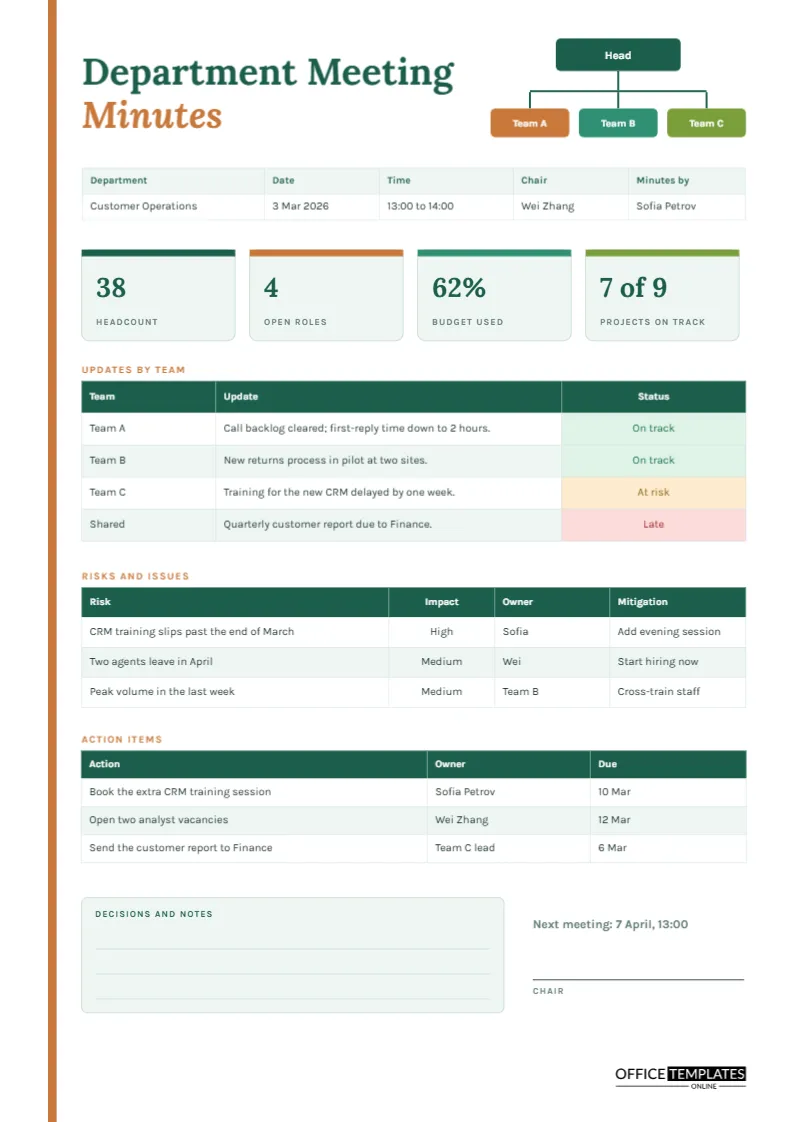
A copper stripe runs down the left edge of the page. The title is set in bold Lora, with the word Minutes on a second line in copper italics. In the top right corner, a tiny organisation chart shows a dark green box labelled Head connected by lines to three boxes for Team A, Team B and Team C, in copper, teal and olive. It acts as a visual shorthand for what the page is about: one department, several teams.
The Details Strip
A five-column strip under the title records the department name, date, time, chair, and minute-taker. The sample is the Customer Operations meeting on 3 March 2026. Because every department has a different name, change the first cell and the rest follow your own routine.
Four KPI Tiles and What to Put in Them
Four rounded tiles sit in a row, each with a coloured top edge, a large number and a small caption. The sample shows headcount 38, open roles 4, budget used 62%, and projects on track 7 of 9. The tiles take about a minute to update and give readers the department’s condition before they read anything else. Choose figures that matter to your own area.
| Department | Tile idea one | Tile idea two | Tile idea three |
|---|---|---|---|
| Customer service | Average reply time | Satisfaction score | Open complaints |
| Finance | Days to close the month | Overdue invoices | Budget variance |
| Marketing | Leads this month | Campaigns live | Spend against plan |
| Warehouse | Orders shipped | Error rate | Stock accuracy |
| People and HR | Open vacancies | Time to hire | Staff turnover |
Updates by Team With Status Colours
The first main table lists each team, a one-line update, and a status cell. Status cells are filled in soft colours: green for On track, amber for At risk, and red for Late. The sample has two green rows, one amber and one red. The colours make the state of the department clear in a second, which saves time in discussion because the meeting can start with the amber and red items.
The Risks and Issues Table
Below the updates sits a four-column table: risk, impact, owner, and mitigation. Each risk gets a simple impact rating of High or Medium, a named owner and a short mitigation. For example, the risk that CRM training slips past March is rated High, owned by Sofia and mitigated by an evening session. Recording risks in the minutes creates a trail that shows the department saw problems early.
Actions and Decisions
Three action rows follow, each with a task, an owner, and a due date. Beside them, a decisions and notes box holds three writing lines, and a small block gives the next meeting date and a signature line for the chair. Keeping decisions in their own box stops them from disappearing among updates.
Customising the Status Colours
The status cells are part of a real Table object. To change a status, double-click the table to open Edit Table Data and retype the word. To recolour the cell, select the table and adjust the cell fill. If your department prefers other labels, such as Complete, Watch, and Blocked, replace the text and keep the colour logic.
Adding a Fourth Team
The org chart in the header has three team boxes. To show four, copy one box, move the group, and extend the connecting line. Add a row to the updates table at the same time. These adjustments take less than five minutes and keep the visual story accurate.
Preparing Before the Meeting
Send the blank page to team leads a day in advance and ask each to fill in their row of the updates table. When the meeting starts, the chair has a nearly complete record, and the group can spend its time on the amber and red items. This one habit often cuts a department meeting by a third.
Reading the Page as a Department Head
If you lead the department, the page is also a quick health check. Start with the four tiles, then run your eye down the status column for amber and red cells, then read the risk table. If those three areas look calm, the rest of the page can be skimmed. If they do not, you know where to spend the meeting. Many heads find that this order of reading replaces a long verbal briefing from each team lead.
Linking Department Minutes to Company Goals
A department rarely works in isolation. To connect the page to wider goals, add a short phrase in the notes box that names the company priority each update supports. For example, the CRM training delay supports the goal of faster customer replies. Over several months, this habit helps leaders see how the department’s work ties to the organisation’s plan, and it gives team leads a reason to report on the things that count.
Filing Department Minutes by Month
The page is A4 portrait. Colour printing shows the status cells at their best, though a black-and-white copy still works because the words are written in each cell. File the minutes by department and month so that a pattern of repeated risks, if there is one, becomes visible over the year.
Department Page Questions Answered
Can I remove the org chart?
Yes. Select its shapes and delete them, then move the title block to the right if you want a balanced header.
Can I use more than four KPI tiles?
You can, but four fits comfortably. A fifth tile would need narrower tiles or a second row.