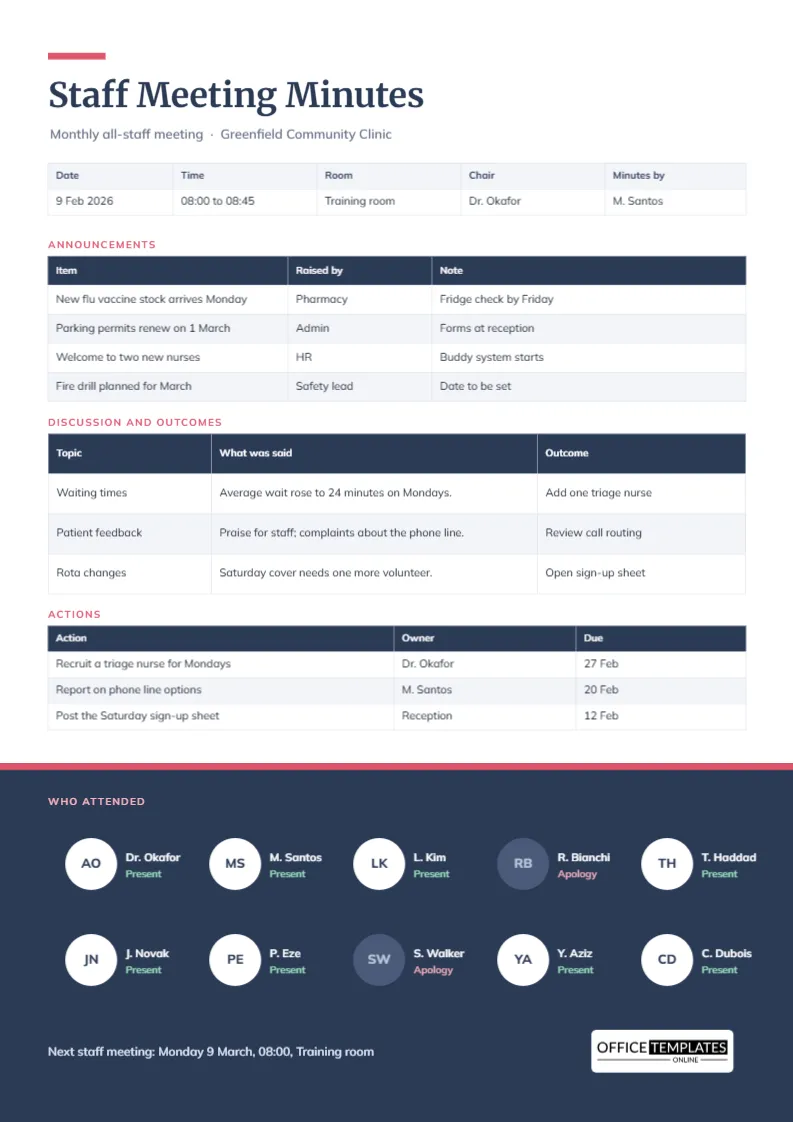
A staff meeting is the one place where everyone in a team hears the same thing at the same time, which makes the record of it more valuable than people expect. When a new rule, a rota change, or a safety reminder is announced, the minutes are what you point to later. This page records the whole meeting in a tidy A4 sheet and finishes with a dark footer panel that shows, face by face, who was in the room.
What Does This Staff Meeting Page Look Like?
The page is mostly white with a short coral bar above a bold Merriweather title. A thin line of details sits below the title, then three clean tables for announcements, discussion, and actions. The bottom third of the page is a deep slate panel topped with a coral line. Ten round avatars carry the initials of staff, and the people who attended appear in white while those who sent apologies appear in a muted tone.
Who Is a Staff Meeting Template Meant For?
It is written for small to medium workplaces where a leader calls everyone together on a regular schedule. The sample is a community clinic, but a shop, a restaurant, a school office, or a warehouse team can use the same layout. If your meetings are mainly one-way announcements, the announcements table is the heart of the page. If they involve discussion, the second table matters more.
How Are the Announcements Recorded?
The first table has three columns: item, raised by, and note. Each row holds one announcement, such as a new vaccine delivery or a change to parking permits. Writing who raised it tells readers whom to ask for details, and the note column holds the single follow-up that matters, for example, fridge check by Friday. Four rows are provided. Add more through Edit Table Data and the Add Row button.
What Goes in the Discussion and Outcomes Table?
Here you note the topic, what was said, and the outcome. The sample covers waiting times, patient feedback, and rota changes. Each entry is a sentence, not a paragraph. The outcome column should always show a result, even if the result is to wait. Phrases like Open sign-up sheet or Review call routing work well because they describe an action rather than an opinion.
Why Show Attendance With Avatars?
A list of names is easy to ignore. Round initials are easy to scan, and they make attendance feel like part of the meeting instead of an admin chore. The page places ten avatars in two rows of five. Each shows initials, a short name, and the word Present or Apology. In the sample, two staff members are muted, and anyone reading the page can see immediately who needs a quick catch-up.
Can I Change the Number of Avatars?
Yes. Each avatar is a circle with a text box for the initials and two small text lines beside it. Delete the ones you do not need, or copy and paste to add more. If your team is larger than ten, you can use the page for the leadership group and attach a signature sheet for everyone else.
How Do I Mark Someone Absent?
Change the circle fill to the muted slate shade used in the sample, change the initials colour to a lighter grey-blue, and retype the label as Apology. Select the circle, open the fill colour control, and pick the matching tone. It takes seconds once you have done it for the first person.
Should Minutes Name Who Said What?
Usually not. Staff minutes work best when they record outcomes and who will act, not who made each comment. Names belong in the raised by column and in the actions table. Leaving personal remarks out also encourages honest discussion, because staff know their words will not be quoted back at them.
How Soon Should Staff Minutes Be Shared?
Within one working day is a good target. Staff who missed the meeting depend on the record, and the details that matter most, such as the date of a fire drill, are easily forgotten. A single page in the usual format can be posted on a notice board, emailed, or pinned in a shared channel in a few seconds.
What About Confidential Matters?
Do not record personal or sensitive matters in all-staff minutes. If a discussion touches on a named individual or a disciplinary issue, note only that a confidential matter was handled and keep the details in a separate private record. That protects both the person and the organisation.
How Do I Adapt the Colours to My Workplace?
The slate panel, the coral accents and the table headers are all editable. Select the footer rectangle to change the panel colour, then select the table to adjust header colours. If you add your own logo, place it in the footer where the sample brand mark sits, on a light background so it stays readable.
Does the Page Fit on One Sheet When Printed?
Yes. It is designed for A4 at 210 by 297 millimetres. If you add rows to the tables, check that the last table still ends above the dark panel, or shorten another section to make room. The dark footer uses a lot of ink, so for draft copies you can set the panel to a light tint before you print.
Can the Same Page Serve a Remote Team?
It can. Replace the room name in the details strip with the call platform and put the date in the usual place. Staff who joined by video can still be marked Present in the footer. For a mixed team, add a second line under each name, such as On site or Remote.
How Do Minutes Help When Staff Disagree About an Announcement?
Disagreements about what was said at a staff meeting are common, especially when a change affects pay, hours, or duties. A dated page that lists each announcement, who raised it, and what was agreed settles the matter quickly and fairly. It also protects managers, because it shows that staff were told. Keep the page as a PDF so nobody can change the wording after the fact.
Where Should the Finished Page Be Stored?
Keep the PDF in a folder for the year, named with the date first so the files sort in order. Download the page as a PDF from the editor when you are finished and file it alongside the staff rota, because the two documents are often needed together.