Cyan Hexagons and Right-Aligned Contacts for Tech Staff
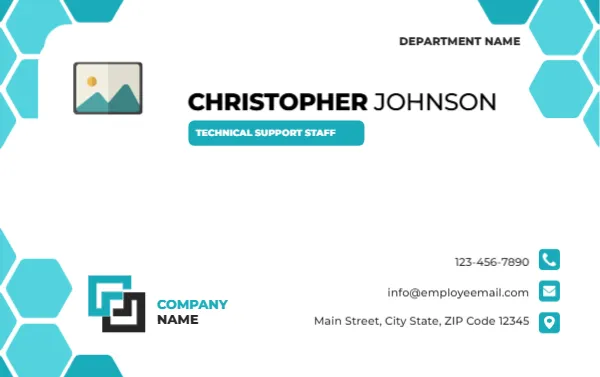
Cyan hexagons fill the top and bottom corners of this white landscape card, giving it a honeycomb look. DEPARTMENT NAME sits at the top right, with a photo placeholder at the top left and CHRISTOPHER JOHNSON beneath in black capitals over a cyan tag reading TECHNICAL SUPPORT STAFF. A company logo sits at the lower left, with three right-aligned contact lines.
A Landscape Card for IT Teams
The card is 3.375 x 2.125 inches. The hexagon pattern suggests networks and molecules, so it suits IT, engineering, and lab teams more than a retail floor.
Name, Tag, Department and Contacts
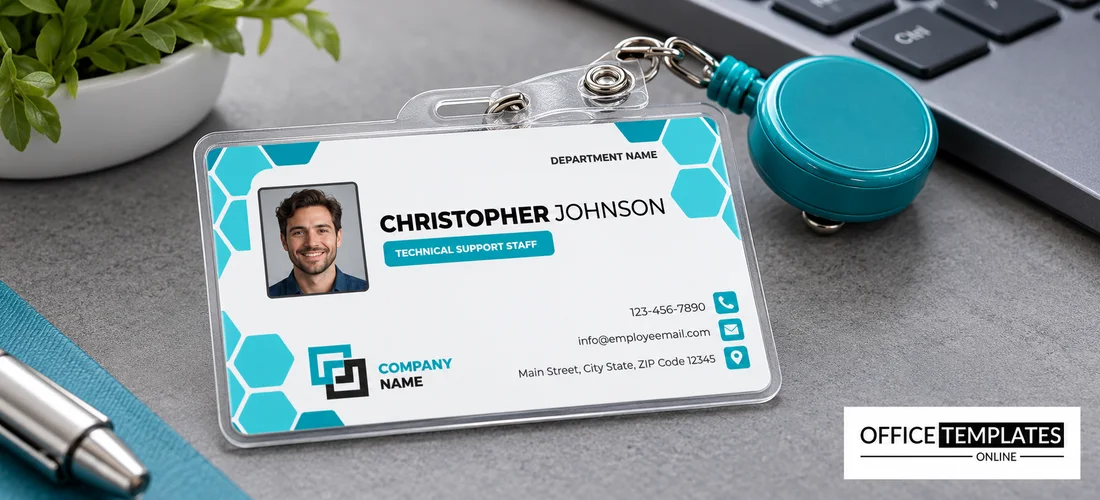
Replace CHRISTOPHER JOHNSON, the tag text, COMPANY NAME, and DEPARTMENT NAME. The contact lines are right-aligned with icons, using sample values, so replace the phone, the email, and the address with real ones.
Preparing the Tech Support Card
- Insert the photo.
- Type the name and tag.
- Set the department.
- Replace the three contacts.
- Swap the logo.
Giving Users a Direct Line
Help desk staff who visit desks or take calls need to be easy to reach. A card with a direct line and a team email saves users from searching the intranet.
Honeycomb Pattern as a Brand Cue
The repeated hexagon creates a distinctive texture. It looks technical without using circuit clip art, and you can recolour it to match your brand.
A Cyan Tag That Reads Clearly
White text on a cyan tag has moderate contrast. If you print in grey scale, darken the tag colour so that the lettering stays readable.
Right-Aligned Contacts
Right alignment puts the icons at the page edge, which is tidy and easy to scan. When you edit the lines, keep the length similar so they do not step unevenly.
Cards for Field and Office Teams
Support teams that visit customers on site can hand out a card on arrival. It tells customers who to call after the engineer has left.
Security and Privacy of Details
Print only business contact details, and avoid personal mobile numbers unless the person agrees. Business contacts can be forwarded when staff changes roles.
Updating After Reorganisations
When teams merge or change name, update the department line in the master file and reprint. Out-of-date department names confuse customers and slow response.
Step-by-Step Editing of the Technical Support Name Card Hexagon Cyan Design
- On the technical support name card hexagon cyan design, click the main headline and type your own words, keeping a similar length.
- Retype every name, date, and contact line on the technical support name card hexagon cyan design, checking each against a trusted source.
- Search the technical support name card hexagon cyan design for the words Lorem and Company so that no placeholder remains.
- Click any logo or photo on the technical support name card hexagon cyan design, choose Replace Image, and resize the new picture to fit.
- Zoom the technical support name card hexagon cyan design to full size and read each line aloud before you save it.
- Keep a clean master of the technical support name card hexagon cyan design without private details, so later versions start tidy.
Similar designs include the maintenance staff name card. Compare it with the customer service name card. You may also like the staff name card. The rest of the series around the technical support name card hexagon cyan design is in the staff and employee ID card templates.