A Booklet Cover With a Built In Contact Column
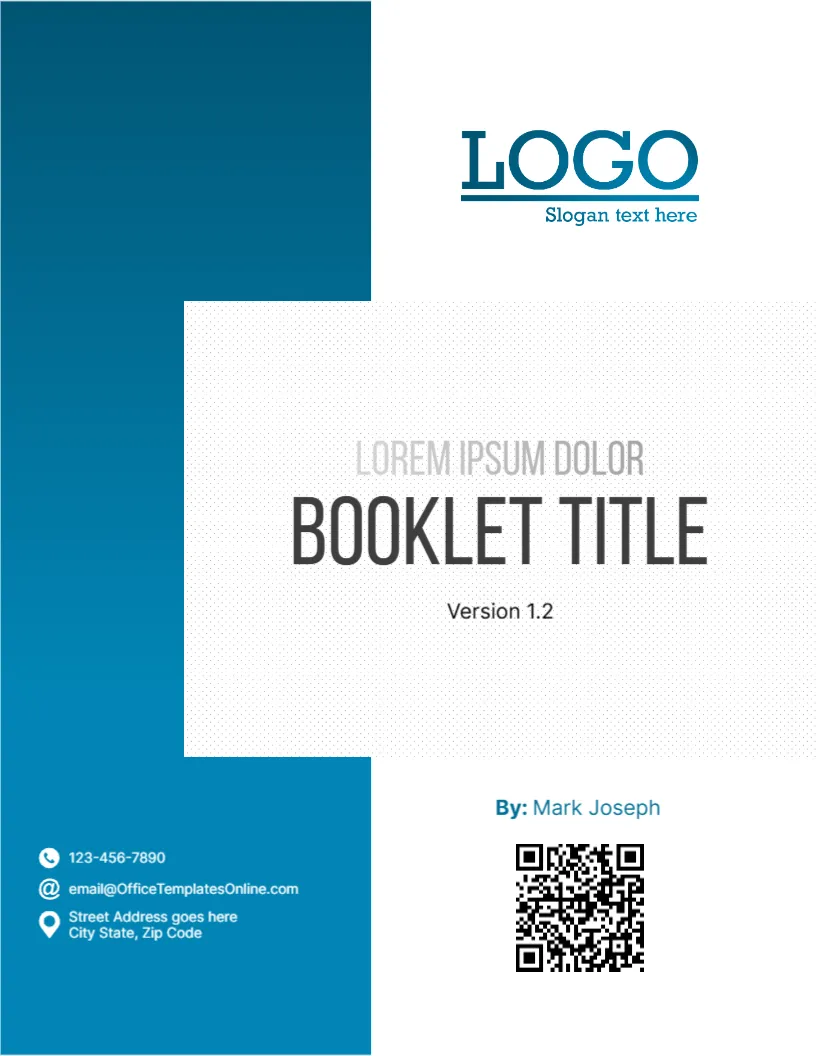
A booklet needs to tell a reader what it is, which edition they hold and how to reach you. This cover does it with a tall teal blue block down the left side that carries the phone, email and address, and a white panel on the right with the title, a version number, an author and a QR code. It suits user guides, handouts, information leaflets and small company booklets.
Tall Gradient Block and White Title Panel
The page is 8.5 x 11 inches, portrait, one page. The block at the left runs from the top edge to the bottom and fades from dark teal to bright blue. The white panel with a very faint dotted pattern overlaps it. The LOGO with Slogan text here sits at the upper right. Contact icons for a phone, an at sign and a map pin sit in white at the lower left of the block.
Title, Version, Author and QR Code
LOREM IPSUM DOLOR in light grey sits above BOOKLET TITLE in heavy charcoal condensed capitals, with Version 1.2 beneath. At the lower right, By: Mark Joseph names the author, and a QR code stands beneath it. Replace the QR with a code that leads to a digital copy or a support page, and test it before you print.
What to Put in the Small Grey Line
- The name of the product or programme.
- The department that issues the booklet.
- The year or the audience.
- A short descriptor, such as User Guide.
- Leave it blank if not needed.
Why a Version Number Helps
Version 1.2 tells the reader which edition they hold. When you revise the booklet, change the number and keep a short change list on page two. Readers will not confuse old and new copies.
Linking the Booklet QR Code to a Digital Copy
A code on the cover can point to a PDF, a video or a help desk page. Print it at least two centimetres square and keep white space around it. Phones scan it more easily when the contrast is high.
Printing the Blue Block Booklet Cover
The block bleeds off the page at the top and the bottom. Ask a print shop for full bleed, or accept a white margin when printing at home. Use 170 gsm for the cover.
Step by Step Editing of the Blue Booklet Qr Design
- On the blue booklet qr design, click the main headline and type your own words, keeping a similar length.
- Retype every name, date and contact line on the blue booklet qr design, checking each against a trusted source.
- Search the blue booklet qr design for the words Lorem and Company so that no placeholder remains.
- Click any logo or photo on the blue booklet qr design, choose Replace Image and resize the new picture to fit.
- Zoom the blue booklet qr design to full size and read each line aloud before you save it.
- Keep a clean master of the blue booklet qr design without private details, so later versions start tidy.
Similar designs include the reference guide booklet cover. Compare it with the course guide cover page. You may also like the employee handbook cover page. Every blue booklet qr style alternative sits in cover pages.