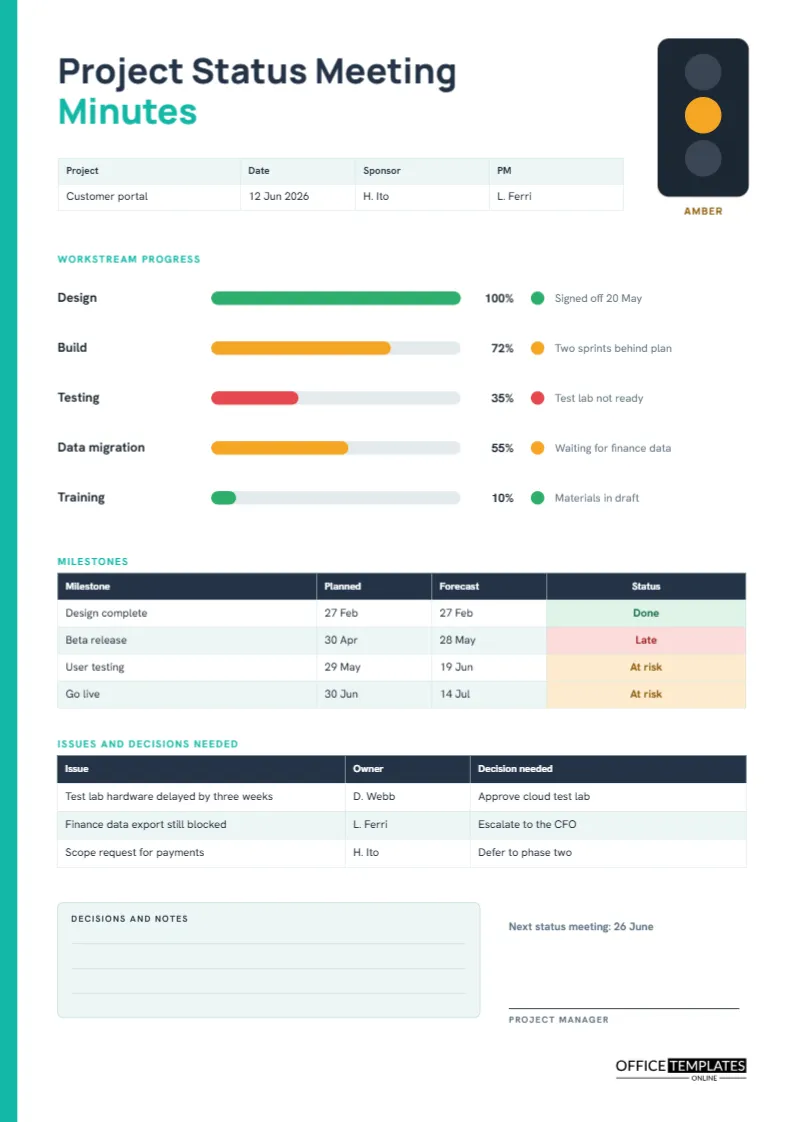
A status meeting has one job: to tell the people who care whether the project is healthy, and to say what must be done if it is not. Most status minutes bury that answer under a page of updates. This template does the opposite. A tall traffic light in the top corner gives the verdict first, drawn progress bars show how far each workstream has come, and the lower half of the page is reserved for the issues that need someone to decide something.
The Traffic Light Comes First
In the top right corner stands a dark rounded signal with three circles. In the sample, the middle one glows amber, and the word AMBER sits beneath it in a warm brown. A reader who looks only at that corner already knows the project is at risk, not failing. Change the lit circle by recolouring the grey and amber discs: make the top one red or the bottom one green. Agree with your sponsor what each colour means before the first meeting, because arguments about colours are far more useful than arguments about adjectives.
What Red, Amber and Green Should Mean on a Project
| Colour | Typical meaning | What the minutes should record |
|---|---|---|
| Green | On plan for scope, time and budget | Nothing beyond the milestone dates |
| Amber | A risk exists that the team can still fix | The risk, the owner, and the date of the fix |
| Red | A target will be missed without outside help | The decision needed and who must make it |
Teal Edge, Manrope Headings and a Clean Header
A slim teal bar runs down the left edge of the page, and the title Project Status Meeting is set in heavy Manrope with the word Minutes in teal on the second line. A five-column strip below records the project name, date, sponsor, and project manager. The design stays quiet so that the traffic light and the colour-coded cells carry the message.
Reading the Workstream Progress Bars
Five horizontal bars show percentage complete for design, build, testing, data migration and training. Each has a coloured status dot and a short comment on the right. The sample shows design at 100 percent, build at 72, testing at 35, migration at 55 and training at 10. A percentage is only useful when everyone measures the same way, so state in your project plan whether the figure means effort spent or work finished. The bars are drawn from editable shapes: to change a value, select the coloured bar and drag its edge, or retype the percentage label beside it.
Milestones With Planned and Forecast Dates
The milestone table compares the date in the plan with the date you now expect. In the sample, the beta release slips from 30 April to 28 May and is marked Late, while user testing and go live are At risk. Keeping both dates visible stops teams from quietly rewriting history. When a forecast moves, change the forecast cell and leave the planned cell alone.
Issues and Decisions Needed, Not Just Issues
The last table is titled Issues and decisions needed on purpose. An issue on its own invites sympathy; an issue paired with a decision invites action. The sample lists delayed test hardware with the decision Approve cloud test lab, a blocked finance export with the decision Escalate to the CFO, and a scope request with the decision Defer to phase two. If a row has no decision attached, ask whether it belongs in the minutes at all.
A Fifteen Minute Running Order
- Name the colour and say why, in one minute.
- Walk the bars from top to bottom, spending time only on amber and red.
- Confirm any change to milestone forecasts.
- Take the decisions needed, one at a time, and record who made each.
- Agree the next meeting date.
Notes and Decisions Box
A tinted box with three ruled lines sits at the lower left for anything that does not fit a table, such as a change to the reporting format. Beside it, the next status meeting date and a signature line for the project manager close the page.
Customising the Status Page for Your Project
Retype the workstream names to match your plan. If you have six, copy one row of bar, percentage and dot, move the group down and shift the milestone table. The tables are real Table objects, so use Edit Table Data to retype cells and the Add Row button to extend them. Status cells hold typed text and a fill colour, so change both when a state changes.
Sharing the Page With a Sponsor
Sponsors read status pages fast. Send the filled page as a PDF within an hour of the meeting, with a one-line message naming the colour and the decision you need from them. Keep the same layout every time, so the sponsor learns where to look and notices movement at a glance.
Keeping the History of Project Health
Save each page with the date first in the file name. Over a quarter, a stack of pages shows the trend in the colour, which is a more honest record than any end-of-project summary. If the light has been amber for six weeks, the minutes will say so.
What to Do When the Light Turns Red
A red status is not a failure of the report. It is the report working. When the light changes, use the notes box to write three things: what changed, what the options are, and who will decide by when. Resist the urge to soften the colour. Sponsors usually forgive a project that says red early, and they rarely forgive one that stays green until the week of the deadline. A short, plain account of the cause, kept free of blame, gives everyone the information they need to help.
Reporting Across Several Projects
If you manage a portfolio, print one page per project and stack them. Because every page uses the same layout, a director can read the traffic lights across a dozen projects in two minutes and then dive into the ones that need attention. Keep the workstream names consistent between projects where you can, so the bars can be compared, and keep the colour definitions identical across the whole portfolio.
Printing the Status Page on A4
The page is A4 portrait. The traffic light and bars are solid shapes and print clearly in colour. In black and white, the status words in the table and the percentages beside each bar keep the meaning intact.
Questions From Project Managers
Can I add a budget bar?
Yes. Copy a progress row, retitle it Budget used, and set the length to the percentage spent.
Is the traffic light necessary?
No. Delete it and widen the header strip if your sponsor prefers a plain page.
How often should I use this page?
Weekly or fortnightly suits most projects, as long as the frequency stays the same.