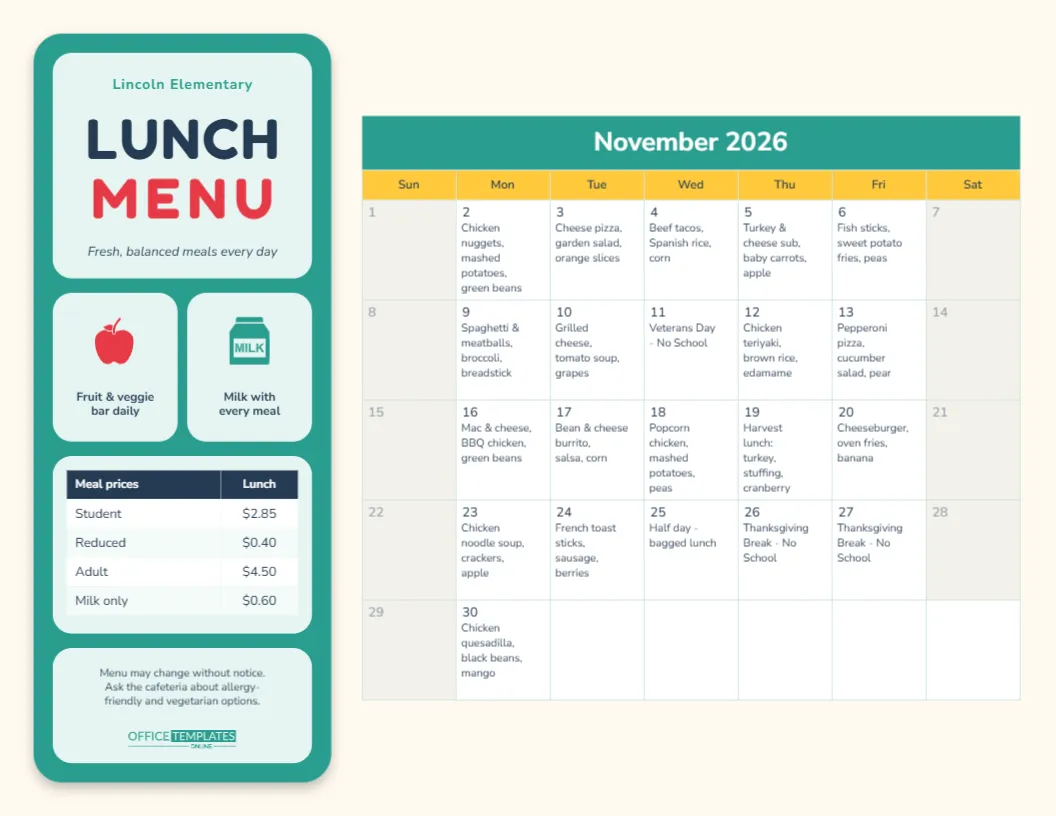
Every month, school nutrition teams, cafeteria managers, and PTA volunteers face the same chore: a fresh lunch calendar for parents. The dates shift, holidays move, and the menu rotates, and redrawing a grid by hand is where most errors creep in. This School Lunch Menu Template avoids that by building the month on the editor’s own calendar. You type each day’s lunch as a note on its date, and when next month comes, you switch the month and the grid rebuilds with the correct dates.
Inside the Template
This is a landscape US Letter page, 11 x 8.5 inches, the format most schools already use for newsletters and backpack flyers. The page has two parts.
The lunch-tray sidebar
On the left is a tall teal panel with rounded corners, shaped like a cafeteria lunch tray. It is divided into pale mint compartments, just like the real thing:
- The top compartment holds the school name (Lincoln Elementary), the words LUNCH in navy and MENU in apple red (both in the rounded Fredoka One typeface children find easy to read), and the tagline Fresh, balanced meals every day.
- Two small square compartments come next: a red apple icon with Fruit & veggie bar daily and a teal milk carton with Milk with every meal.
- A larger compartment holds a small table of meal prices (Student, Reduced, Adult, and Milk only).
- The bottom compartment has a short notice about menu changes and allergy-friendly options, plus our logo in teal.
The monthly calendar
The right side is a monthly calendar with a teal title bar showing the month and year, a sunny yellow row of day names, and white date squares. Weekends are shaded soft grey. Each school day holds its lunch in small text under the date, for example, Beef tacos, Spanish rice, corn, or Grilled cheese, tomato soup, grapes. The sample month is November 2026, with Veterans Day and the Thanksgiving break already marked as no-school days.
How the Calendar Stays Correct
This is the part that saves time. The month is not a drawn grid. It is the editor’s built-in Calendar object in its Task Calendar style, which stores each note against a real date. That means:
- When you change the month or year in Calendar Options, the grid redraws with the right number of days and the right starting weekday. You never have to count squares.
- Notes are stored by date, so a lunch typed for November 12 stays with November 12. It won’t slide into the wrong square if the layout changes.
- You can switch the week to start on Monday, change the colours, or pick a different font in the same panel.
Step by Step: Loading a New Month’s Menu
- Select the calendar and open Calendar Options.
- Choose the new month and year. The grid rebuilds immediately with the new dates. Months that need a sixth row still fit, because the space around the calendar is kept free for them.
- Click Manage Notes/Tasks. A list of every date in the month opens, each with a text box.
- Type each day’s lunch in its box. Keep it to the main dish plus two sides; about 40 characters fits neatly in a square. For holidays, type No School or Early release, bagged lunch.
- Press Apply and check the preview. If a day’s text is cut short, shorten the wording (Chkn nuggets is fine on a lunch menu).
- Update the sidebar if prices or notices have changed, then download and print.
Tip: keep last year’s menus in your account. Many districts rotate a four- or five-week cycle, so a previous month is often a good starting point.
A Monthly Changeover Checklist
Use this quick list every time you publish a new month. It catches the mistakes parents notice most:
| Check | Why it matters |
|---|---|
| Holidays and teacher workdays marked No School | Parents plan packed lunches and childcare around them |
| Early-release days noted | Some schools serve a bagged lunch or no lunch at all |
| Special theme days added | Harvest lunch, Taco Tuesday, or Pizza Friday build excitement |
| Prices in the sidebar match the current school year | Families budget meal accounts from the printed menu |
| Allergy note present | Directs families to the cafeteria for ingredient questions |
| School name correct on every copy | Districts often share one design across several campuses |
Personalizing It for Your School
- School colours: the tray is a simple shape, so recolour it in one click, for example maroon for the Mustangs or royal blue for the Eagles. The calendar’s title bar, day-name row, and weekend shading can be changed in Calendar Options to match.
- Icons: the apple and milk carton are editable vectors. Recolour them from their colour swatches or delete them for a text-only compartment.
- Meal prices: double-click the price table to edit it, add a row for breakfast, or type Free for all students if your district offers universal free meals.
- Breakfast menu: use Add Page to add a second page and give it its own calendar for breakfast, so one PDF covers both meals.
Getting It Home to Families
Print the menu on regular letter paper for backpack mail and the cafeteria door, and on bright white card stock for the office noticeboard. Because the page is landscape, set your printer to landscape orientation before you press print. For newsletters, school websites, and parent apps, download the menu as a PNG or JPG. It stays sharp on phones, which is where most parents will look at it. Keep a PDF version for the district office and for printing large copies at a copy shop, where the page can be enlarged to 11 x 17 inches for a hallway poster.
Common Questions From Cafeteria Staff
Can I show a month that starts on Monday?
Yes. Set the week start to Monday in Calendar Options. Weekend columns move to the right edge, which many schools prefer.
What if a day needs more text than fits?
The note text is fixed at a small, readable size, so the answer is shorter wording. List the entrée and two sides, and put details such as vegetarian alternatives in the sidebar note.
Is there a version for a whole year?
The Calendar Options panel also has a Full Year style, handy for a school-year overview of holidays. It doesn’t hold daily notes, so keep this monthly version for the lunch menu itself.
Can several schools share it?
Absolutely. Make one copy per campus, change the school name in the tray, and keep the menus the same or adjust them per school.
Serve Up This Month’s Menu
Set the month, type in the lunches, check the prices, and your school lunch menu is ready for backpacks, bulletin boards, and the school website. Next month takes a few minutes: change the month, update the notes, and print.