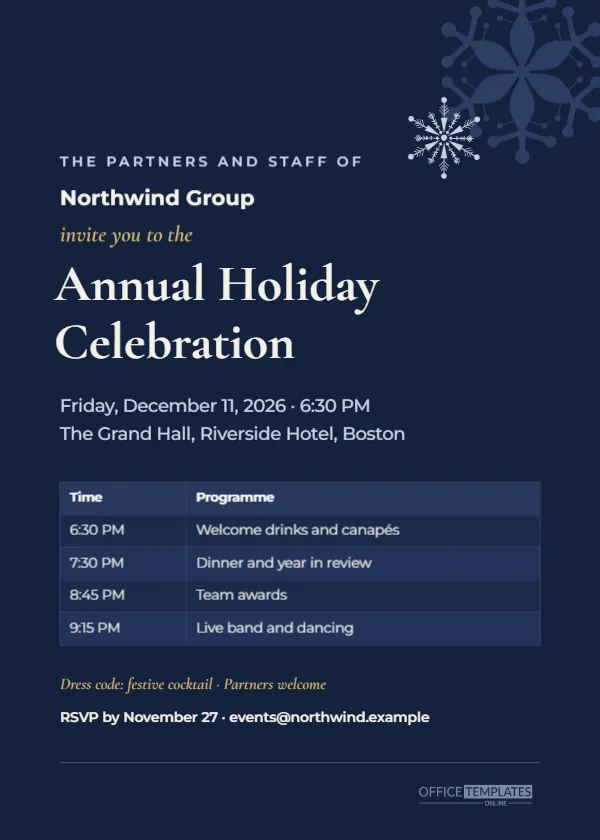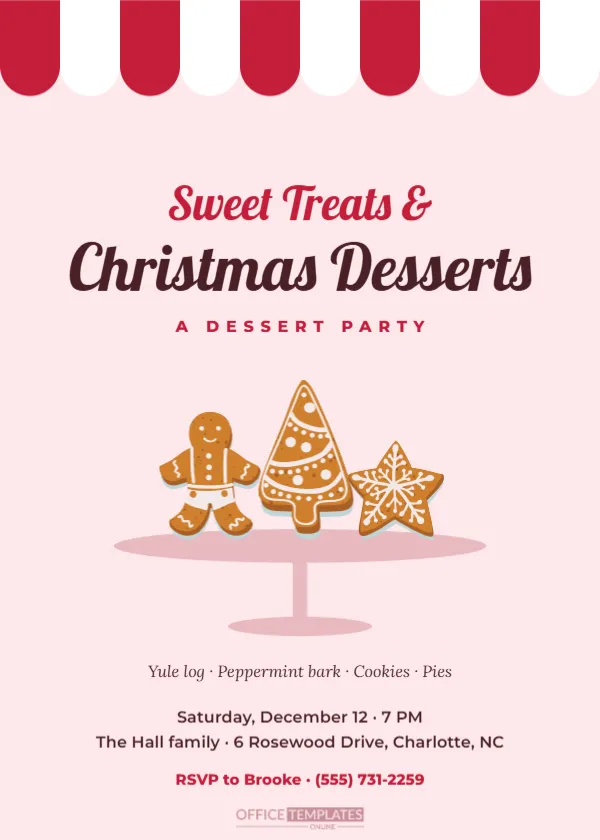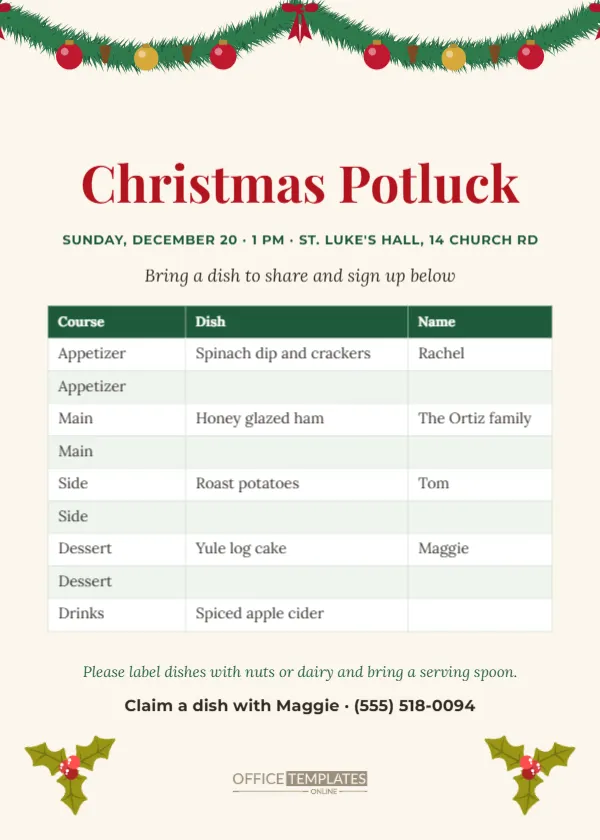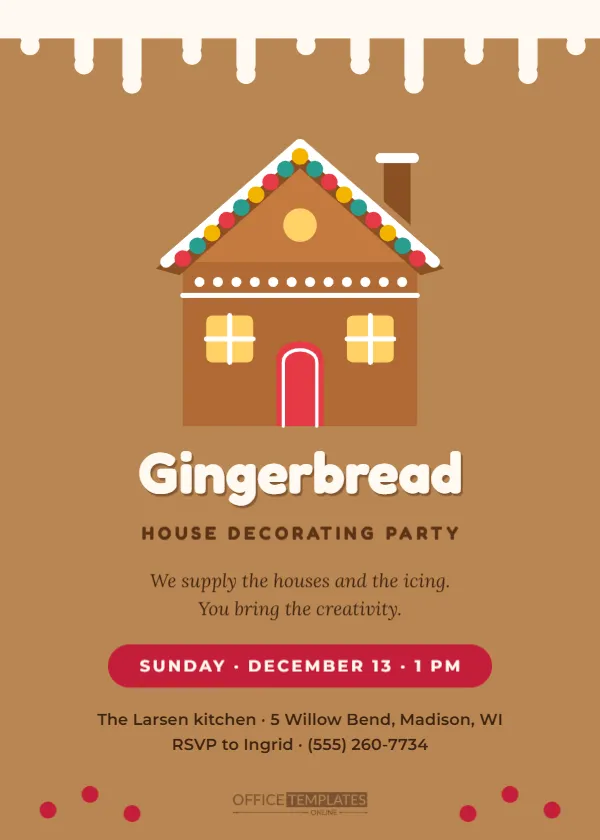
Most Christmas party invitations now travel by phone. People open them in a group chat, glance at the date, and want to reply in a tap. A card designed for paper often looks small and fiddly on a phone screen. This invitation is made the other way round: a full-screen, 1080 x 1920 pixel vertical design that fills a phone display exactly, with large type, a bold date and a gold RSVP button. It works in WhatsApp, iMessage, Instagram and Facebook stories, and email.
Designed for the Screen First
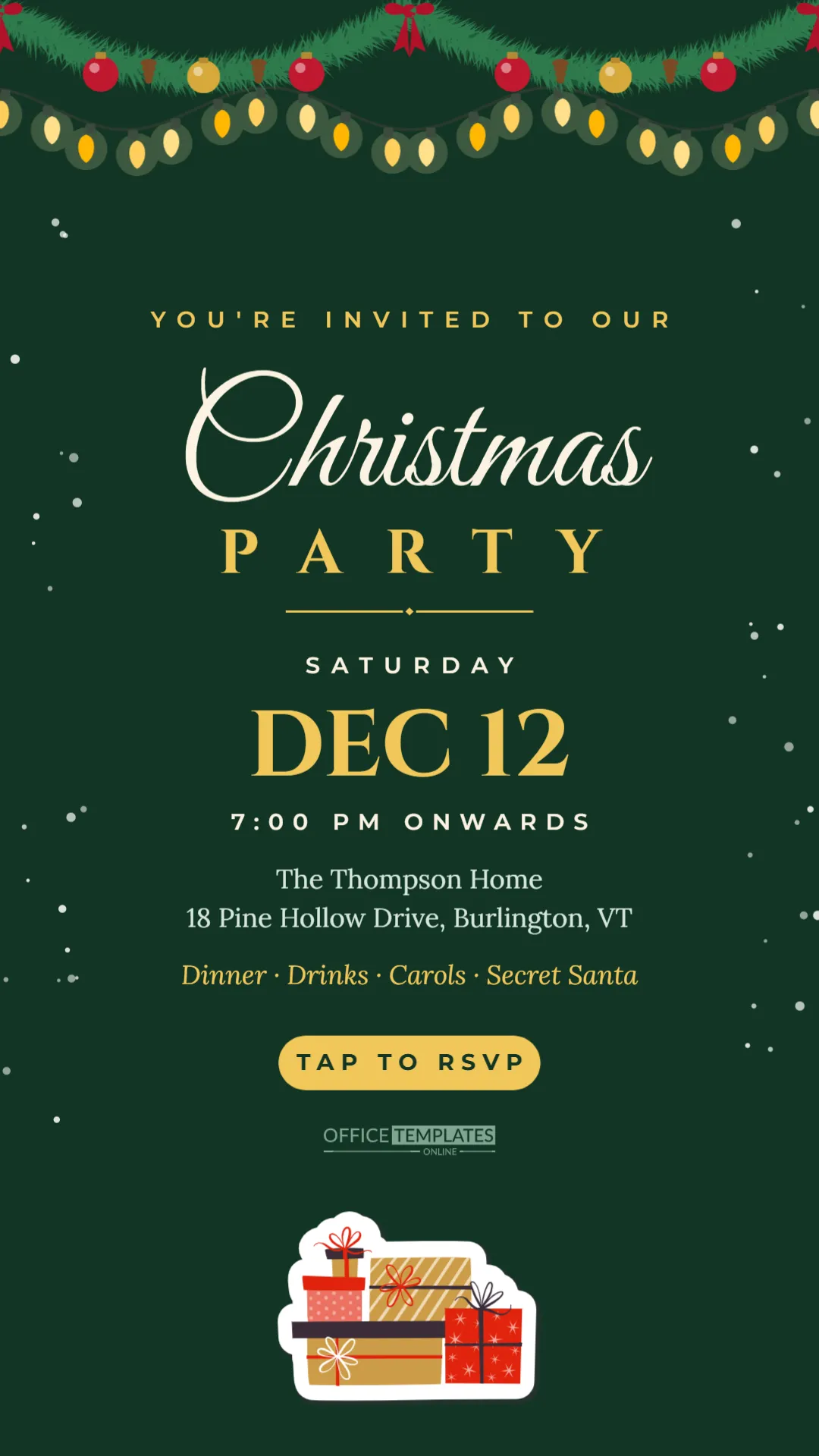
Everything is sized for reading on a phone without zooming. The date reads DEC 12 in huge gold Cinzel lettering, with SATURDAY above and 7:00 PM ONWARDS below. The title, Christmas in flowing cream Great Vibes script and PARTY in spaced gold capitals, fills the width. The address and the plan for the evening are set in large Lora. Nothing on the design is smaller than ordinary phone text.
The design is deep evergreen from top to bottom. A full fir garland with red and gold baubles, pine cones, and red bows hangs across the very top, with a string of warm white lights draped beneath it. Gentle snow falls down the left and right edges, kept clear of the text in the middle. A rounded gold button reads TAP TO RSVP, and a stack of wrapped presents sits at the foot of the screen.
About the RSVP Button
An image sent in a chat cannot be tapped like a link, so the button is a visual cue that tells guests a reply is expected. Pair it with a link or a clear instruction in your message. If you use an online form, paste the form link in the same message as the image. If replies come by text, change the button to REPLY TO RSVP or RSVP BY DEC 4. On Instagram and Facebook stories, you can place a link sticker on top of the button when you post.
Safe Zones for Stories
Story apps cover the top and bottom of the screen with their own interface: profile names and progress bars at the top, reply bars and buttons at the bottom. This design keeps decoration in those areas and the important information in the middle. The garland and lights at the top and the gifts at the bottom can be partly hidden without losing anything. If you add text, keep it between the title and the button so it stays visible on every app.
Editing on a Computer
Open the template in the editor. Because the canvas is tall, it may appear narrow on your screen; zoom in to edit comfortably. Change the date numerals, the weekday line, and the time line, then the host and address, and the italic line describing the evening. The sample reads Dinner, Drinks, Carols, Secret Santa; replace it with your own plan. Download a PNG for the sharpest result, or a JPG for a smaller file.
Christmas Party Messages for Group Chats
The image does the decorating; your message does the inviting. A few ready-to-use messages: for family, Christmas at ours this year, dinner from 7 on Saturday the 12th, let us know how many of you are coming. For friends, you are officially invited to our Christmas party; bring a Secret Santa gift under $25. For neighbours, we would love you to join us for a festive drink on the 12th, just a few doors down. For colleagues, Hosting a small Christmas get-together at home; partners welcome, reply by the 4th.
Sending to Many People
Group chats are convenient, but a personal message gets more replies. Send the image individually to close friends and older relatives, with their name in the message. Use broadcast lists or groups for wider circles. Follow up with anyone who has not replied a week before the party, and send a reminder with the address and a map pin the day before.
Recolouring the Evergreen Screen
Click the green background to change it to burgundy, navy, or midnight blue; the gold and cream text works with all of them. The garland and lights are editable vectors; select them to change bauble and bulb colours. The snow is grouped along each side, so you can recolour it or delete it. The gift stack at the bottom can be swapped for another illustration from the Elements panel.
Using It as a Status or Story
The same image works as a WhatsApp status or an Instagram or Facebook story. Statuses and stories disappear after 24 hours, so post on the day you send invitations and again as a reminder a few days before the party. Use the same file for both, and it will fit perfectly.
Printing a Digital Invitation
Although it is made for screens, you can print it. Download a PDF and print on letter or A4 paper; it will appear as a tall strip, which is fine for a fridge reminder. For a proper printed card, the 5 x 7 inch invitations in this collection are a better choice.
Digital Invitation Questions
Will messaging apps blur the image?
Some apps compress images slightly. The large text in this design stays readable. Sending as a document keeps full quality.
Can I add a QR code?
Yes. Use the editor’s QR tool to add a code above the gifts, linking to a map or form. Keep it large enough to scan from another screen.
Can I add a photo?
Add a circle from the Elements panel above the title and use Replace Image to place a family photo.
Following Up Before the Party
Digital invitations are easy to send and easy to forget. A gentle follow-up a week before the party helps you confirm numbers, and a short reminder on the morning of the party, with the address as a map link, reduces late arrivals and lost guests. Keep reminders short and friendly.
Invite Everyone in a Few Taps
Type your date and address, download the image, and send it. Your Christmas party will be on every phone in the family before the first bauble goes on the tree.