Black Friday weekend is the busiest few days of the year for many retailers, and it only goes smoothly with the right people in the right places. A clear shift schedule tells everyone when they work, what they do, and who is in charge. This landscape template uses a real editable table to lay out your team from Thanksgiving to Cyber Monday, with the all-important Friday column highlighted.
Shift Schedule Layout
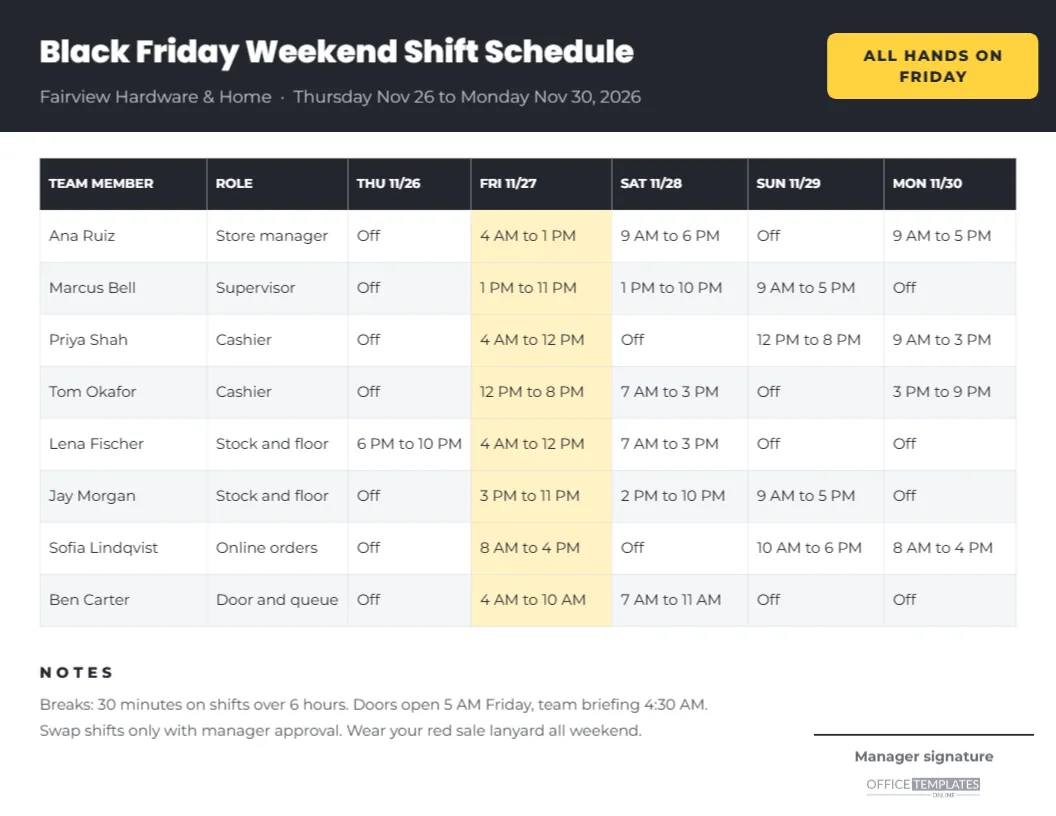
The schedule is 11 x 8.5 inches, landscape, so it fits a staff room noticeboard or a clipboard. A charcoal header carries the title, Black Friday Weekend Shift Schedule, with the store name and the dates beneath. A yellow tag on the right reads ALL HANDS ON FRIDAY.
Below is a table with seven columns: TEAM MEMBER, ROLE, and one column for each day from Thursday, November 26 to Monday, November 30. Eight team members are listed with their roles, such as store manager, supervisor, cashier, stock and floor, online orders, and door and queue. Each cell shows a shift time or Off, and the Friday column is shaded pale yellow so it stands out. Under the table, a notes section covers breaks, the briefing time, shift swaps, and a dress reminder, with a manager signature line and the logo mark on the right.
Sample Black Friday Shifts
The sample schedule shows a typical approach for a medium-sized store:
- a small team on Thursday evening to set up displays;
- everyone working on Friday, with early starts at 4 AM for doorbusters and late shifts until 11 PM;
- a strong team on Saturday for Small Business Saturday traffic;
- a lighter team on Sunday;
- online order staff on Cyber Monday.
Editing the Rota Table
The table is a real table object. Double-click it, or choose Edit Table Data, to change names, roles, and shift times. Add rows for more team members with the add row option, and shade any cell to highlight it, for example, a training shift or a manager on duty. Keep shift times in a consistent format, such as 4 AM to 12 PM, so they are easy to read at a glance.
Planning Black Friday Staffing
- Look at last year. Check sales and footfall by hour to see when you were busiest.
- Cover the peaks. Put your most experienced people on the opening hours.
- Assign clear roles. Tills, floor, stockroom, queue, online orders and returns.
- Plan breaks. Tired staff make mistakes; schedule breaks before the rush.
- Have backups. Know who can step in if someone is ill.
Roles to Consider
| Role | Responsibilities |
|---|---|
| Door and queue | Manage the line, hand out tickets, count people in |
| Cashier | Process sales, apply discounts and limits |
| Stock and floor | Restock shelves, update signs, help customers |
| Online orders | Pick, pack, and answer online questions |
| Supervisor | Solve problems, approve refunds and overrides |
| Store manager | Overall lead, briefings, safety decisions |
Fair Scheduling and Rest
Long holiday weekends are demanding. Spread the early and late shifts fairly, avoid scheduling the same person for a late close followed by an early open, and respect local rules on rest periods, breaks, and overtime. Many teams appreciate a choice of preferred shifts, especially around Thanksgiving. Posting the schedule early gives everyone time to plan family commitments.
The Team Briefing
The notes in the sample include a 4:30 AM team briefing before the doors open. A short briefing helps everyone know the doorbusters, the limits, where the queue starts, and who to call for help. Repeat a short briefing at the start of each shift so later staff are just as informed.
Sharing the Schedule
Print the schedule for the staff room and send a PNG or PDF to the team chat. When changes happen, update the file and send a new version with the date in the name, so everyone knows which version is current. The manager signature line on the printed copy shows the schedule is approved.
Changing the Schedule Colours
The charcoal header and yellow highlight are calm and professional. Change the header to your brand colour and the highlight to any light shade. Keep the table text dark on light backgrounds for readability on a busy noticeboard.
Using the Schedule for Other Busy Periods
The same layout works for Christmas week, end-of-year stocktakes, store openings or summer sale weekends. Change the title and the day columns, and keep the roles and notes sections.
Schedules for Restaurants and Services
Restaurants, salons and service businesses also see Black Friday rushes. Change the roles to kitchen, front of house and host, or stylist and reception, and the template fits any team.
Planning the Thursday Setup Shift
Many stores need a small team the evening before Black Friday, or late on Thanksgiving if they are closed for the day, to set up displays, hang signs, tag prices and prepare the queue area. Schedule experienced staff who know the layout, give them a checklist, and plan a clear finish time. A well-prepared store makes the opening shift much calmer.
Food, Drinks and Morale
Long shifts during a busy weekend are tiring. Small gestures help: breakfast for the early team, snacks in the staff room, water at the tills and a thank you from the manager at the end of each day. Adding a line about these to the notes section shows the team that their effort is noticed.
Contact List for the Weekend
Add a small contact list on the back of the printed schedule or in the team chat: the manager on duty each day, the supervisor’s phone number, and who to call if someone is sick. Quick contact information saves time when plans change at 5 AM.
Staff Schedule Questions
Can I add more days?
Add columns in the table editor and reduce the column widths slightly.
Can I show hours worked per person?
Add a TOTAL HOURS column at the end and calculate each person’s total.
Can I print it in Letter portrait?
Change the page orientation and narrow the columns, or move notes to a second page.
A good schedule is the quiet hero of Black Friday. Fill in your team, highlight the big day, and give everyone the clarity they need for a successful weekend.