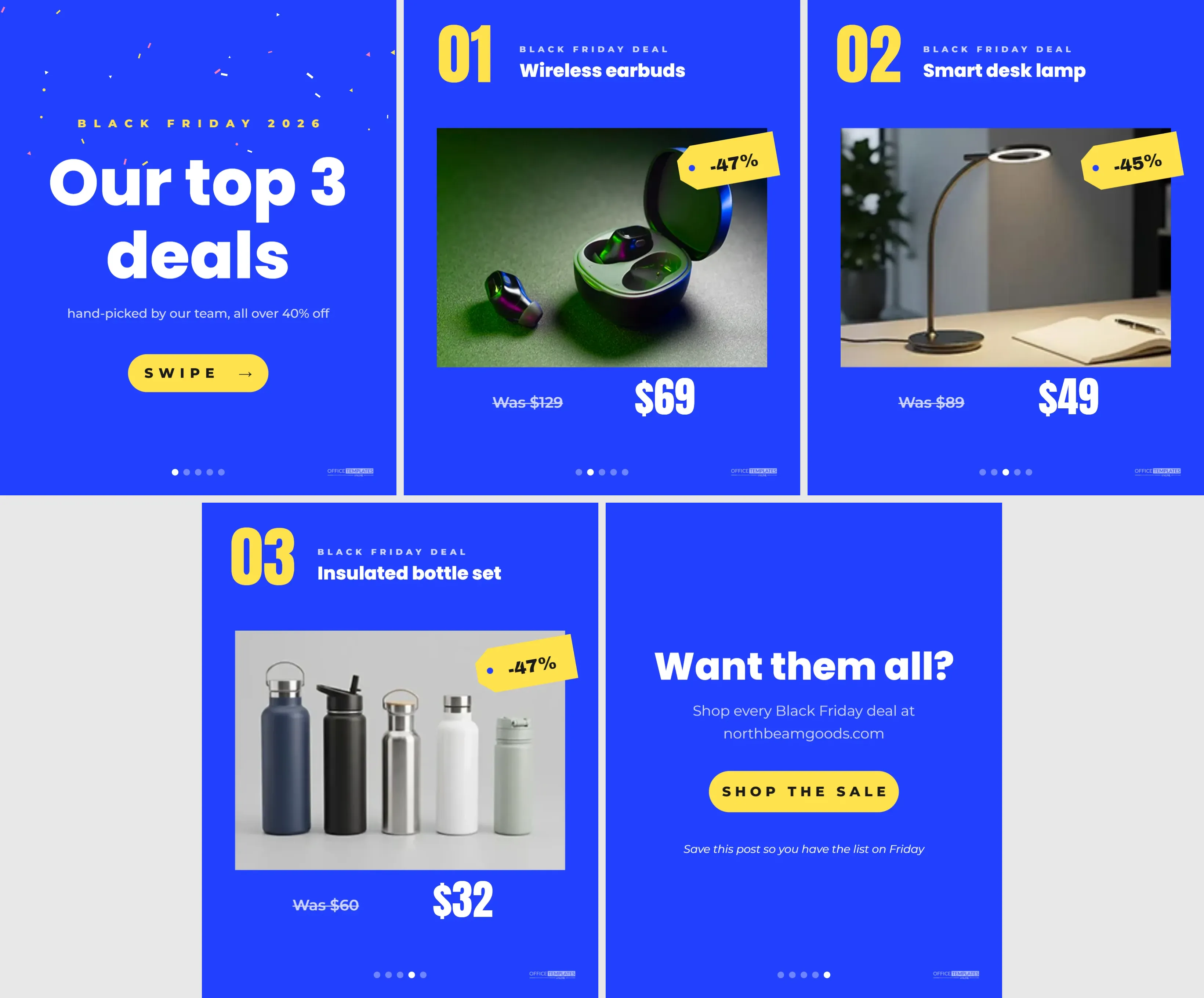
Carousel posts let followers swipe through several images in one post, and they are ideal for showing a short list of Black Friday deals. Each swipe reveals a new product, which keeps people engaged longer than a single image. This template gives you a complete five-slide carousel: a cover, three deal slides, and a closing slide, all in a bright, consistent cobalt blue design.
The Five Carousel Slides
Every slide is 1080 x 1350 pixels, the portrait size that takes the most space in the Instagram feed. All slides share a cobalt blue background, white and yellow type, and a row of five small dots at the bottom showing which slide the viewer is on, plus a small logo mark.
- Cover: yellow, white, and pink confetti across the top, BLACK FRIDAY 2026 in yellow, Our top 3 deals in large white Poppins ExtraBold, a short subtitle, and a yellow SWIPE pill with an arrow.
- Deal 01: a big yellow 01, the label BLACK FRIDAY DEAL, the product name, a large rounded photo, a yellow swing tag with the discount and the was and now prices.
- Deal 02: the same layout for the second product.
- Deal 03: the same layout for the third product.
- Closing slide:Want them all? The shop address, a SHOP THE SALE pill, and a prompt to save the post.
Sample Deals in the Carousel
| Slide | Product | Was | Now | Tag |
|---|---|---|---|---|
| 2 | Wireless earbuds | $129 | $69 | -47% |
| 3 | Smart desk lamp | $89 | $49 | -45% |
| 4 | Insulated bottle set | $60 | $32 | -47% |
The percentage tags are calculated from the prices; update them if you change the prices.
Editing the Carousel Pages
The template has five pages in the editor. Use the page navigation to move between them. On each deal page, click the photo to replace it, then edit the number, product name, prices, and tag. On the cover, change the headline if you show a different number of deals. On the closing slide, replace the website with your own.
Downloading and Posting a Carousel
Download all pages as PNG images. Most editors download multi-page designs as separate numbered files or a ZIP folder. In Instagram, start a new post, tap the multiple images icon, and select the five images in order. Check the order before posting: cover first, closing slide last.
Why the Progress Dots Help
The five dots at the bottom of each slide show viewers where they are in the carousel. Instagram shows its own dots too, but repeating them in the design reinforces the idea that there is more to see. On each slide, a different dot is filled.
Writing the Carousel Caption
Start the caption with a hook that matches the cover: Our top 3 Black Friday deals, all over 40% off. List the three products with their prices in short lines, then add the deadline and a call to action: Shop via the link in bio. Save this post for Friday. A clear caption helps people who read before they swipe.
Choosing Deals for the Carousel
- Pick products with genuinely strong discounts.
- Choose items with broad appeal, such as gifts, gadgets, and home favourites.
- Mix price points so there is an affordable option.
- Use products with good photos; the photo is the biggest part of each slide.
Adding More Deals
Instagram carousels can hold many images. To add a fourth or fifth deal, duplicate a deal page in the editor and update it. Change the cover headline to match the number of deals, and add more dots to the progress row. Keep the total manageable; five to seven slides is a comfortable length for most viewers.
Changing the Carousel Colours
Cobalt blue and yellow are bright and modern. To match your brand, change the page colour on every slide and the accent colour on numbers, tags and pills. Keep the same colours across all slides so the carousel feels like one piece. If you change the background to a light colour, switch the text to dark.
Using the Carousel on Other Platforms
LinkedIn supports document carousels, where you upload a PDF and viewers click through pages; download the design as a PDF for that. Facebook and Threads support multiple images in one post. TikTok photo mode also lets you post a series of images with music.
Saving and Sharing
The closing slide asks viewers to save the post. Saves tell Instagram that people find your content useful, and saved posts are easy for followers to find again on Black Friday morning. Encourage sharing too, such as Send this to the friend who needs new earbuds.
Carousel Accessibility
Instagram lets you add alt text to each image in a carousel. Describe each slide briefly, such as Deal 1: wireless earbuds, was $129, now $69. This helps screen reader users follow the list.
Measuring Carousel Results
Check your post insights for reach, saves, and link clicks. If many people saw the cover but few swiped, try a more intriguing cover headline next time. If saves are high, consider reposting the carousel as a story on Black Friday morning.
Turning the Carousel Into Stories
Each slide can become a story frame. Resize copies of the slides to 1080 x 1920 pixels and add space above and below. Post them in order on Black Friday, with a link sticker on the closing frame.
Reusing the Carousel Format
The same layout works for gift guides, new arrivals, best sellers and customer favourites throughout the year. Change BLACK FRIDAY DEAL to the theme and swap the products. A recognisable carousel style becomes part of your brand.
Deals Carousel Questions
Can I use square slides instead?
Yes. Change the canvas to 1080 x 1080 pixels on all pages and reduce the photo height.
Can I tag products in a carousel?
If your shop is connected to Instagram Shopping, you can tag products on each slide.
Do all slides need the same layout?
Keeping the deal slides consistent looks professional, but the cover and closing slides can differ, as they do here.
A good carousel turns a list of deals into a little story. Add your three best offers, download the slides, and give your followers a reason to swipe this Black Friday.